Even though I mostly use an iPhone, I keep a Samsung phone as a backup device. Yesterday, I picked it up just to update a few apps, and when I opened the Galaxy Store, I was hit with this frustrating message: “Something went wrong while connecting to the Galaxy Store. Try again later,” along with some random error code. I figured it might be a temporary issue and tried again after a few minutes, but still no luck. The error kept popping up every time I opened the Galaxy Store app.
Since I wasn’t sure what was causing it, I started looking into possible fixes. After spending a good few hours testing different methods and digging through settings, I finally managed to get it working again. If you’re facing this same issue on your Samsung device, I’ve got you covered with a step-by-step fix.
By the way, if you’re not familiar, the Galaxy Store is Samsung’s official app store, offering exclusive apps, themes, fonts, and essential updates for Samsung devices. It’s where you’ll find system apps and certain tools you can’t get from the Play Store.
How to Fix “Something went wrong while connecting to the Galaxy Store”
Check for Server Issues or Maintenance
Often, this error pops up when Samsung’s servers are experiencing issues or undergoing maintenance. In some cases, Samsung does send out emails or notifications about scheduled maintenance (usually titled “Temporary Service Maintenance”), but not always. Sometimes, there can be sudden, unplanned outages that happen without any prior notice.
If that’s the case, there’s nothing wrong on your end; you just need to wait it out. These kinds of server issues are usually resolved within a few hours. So, before diving into deeper troubleshooting, give it some time and try opening the Galaxy Store again later.
Switch from Wi-Fi to Mobile Data (or Vice Versa)
One simple trick that surprisingly worked for me was switching the network connection. When I kept seeing the “Something went wrong while connecting to the Galaxy Store” error, I was connected to my home Wi-Fi. Just out of curiosity, I turned off Wi-Fi and switched to mobile data, and then the Galaxy Store started working again.
Sometimes, the issue might not be with Samsung’s servers or your phone at all, but with your internet connection or DNS settings on your Wi-Fi network. Mobile data often uses a different route to connect to servers, which can bypass such local network hiccups.
So if you’re on Wi-Fi and seeing this error, try switching to mobile data. And if you’re already on mobile data, try connecting to a different Wi-Fi network.
Restart Your Phone
Seriously, this works more often than you think. It’s not complicated either — just press and hold the power button, then tap on Restart.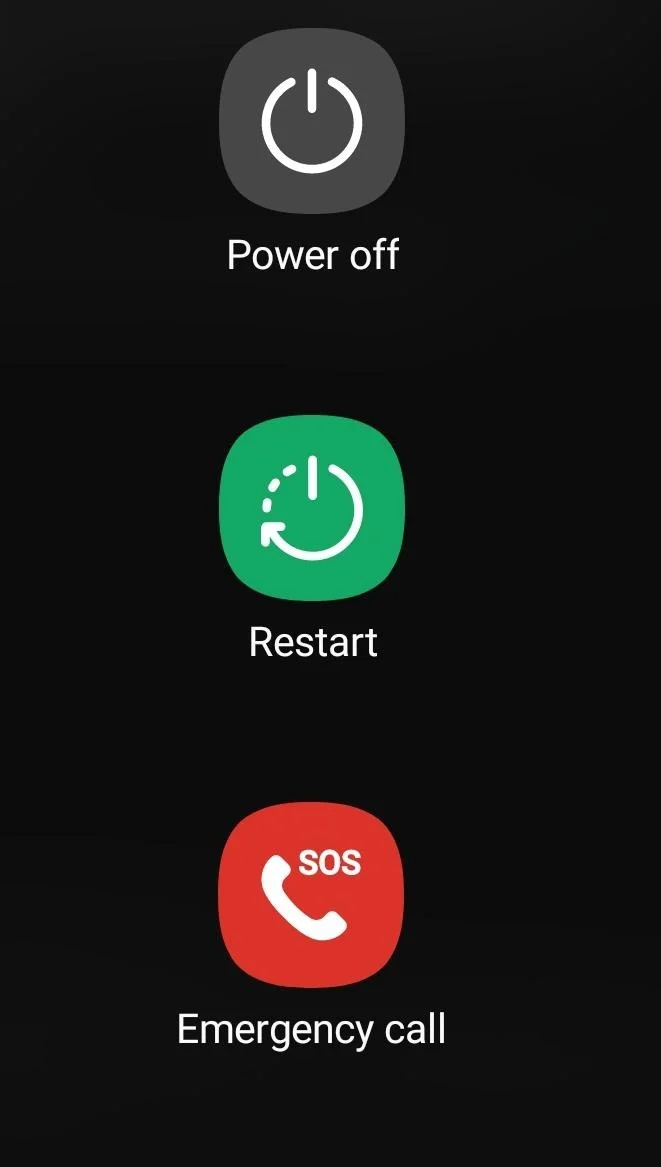
Force Stop the App and Restart It
If the above two methods didn’t help, try closing the Galaxy Store app completely — either by swiping it away from the recent apps screen or by going to Settings > Apps > Galaxy Store and tapping Force Stop. Once done, open it again and see if it connects.
Clear App Data and Cache
If the error still shows up, try clearing the Galaxy Store’s data and cache. Go to Settings > Apps > Galaxy Store > Storage, then tap on Clear Data and Clear Cache. There’s no need to worry if you made purchases previously. They won’t be deleted. This just resets the app settings. You might need to log in again, but all your purchases and downloads will still be there.
ALSO READ: –
- How to Stop Apphub Processing Requests on Samsung Phones
- How to Fix Camera Failed on Samsung (Easy & Quick Solutions!)
- How to Fix Samsung Members Server Error 400 [6 Easy Ways]
That’s everything that worked for me, along with a few other tips to fix the Something went wrong while connecting to the Galaxy Store error. If you’ve found a different fix, drop it in the comments — and let us know which method worked for you!