AI tools are growing fast these days, and people are amazed at how quickly they are changing the way we create content. It feels like every week there is a new tool that can do something surprising. Many creators are trying these platforms just to see what they can do.
ElevenLabs is one of those tools that really stands out. It can turn text into natural sounding voice in many languages, and a lot of people enjoy testing it to hear how real it can sound. It has become a fun way for many users to explore AI voice generation before deciding if they want to move to a paid plan.
But after using the free version for a while, some users suddenly see a message that says “Unusual activity detected,” and their free usage stops. This can be annoying when you were simply trying to test the tool more before paying for it. This guide will explain how to bypass the unusual activity detected error on ElevenLabs, so you can continue using it without paying.
How to Fix ElevenLabs “Unusual activity detected” Error
Try Another Device and Use Mobile Data
If you usually open Elevenlabs on your computer with Wi Fi, you can try switching to your phone and using your mobile data instead. This gives you a new IP address, and in many cases, the page opens without that warning message.
- Turn off the Wi Fi connection on your phone
- Turn on your mobile data and open your browser.
- Visit the Elevenlabs site and sign in with the same account.
- Try creating audio again. If it works, you are good to continue.
If it still stops you, turn your mobile data off and on once more. This can give you a fresh IP and may help.
Use Your Second SIM Card
If your phone has two SIM cards, this trick can help a lot. Each provider gives you a different IP address, so switching to the second SIM can make Elevenlabs open without that warning. Many users with networks like Airtel find this useful.
A new IP from another provider can reduce the chance of detection and may let you continue using Elevenlabs without the error.
Use a VPN
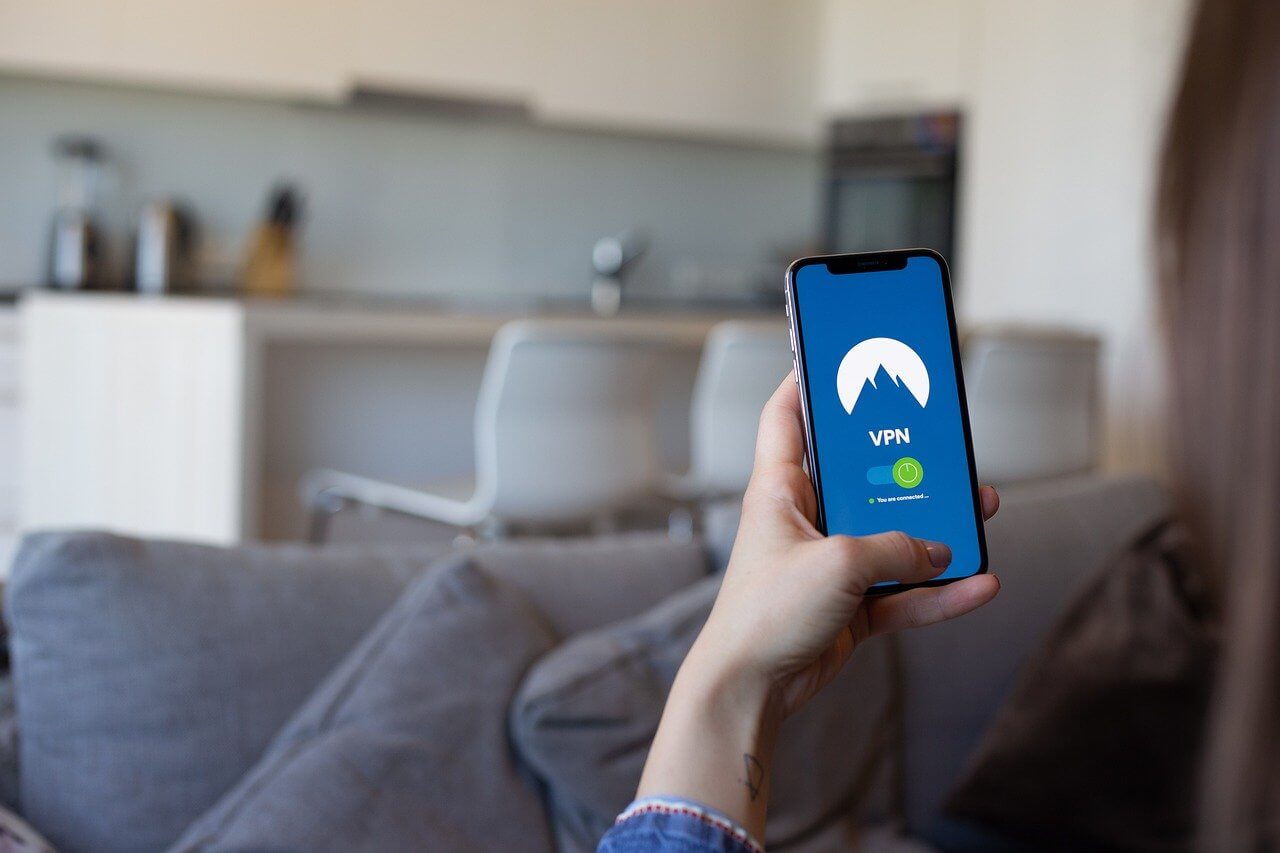
Another alternative is to use a VPN to get a different IP. Activate the VPN application on your PC or smartphone. Enable and connect it to any country. Go to Elevenlabs and try generating. If it still does not work, try changing the country in your VPN app and repeating the steps above. This will provide a new IP address, so the system may no longer detect any unusual activity. As far as we checked, most free VPNs do not work, so you need to try a premium like Tunnel Bear, NordVPN, and SuperVPN.
Use a Temporary Email
Another simple option is to create a fresh account using a temporary email. Many online temp mail services give you a quick mailbox that works for basic sign-ups, and you can use it to create a new ElevenLabs account without using your main email.
To try this method, open any trusted temp mail site and copy the email address it gives you. Use that address to create a new ElevenLabs account. Once the account is ready, try generating audio again and see if it works.
Change IP Address
These days, ElevenLabs is blocking many users based on their IP address, so bypassing the “Unusual activity detected” message is not as easy as before. You need to be more careful because changing or masking your IP can be difficult on some devices. On Android, it is quite challenging since most users do not have a rooted phone, and newer Android versions are even harder to root. This limits the tools you can use to change network settings.
On Windows, you have a few more options. You can try tools like Simple IP Config, NetSetMan, or Tmac. These programs help modify network details and may help you switch to a different IP. Use them responsibly and make sure you understand what each tool does before making changes, as adjusting network settings always requires caution.
Note: We are not promoting any illegal activity, and we are not responsible for how anyone chooses to use this information. The purpose of this guide is only to help users who receive the “Unusual activity detected” message, even though they did nothing wrong. Many people face this issue and are unable to try the service before paying for a plan, and testing the service first is important for them. This is the only reason this guide exists. We do not encourage misuse of the platform, and we are not responsible for any action taken by readers.
Conclusion
As ElevenLabs clearly explains in the message shown in the image, this block is mostly connected to IP-based limits. They pause free access when they detect many free accounts coming from the same network. This can happen in places like offices, schools, shared Wi Fi, or even on some VPN connections. It is their way of keeping the platform fair for everyone.
If you are seeing this alert even though you have done nothing wrong, the methods listed above should help you try the tool again. If none of them work for you, then the only reliable path is to move to their paid plan. Their subscription removes these IP limits, and from our view, the paid version is strong and worth trying if you plan to use the service often.