Talkie AI is a creative app where people chat with AI characters, explore stories, and enjoy fun conversations. It feels more like hanging out than using a normal app. You can talk to different personalities, create your own characters, and spend time inside stories that feel interactive and personal.
In today’s AI-focused world, apps like Talkie AI have built a strong fan base because people enjoy creative freedom. Many users like how conversations feel open-ended and how each character has its own style. It gives people a place to relax, imagine, and spend time without feeling bored. That is why so many users keep coming back to it.
That said, the app does have its rough days. At times, it may not load, chats may stop replying, login may fail, or a Talkie network error may suddenly appear.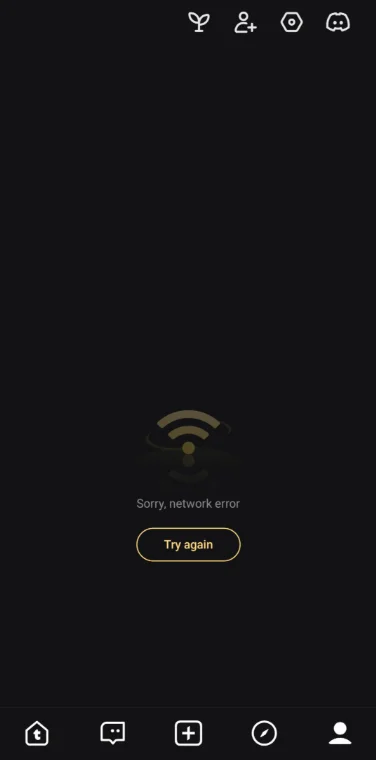
I have been using this app for a long time, and I have faced these regular issues myself more than once. After dealing with them again and again, I figured out what worked for me. Below, I am sharing how I handled these random Talkie Ai app errors and fixed the issues on my own.
How to Fix Talkie Ai Not Working Easily
Check Server Status
Talkie AI goes offline more often than people expect. This usually happens when too many users are active at the same time, which puts heavy pressure on their servers. When this happens, you may notice connection errors or app loading issues. These problems usually come from the app side, not your phone or internet.
Recently, there were reports that Talkie AI disappeared from the Apple App Store, and even the official website stopped loading for a few days. The site is working again now, but incidents like this show that server issues can happen without warning. When the servers go down, the app may fail even if everything looks fine on your end.
If you want to confirm what is happening, you can check server status using outage monitors like Down For Everyone Or Just Me. These platforms show if other users are facing the same issue at the same time. If many reports show up, it usually means the servers are down and waiting is the only option.
Delete the App Cache on Android
This step is only for Android users. If you are an Android mobile user, open the device Settings > Apps > Talkie AI app > Storage > Clear cache. Do not tap clear data, since that may remove your login details. If clearing the cache didn’t help, you can try clearing data as well.
Check your Internet Connection
If you are using WiFi, disconnect and restart the router. If the problem continues, switch to mobile data and test the app. It is also a good idea to check the internet speed. Proceed to the next solution if none of them helped.
Update the App
This method applies to both Android and iOS users. App updates are one of the most reliable ways to fix common errors because many users report issues directly to the app team. Once enough reports come in, developers usually release updates to address those problems.
If Talkie AI is not working or showing errors, checking for a pending update from app store is always a good idea.
Uninstall and Reinstall the App
Firstly, uninstall the Talkie AI app from your phone by holding the app icon in the app drawer or on the home screen, then select the uninstall or delete app option and restart the device. After the restart, download Talkie AI from the app store and let the installation complete. Then try logging in.
Try Alternate Domain
At times, Talkie AI may go through platform upgrades or infrastructure changes. When this happens, the main website or some app features may stop working for a short period. This has happened in the past as well, and during such transitions, access can be limited or unstable.
The Talkie team has previously shared that they sometimes roll out upgrades and restore access gradually. During these periods, users may be asked to use an alternate domain called TalkieX while the main platform is being updated. Some web features and a few in-app experiences may also be affected until the upgrade is complete.
When this happens, it is a good idea to check Talkie AI’s official social media handles. The team often shares updates, maintenance notices, and access information there, which helps confirm if the issue is related to ongoing platform changes.
Contact Talkie App Support
If nothing has worked so far, the only option left is to try contacting the Talkie AI team. Sadly, they do not list a direct support email, and getting a reply is often difficult. Because of this, many users end up waiting longer than expected.
The best way to reach them is through their social media pages, where they sometimes respond and share updates. You can try messaging them on Discord, Reddit, TikTok, X, or Instagram. These channels are also helpful for seeing announcements or updates posted by the team.
These are the methods you can try, and they have helped many users when the Talkie AI app stops working or shows errors like a network error. I hope this guide was helpful and made things a little clearer.
Many times, app bugs or server outages are the real reason behind these problems. In most cases, the Talkie AI team fixes them on their side, and the app starts working again after a few hours or sometimes a few days.