TikTok, launched in 2016, has become one of the most popular social media platforms, with more than 900 million monthly active users. It’s more than just a place to watch videos, it’s a creative community where people connect, share, and express themselves. One of its standout features is live streaming, allowing creators to engage with their audience in real-time.
Going live on TikTok from the mobile app is easy, but if you want to stream from your PC with overlays, graphics, and multiple cameras, you’ll need a TikTok stream key. This key lets you broadcast through third-party software, giving you more control and a professional look for your live streams.
However, finding your TikTok stream key and server URL can be tricky. This guide will walk you through the simplest way to access your stream key to start streaming on TikTok platform from your desktop.
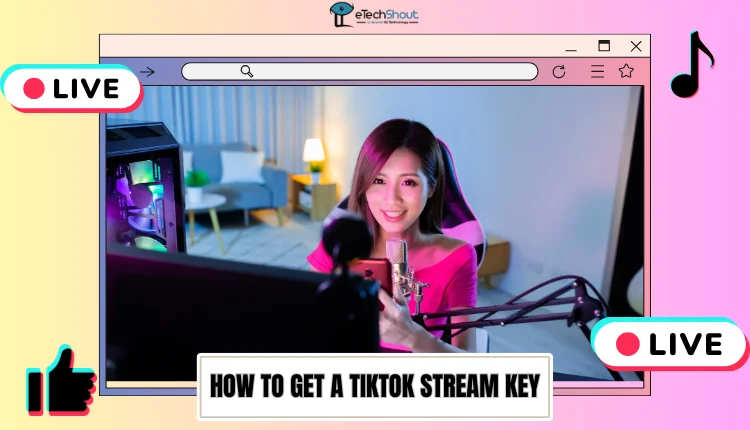
What is TikTok Stream Key?
A TikTok stream key is a unique code that links your TikTok account to third-party streaming software. It enables you to go live from your computer or mobile device while using advanced features like custom graphics and multi-platform streaming. This key is essential for a more professional and customizable live streaming experience.
How to Get TikTok Stream Key
- Visit TikTok’s official website and sign in to your account. If you see the Go Live button on the left side of the screen after logging in, you’re eligible to stream live on TikTok.
- Clicking Go Live will take you to the Live Center, where you can adjust your stream settings and customize your live session.
- Here, you can upload a cover image, choose a topic, and add a title for your stream. Once you’ve made your selections, click Save and Go Live to continue.
- After clicking, TikTok will generate a server URL and a unique stream key, which will remain valid for up to two hours. You’ll need this to stream using third-party software.
How to Stream on TikTok using Stream Key
To enhance your TikTok live streams with custom graphics, overlays, and multiple camera angles, you can use third-party streaming tools like OBS Studio and Castr. These tools give you greater control over your broadcast, making your streams more professional and engaging. Below are step-by-step instructions on how to set up and connect TikTok with OBS Studio and Castr.
Using OBS Studio
- Open the OBS Studio application on your computer.
- Click File in the top menu, then select Settings. From the left panel, click Stream.
- Set Stream Type to Custom Streaming Server. Copy the Server URL and Stream Key you copied from TikTok using the above steps, then paste/add the TikTok stream key to OBS.
- Click OK to save the settings.
- Customize your stream by adding scenes, sources, and overlays in OBS to enhance the visuals.
- Once everything is set up, click Start Streaming to begin broadcasting live on TikTok.
Since TikTok uses a vertical layout, you may want to stream in portrait mode. To do this:
- Go to Settings > Video
- Set Base (Canvas) Resolution and Output (Scaled) Resolution to 1080×1920.
Using Castr
- Create a new Castr account or log into your existing one.
- Click Create New, then choose All in One Stream. Give your stream a name and select the closest hosting region for better performance.
- In the dashboard, click Add Platform and select TikTok from the list.
- Paste the Server URL and Stream Key from TikTok, then click Create Platform to finalize the setup.
- Once everything is set up, you’re ready to start streaming on TikTok through Castr.
In this guide, we covered what a TikTok stream key is, how to find it, and how to use it with different streaming tools. If you found this article helpful, feel free to share it with others!
Frequently Asked Questions (FAQs)
What are the requirements for streaming on TikTok?
To stream on TikTok, you must be at least 18 years old, have a minimum of 1,000 followers, and ensure your account is in good standing with no violations or restrictions. Once you meet these requirements, you can go live and engage with your audience in real-time.
Do I need 1,000 followers to get a TikTok stream key?
Yes, you must have at least 1,000 followers to access your TikTok stream key. This requirement ensures that only active and engaged creators can broadcast live content.
Can I get a TikTok stream key without 1,000 followers?
No, TikTok does not provide a stream key to users with fewer than 1,000 followers.