TikTok has seen a huge rise since its early days, becoming one of the most active social platforms in the world. Even though the app faced bans and restrictions in several countries, it still remains very popular in many others. People continue to use it every day to share short videos and connect with a global audience.
With millions of uploads happening every minute, TikTok has systems in place to check and filter content. Because of this, some users see the message “Content under review” after posting a video. The message can be confusing, especially when the video does not appear on the profile right away.
This review process usually comes with updates like “In queue for review”, “Review in progress”, and “Review completed”. While TikTok may be trying to keep the platform safe and enjoyable for everyone, this process is not always appreciated by users. Many people feel frustrated when their videos get delayed, especially when other apps like Instagram allow the same content to be posted without any wait. So in this article, I will explain what “Content under review” really means on TikTok and why it happens, before moving on to the steps to fix it.
What Does “Content Under Review” Mean on TikTok?
When TikTok shows the message “Content under review. We aim to notify you of the result within 12 hours,” it means the platform is checking your video to make sure it does not break any community guidelines. Every uploaded video goes through an automatic scan, and if something in the content triggers the system, TikTok adds it to a review process before allowing it to go live.
During this time, you may see different status updates such as “In queue for review,” “Review in progress,” and “Review completed.” TikTok usually finishes this process within 12 hours, and once the review is done, your video will be published normally.
TikTok also states that having your video under review does not reduce your reach. Once approved, your content will still be discoverable by other users, just like any other video.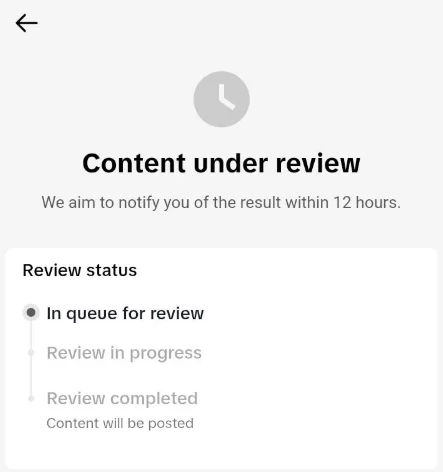
5 Quick Ways to Fix Content Under Review on TikTok on Android and iOS
Wait for 12 Hours
The first thing you can do is give TikTok some time to finish checking your video. Most reviews finish within a few minutes, but it can take up to 12 hours. TikTok also mentions that this check will not reduce your views. Once everything is cleared, your video will show up for others like normal. In some rare cases, the review can take around a day or two.
If your video is still stuck under review after 12 hours, you can move on to the next steps below.
Recheck the Video for Community Guidelines
It is better to take another look at TikTok’s community rules before you upload the video again. Even a small part of the clip can trigger the review system, so check for anything that might cause trouble. This can include background audio, text on the screen, or scenes that TikTok might see as unsafe. If you notice anything that feels a little off, try adjusting the video and upload a modified version.
If TikTok later removes your video after the review, you can still ask for another check. There is an appeal button inside the app that lets you request a review by a human team.
Make the Video Private and Then Switch It Back to Public
You can try a small trick inside the app that many users say works for TikTok content under review right after posting.
- Open your TikTok profile and tap the video that is waiting to be checked.

- Head into the privacy settings and change the view option to “Only you.”
- Leave it that way for a short while, then change it back to “Everyone” to push TikTok systems to look at your video again.

Once you change the view option of the video back to public, wait for a few hours, and then check if the views or status have updated.
Report the Issue Inside the App
If your video has been stuck for a long time, you can reach out to TikTok from inside the app.
- Open TikTok > go to your profile
- Tap the menu icon > Settings and privacy

- Then scroll until you find “Report a problem”
- Now, navigate to Creation > Posting videos
- When it asks if the issue is solved, tap “No’ and then select “Need more help”
- In the next step, you can write a short message explaining that your video has stayed under review for more than twelve hours, and you are unable to post it.

After you send the request, TikTok will look into it and reply when they can. Many users have seen their posts updated soon after sending a report, so it is worth trying if nothing else has helped.
Use the Report a Problem Form on the TikTok Website
If the in-app report does not solve anything, you can try the official form on the TikTok site, which goes directly to their support team outside the app.
- Visit this problem reporting page link and choose “Report a potential violation” as the topic
- Now, pick “Other” in the category section.
- After that, type in your email, your TikTok username, and a short note explaining that your video has been stuck under review for a long time.

- Make sure the statements at the bottom are checked, then send the form.
- After you submit it, TikTok will reply to you through email once they review your request.