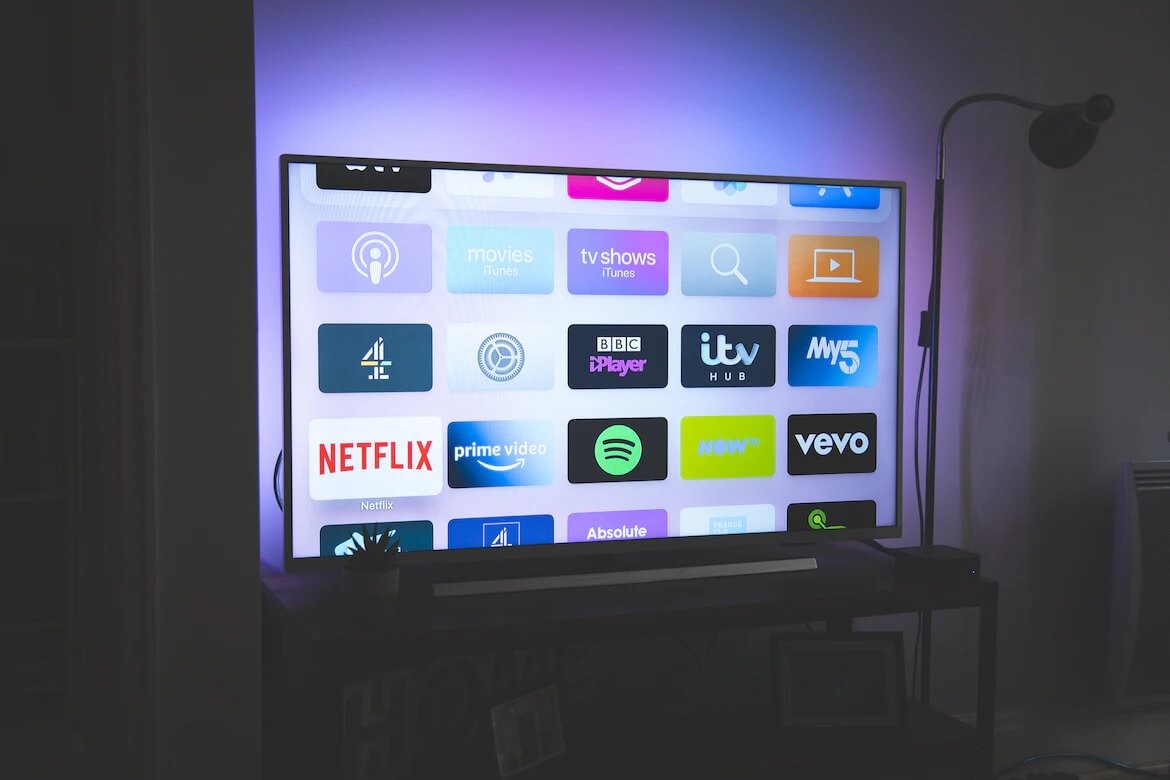
If you are a fan of streaming, you already know how frustrating it feels when an error message pops up out of nowhere. It does not matter which app you are using. Even though Netflix has been around for a long time and is backed by a huge company with many developers, the app is still not completely free from errors and performance issues.
Recently, many users have started reporting Netflix error code UI‑800‑3 on different devices like smart TVs, streaming sticks, and gaming consoles. This error usually appears suddenly, which can completely ruin a movie night or binge session. We faced the same issue ourselves, so we decided to dig deep and understand what was really messing up our experience.
After spending time testing and fixing the problem, we learned a lot about why this error shows up and why it is so common. That is why this guide covers everything we experienced, what we noticed, and what actually worked during our troubleshooting process.
Note: The Netflix UI‑800‑3 error code can show up on many types of devices, so not every fix will match what you are using. If one step does not apply to your device, feel free to skip it and move on to the next option. Also, before trying the fixes below, it is a good idea to check your internet connection first. Make sure your internet speed is fast enough for streaming and try running a quick speed test.

8 Quick Ways to Fix Netflix Code UI‑800‑3 on Any Device
Power Cycle Your TV
Let us start with the most basic and simple solution, because this is the one that actually worked for us, which is why we are placing it first. Sometimes the problem is not with Netflix itself but with the device holding temporary data in the background.
The solution is simple: turn off your TV completely and unplug it from the power socket. Leave it disconnected for about one to two minutes so it can fully reset. After that, plug the TV back into the power socket, turn it on, and open Netflix again.
Log Out and Log In Again
If the first fix did not help, the next easy thing to try is signing out of Netflix. Open the Netflix app and look for the Sign out option. On some devices, you might see words like Deactivate or Reset instead. Choose that option and fully log out. Once you are logged out, just close the app from the app switcher and then open it again to sign back in using your account details.
Unplug the Firestick
If you are using a Firestick, this is one fix that worked for many users and is worth trying. Just unplug the Firestick from the power source and wait for around ten seconds. Plug it back in and let it load fully. After that, open Netflix and try signing in again.
Reset the App and Restart the Firestick
For Firestick users, this is another approach that worked for many users after a bit of trial and error.
Firstly, reset the Netflix app to its default settings from the Firestick app options. If the issue continues after resetting the app, restart the Firestick device. Once the device is booted back, open the Netflix app and sign in with your Netflix credentials again.
Clear Netflix App Data or Cache
Over time, the Netflix app stores temporary files, and that can be the reason why many errors and app-related issues occur when they get corrupted.
Open your device Settings > Apps section. Tap on Netflix in the list and choose the option to clear app data and cache. Once that is done, open Netflix again and sign in.
Update the Netflix App
Another easy thing to check is the Netflix app version on your device. If the app has not been updated for a while, performance issues or errors like this are common.
Open the app store on your TV phone or streaming device and search for Netflix. If you see an update button, install it and wait until it finishes.
Reinstall the Netflix App
If the error keeps coming back, delete Netflix from your TV, phone, or streaming device first. Then open the app store, download Netflix again, and sign in using your account details. Once the app opens, try playing a video and check if the error has cleared.
Sign Out From All Devices
At times, Netflix may have trouble when the same account stays active on many screens at once. The simplest solution for this is:
- Open Netflix on a browser or any device where you can access account settings.
- Navigate to the “Access and devices” section

- Now, choose the option to sign out from all devices.

- After that, wait a few minutes, then open Netflix on the device you want to use and sign in again.


That is all for this article on fixing Netflix error code UI‑800‑3 on any device you are using. We hope one of the steps above helped you clear the issue to watch your favorite movie or shows.
- RELATED: How to Update Netflix on Samsung TV
If this guide helped you, feel free to share it with others who might be facing the same error. And if you found another method that worked for you and we did not mention it here, share it with us as well. Your input could help someone else fix the problem faster.