Grindr is one of the biggest location-based dating apps, widely known for making it fast and simple to connect with nearby people. Over time, Grindr built a huge user base and continued growing while competing with many other dating and social networking platforms available today.
At the same time, many users keep reporting different app issues while using Grindr daily. Since the app depends on live location data, online servers, and constant profile loading, even a small connection issue can stop profiles and messages from loading on the screen. One error that many readers keep asking about is the “Unable to Refresh” or “Unable to refresh. RETRY.” message appearing inside the app.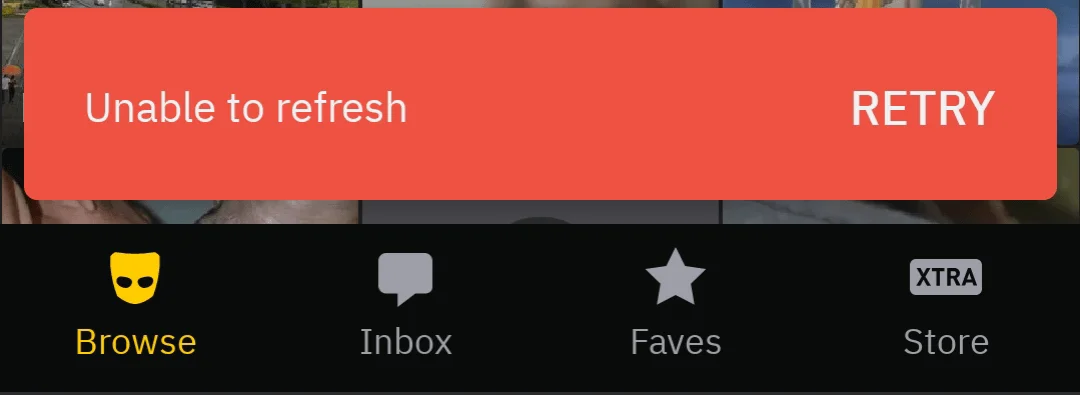
A lot of users searched for working methods to fix this Grindr issue, so we collected all the fixes that helped many people solve it and listed them below.
How to Fix Grindr “Unable to Refresh” Error Easily
Before trying other fixes, first completely close Grindr from the recent apps screen or app switcher on your phone. You can also turn Airplane Mode on for a few seconds and then disable it again. If the issue still continues, try the methods given below.
Turn Off Precise Location for Grindr
One method that worked for many users was disabling the precise location option for Grindr. In several cases, the app kept showing the “Unable to refresh” message because the location data was constantly changing in the background.
To try this fix, open your phone Settings > Location > App permissions > Grindr and turn off the “Use Precise Location” option.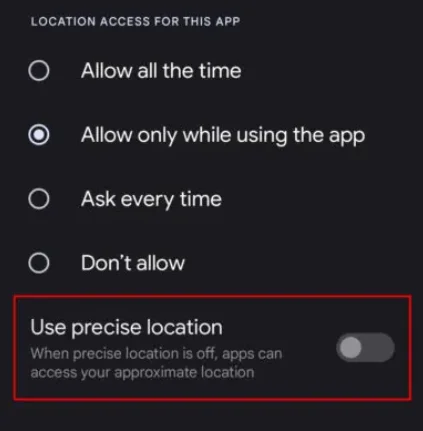
Delete Cache Data for Google Play Services and Grindr
A few Android users managed to fix this issue after removing saved cache data from both Google Play Services and Grindr. Over time, temporary app files can build up and create loading issues inside the app.
Open your phone Settings > Apps section. Now tap on Google Play Services. If you do not see it in the normal apps list, check inside the System Apps section. Open it, move to Storage, and tap on “Clear Cache.”
After that, repeat the same steps for Grindr. Since Grindr is not a preinstalled app on most devices, you will usually find it under the Installed Apps list.
Open Google Maps Before Launching Grindr
One working method is updating your phone’s live location before launching Grindr. Since Grindr depends heavily on accurate location access, delayed GPS data can prevent nearby profiles from loading inside the app.
Open Google Maps first and allow the app to detect your current location. Wait until the blue location dot becomes fixed and stops shifting around the map.
Once your location is fully updated, close Google Maps from the recent apps screen or app switcher on your phone and launch the Grindr app again from the app drawer or homescreen.
Restart Your Phone
Does not matter if you are using an Android phone or an iPhone; most users already know how to restart their device since it is one of the easiest fixes for many app and network-related issues. If you have not tried it yet, follow the steps below based on your device type.
On Android phones, the restart option may appear differently depending on the brand and model. In most cases, holding the power button will open the power menu where you can tap on “Restart” or “Reboot.”
If you are using an iPhone without a home button, press and hold the side button together with either volume button until the power off slider appears on the screen.
For older iPhones with a home button, hold only the side button until the slider becomes visible. Drag the slider to turn off the device, wait around 30 seconds, then press and hold the side button again for a few seconds to power it back on.
Install the Newest Grindr Update
Since the app continuously handles live location tracking, profile syncing, and account security, older app files may fail to communicate with the latest backend systems after new updates are released. So, update the app to the latest version and then check if that helps.
Turn Off VPN Connection
In many cases, Grindr shows this error while a VPN service is active in the background. If you are currently connected to a VPN, disable it temporarily and then reopen Grindr. You can turn it off either from your phone’s network settings or directly from the VPN application that you are using.
Check Grindr Server Status
The “Unable to Refresh” error on Grindr can also appear when the platform is facing server-side problems. This usually happens during maintenance work, sudden backend failures, or outages affecting users across multiple locations at the same time.
To verify this, open the Grindr Server Status Page. Grindr has its own official status website where it displays real-time and historical data related to server performance, outages, maintenance work, and service disruptions.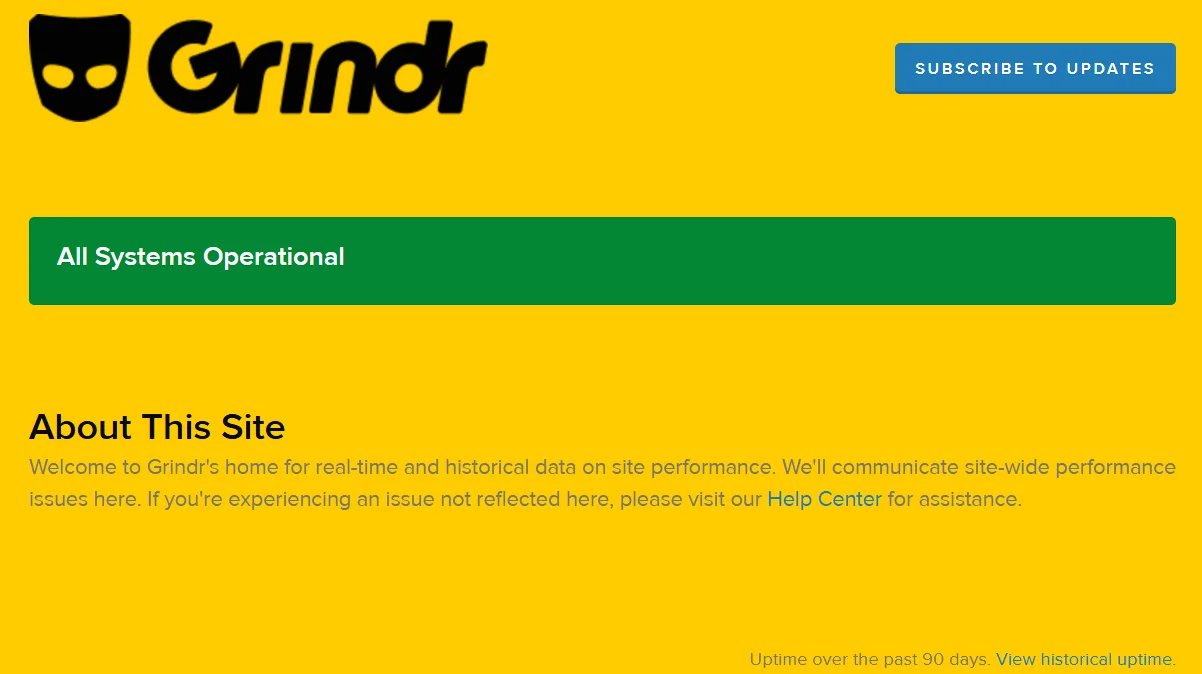
After opening the page, check the current system status shown on the dashboard. If any major service is marked as degraded, unavailable, or under maintenance, it usually means the issue is coming from Grindr’s side and not from your device or internet connection.
You can also check the latest public posts shared by users on platforms like X, Reddit, or Facebook, where many people usually report server outages, loading problems, and login issues in real time. If the servers are currently down, you need to wait for Grindr’s technical team to fix it.
RELATED GUIDES: