Life360 has become an essential app for many families, making it easier to stay connected and ensure everyone’s safety. Its notification feature is particularly useful, sending alerts when family members arrive at or leave specific locations. However, what happens when those notifications stop working?
Many users have faced this frustrating problem, especially after software updates or switching devices. Missing these alerts can leave you feeling disconnected or even anxious, especially when you rely on them for daily routines or emergencies.
This issue isn’t unique. Plenty of Life360 users have shared their experiences about notifications failing to come through, even when everything seems correctly set up. It’s a common hurdle, but thankfully, not an unsolvable one.
In this guide, we’ll address the root causes of the notification problem on the Life360 app and walk you through the steps to resolve it.
Why is Life360 Not Sending Notifications?
Life360 may not send notifications if Place notifications are turned off in the app settings, or if your phone’s notifications are disabled for the app. On Android, check Settings > Apps > Life360 > Notifications, and on iPhone, ensure Allow Notifications is enabled in Settings > Notifications. Additionally, temporary glitches can interfere, so restarting your device or reinstalling the app might help resolve the issue.
How to Fix Life360 Notifications Not Working on Android & iPhone
Recheck Your Place Notifications
If you’ve suddenly stopped receiving notifications for locations in Life360, you’re not alone. Sometimes, for no clear reason, the app might turn off your notifications for saved places. This happened to me recently, and after some digging, I found an easy fix.
- Open the Life360 app and head to the Settings

- Click on the Smart Notifications

- Click on the Places tab.

- Here, you’ll see a list of the locations you’ve saved, like home, school, or work.
- Next to each place, there’s a small bell icon. In my case, all my notifications were mysteriously switched off—no idea how it happened.
- To fix it, simply tap on the bell icon for each place to turn the notifications back on.

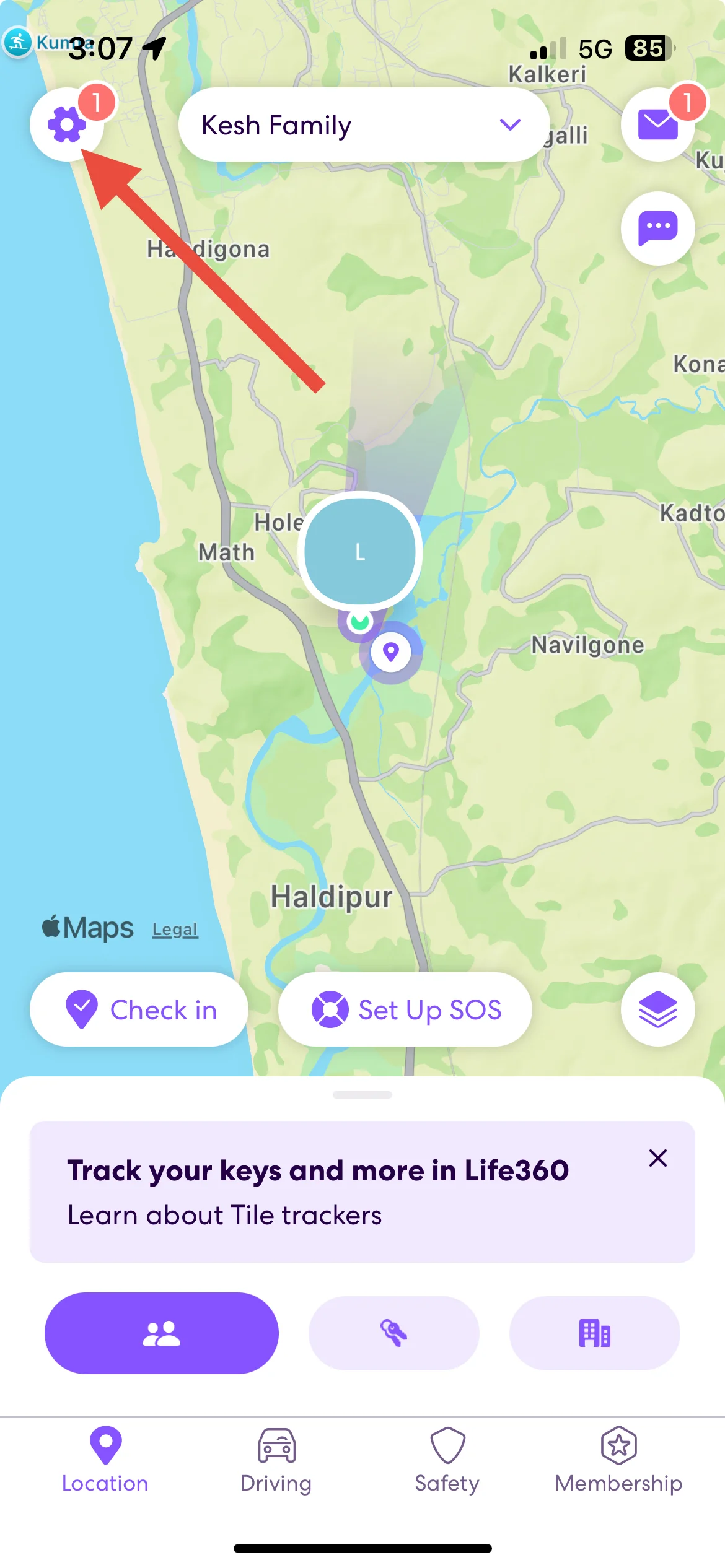
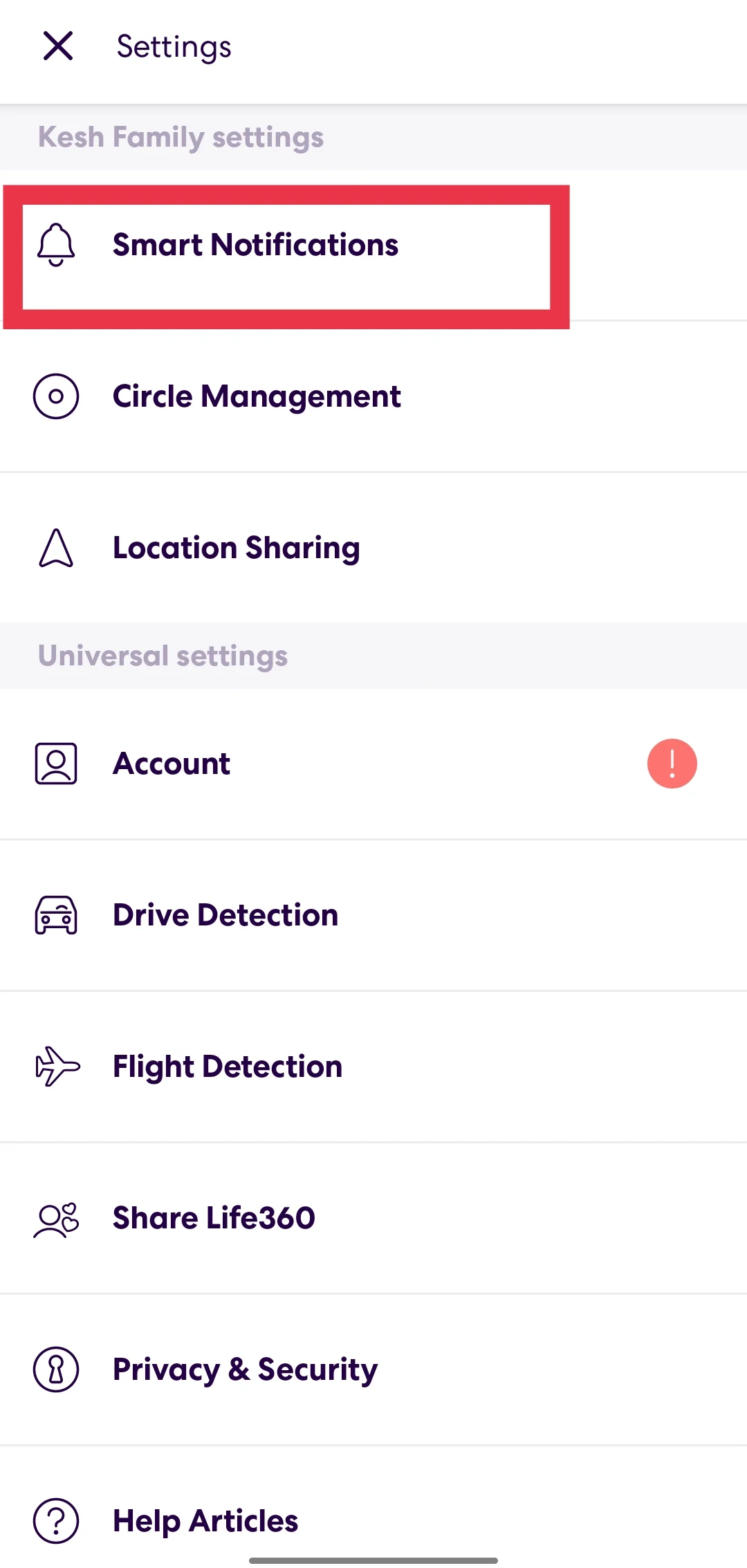
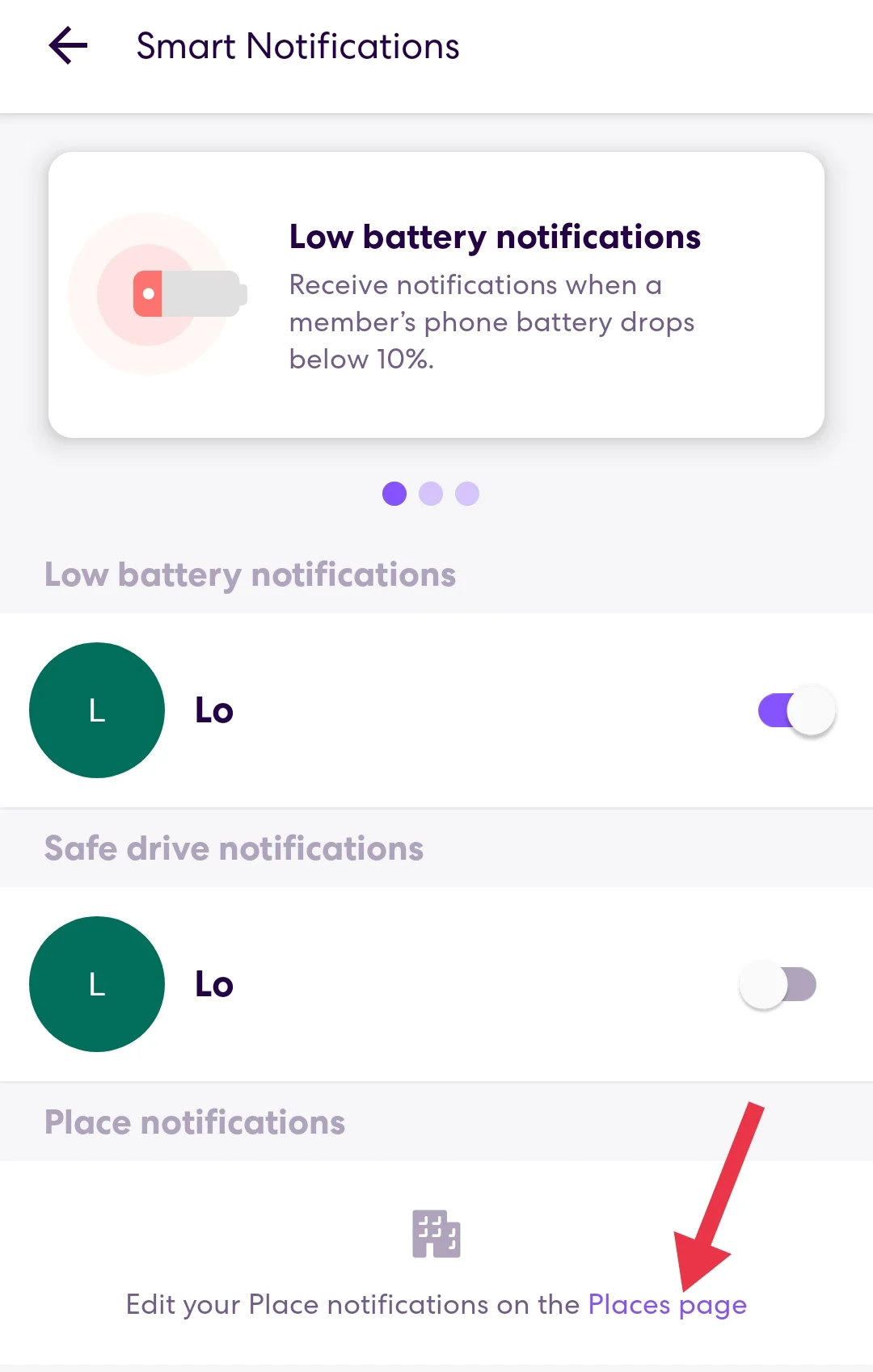
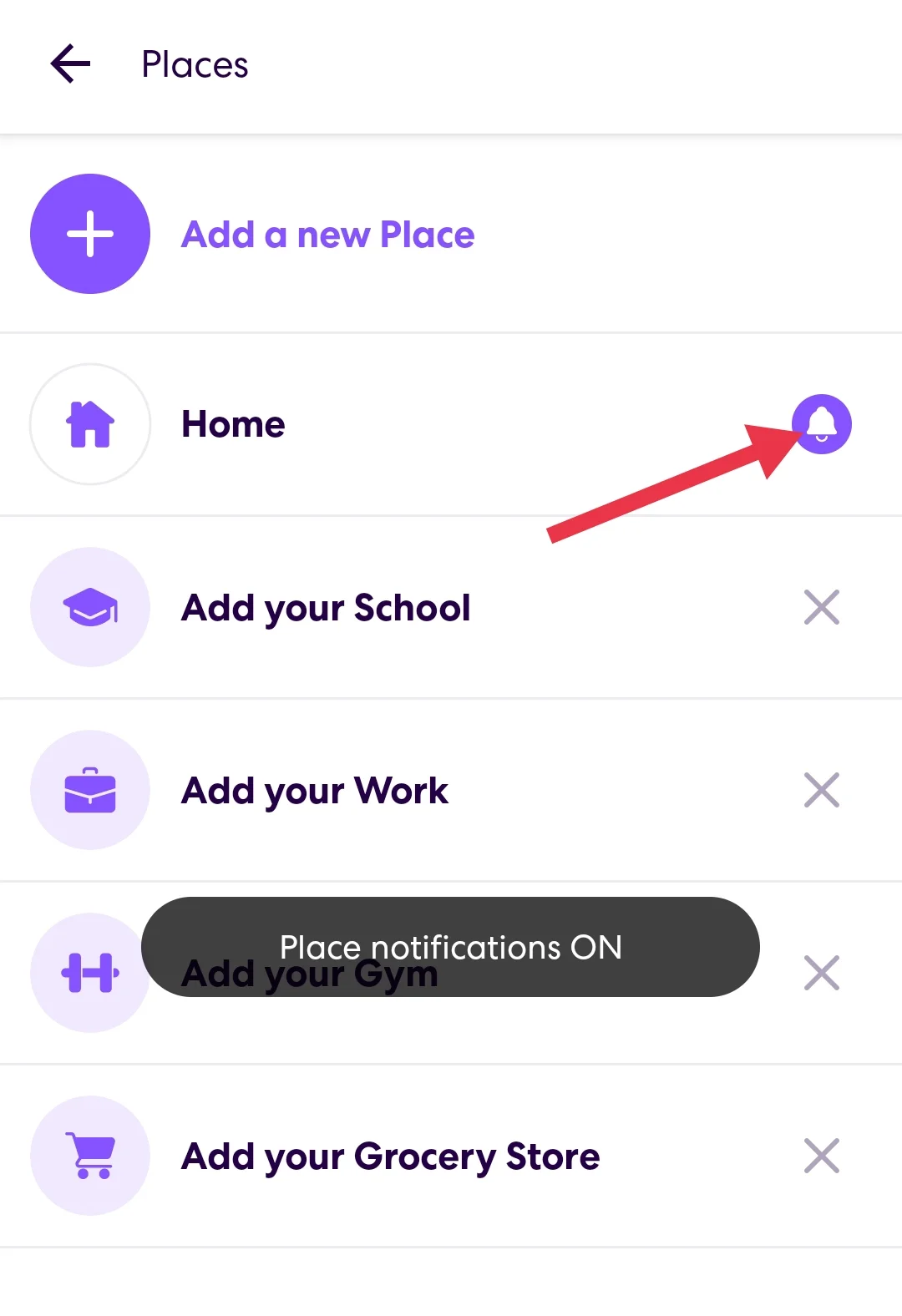
Once I did this, everything started working perfectly again. Keep in mind, though, that the free version of Life360 only lets you enable notifications for two places. If you need more, you’ll have to upgrade your membership.
Restart Your Device
Sometimes, all it takes to fix Life360’s notification issues is restarting your phone. It might sound too simple to work, but trust me, it can make a big difference. When you restart your device, it clears out any temporary glitches or stuck processes that might be messing with the app.
Just power it down completely, wait for 30 seconds, and then turn it back on. Once your phone is powered on, open the Life360 app to check if that resolves the issue.
Reinstall the Life360 App
Many users have reported success in fixing the Life360 notifications not working issue by reinstalling the Life360 app. Here’s what worked for them: they deleted the app from their device, waited a few minutes, and then reinstalled it from the app store. After logging back in, they ensured all permissions were granted during setup.
To confirm the fix, some users tested it by asking a Circle member to send a message or trigger a notification, and it worked perfectly. So give it a try if other solutions haven’t helped.
Ensure Notifications Are Enabled for Life360
A common reason for missing Life360 notifications is that they might be turned off in your device settings. To fix this, double-check that notifications are enabled for the app:
On Android
- Go to your device Settings > Apps > Life360 > Notifications.
- Ensure notifications are toggled On and check individual categories like alerts and location updates.
On iPhone
- Open Settings > Notifications > Life360.
- Turn on Allow Notifications, and make sure options like Sounds, Badges, and Alerts are activated.
Once you’ve confirmed these settings, the app should be able to send notifications without any issues.
- RELATED: – Life360 Not Updating Location? [Fixed]
I hope this guide has helped you resolve the issue of Life360 not sending notifications. If you’ve discovered any other solutions that worked for you, feel free to share them in the comments. Don’t forget to share this article with others who might be facing the same problem—it could help them out too!