Pinterest boards are a place where users save their favorite Pins, collect ideas, and keep everything organized. So, it can come as a surprise when you open Pinterest and suddenly find that your boards are no longer showing up on your profile.
The issue can appear in different ways. Your profile might say that you have no saved Pins, some of your boards may be missing, or the entire Saved section might look empty. Even stranger, saved Pins may still appear in search results, making it seem like your collections are still there.
For some users, the problem starts without any warning. Pinterest may continue showing recommended Pins on the home feed, while the board list stays empty. Others find that their boards appear in the account but never finish loading when they open them.
The strange part is that Pinterest may still have all your saved Pins while your profile shows empty boards. So, what is stopping them from appearing? Check out the methods below to find out what’s causing Pinterest boards not to show up and how to fix it.
How to Fix Pinterest Boards Not Showing Up
Wait for Pinterest’s Servers to Work Normally Again
Before assuming your boards have disappeared, keep in mind that Pinterest itself may be having trouble loading saved content. I’ve come across this issue quite a few times, and in most cases, it turns out to be a temporary problem on Pinterest’s servers.
What’s interesting is that your boards and Pins can remain intact even while your profile shows an empty Saved section. The missing content may reappear without you changing anything in your account. I’ve seen it take anywhere from a few minutes to a few hours, and in some cases, a couple of days.
My suggestion is to leave your account as it is for now and see how Pinterest responds over the next few hours. If you are still seeing an empty profile after a few days, move on to the other methods below.
Check Whether Your Pinterest Boards Appear on the Website
There have been cases where boards disappear from the Pinterest app but remain visible when the same account is opened in a browser.
Open Pinterest in Chrome, Safari, or another browser and sign in using the same account you use in the app. Head to your profile and check the Saved section. See if your boards and Pins are listed there.
If everything appears on the website but the app still shows an empty profile, your saved content is likely still associated with your account.
Disable Ad Blockers on Pinterest
If you are using Pinterest on a laptop or desktop through a web browser, check whether you have an ad blocker enabled. An ad blocker running in your browser may interfere with some Pinterest page elements. Pinterest uses different scripts and resources to load your profile, saved Pins, board lists, and other sections. When an extension blocks one of these resources, certain parts of the page may remain empty or fail to load.
Check your browser extensions and see if an ad blocker is enabled for Pinterest. You can temporarily pause extensions such as uBlock Origin, AdBlock, or AdGuard while visiting the Pinterest website.
Once disabled, open your Pinterest profile again and check the Saved section to see if your boards and Pins are now visible.
Update and Refresh Your Pinterest App
If you are using Pinterest on your phone, an outdated app version may have trouble loading certain sections. The app may continue showing your home feed while other options on your profile remain unavailable.
So, on your phone, pull up Pinterest in the Play Store or App Store and check if the update button is available.
You can also try pulling down on the screen to reload your Saved section. Alternatively, you can also remove Pinterest from your recent apps, open it again, and take a look at your profile to see if your boards have reappeared.
If the app is already updated and your boards are still missing, the issue may not be related to the app version.
Check Your Internet Connection
Your home feed may still display a few pins, while other sections, such as your boards and Saved tab, remain empty because the required page elements are not loading.
Check whether other apps and websites are loading normally on your phone. You can also run an internet speed test to see if your connection is slower than usual. If you are using Wi-Fi, switch to mobile data and open Pinterest again. Similarly, if you are using mobile data, try connecting to a Wi-Fi network.
Clear Pinterest App Cache
One useful detail is that Pinterest has its own cache clearing option inside the app. You don’t have to uninstall Pinterest or look for a separate cache setting in your iPhone. The same in-app option is available to iPhone and Android users.
Clear Cache From the Pinterest App Itself:
- Open the Pinterest app and tap your profile.
- Tap the three dots (•••) in the top right corner, followed by the gear icon, to open Settings.
- Scroll down and select Privacy and data.

- Tap Clear app cache.
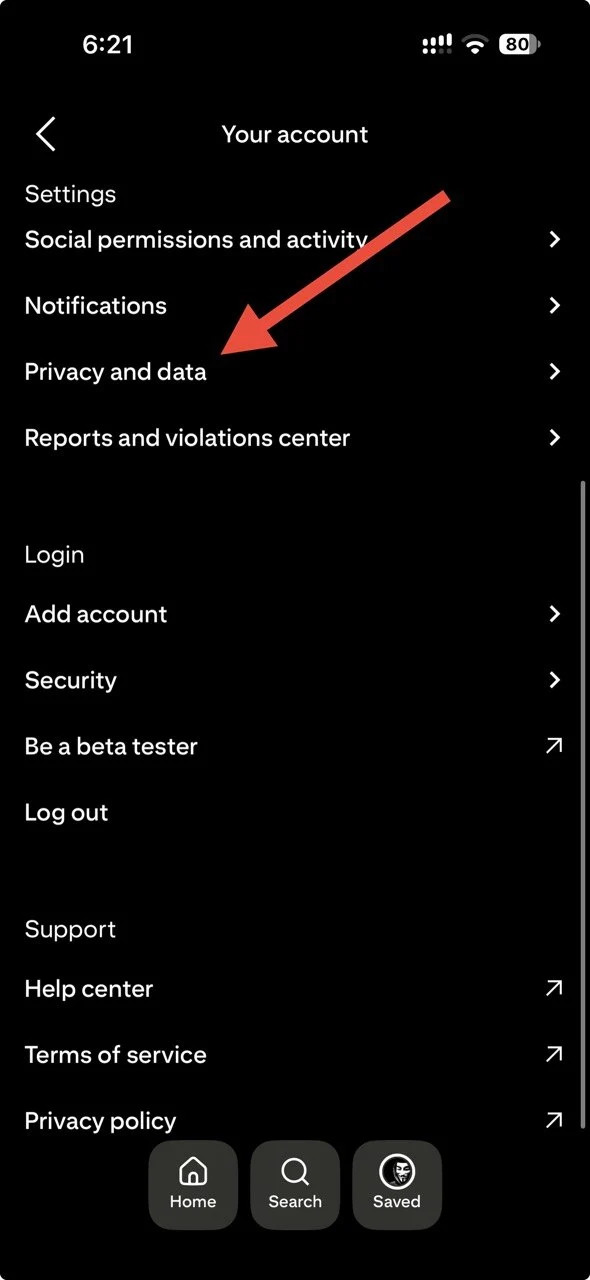
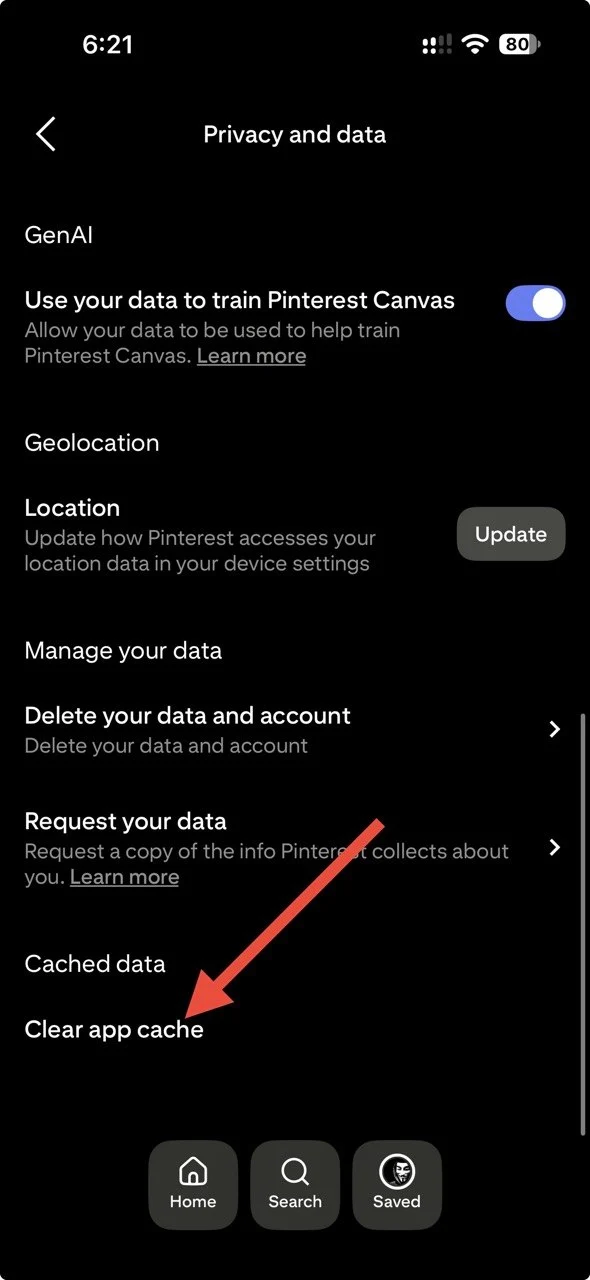
Android users have an additional way to clear temporary app files through the phone settings. You can either tap and hold the Pinterest app icon and select App Info > Storage > Clear Cache or open Settings > Apps > Pinterest > Storage > Clear Cache.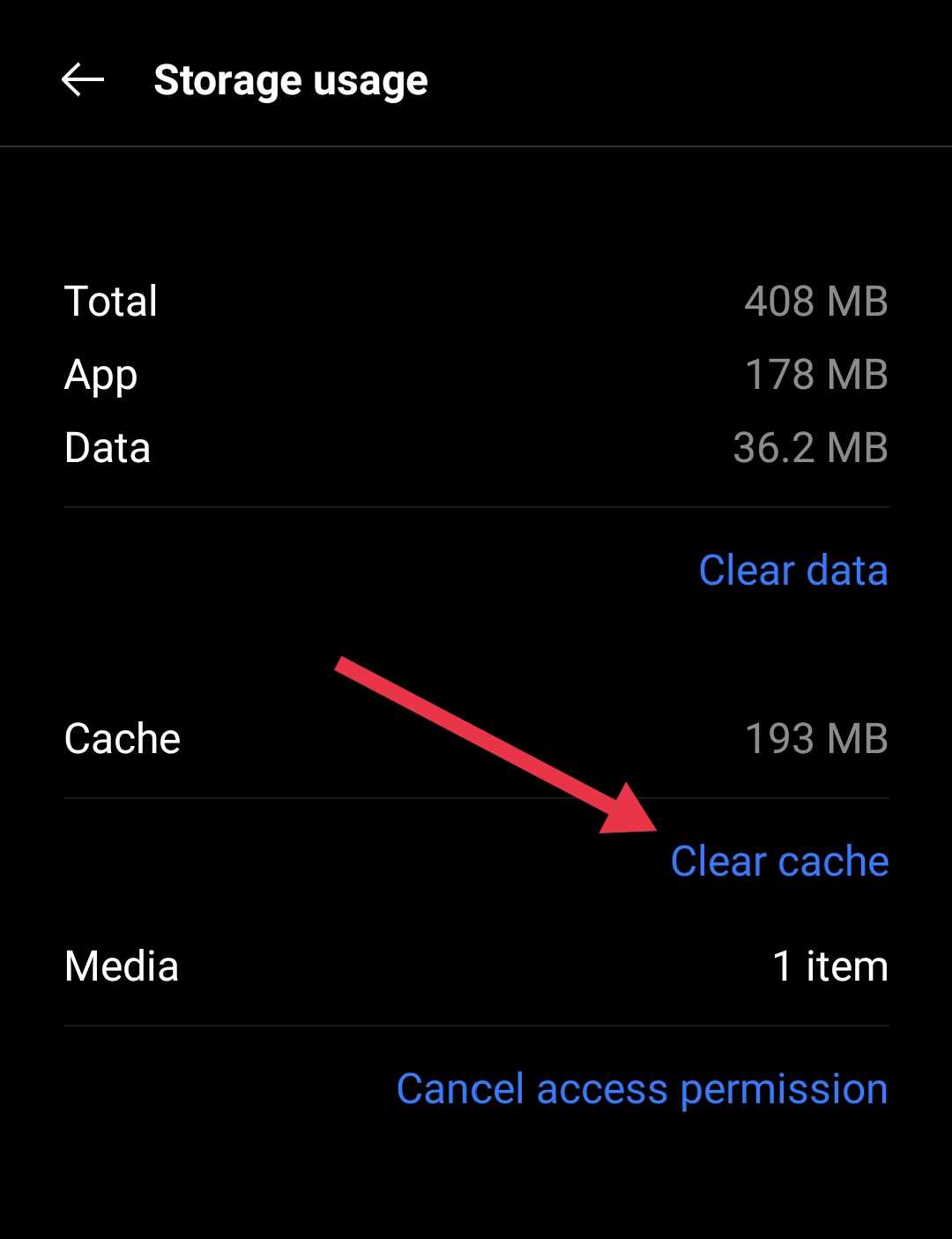
Log Out and Log Back In
- Open the Pinterest app and tap your profile.
- Head to Settings and scroll to the bottom.
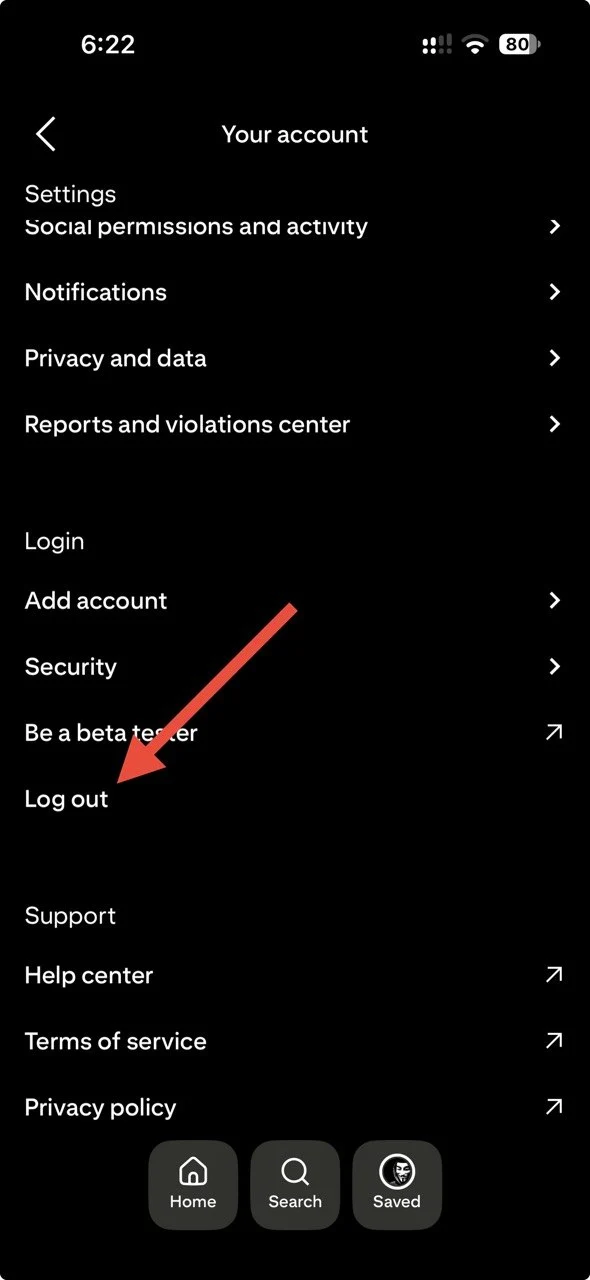
- Tap Log Out to sign out of your account.
- Close Pinterest completely and launch it again.
- Sign in with the same account and check your Saved section.
RELATED: How to Turn Off AI Images on Pinterest Easily
In many cases, the Pinterest boards not showing up issue happens because Pinterest fails to display your saved content due to a temporary server or app issue. Try the methods above and see which one works for you. If your boards are still missing, leave a comment below and share what you see on your account.