WhatsApp has become a part of everyday life now. It is where we chat with friends, share updates with family, or even handle serious work talks. Searching inside a chat is also quite simple, so if you ever need to find a word or an old conversation, it can be done quickly. The real trouble comes when you want to check the very first message you sent to someone. That means scrolling endlessly through months or even years of chats, which can be tiring and time-consuming. I once tried this myself and gave up halfway. Thankfully, there are easier ways to jump straight to that very first message without wasting all that time scrolling. This guide will show you how you can see your first message on WhatsApp on both Android and iPhone.

3 Easy Ways to See First Message on WhatsApp Without Scrolling on Android and iPhone
By Exporting Chat
One simple way to see the very first message in any WhatsApp chat is by exporting the entire conversation as a document. You can save it to Google Drive, your phone’s storage, or even email it to yourself. The exported file shows up to 40,000 messages, starting from the very first one. This works for both individual chats and groups.
If you also want to include photos, videos, or other media in the export, you can select the Include media option. However, keep in mind that this will limit the export to 10,000 messages and may take longer depending on the amount of media.
On Android
- Open WhatsApp and go to the chat or group.
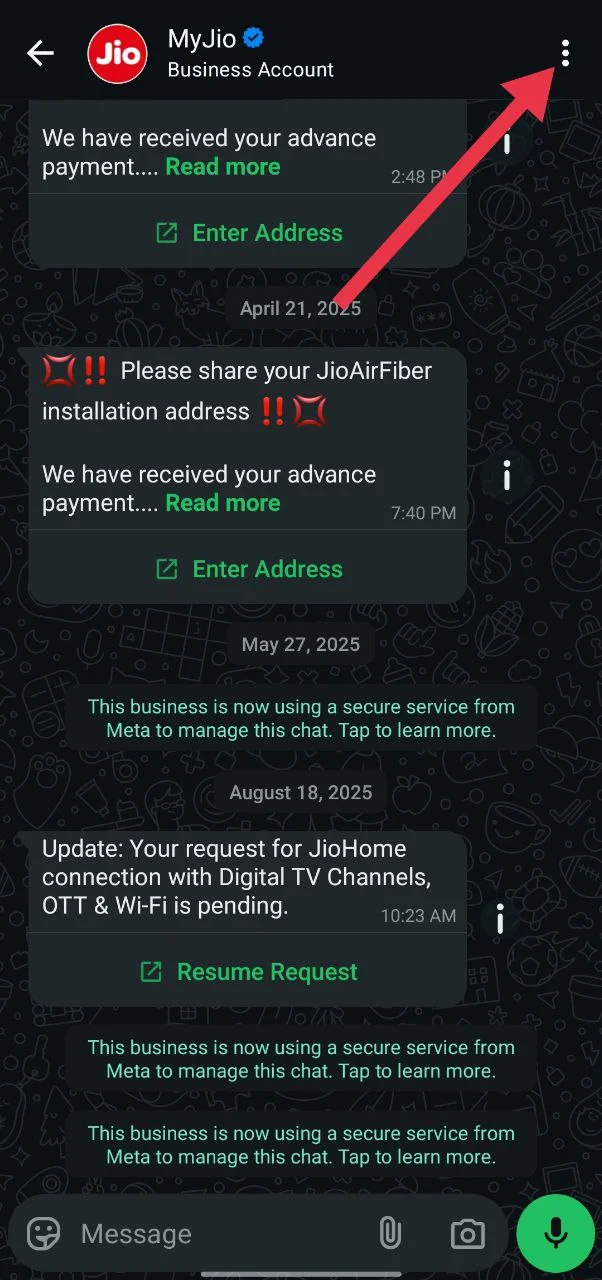
- Tap the three dots in the top right corner.

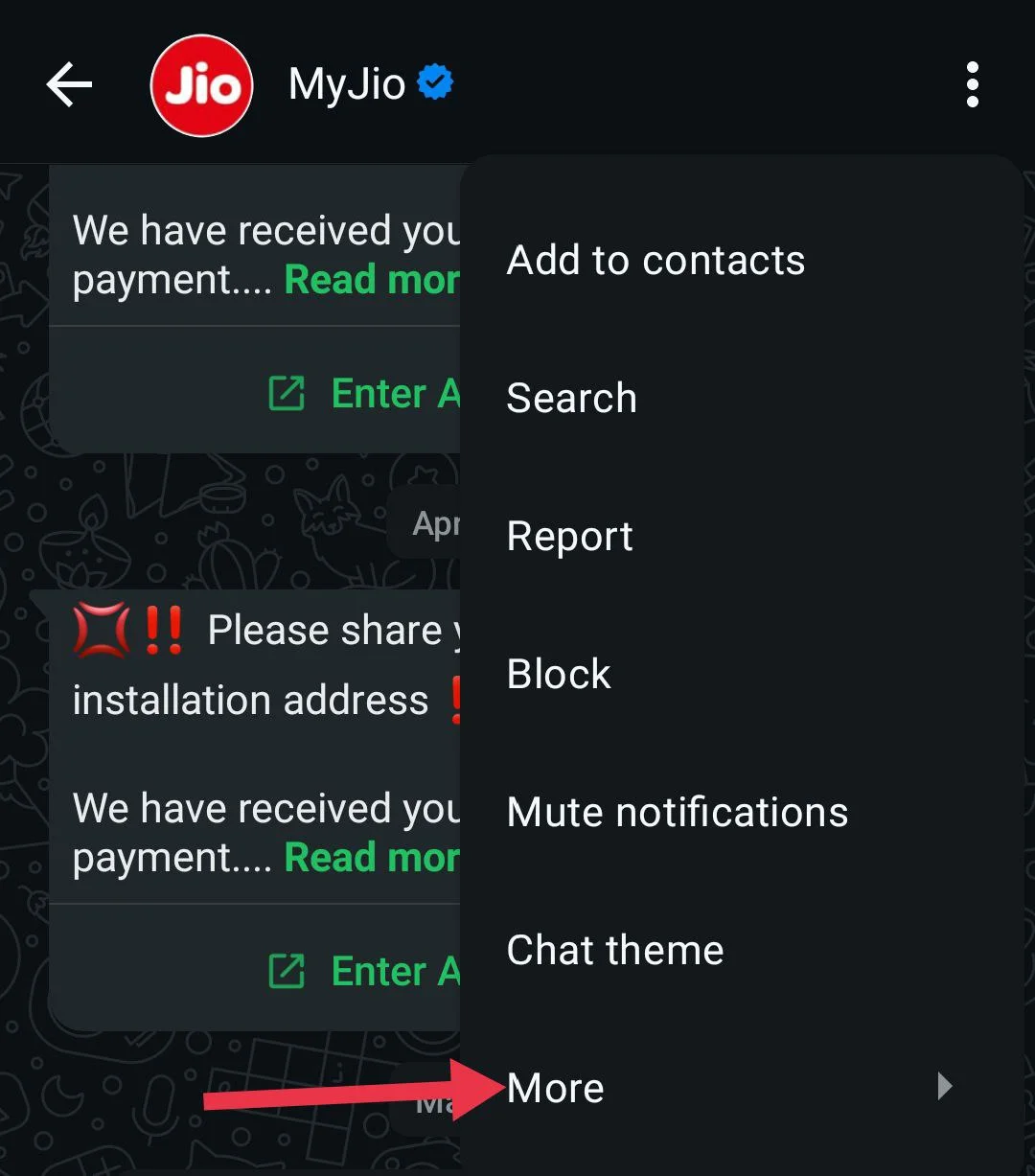
- Select “More”

- Tap on “Export chat”.

- Choose “Without media” (or With media if you prefer).
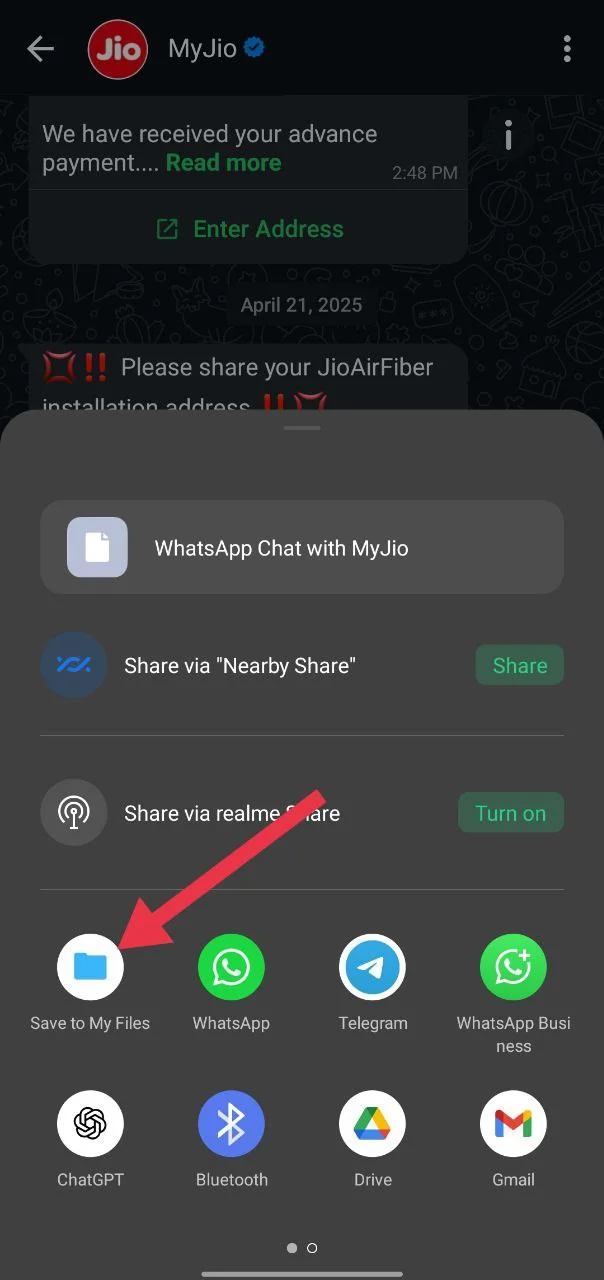
- From the sharing options, select “Save to Files” or your phone’s file manager.

- Pick the folder where you want to save the file and tap “Save.”
- Open your file manager, find the exported chat file, and open it.

The very first message will appear right at the start of the file.
On iPhone
- Open WhatsApp and go to the chat or group.
- Tap the profile name at the top.
- Scroll down and tap “Export Chat”

- Choose “With media” or “Without media”
- Select “Save to Files”
- Pick a location and tap “Save.”
- Open the Files app and tap on the saved chat file.
- After that, open the “Files” app on your iPhone and open the saved file to view the first message.

Using the Search Feature
If you still remember what the first message was, or at least a word or phrase from your early chats, you can quickly jump close to the beginning using WhatsApp’s built-in search option. This saves you from endless scrolling and makes it much easier to get to the start.
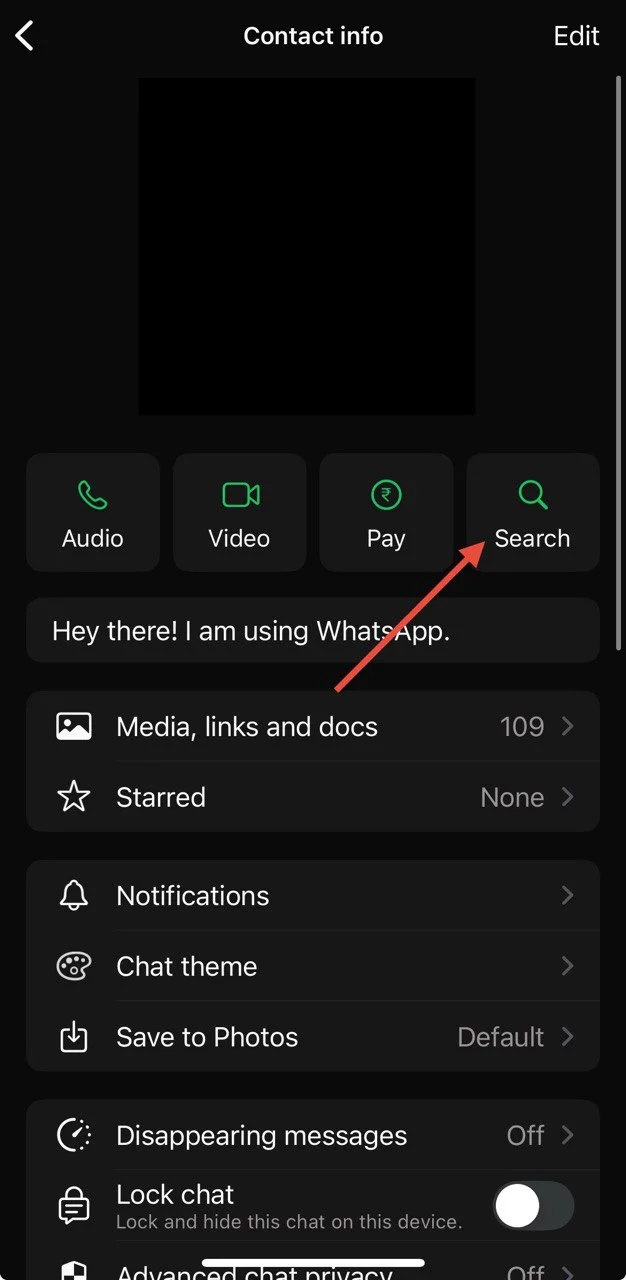
- Open WhatsApp and go to the chat.
- Tap on the contact or group name at the top.
- Now, click on the “Search” from the list of options.

- Type the word or phrase you want to find and tap the search icon on the keyboard.
- WhatsApp will highlight all the places that the word appears in the chat.
- Once you land on one of the earliest results, you only need to scroll a little to reach the very first message.
Tip: If you don’t remember the exact first message, try searching for words you often use in chats, like “Hmm, Ok, Thanks, or Oh”. Go to the very first result from the list and then scroll a bit upwards, you’ll soon reach the very first message in that chat.
Using the Previously Sent Media
If you often share photos, videos, or documents on WhatsApp, this can be a handy shortcut to reach older messages. By opening the very first media shared in a chat, you can quickly jump back to the early part of the conversation and then scroll a little further to find the very first message.
On Android
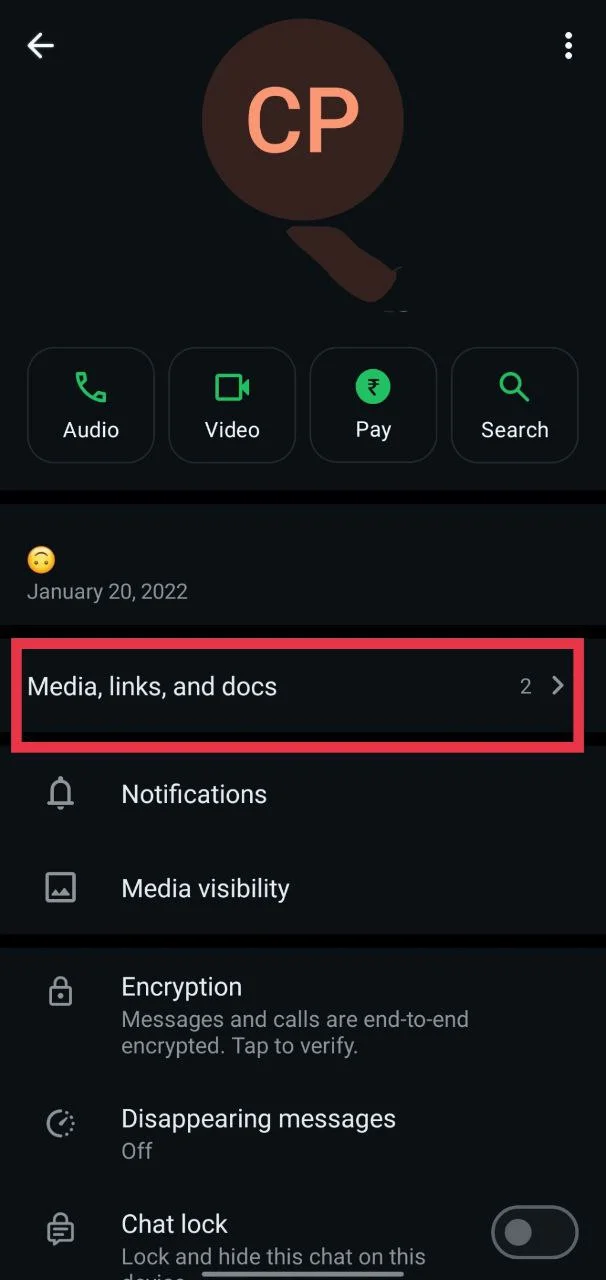
- Open WhatsApp and go to the chat.
- Tap on the contact or group name at the top.
- Select “Media, links, and docs”

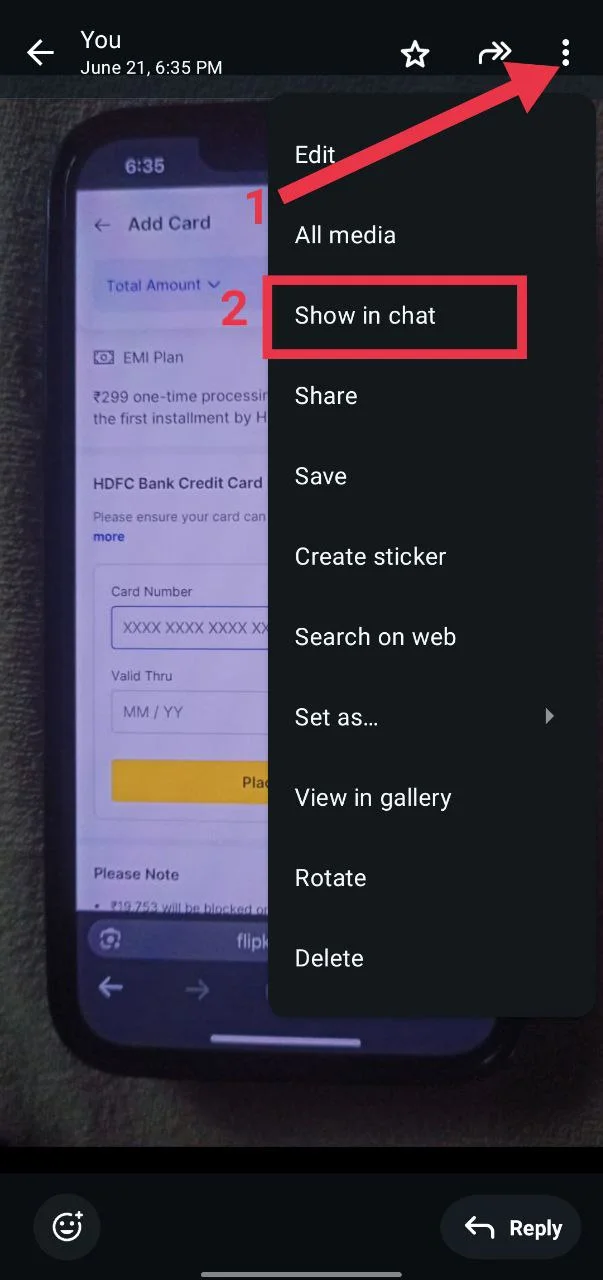
- Scroll all the way down and open the first photo, video, or file shared.
- Tap the three dots in the top right corner and choose “Show in chat.”

On iPhone
- Open WhatsApp and go to the chat.
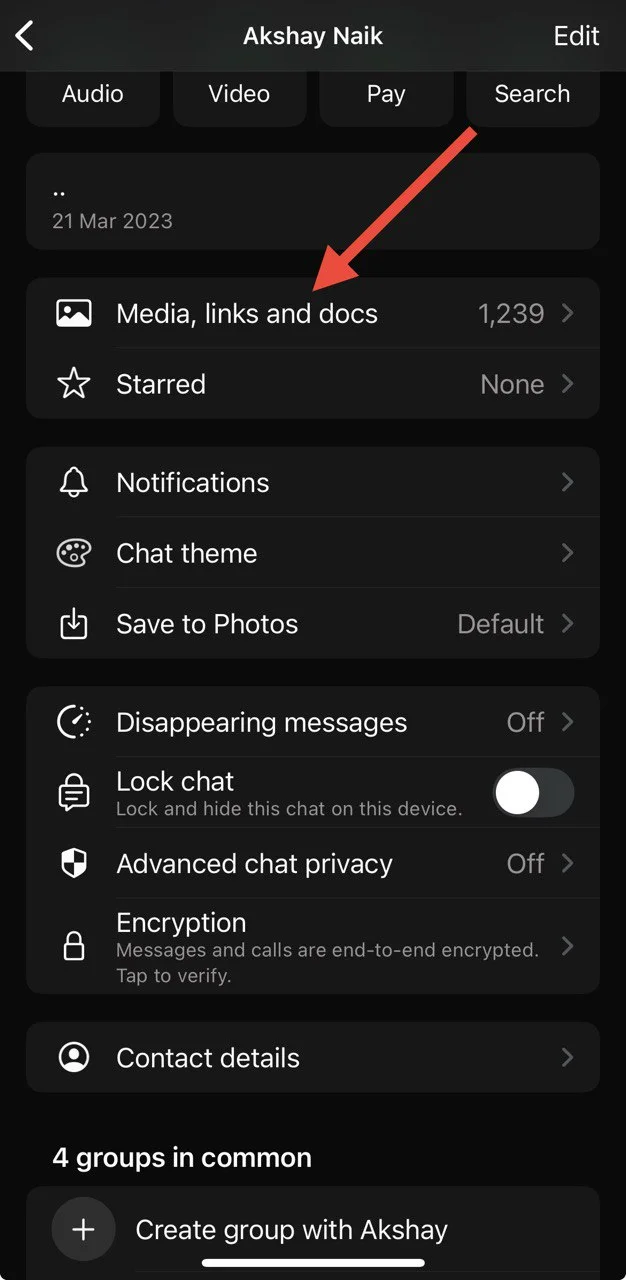
- Tap on the contact or group name.
- Select “Media, links, and docs”
- Scroll to the very bottom and open the first shared item.
- Long-press on the media and tap “Go to message”

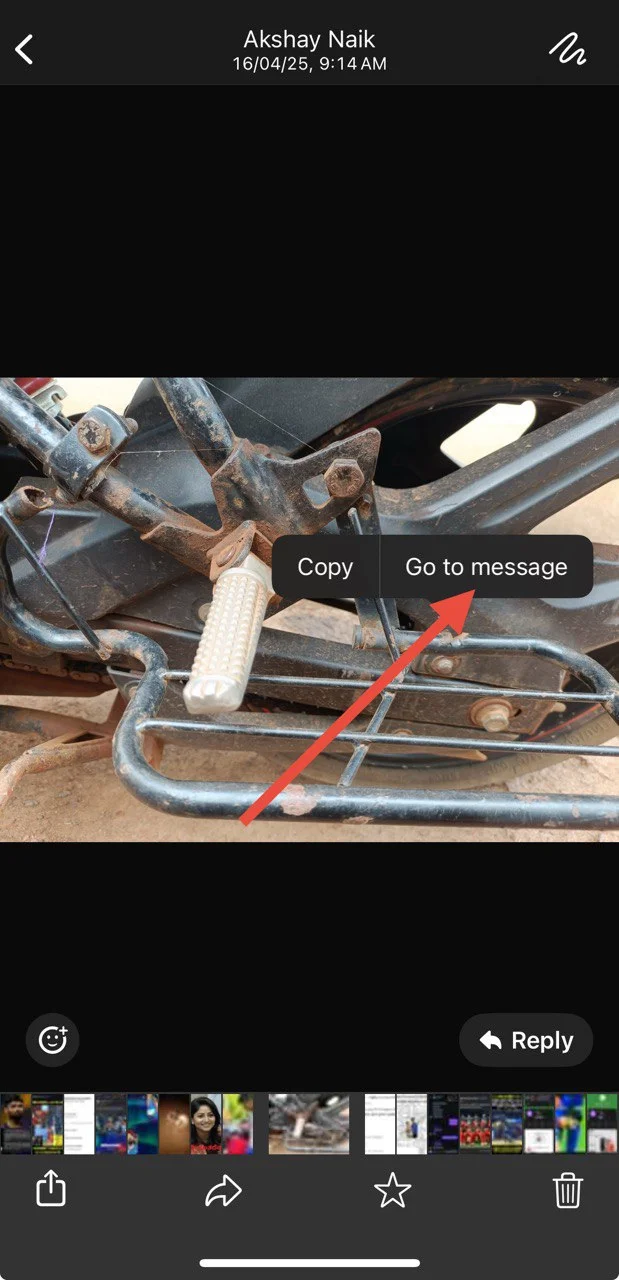
Once the media opens inside the chat, you’ll already be close to the start. From there, just scroll up a little and you’ll find the very first message.
- RELATED GUIDE: How to Fix “The File Format is Not Supported” on WhatsApp
These are the easiest and most effective ways to see the first message on WhatsApp you ever had with someone on WhatsApp. That said, you need to have your conversation available to find the very first one. If you’ve recently deleted a conversation or turned on disappearing messages, the old chats will no longer be there. In that case, you’ll only be able to view the earliest message that still exists before it was deleted. Also, keep in mind that there are no apps for Android or iOS that can directly show you the first message on WhatsApp without scrolling. Stay safe and avoid downloading random apps that claim to do this, as they can be unsafe and put your data at risk.