Snapchat is a popular app that lets people share photos and videos with their friends. These shared moments, called “snaps,” disappear after the recipient views them, making each interaction special and temporary.
The app does more than just send pictures – it lets users create fun photos and videos that they can share instantly with friends or post as Stories for everyone to see for one day. Millions of people use Snapchat every day, sending billions of snaps to stay connected with friends and family.
What makes Snapchat special is its fun features like filters and face effects that can turn regular selfies into exciting pictures. When you open Snapchat, it goes straight to the camera, making it easy to capture and share moments right away.
Many people want to share photos they’ve already taken on their phones through Snapchat. However, the app treats saved photos differently from pictures taken directly on Snapchat.
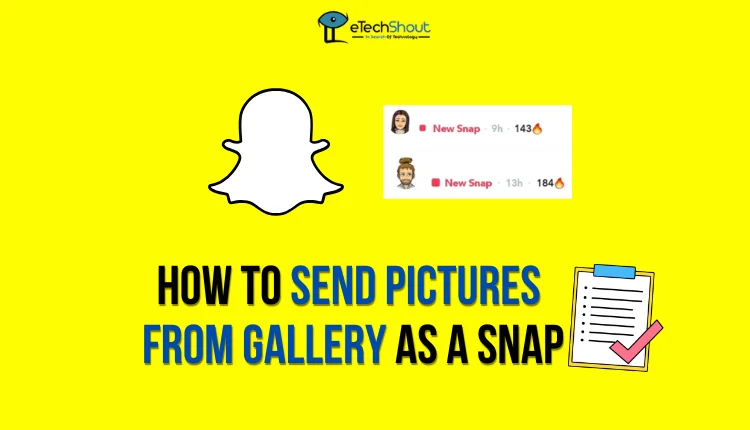
This guide shows you how to send pictures from your gallery as a Snap on Snapchat, making it easy to share saved photos just like new ones taken in the app. These steps will also help you send a Snap from your camera roll as a streak without others knowing, so you can keep your Snap streak going effortlessly.
How to Send a Saved Image as a Snap Instead of a Message on Snapchat?
- Open the Snapchat app (Android/iOS) on your phone and make sure you’re logged into your account.
- Tap the camera icon at the bottom of the screen to go to the camera view.
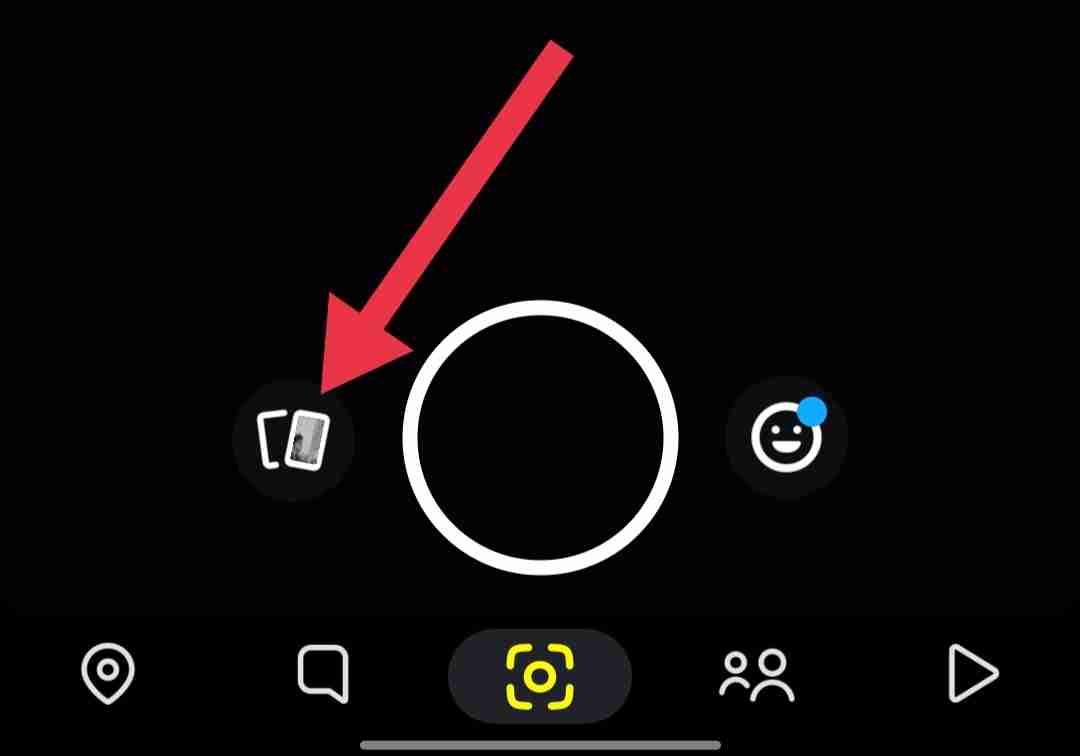
- Once you’re in the camera view, swipe up or tap on “Memories” to access photos in your Memories section or Camera Roll. Select the specific photo you’d like to send.

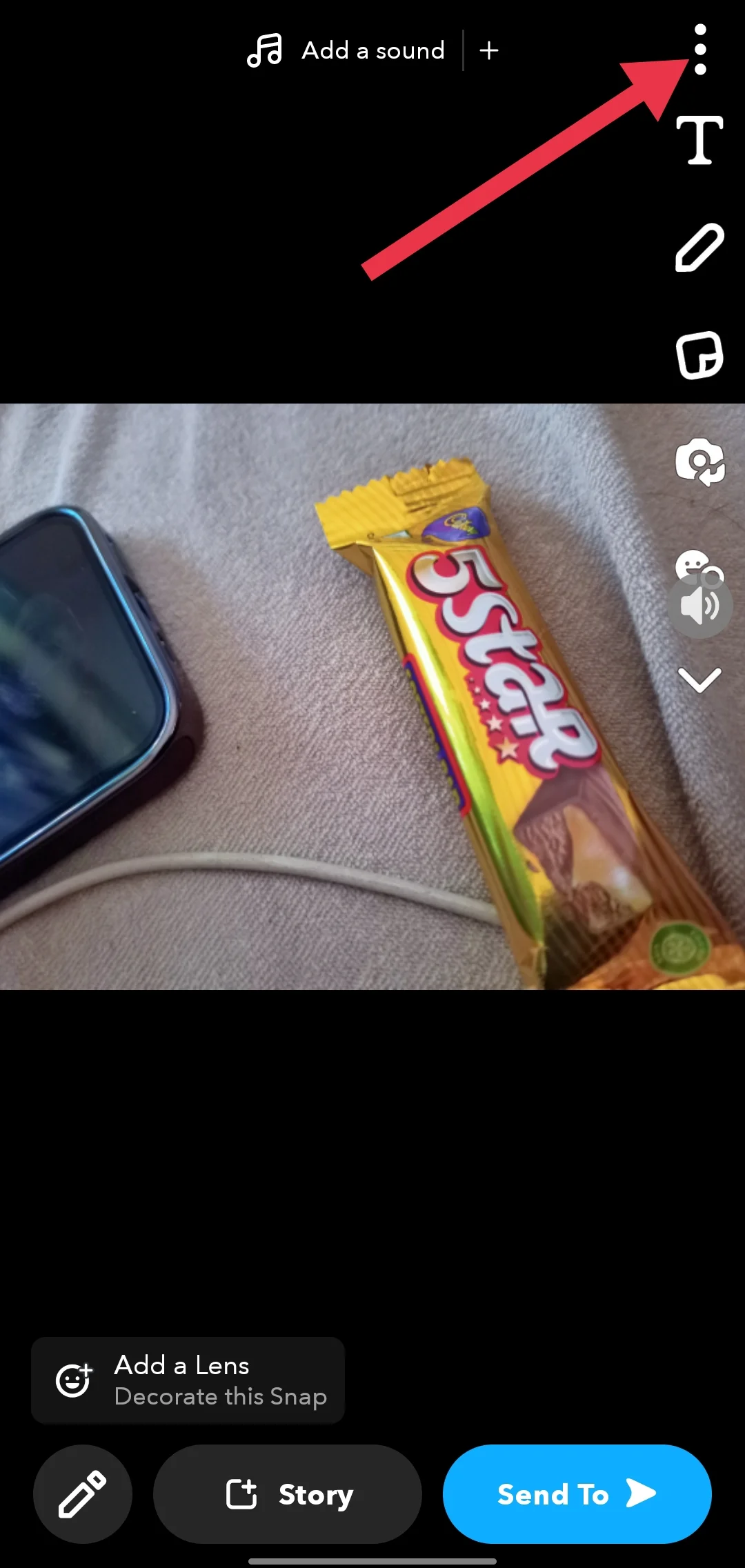
- With the photo open, tap on the three-dot menu icon in the top-right corner of the screen.

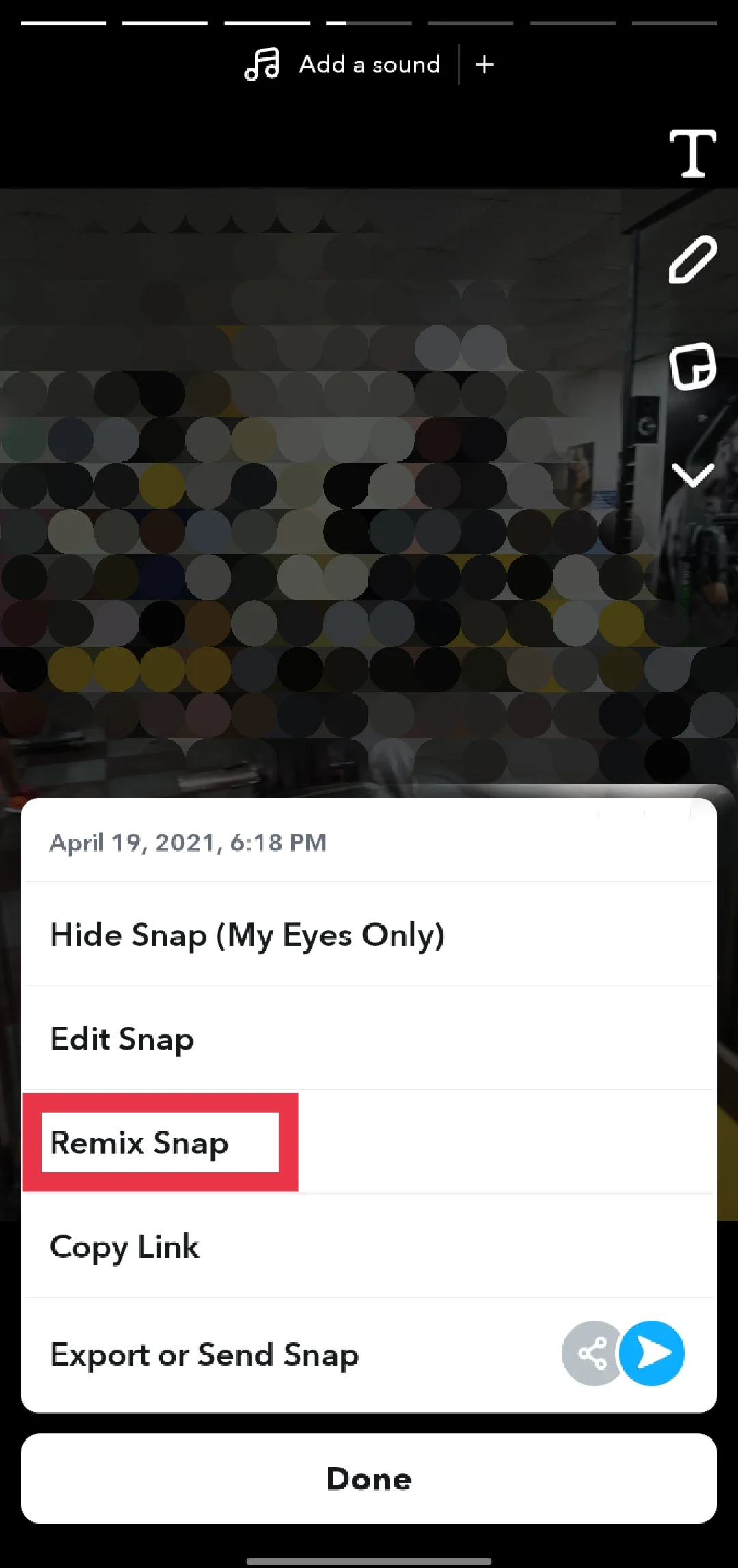
- From the options that appear, select “Remix Snap.”

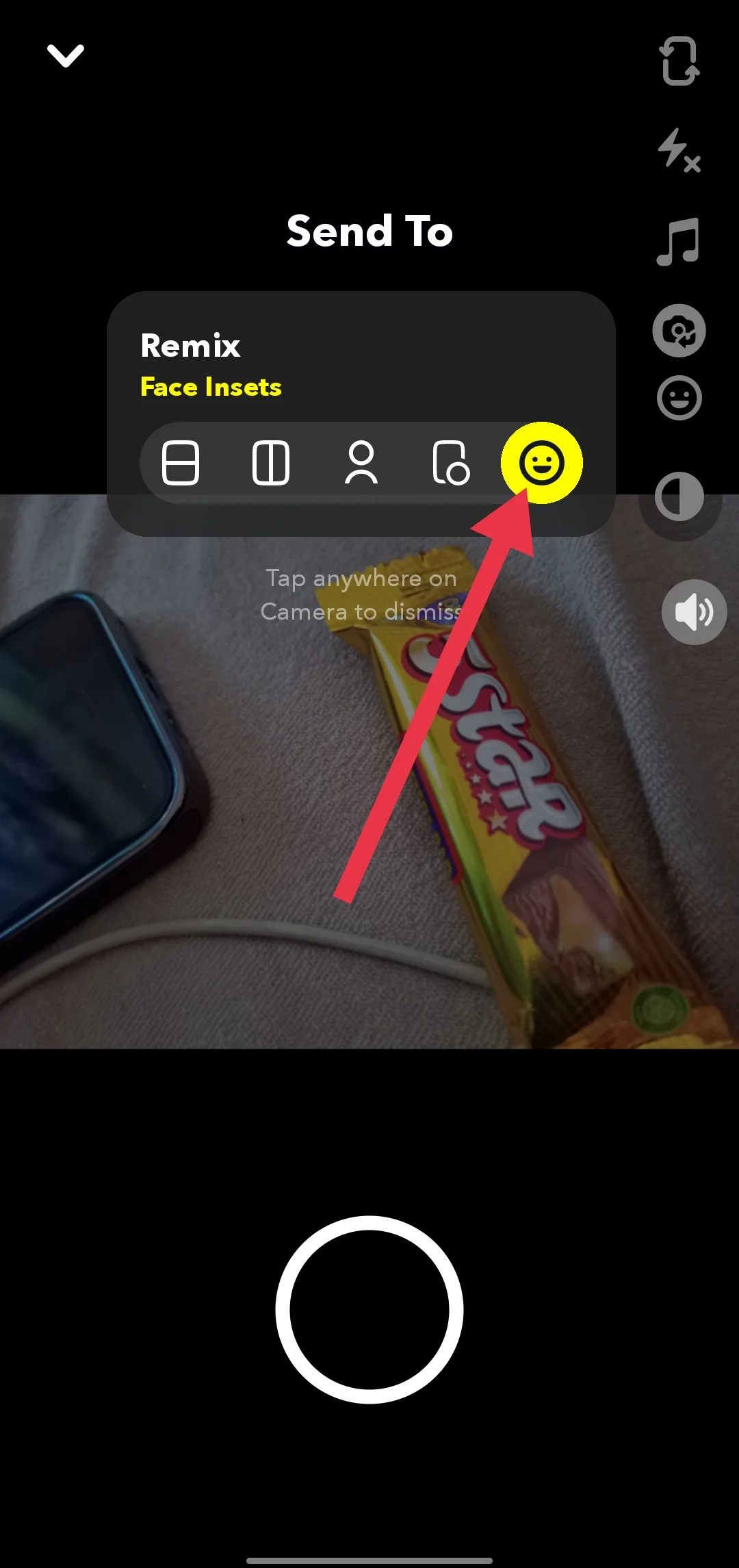
- Snapchat will give you several remix choices. Select the first one, which is marked by a smiling emoji icon. This option will create a remix effect, focusing only on your eyes and lips in the photo.

- Hold your phone so that your face is visible, then slowly tilt the camera away from your face. This movement will cause the remixed effect to disappear from the photo.
- Now, press the shutter button (the circle button at the bottom of the screen) to capture the modified image.
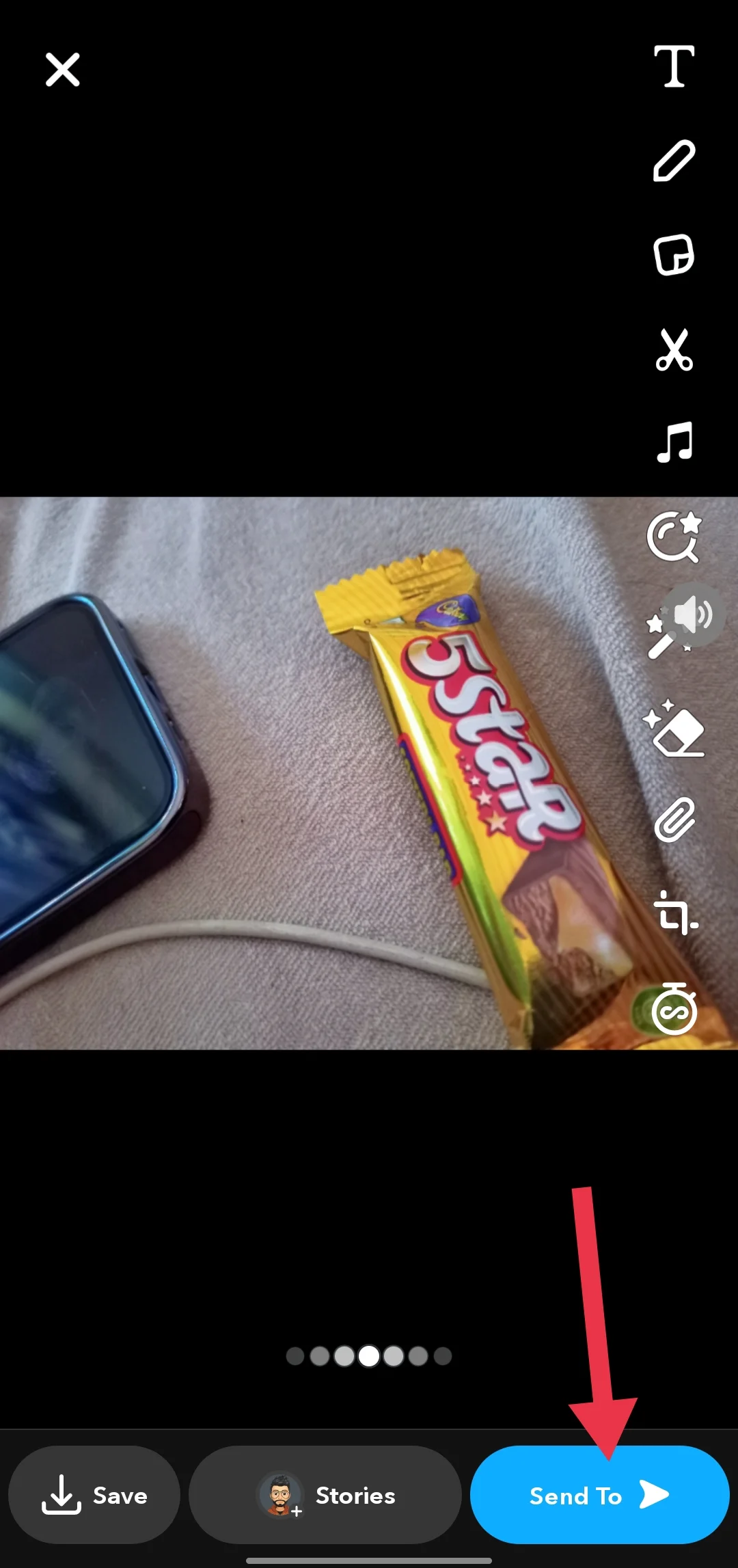
- That’s it! Click on “Send To” to select the contacts so that you can send this photo as a new Snap to anyone in your contacts, just like you would with a regular photo taken directly in the app.
These are the simple steps you can use to send a saved image from your gallery as a Snap instead of a message on Snapchat. I hope you liked this guide. Please share it, and let us know in the comments if you need any help.
- RELATED GUIDE: – How to Do Tiny Snaps on Snapchat