eTechShout
  • TECH
  • HOW TO
    • ANDROID
    • iOS
    • WINDOWS
  • TOP LIST
  • ALTERNATIVES
  • REVIEWS
  • COMPARISON
No Result
View All Result
  • TECH
  • HOW TO
    • ANDROID
    • iOS
    • WINDOWS
  • TOP LIST
  • ALTERNATIVES
  • REVIEWS
  • COMPARISON
No Result
View All Result
eTechShout
Home HOW TO

How to Stop WhatsApp Calls From Someone Without Blocking [EASY]

by Lokesh Naik
August 26, 2025

When WhatsApp introduced the calling feature, it quickly became one of the most useful additions to the app. People no longer had to rely only on mobile network calls, and it made staying connected much easier, especially with friends and family who live far away. Over time, WhatsApp calls became a regular part of daily life.

But I faced a situation that made me realize this feature can also be a problem. I was in an important meeting, and I could not put my phone on silent. One of my close friends kept calling me again and again on WhatsApp, even after I declined the call. Since he was a good friend, I did not want to block him, but the constant ringing really made me angry. When I reached home, I started searching for a way to deal with this. It was not the first time something like this had happened. There have been many times when people kept calling me on WhatsApp during work or important programs, and I could not block them just because of that. I wanted a proper solution to this issue, and after some searching, I finally found one.

Here, I will share what I discovered and how I was able to fix the problem.

  • How to Stop WhatsApp Calls From Someone Without Blocking Easily
    • On Android
    • On iPhone

How to Stop WhatsApp Calls From Someone Without Blocking Easily

I found a simple way to stop WhatsApp calls without blocking someone. If you delete the person from your contacts and turn on the “Silence Unknown Callers” option in WhatsApp, their calls won’t ring on your phone anymore, but you can still receive and read their messages. How I did it is explained in the steps below for both Android and iPhone.

On Android

  1. Open the Contacts app on your phone
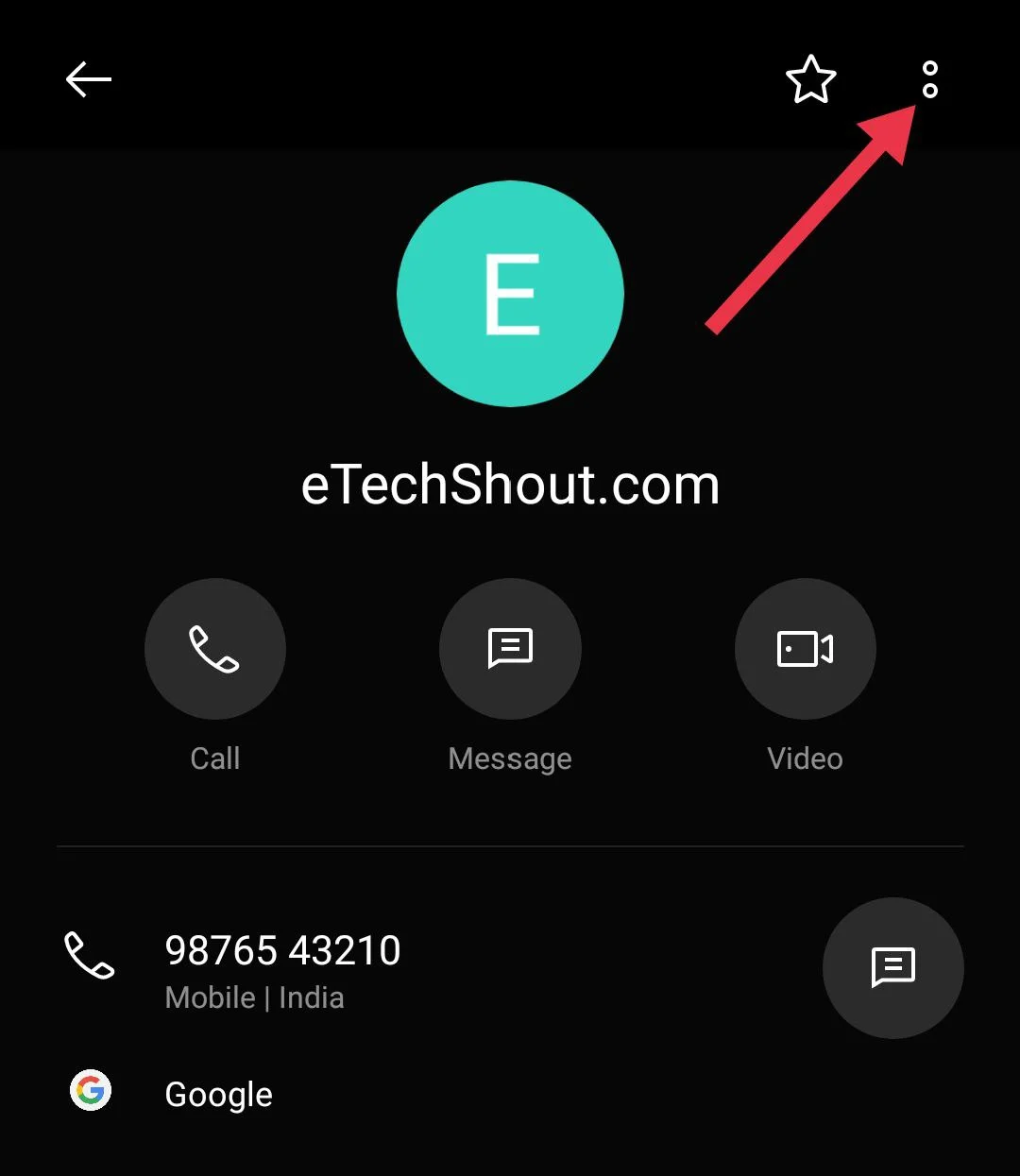
  2. Now, select the contact by tapping on the person’s name
  3. Tap the three dots in the top right corner Delete a contact from iPhone contacts app
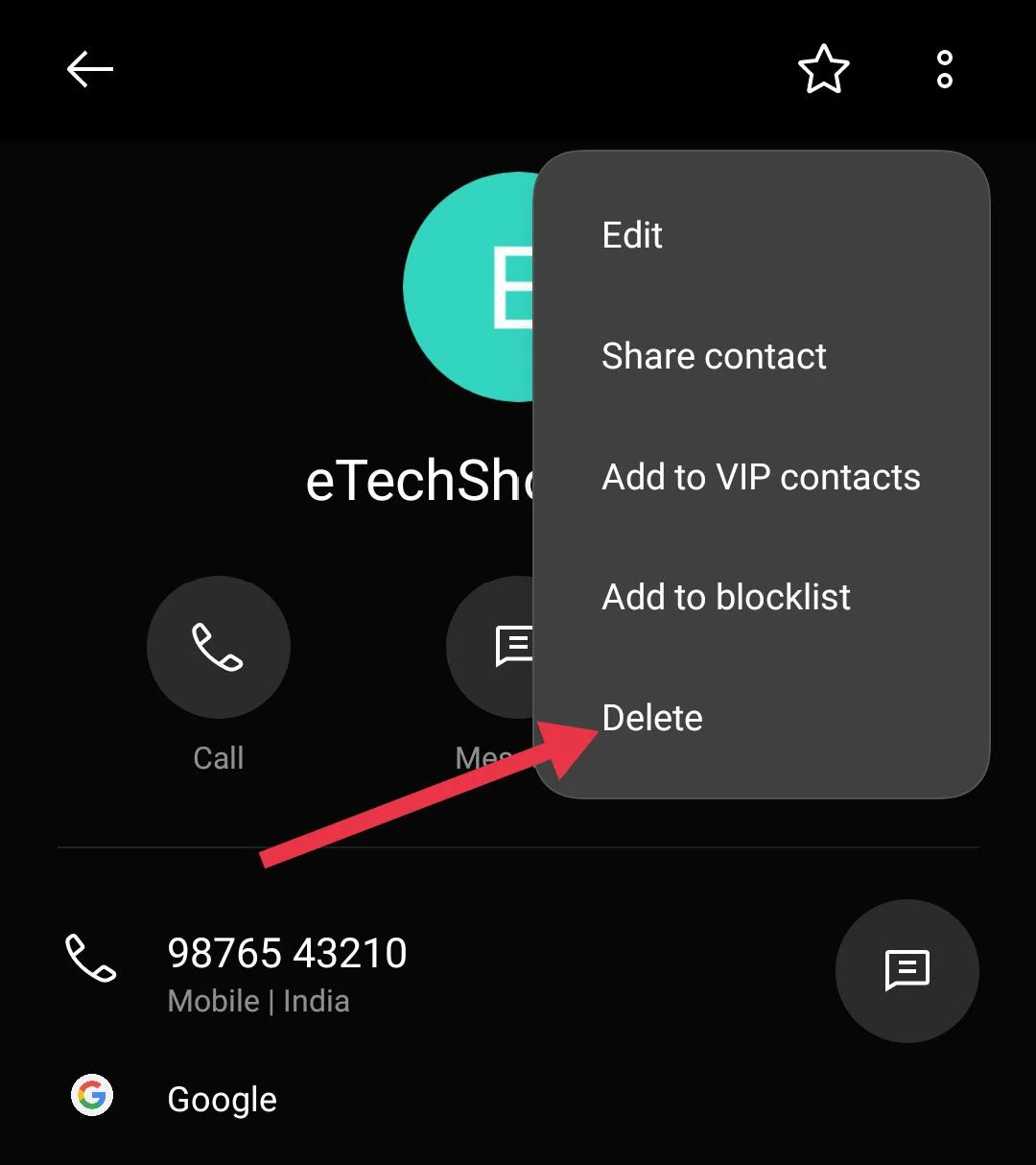
  4. Choose “Delete”Tap the three dots in top right corner of contacts on Android
  5. Now, confirm by moving them to “Trash” (on some devices, there may be no Trash option, and the contact will be deleted permanently once you confirm Delete)
  6. After that, open WhatsApp on your phone
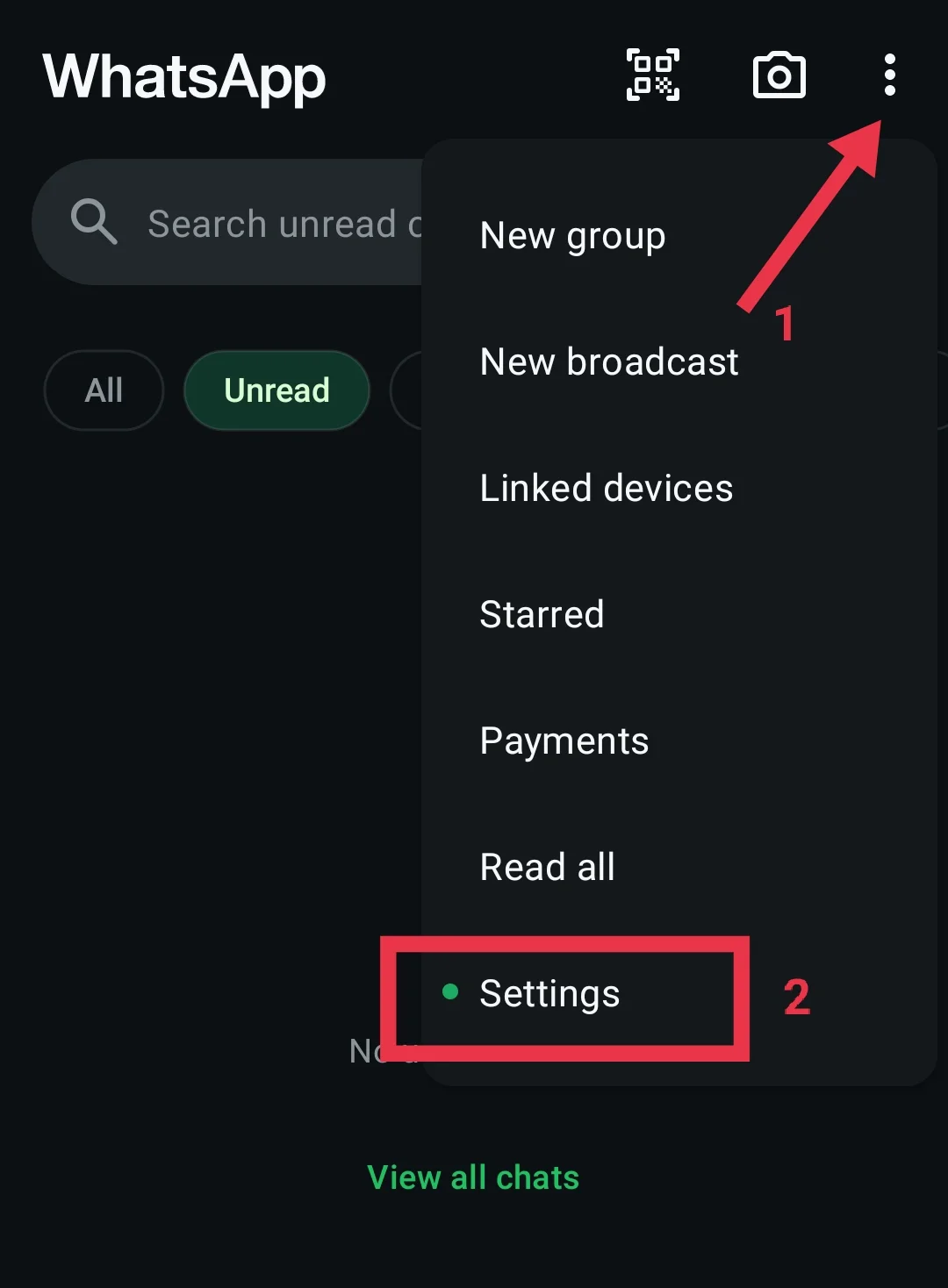
  7. Tap the three dots in the top right and go to “Settings”.WhatsApp settings screen where users can manage account, chats, notifications, and more
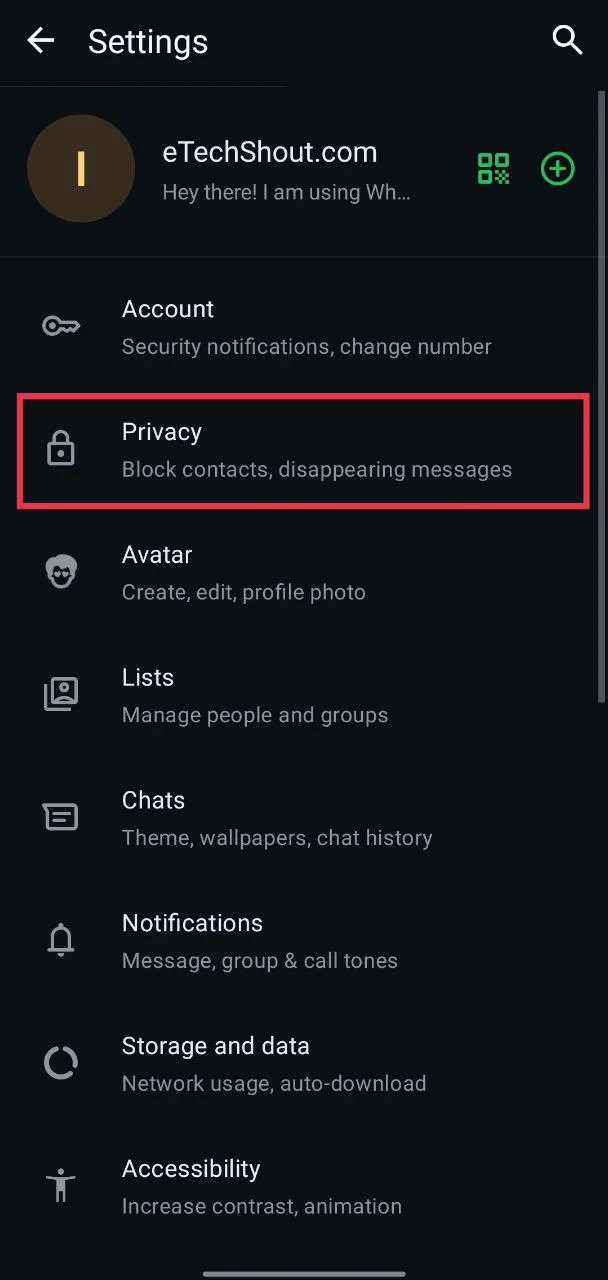
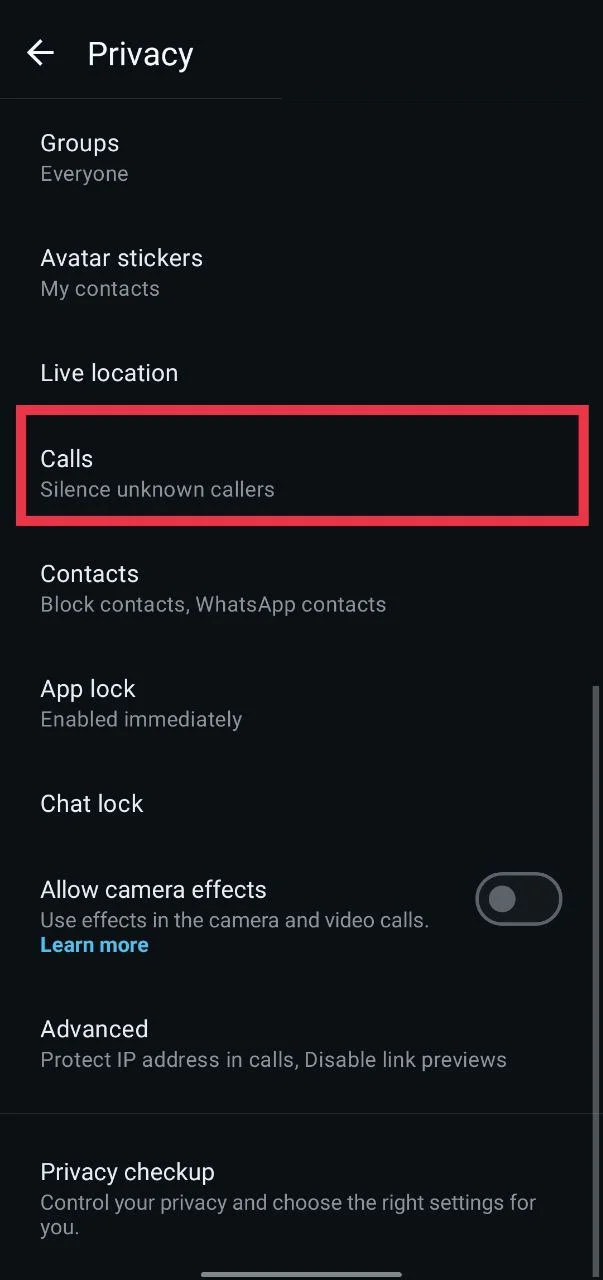
  8. From the list of options, select “Privacy”Open WhatsApp settings and go to privacy option on Android
  9. Then tap on “Calls”Open WhatsApp calls option under privacy on Android
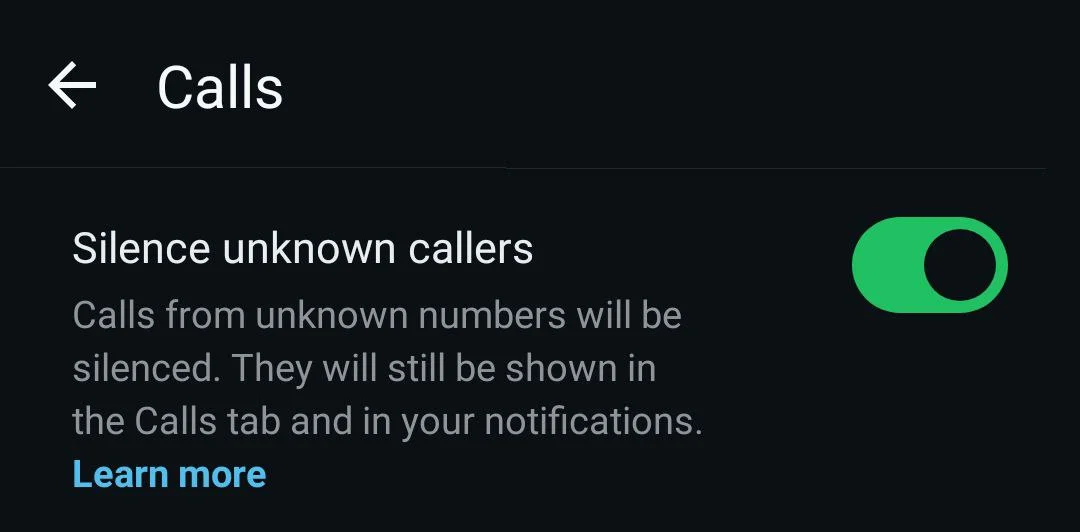
  10. Now, turn on the “Silence unknown callers” option.Turn on silence unknown callers in WhatsApp on Android

On iPhone

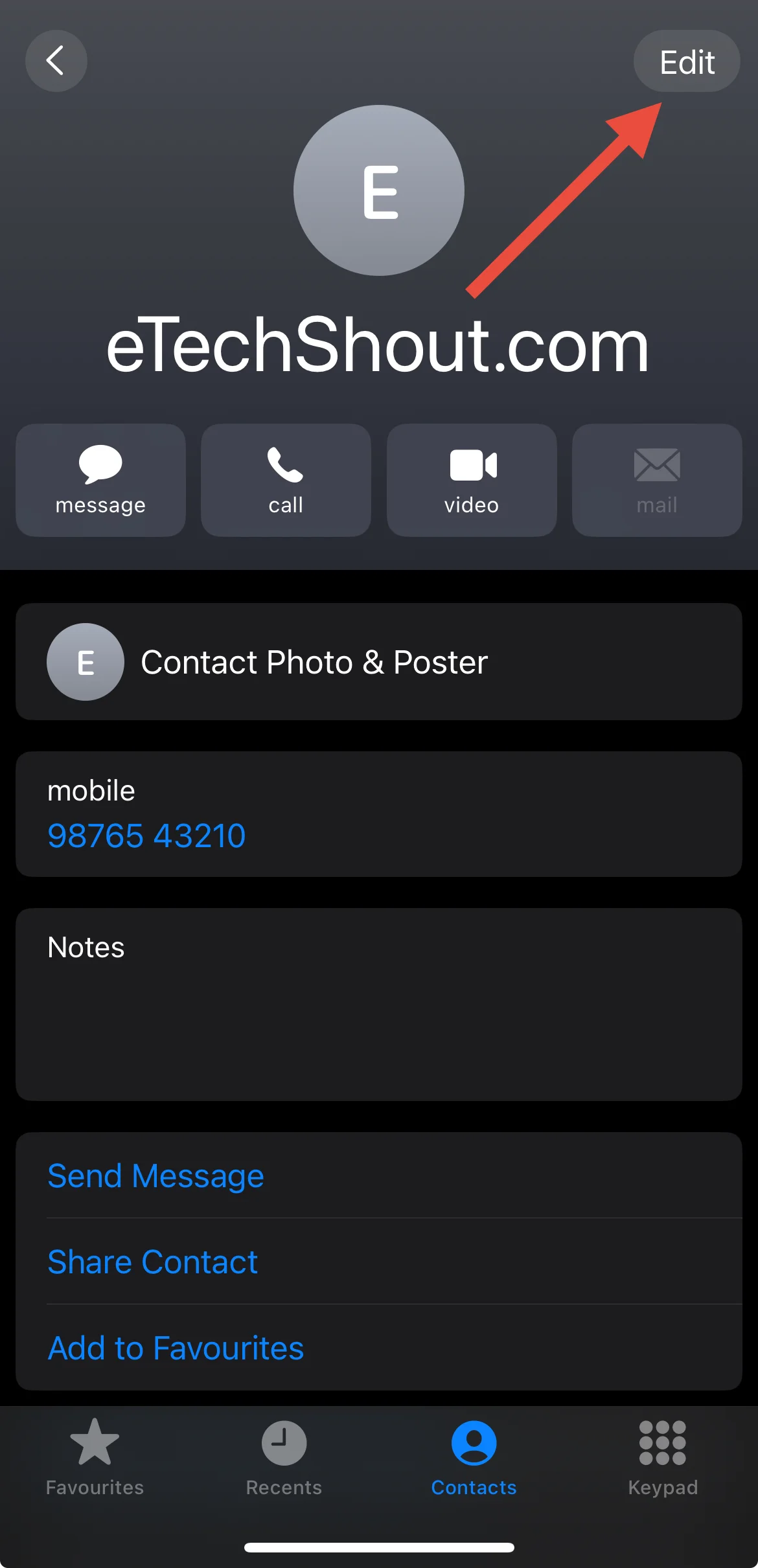
  1. Open the Contacts app and tap on the person you want to remove.
  2. Tap “Edit” in the top right cornerOpen the contact on your iPhone and tap Edit to change phone label
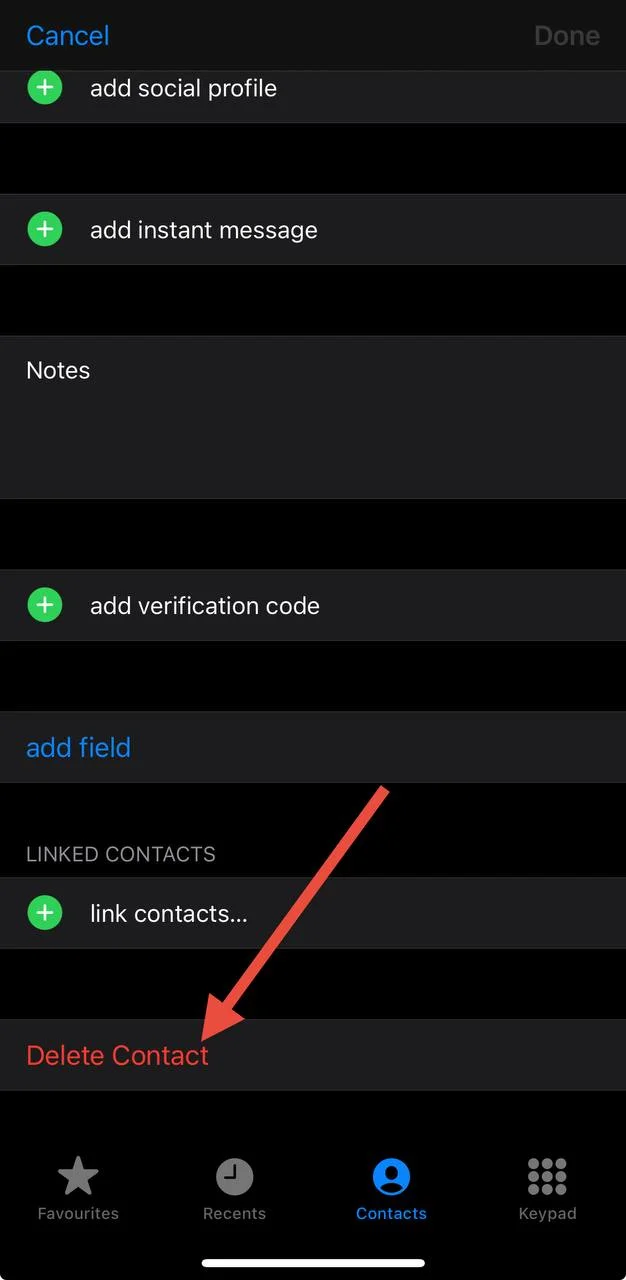
  3. Now, scroll down, and choose “Delete Contact” Delete a contact from Android contacts app
  4. Tap “Delete Contact” again to confirm.
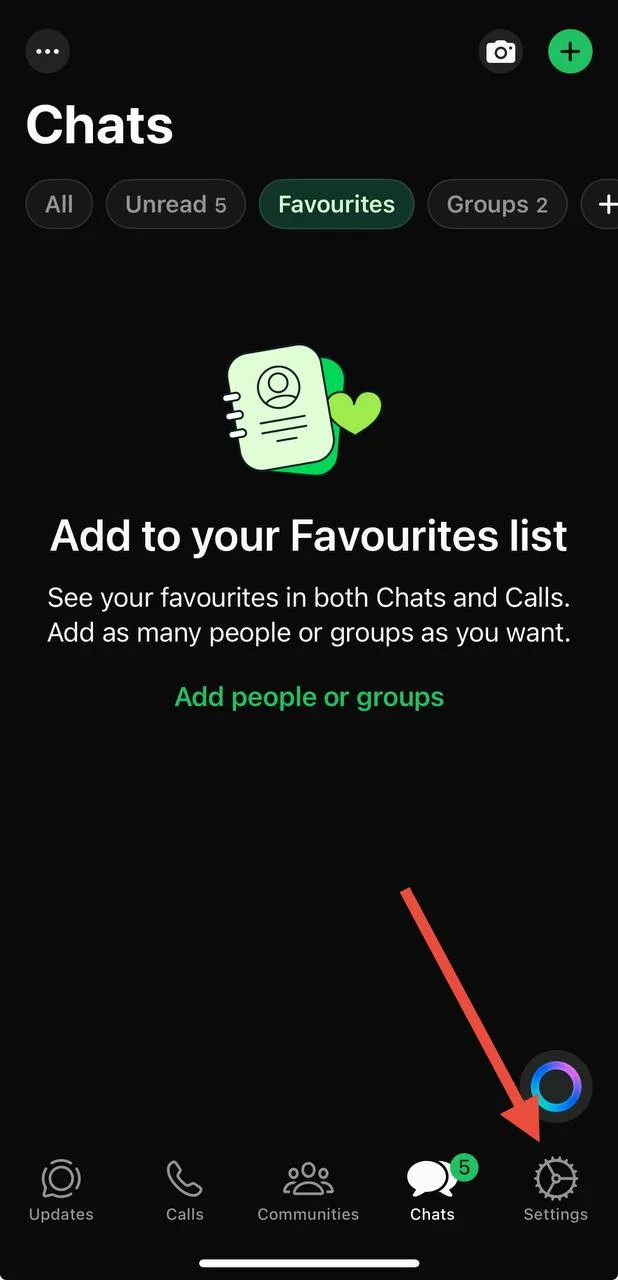
  5. Open WhatsApp on your iPhone and tap “Settings” at the bottom rightOpen WhatsApp settings option on iPhone
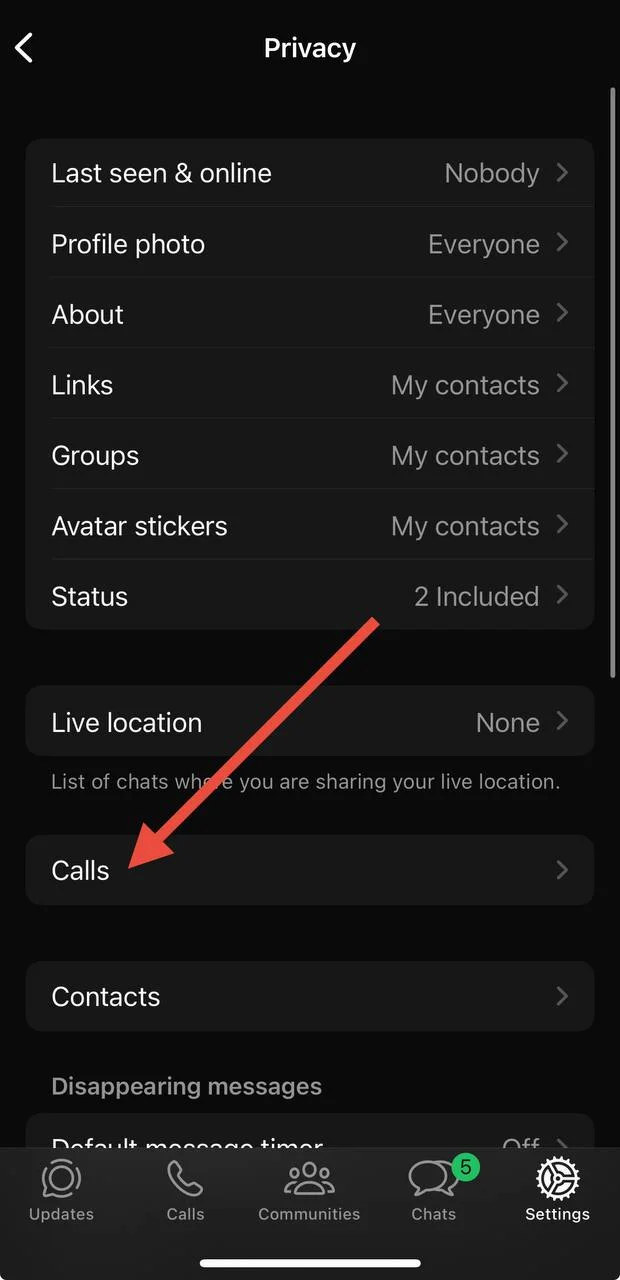
  6. Now click on “Privacy” and then tap on “Calls” Open WhatsApp calls option under privacy on iPhone
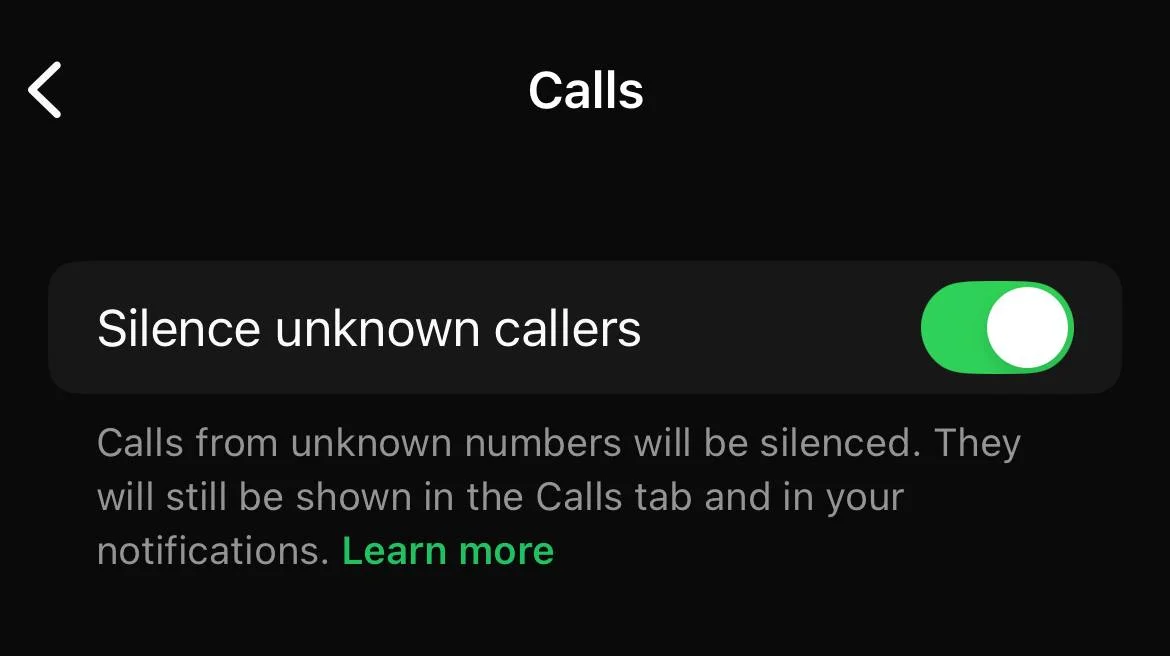
  7. From there, turn on the option called “Silence unknown callers”.Turn on silence unknown callers in WhatsApp on iPhone

You can do the same steps for other people if needed. This way, their calls will be muted, but you can still receive their messages. Keep in mind, WhatsApp will still show a notification when a silenced call comes in.

Also, remember, if you call that person yourself, WhatsApp will not keep their future calls muted. Even if they are not in your contacts, their calls will ring again.

  • RELATED: – How to Disable WhatsApp Call History in iPhone [100% Works]

In this way, you can block WhatsApp calls but not messages. Even if they call, your phone will not ring, and you can still receive their messages, which is exactly what I wanted. Hope this helps. If you know any other way to stop WhatsApp calls from someone without blocking, let me know in the comments below.


Tags: Whatsapp
ShareTweetSendPinPinShareShareSend
Lokesh Naik

Lokesh Naik

Lokesh Naik is an avid blogger and internet freak who is behind this blog. A tech enthusiast and fan of smartphones who keeps track of every little happening in the smartphone world. When not writing, he loves watching cricket.

Related Posts

Steps to know if someone saved your phone number on Android and iPhone

How to Know If Someone Saved Your Number [Android & iPhone]

January 26, 2026
Step-by-step guide to fix WhatsApp error 'Internal storage required. Please turn off USB storage'

How to Fix WhatsApp Internal Storage Required Error [EASY 2026]

January 1, 2026
Quick guide to fix “WhatsApp is open in another window”

How to Fix WhatsApp is Open in Another Window Error [9 Easy Ways]

November 25, 2025
Step by step guide to fix WhatsApp Unexpected Error Please Link Again issue on desktop

How to Fix WhatsApp “Unexpected Error Please Link Again” [100% Works]

November 24, 2025

Recent Posts

Complete guide to login to Instagram without recovery code using backup codes, login link, Facebook, SMS, WhatsApp, and account recovery options

How to Login to Instagram Without Recovery Code [2026 GUIDE]

February 13, 2026
Quick guide on how to resolve CapCut “Too Many People Are Using This Feature Now” error on Android, iOS, Windows, and Mac devices

How to Fix CapCut “Too Many People Are Using This Feature Now” Error

February 12, 2026
Quick easy guide on how to fix facebook daily limit reached error

How to Remove Daily Limit Reached on Facebook [QUICKLY]

February 11, 2026
Quick fix guide for Facebook Messenger Couldn’t Send error on desktop and mobile

How to Fix Facebook Messenger “Couldn’t Send” Error

February 10, 2026
Step by step guide to fix X Twitter playback error on Android

How to Fix X/Twitter Playback Error [100% Works]

February 9, 2026
  • Disclaimer
  • Privacy
  • Contact Us
  • About Us
  • eTechShout Team

Copyright © 2026 All Rights Reserved.

No Result
View All Result
  • TECH
  • HOW TO
    • ANDROID
    • iOS
    • WINDOWS
  • TOP LIST
  • ALTERNATIVES
  • REVIEWS
  • COMPARISON

Copyright © 2026 All Rights Reserved.