In today’s digital landscape, Snapchat has become a beloved social media platform, known for its unique feature of disappearing messages, images, and videos. However, the ability to see when someone is active on the app can sometimes feel creepy. If you’re looking to turn off your active status on Snapchat, you’ve come to the right place.
In this article, we’ll guide you through the simple steps to hide your active status on Snapchat. Whether you’re trying to avoid constant communication with a persistent friend or simply want to enjoy some uninterrupted personal time, knowing how to turn off your Snapchat activity status can be extremely helpful.
So, let’s dive in and explore how you can easily turn off your Snapchat activity status and maintain your digital privacy on Snapchat.
How to Turn Off Active Status on Snapchat
Method 1: Turn Off Activity Indicator
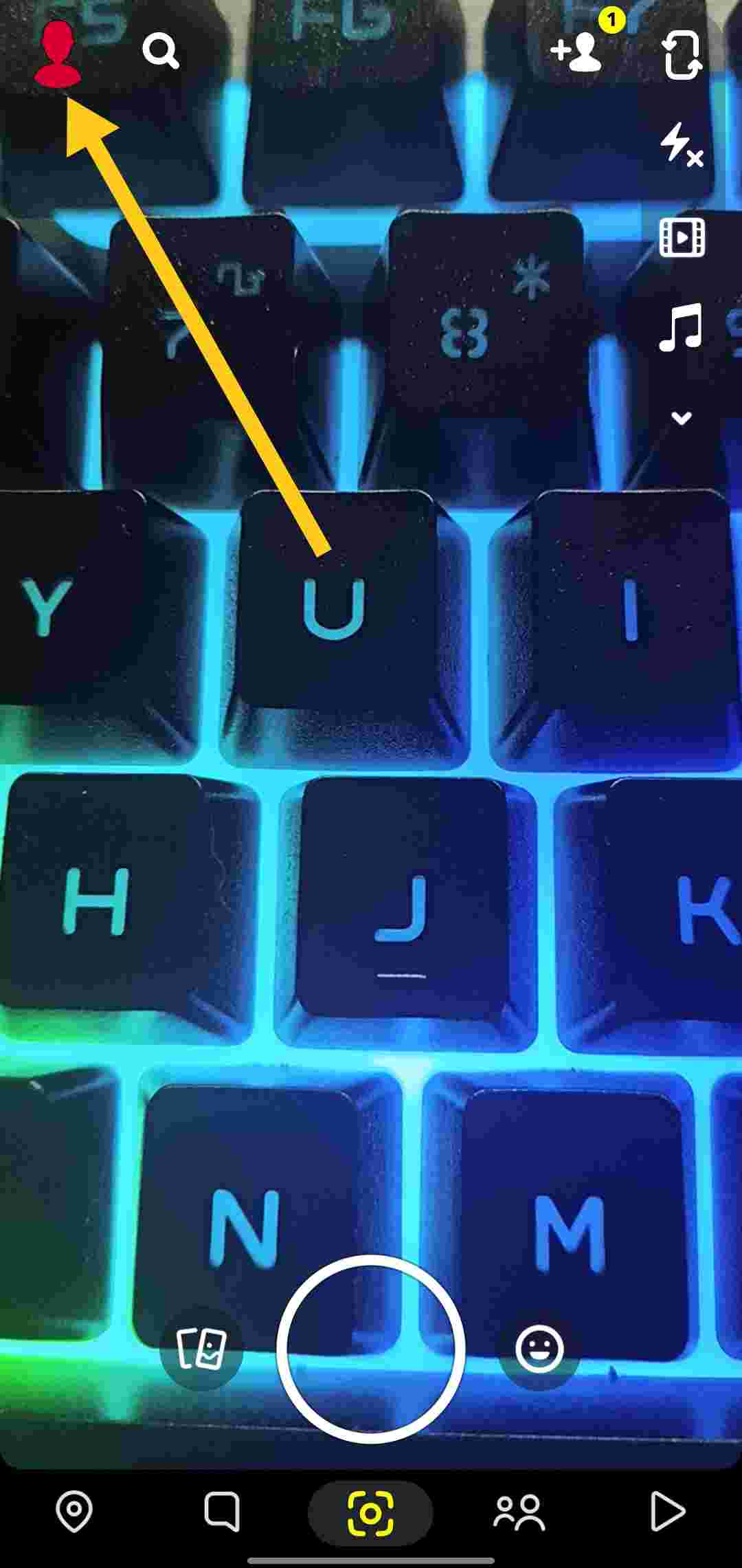
- Open the Snapchat app and tap on your profile icon in the top left corner to go to your Profile screen.

- On the Profile screen, look for the Settings icon (it looks like a gear) in the top right corner and tap on it to open the Settings menu.

- Scroll down through the Settings menu until you reach the “Privacy Controls” section.
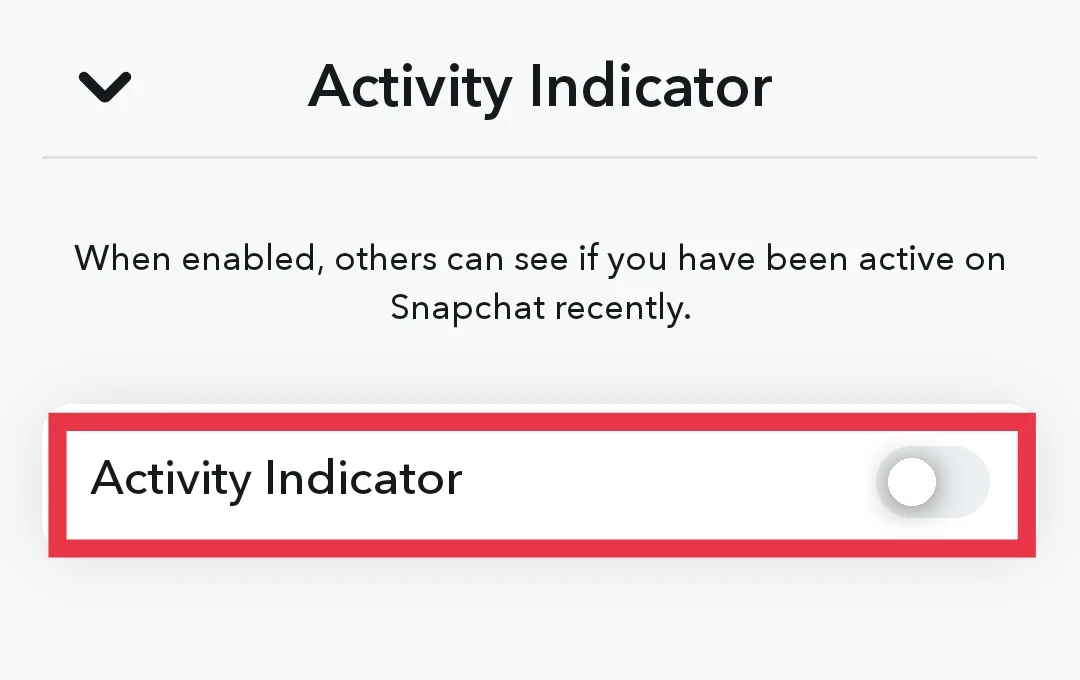
- Tap on the “Activity Indicator” option under the Privacy Controls section.

- On the Activity Indicator screen, you’ll see a toggle switch. Slide this toggle to the “Off” position to disable your activity status.

- Once you’ve turned off the Activity Indicator, your Snapchat contacts will no longer be able to see when you’re online or active on the app.


Method 2: Enable Ghost Mode
Another way to disable your Snapchat activity status is by turning off your live location sharing. Here’s how to do it:
- Open the Snapchat app
- Now, tap on your profile icon in the top left corner. This will take you to your profile page.
- Look for the settings icon (it looks like a gear) in the top right of your profile page, and give it a tap to access the app’s settings.
- In the settings menu, select the “See My Location” option
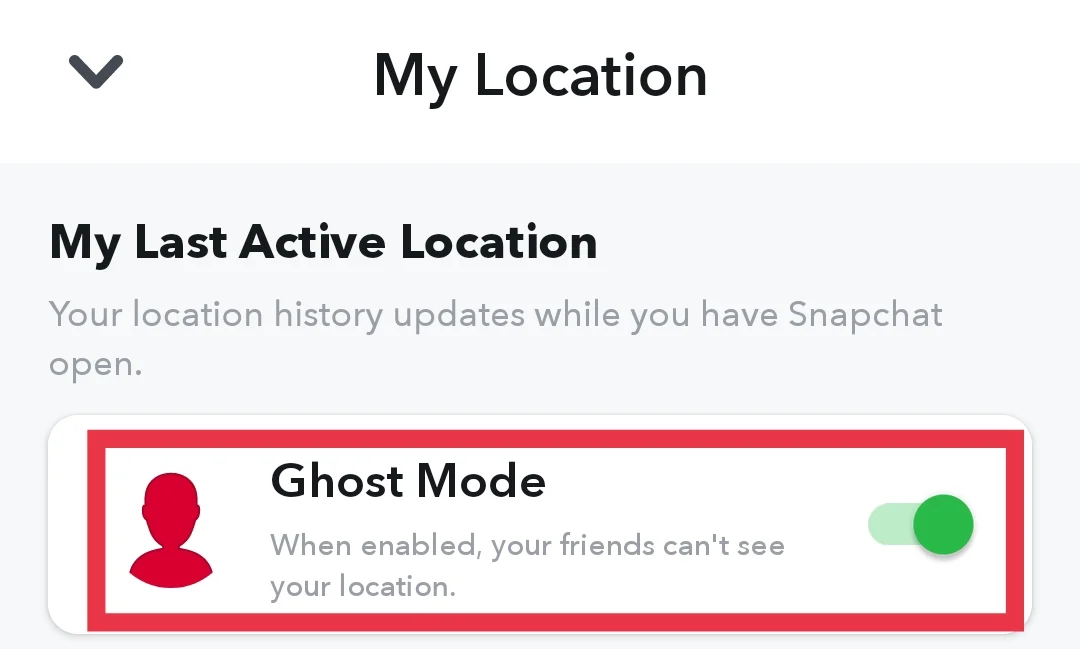
- On the “See My Location” screen, you’ll see three options: “Ghost Mode,” “My Friends,” and “Select Friends.” To completely turn off your location sharing, choose the “Ghost Mode” option.

- That’s it! Now, your contacts won’t know when you’re active or online on the Snapchat app.
Frequently Asked Questions (FAQs)
Can you hide your active status on Snapchat?
Yes. You can easily hide your active status on Snapchat
How do I turn off my activity indicator on Snapchat?
To turn off your activity status on Snapchat, tap your profile icon, then the gear-shaped Settings icon, and select “Activity Indicator” under Privacy Controls. Slide the toggle switch to “Off” to disable it.
Why can’t I find the Activity Indicator option on Snapchat?
The Activity Indicator option might not be available if your Snapchat app is not updated to the latest version. So make sure your app is updated through your device’s app store to try this feature.
What is the ghost mode on Snapchat?
Ghost Mode on Snapchat is a privacy setting that keeps your location visible only to yourself on the Snap Map. Your friends and others won’t be able to see where you are.
Does ghost mode hide your active status?
Yes, Ghost Mode hides your active status on Snapchat so your online status remains private to your contacts/friends or others on the platform.