

Got bored with Instagram? Started hating Instagram for poor updates? Fed up with Instagram messages, stories, notifications? The only solution for these questions is uninstalling Instagram/Stop using it or Deleting Instagram account.
Nowadays Social media lovers are abandoning Facebook and Instagram just because of private apps like WhatsApp, Telegram, etc. People losing interest in Facebook, Instagram, Twitter, being contacted by people they don’t know and they are fed-up with others’ thoughts and stories.
In this post, we are going to explain how to permanently delete an Instagram account and also how to deactivate Instagram account.
How to Permanently Delete Instagram Account?
Deleting Instagram accounts is very easy as you think! You have to open the Instagram deletion page to delete your Instagram account permanently. Follow below simple steps to delete the Instagram account permanently.
Note: – Please note that if you opt to delete your Instagram account permanently, then you will lose all your Instagram photos, videos that you’ve posted on your account. And by picking a permanent delete option, you cannot reactivate your account again!
- Open Instagram deletion page from here
- Log in to your account if you haven’t logged in
- Now it will ask you “Why are you deleting your account?”

- You have to select any reason for deleting your Instagram account permanently
- After picking the reason, you can see the option of Permanently delete my account

- Just click on it to delete your Instagram account permanently!


How to Deactivate Instagram Account?
If you are not ready to permanently delete the Instagram account then you have left with another option. That is deactivating the Instagram account temporarily. It helps you if you’re leaving Instagram for a few days for the reasons like study problems, exam tensions then this is the best method. By doing this, your account will be hidden until you reactivate it by logging back in and you can access your Instagram account again at any time and you will get all your Instagram photos and videos. So here are the steps to deactivate the Instagram account temporarily.
- Go to Instagram and log in to your account
- Must log in from the account that you want to deactivate
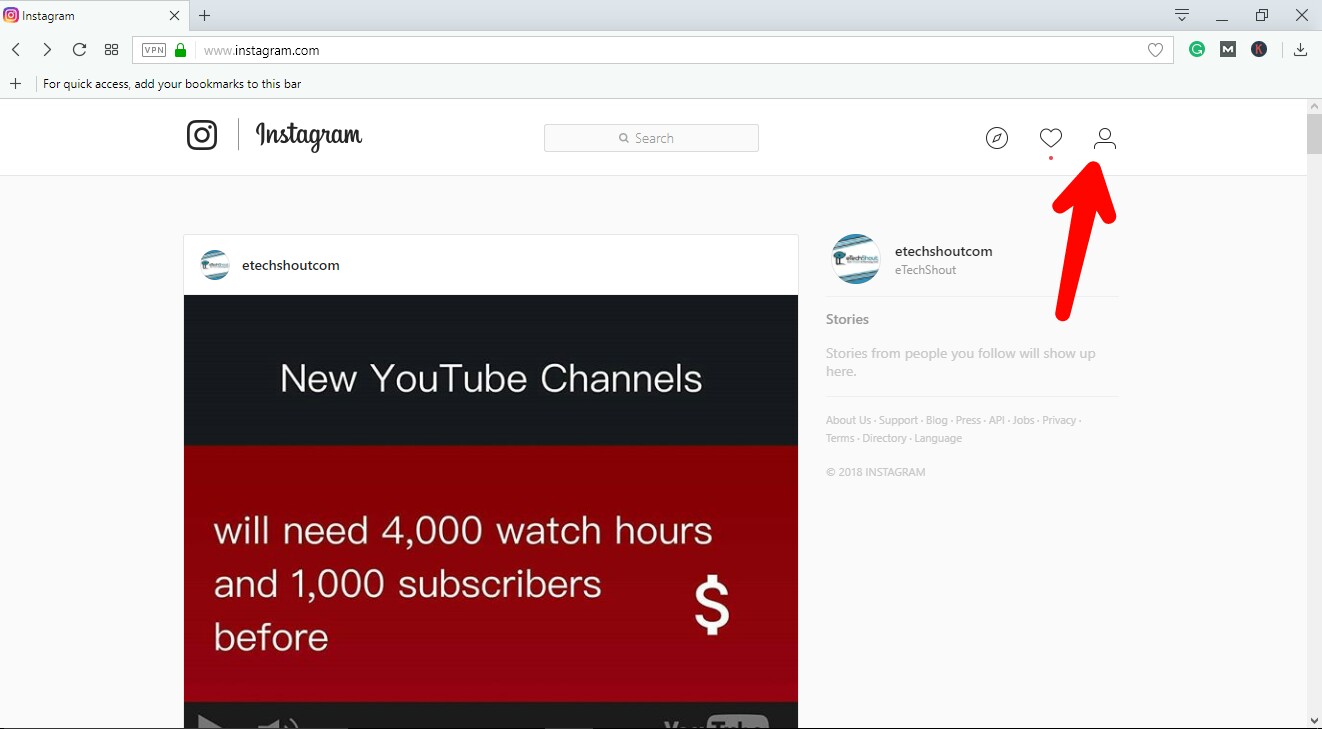
- After logging in, click on the Profile icon from the top right corner

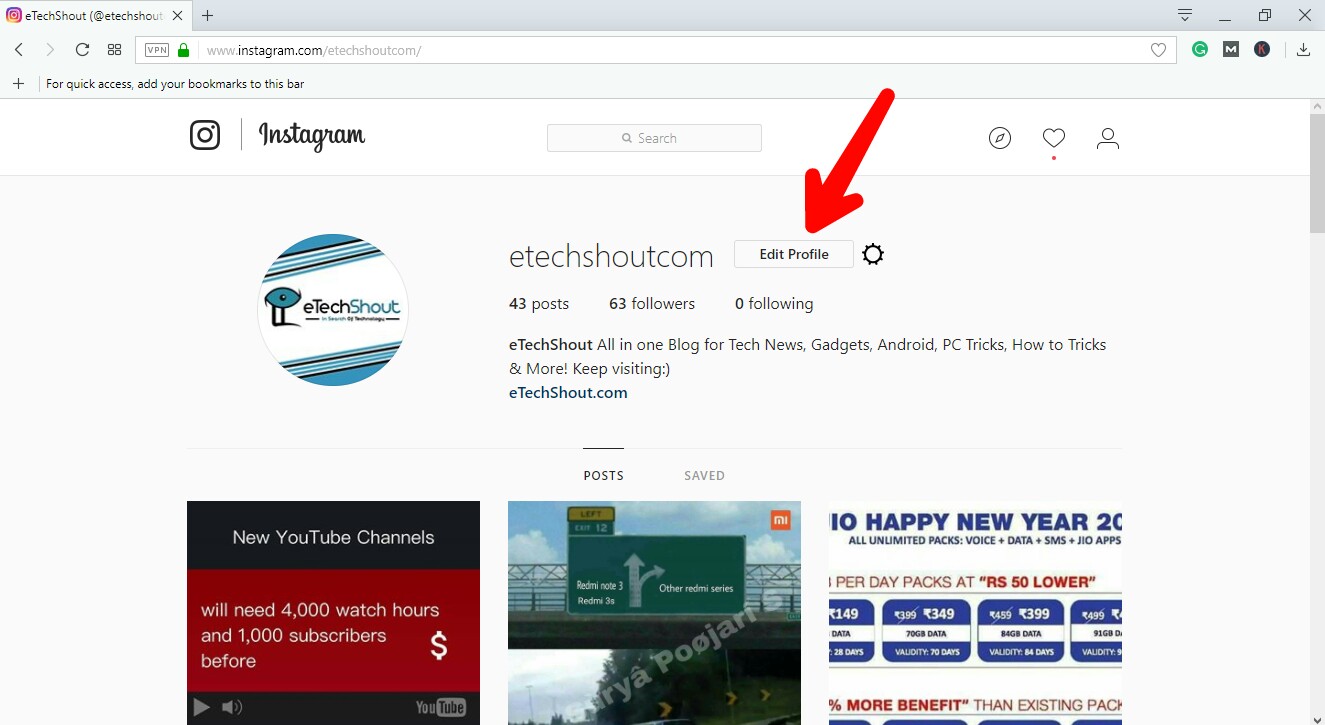
- Now Tap on the Edit Profile option

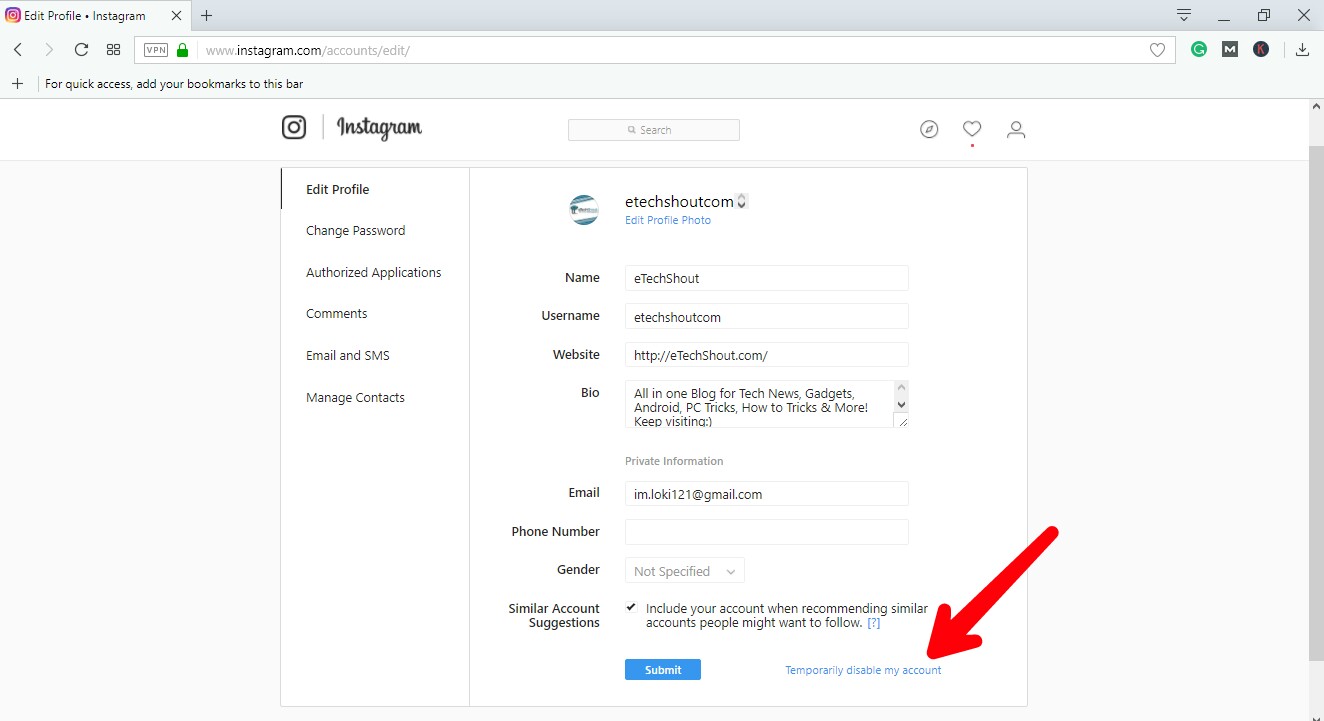
- Just scroll down and you will be able to see the Temporarily disable my account option, Just click on it

- Now you will be asked the reasons for deactivating the Instagram account
- Select any option and enter your password
- At last, click on the Temporarily disable the account to deactivate your Instagram account.
You can also delete your Instagram account by visiting this direct deactivating link.
Note: – You can only disable your Instagram account once a week!
We have explained the difference between permanent account delete and temporary account delete. Now you can decide whether you wish to delete or deactivate your Instagram account. I hope this post helps you to deactivate or delete your Instagram account. Do comment if you’ve faced any problems while following these steps. Share this post with your friends and keep visiting us.










Great…!! that’s great advice good work, I read and also saw your every post, nice artical very usefull your post Thank you so much for sharing this and the information provide.