eTechShout
  • TECH
  • HOW TO
    • ANDROID
    • iOS
    • WINDOWS
  • TOP LIST
  • ALTERNATIVES
  • REVIEWS
  • COMPARISON
No Result
View All Result
  • TECH
  • HOW TO
    • ANDROID
    • iOS
    • WINDOWS
  • TOP LIST
  • ALTERNATIVES
  • REVIEWS
  • COMPARISON
No Result
View All Result
eTechShout
Home ANDROID

How to Delete Sent Messages From WhatsApp After 7 Minutes?

by eTechShout Editor
January 8, 2021


Delete-whatsapp-messages-after-7-minutes

WhatsApp recently added its most anticipated “unsend” feature, which allows the users to unsend the messages that have been already sent within 7 minutes. This will make you disappear the sent message from the conversation both from the sender and the receiver. Still it will alert the receiver that the received message has been deleted. Although, it is a good feature when it comes to unexpected moments. This unsend feature works with all types of WhatsApp messages including WhatsApp images, WhatsApp videos, WhatsApp GIFs, and WhatsApp texts.

  • Also Read: – How to Increase WhatsApp Status Video Limit of 30 Seconds?

However, if you’ve sent a WhatsApp message mistakenly and regretting it after 7 minutes of time then don’t worry. A simple loophole in the WhatsApp app can help you to unsend the message that has been already sent to anyone. So here in this post, we are going to explain How to delete sent messages from WhatsApp after 7 minutes. This trick can work with both Android and iOS devices.

How to Delete Sent Messages From WhatsApp After 7 Minutes?

  1. After sending a message mistakenly or different person even after 7 minutes, firstly turn off data/Wi-Fi connection recall-whatsapp-messages-after-7-minutes
  2. Enable Aeroplane mode in your device
  3. Now close WhatsApp from recent apps and force stop WhatsApp from installed apps
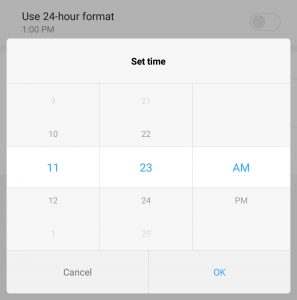
  4. Go to your phone’s settings > date and time settings
  5. And change both the time and date to within seven minutes of the message being sent.Delete-sent-messages-on-WhatsApp
  6. Now open WhatsApp again and find the message you wanted to delete.
  7. To unsend a message on WhatsApp all you need to do is long-press on the message and click the delete button then click delete for everyone.how-to-delete-for-everyone-after-7-minutes-in-whatsapp
  8. That’s all! Now go back to your time and date settings and reset your date to the current date.
  9. Now turn on your internet connection! BooM! Once you reconnect to the internet connection the message will be deleted from your recipient’s conversation.

  • Also Read: – How to Read Recalled Messages On WhatsApp?

Note: – This trick works only within 7 days of the message being sent. If you try to delete a message older than 7 days WhatsApp will get a suspicious error and display a warning forcing you to update the date on your phone. Unfortunately, this delete sent WhatsApp messages after 7 minutes trick doesn’t work in WhatsApp web.

I hope this method might help you in crucial moments when you sent an inappropriate message to someone or in any group. Do share this post with your friends and let them know about how to delete WhatsApp’s message after sending it.


Tags: AndroidWhatsapp
ShareTweetSendPinPinShareShareSend
eTechShout Editor

eTechShout Editor

Freelancer and writer who keeps a close eye on new technologies. He writes about the best apps/games, how-to tips, tutorials especially on Android, iPhone, computers, Windows, Linux, and Mac.

Related Posts

Guide showing how to fix the System UI keeps stopping error on Android phones

How to Fix System UI Keeps Stopping on Android (6 Working Fixes)

June 26, 2026
Troubleshooting guide on how to fix the Android System WebView has stopped error on an Android phone

How to Fix “Android System WebView has stopped”

June 8, 2026
Troubleshooting guide on how to fix the Failed to open camera error on an Android phone

How to Fix “Failed to open camera” Error on Android

June 1, 2026
Steps to fix the "Couldn't capture screenshot" error on Android phones

How to Fix “Couldn’t capture screenshot” on Android [EASY WAY]

May 29, 2026

Recent Posts

Guide showing how to fix the "Snapchat was unable to open the camera" error on Android and iPhone

How to Fix “Snapchat was unable to open the camera”

July 3, 2026
Guide showing how to fix the System UI keeps stopping error on Android phones

How to Fix System UI Keeps Stopping on Android (6 Working Fixes)

June 26, 2026
Complete troubleshooting guide on fixing Roblox games not loading, including solutions for missing textures, unloaded maps, and game assets that fail to appear

How to Fix Roblox Games Not Loading [100% WORKS]

June 22, 2026
Guide on quick fixes for Roblox Studio loading screen stuck on Windows computer

Roblox Studio Not Opening? 6 Fixes That Worked

June 18, 2026
Easy and quick guide on fixing Instagram Story "Waiting for Connection" error

How to Fix Instagram Story “Waiting for Connection”

June 16, 2026
  • Disclaimer
  • Privacy
  • Contact Us
  • About Us
  • eTechShout Team

Copyright © 2026 All Rights Reserved.

No Result
View All Result
  • TECH
  • HOW TO
    • ANDROID
    • iOS
    • WINDOWS
  • TOP LIST
  • ALTERNATIVES
  • REVIEWS
  • COMPARISON

Copyright © 2026 All Rights Reserved.