YouTube is one of the biggest websites in the world right now. Almost everyone uses it in some way. You might find people who do not use social media, but it is hard to find someone who has never opened YouTube. It has become part of our daily routine without us even thinking about it.
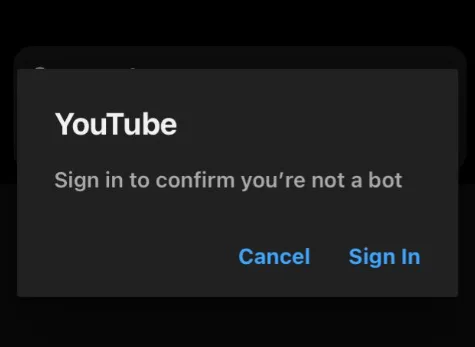
Recently, some users have started seeing a message that says, “Sign in to confirm that you’re not a bot. This helps protect our community.” This message can appear suddenly while trying to watch videos, even if you were using the platform normally. In some cases, it may show up on certain browsers like Brave and then disappear after a few minutes.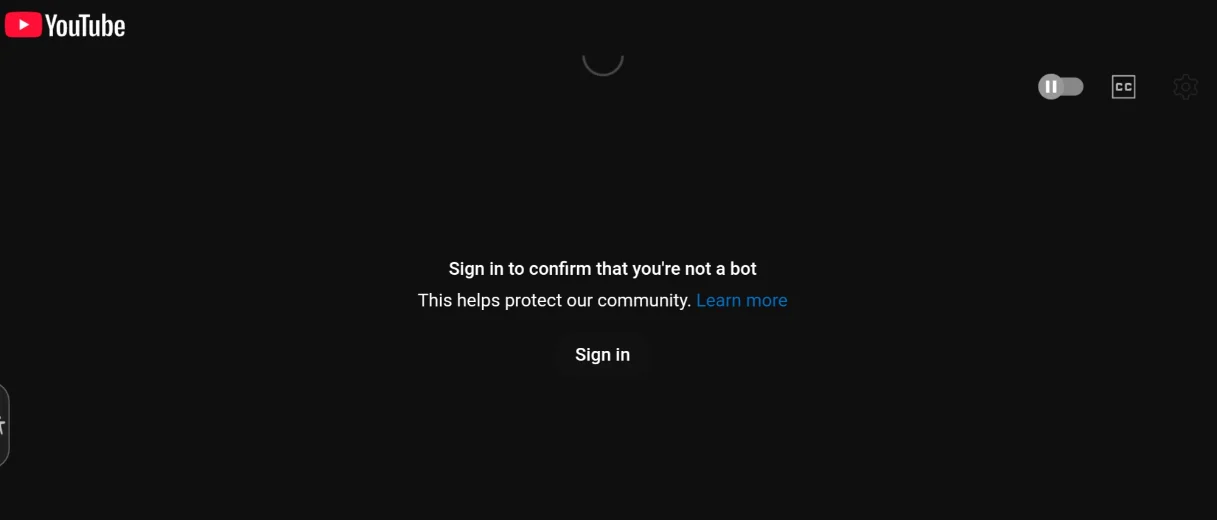
I went through the same error message recently and spent some time looking into it. In the sections below, I am going to share what I found and explain how we managed to fix this error message on YouTube.
How to Fix “Sign in to confirm that you’re not a bot” on YouTube
Turn Off Your VPN

When you use a VPN, your internet connection goes through a shared server. That means many people could be using the same IP address. If that IP raises a flag on YouTube’s side, the site may ask you to sign in and prove you are not a bot. That is why this message often appears while the VPN is active.
What worked for me was very simple. I turned off my VPN and opened YouTube again. The message disappeared after that. So if you have a VPN running in the background, switch it off and check YouTube again. It might fix it right away.
Change Your IP or Switch VPN Server
If turning off your VPN did not fix it, or if you were not using a VPN in the first place, then your current IP address might be the reason. In that case, changing your IP can help. One way to do that is by connecting through a VPN and rotating to a new server.
Right now, YouTube seems to be blocking many common server locations. Big regions like the United States, Germany, or Mexico are used by a lot of people, so those IP addresses can raise flags more often. Instead of picking the usual locations, try choosing a smaller country. You can test places like Slovakia or Serbia and see.
All you need to do is switch the server, open YouTube to check if the message is gone. If it still shows up, change to another country and test again. It may take a few tries, but finding a less crowded server can solve it for now.
Switch to a Different Network
This issue is strongly linked to your IP address and how Google detects network activity. If YouTube works on one network but fails on another, it clearly points to an IP-level restriction. For example, the message may appear while connected to home WiFi but disappear immediately when switching to cellular data. This indicates that the original network IP has likely been flagged or limited.
Google systems monitor traffic patterns tied to specific IP addresses. If unusual or high-volume activity is detected from a shared or previously flagged IP, YouTube may require additional verification.
To verify if your IP address is the cause, disconnect from your current internet connection and access YouTube using a completely different network. For example, move from your home WiFi to your mobile carrier data/hotspot, or try another available WiFi connection. Once connected to the new network, load YouTube and observe if the message still appears.
Try a Different Browser
Another pattern many users have noticed is that this message appears more often on privacy-focused browsers. Browsers like Brave, Mullvad Browser, and even Opera are designed to block ads and limit tracking. While that is good for privacy, it can also trigger extra checks from platforms like YouTube.
Since these browsers block scripts, trackers, and certain types of requests, YouTube may interpret that limited data as unusual activity. As a result, it may ask you to sign in and confirm that you are not a bot.
So, we suggest you open YouTube in a standard browser such as Chrome, Edge, or Firefox. If the message does not appear there, then the issue is likely related to the privacy settings or built-in protections of your original browser.
Create a Separate Google Account with Another Email
If you do not want to use your main email to sign in, you have other options. You do not need to create a new Gmail address just for this. Google lets you sign up with a different email provider. That means you can use Proton Mail, Outlook, or any other email service you prefer.
For example, you could create a Google account using a Proton Mail alias instead of your primary inbox. This keeps your main email private while still allowing you to sign in when YouTube asks for it.
You can also create a second Google account only for YouTube. Use it just for watching videos and nothing else. This way, your main account stays untouched, and you still meet the sign-in requirement without linking everything together.
Workaround for Embedded YouTube Videos Not Playing
If the “Sign in to confirm that you’re not a bot” error message only appears when you try to watch YouTube videos that are embedded on other websites or inside apps, then the issue is likely tied to how YouTube handles embedded playback. In these cases, YouTube may block the video preview and ask you to sign in before allowing it to load.
A simple workaround is to open the video directly on the YouTube website or in the YouTube app instead of watching it inside the embedded player. On a computer, you can right click the video and copy the video URL, then paste it into your browser and watch it on YouTube itself. On a phone, tap the share option and choose to open it directly in the YouTube app if that option is available.
This does not permanently fix the issue, but it allows you to continue watching the content without being blocked inside the embedded player.
RELATED:
- How to Fix YouTube Error Code 4 [100% EASY FIX]
- How to Fix ‘Sorry, YouTube quit unexpectedly last time’ on Android & iPhone
- That is pretty much it, folks. In most cases, this comes down to an IP-related issue. For many people, it is fixed by turning off the VPN or switching to a different server location. Once the IP changes, the message usually stops showing up.
If that does not solve it, you can try the other methods mentioned above. I hope this guide helped you out. Let me know which method worked for you, and feel free to share if you found any other fix that worked.