Facebook Messenger is one of the most used apps. We have already shared fixes for many common Messenger issues in earlier posts, and now here is another one that many users have been facing.
A few users have noticed that when they try to make a call, Messenger shows a message saying, “Couldn’t complete call. You’re already on a call. Please try again later.” This can happen even when there is no active call. In some cases, the issue shows up only on some devices, while the same account works fine on other devices.
This kind of issue has been around for a while and still shows up for some users. It can make calling hard when you need it the most. In the sections below, you will find simple ways that can help fix this problem.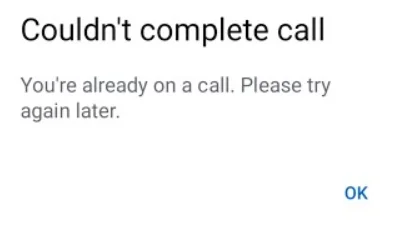
How to Fix Messenger “Couldn’t complete call” on Android and iOS
Use Work Profile to Install a Separate Messenger App (Android)
One practical workaround for this issue on Android is to use the Work Profile feature on your device. This method creates a separate space on your tablet or phone where you can install apps independently from your main profile.
To try this, first enable Work Profile on your Android device. This option is usually available in device settings under accounts, digital wellbeing, or enterprise features, depending on your device brand. 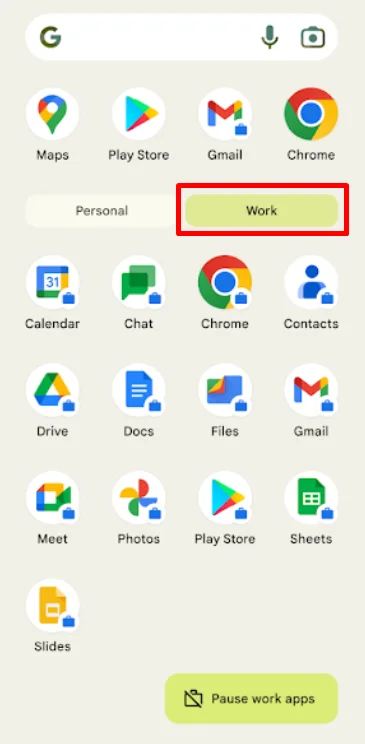
Once the Work Profile is active, open its app section and install Messenger again from the Play Store within that profile.
After setup, sign in to your account on the Work Profile version of Messenger. While this is not a permanent fix, it is a useful method to continue using calling features until a full update resolves the issue.
Restart the Device
Your device might have a session or background activity that may still be active without showing on screen. So, restart your device as it closes background processes that might be interfering with the app’s call function.
Update the App
Since this issue can be tied to a specific app version or device, it is a good idea to check for updates for Facebook Messenger.
When many users report the same issue, developers usually release an update with a fix once they identify the cause. So, open the Play Store or App Store and see if a newer version is available.
Clear Messenger Cache on Android
Messenger keeps small bits of data in the background, and over time, this stored data can interfere with calling. Go to your device settings > Apps > Facebook Messenger > Storage > Clear cache. 
Clear Messenger App Data
If clearing the cache did not change anything, try clearing the full app data for Facebook Messenger. This removes any saved app state, including old call sessions that might still be stuck in the background. Go to Settings > Apps > Facebook Messenger > Storage > Clear data.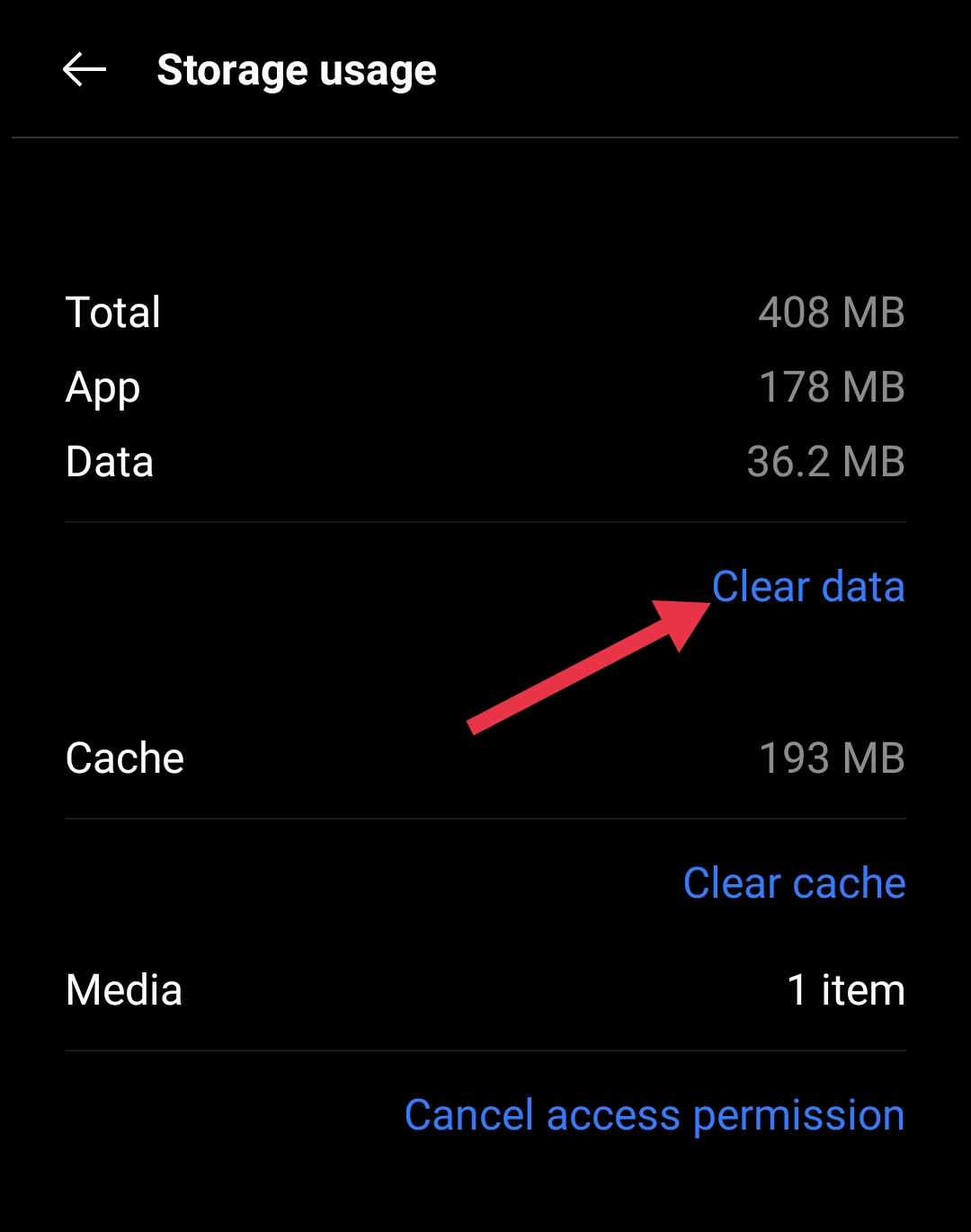
Reinstall Messenger App
If nothing has worked so far, try removing Facebook Messenger completely from your device and then install it again. This method works on both Android and iOS devices and is worth trying if the earlier steps did not fix the issue.
RELATED GUIDES:
- How to Fix Facebook Messenger “Couldn’t Send” Error
- How to Fix Messenger “This message is not available on this app version”
- [100% FIX] Messenger “Please restart Messenger to rejoin this chat” Error
Hope this guide helped you fix the calling issue on Facebook Messenger. In my case, installing Messenger inside the Work Profile worked as a temporary fix and allowed calls to go through without that error. You can try the steps above and see which one works best on your device.