Outlook has seen its rise and fall, but even today, it is still used by many people. In this competitive space, it continues to hold its place for daily email use. Many people open it every day for work emails, meetings, and personal messages. Even with many new apps available, Outlook remains a familiar and trusted choice.
We earlier shared an article about Instagram links opening in the browser instead of the app, and now Outlook users are facing a similar situation. Instead of opening the desktop app, it opens in a browser tab, or you just see a small window with an envelope icon. This can feel odd when you expect the app to open like usual.
This can affect your daily work and slow you down a bit when you are trying to check emails quickly. So here, I am sharing a few simple ways that can help fix this issue and help you use Outlook the way you expect.
How to Fix Outlook Opening in Browser Instead of App
Clear the OLK Cache
This method clears the local cache used by the New Outlook app. Your emails and data stay safe. The app will rebuild these files when you open it again.
- Close New Outlook and all browsers. If you see a small Outlook window with an envelope icon, close that too.
- Open File Explorer on your Windows PC.
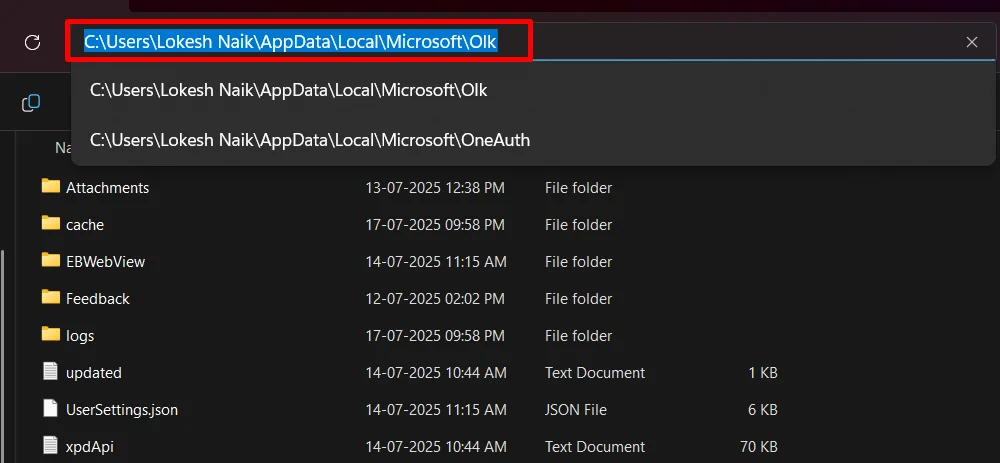
- In the address bar, paste %localappdata%\Microsoft\Olk and press Enter.

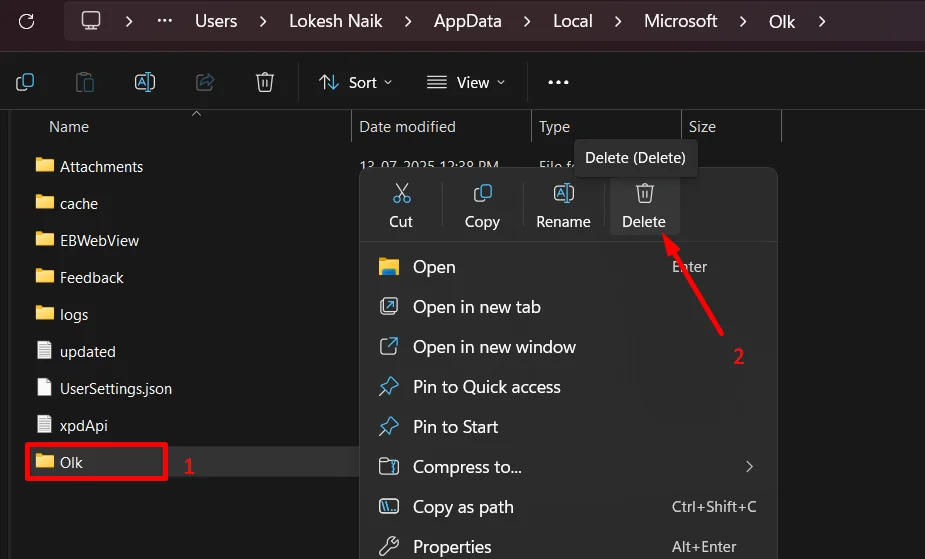
- Now, delete the full Olk folder. If you do not want to remove everything, you can open it and delete only these folders: cache, EBWebView, Feedback, and logs. These will be created again when Outlook opens.

- After that, open New Outlook from Start and sign in if needed. It should now open in its own window.
Update Registry and Reset Default Apps
If the first method did not help, you can try this. It tells your system to open Outlook as an app instead of sending it to the browser.
- Open the Start menu. Type Registry Editor and open it.
- Go to this path: HKEY_CURRENT_USER\Software\Microsoft\Office\16.0\Outlook\Preferences
- Double-click the “UseNewOutlook” and change the value to 1, then click OK.
- Now open Windows Settings and go to Apps, then Default apps.
- Set Outlook as the default for email so links open in the app instead of the browser.
Re-authorize New Outlook by Clearing OneAuth
If Outlook still keeps opening in the browser, try this method as well.
- Close New Outlook and also close all browsers.
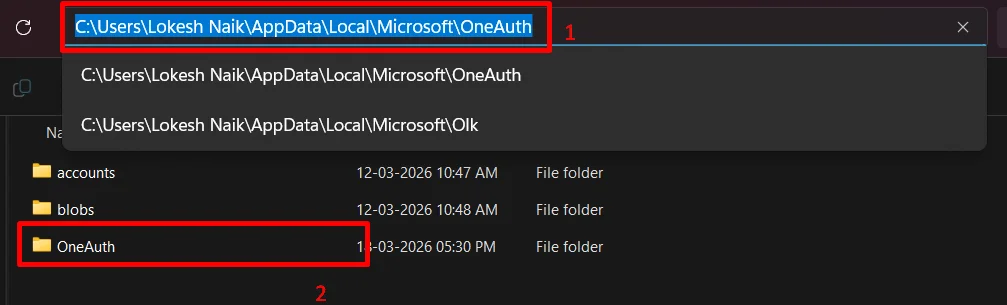
- Open File Explorer. In the address bar, paste %localappdata%\Microsoft\OneAuth and press Enter.
- Now, delete the OneAuth folder. (Remember, this will sign you out on your device, but your account will still be safe online.)

- Now open New Outlook again and sign in. Complete any extra sign-in steps if asked.
- After this, Outlook should open as an app and stay that way even after you restart your system.
Change the Default App
If Outlook keeps opening in the browser, your system may not be set to use Outlook as the main email app. You can change that easily.
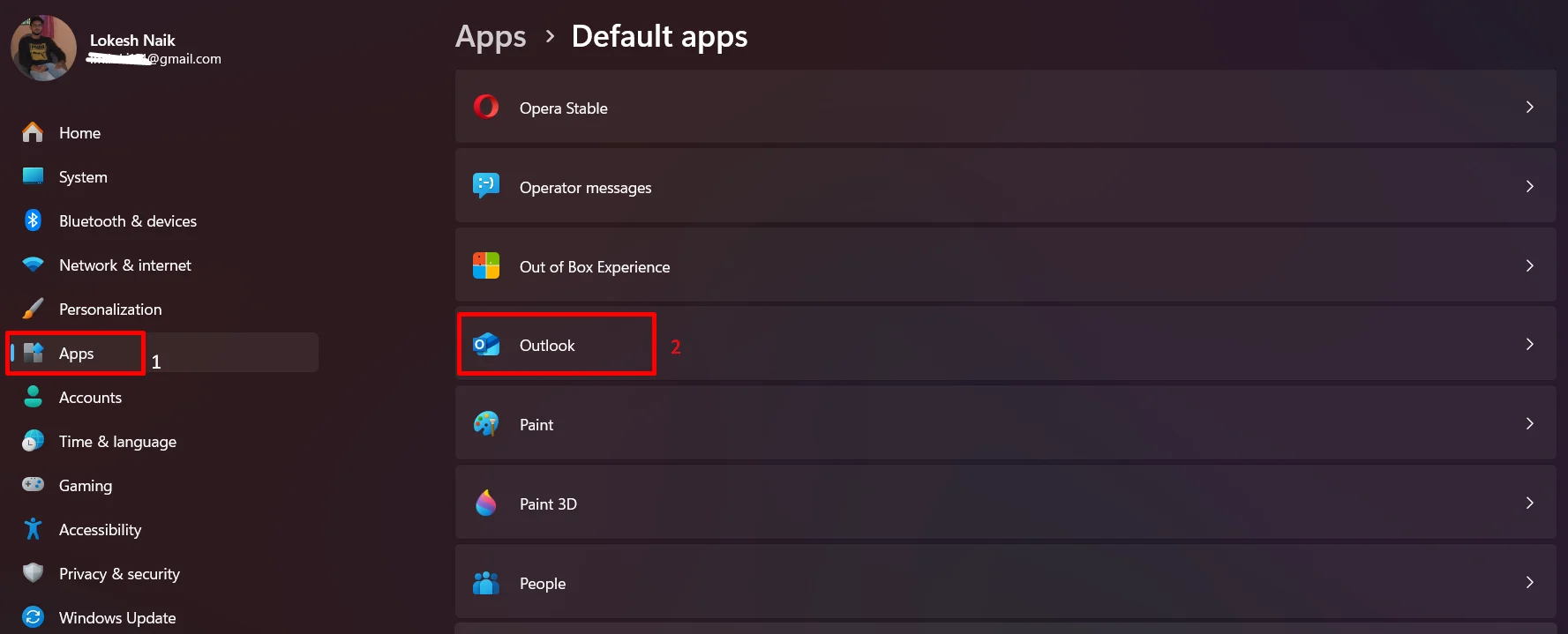
- Open Settings on Windows, then click on Apps.
- Go to Default apps and select Outlook

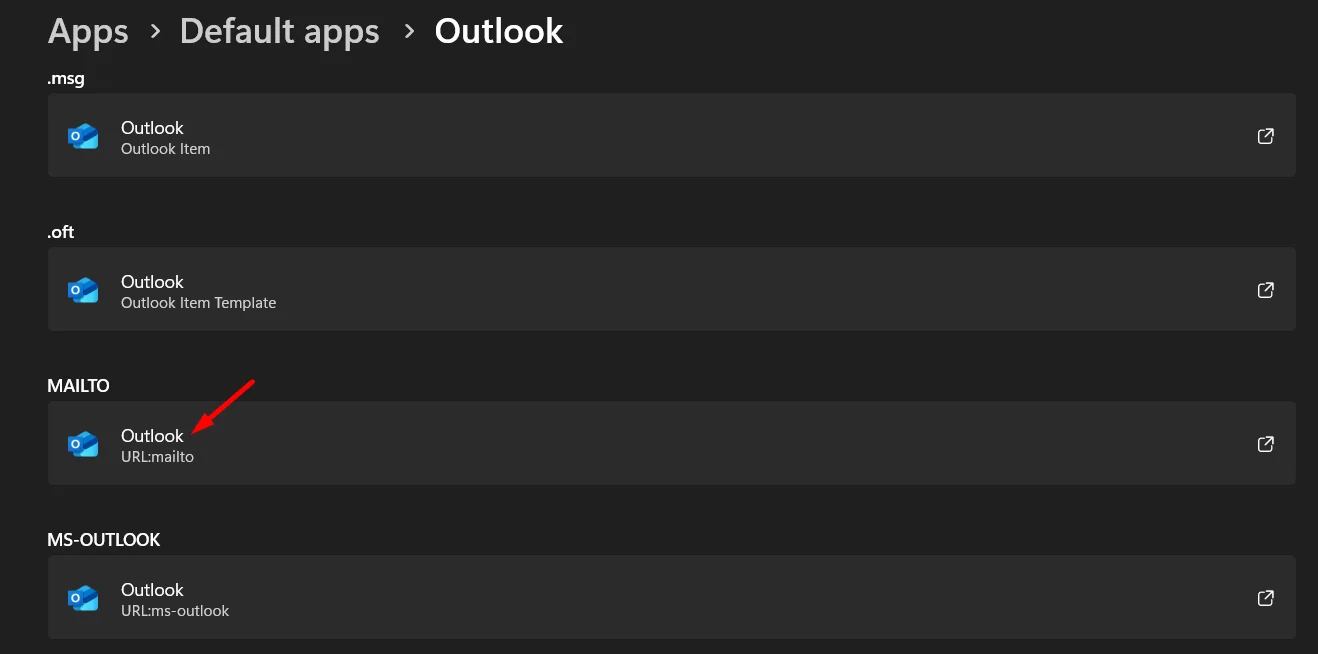
- Now, scroll down a bit and click on MAILTO.
- Set it to Outlook from the list. Make sure you pick the Outlook app, not the classic version.

- While you are in Default apps, set Outlook as the default for email file types like .eml, .msg, and calendar files such as .ics.
Check and Fix Outlook Shortcuts
Your shortcut might be pointing to the web version instead of the app. You can fix it using the following steps:
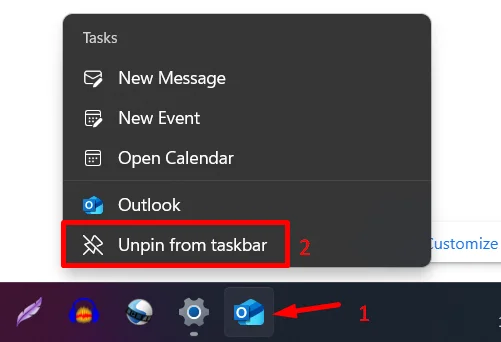
- Right-click the Outlook icon on your taskbar and choose Unpin from taskbar. Also, remove any Outlook shortcuts from your desktop.

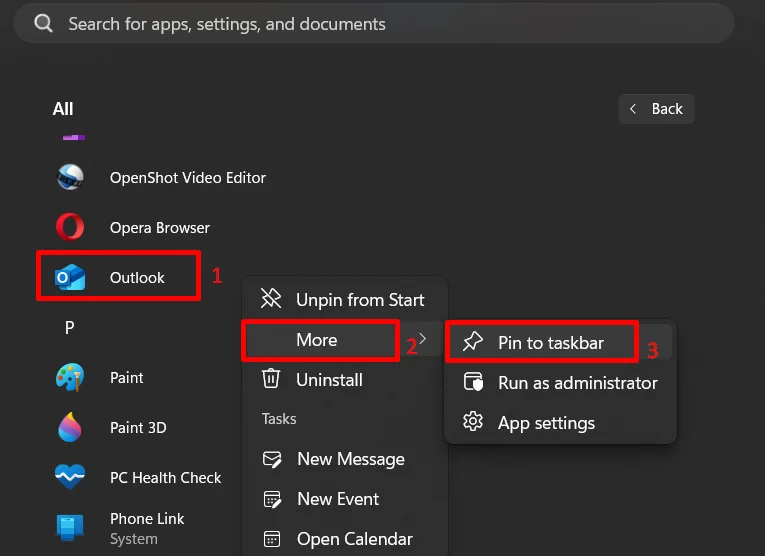
- Now, type “Outlook” in the search bar and look for the app. Make sure it is not the Classic Outlook.
- Right-click the app and select Pin to taskbar.

- Open Outlook from this new shortcut and see if it now opens as the desktop app.
Reinstall New Outlook
If the issue is still there after trying everything, reinstalling is the only solution that is left.
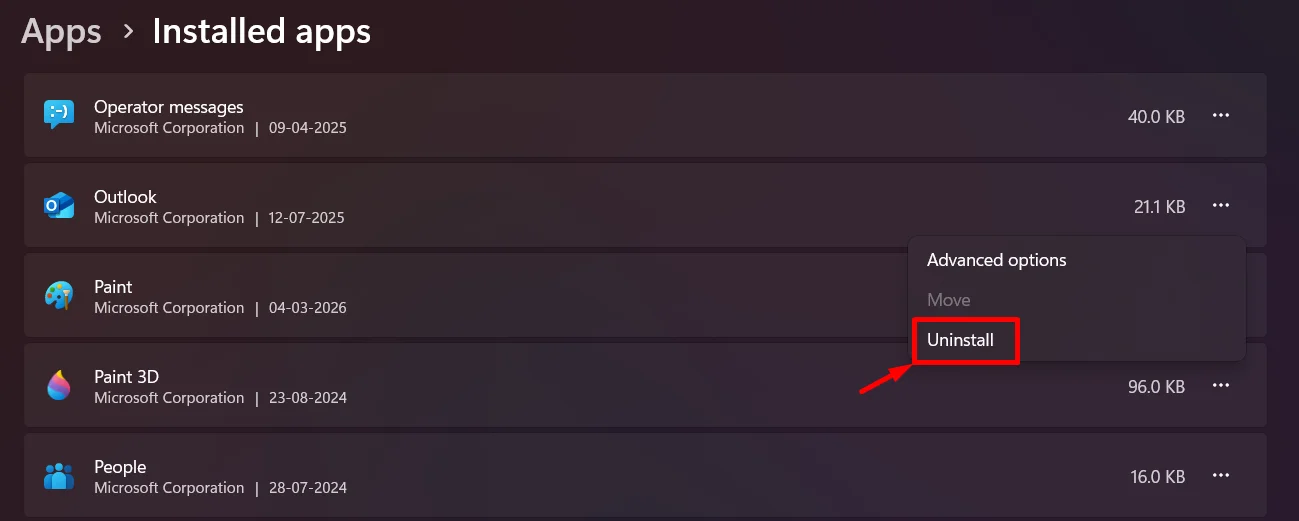
- Open Settings, go to Apps > Installed apps > Outlook > Uninstall.

- After it is removed, restart your computer.
- Now install New Outlook again from the Microsoft Store or official source.
- Once installed, open it from the Start menu and create a fresh shortcut by pinning it to the taskbar.
- Open Outlook and check how it works before adding extra accounts or add ins.
ALSO READ:
- How to Fix Outlook Text Predictions Missing or Unavailable Issue
- How to Turn Off Text Prediction on Outlook