Facebook is one of those apps that most of us open every day. We use it to see what friends are doing, share updates, and just pass some time. To make communication faster and more focused, Facebook introduced a separate app called Facebook Messenger, which is designed purely for chatting and calling.
These two apps work together, but they feel a bit different in how we use them. On Messenger, small details like profile pictures and seen marks help us understand what is going on in a chat. You can easily tell if someone has seen your message or not, and that makes conversations feel more real.
Recently, I noticed that many profile pictures were not showing in my chats. A few people who clearly had profile photos were just appearing as blank white icons. I also saw that the seen mark was missing in some conversations, even though it was there before. It did not happen with everyone, which made it even more confusing.
After checking things on my side and trying a few different steps, I was able to figure out what might be causing it. I also found a few simple ways that helped fix it, along with some extra tips I will share below.
How to Fix Facebook Messenger Profile Pictures Not Showing on Android, iPhone, and PC
Update the App
On many devices, this issue has been seen in certain versions of the app and has affected a large number of users. Because of this, the app developers keep releasing updates to fix these kinds of problems.
So the first thing you should do is check if an update is available. Go to your app store and update Facebook Messenger to the latest version. In many cases, this alone can fix the profile picture not showing issue.
Log Out and Log Back In
You can also can trylog out and logging in on the app. Open Facebook Messenger settings, log out of your account, then log back in using your details.
Clear Cache (Android Only)
This step is only for Android users. Clearing the app cache can help remove stored data that may be causing this issue. It worked for me, but there is one important thing to note.
I first cleared the cache of Facebook Messenger, but that alone did not fix it. After that, I also cleared the cache of Facebook. Once I did both, the profile pictures started showing again.
To clear the cache of both apps, go to your phone settings > Apps > Messenger. Then Clear cache. Do the same for the Facebook app as well. 
If you are using iOS, you will not see this option, so check the next method as an alternative.
Reinstall the App
You can also try removing the app and installing it again. This method has worked for many people.
Just uninstall Facebook Messenger from your phone, then download it again from your app store. If you are an Android user, you can also download it from third-party sites, including beta versions. After installing, you will have to sign in again, so make sure you remember your login details.
Fix It on Windows 11 (Messenger Desktop App)
If you are using the Facebook Messenger Desktop App on Windows 11,
- First, close the Messenger app completely.
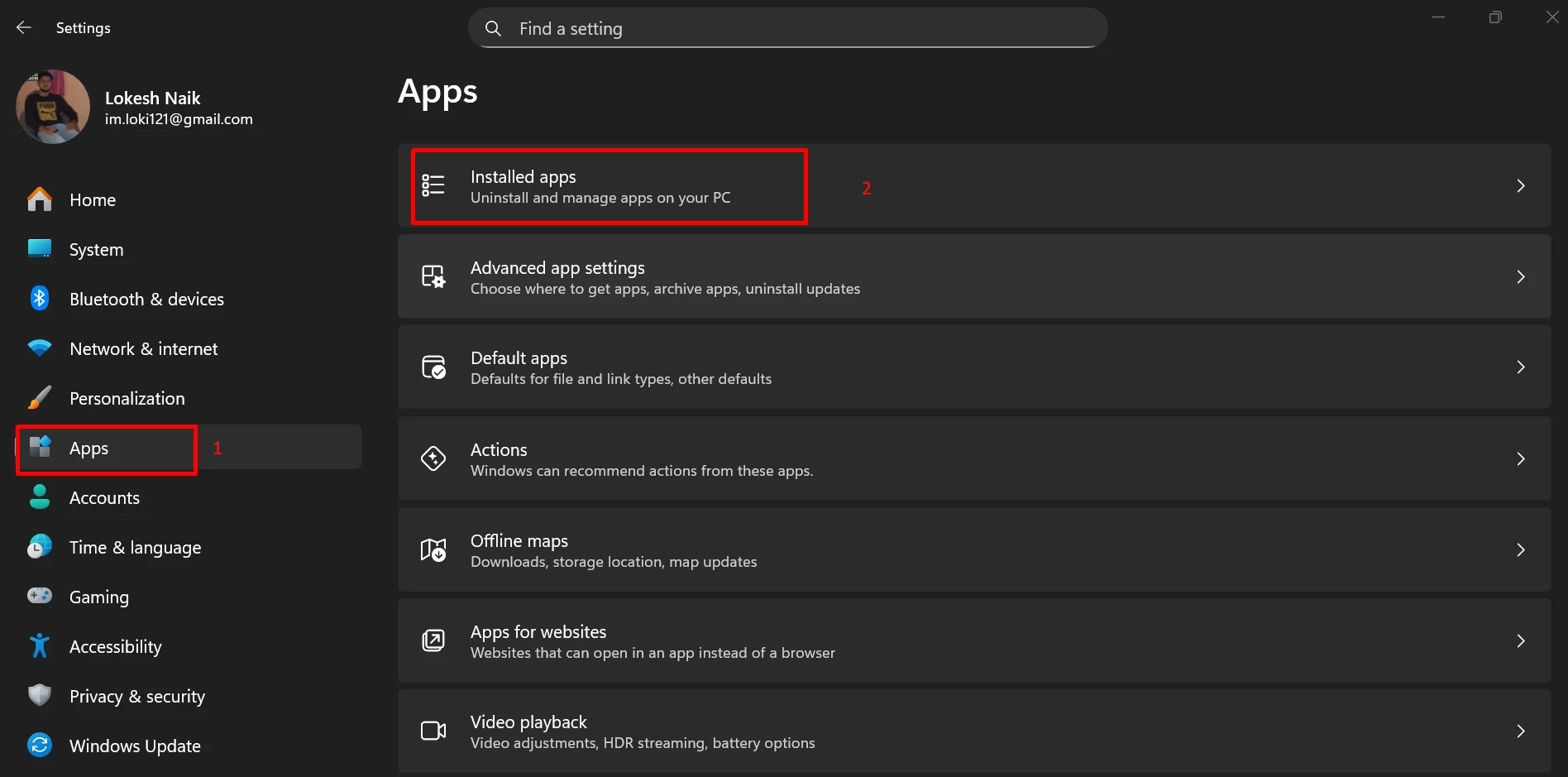
- Then go to your Windows settings
- Navigate to Apps > Installed Apps

- Click on the three-dot menu next to the Messenger app and open Advanced Options.
- Click on Repair and wait for it to finish.
RELATED:
- Easy Fixes for Facebook Messenger “Couldn’t Send” Error
- How to Fix Messenger “Please restart Messenger to rejoin this chat” Error
I hope this guide helped you fix the profile pictures not showing in Facebook Messenger across your devices. Let me know which method worked for you. If you discovered any other fix, feel free to share it here so others can try it too.