Android TV has slowly become a part of daily life for many people. From binge watching shows to enjoying live sports, it makes everything feel more engaging on a big screen in your living room.
What makes it even more useful is the Bluetooth feature. You can easily connect wireless headphones or speakers and enjoy your content without any cables. It is really helpful when you want personal audio or when you prefer a stronger sound from external devices.
But when Bluetooth stops working, it can ruin the whole mood. You try to pair your device, it shows up on the list, you click it, and then the screen just gets stuck. You cannot select a pair or cancel, and after a few seconds, it shows the “Couldn’t pair” error. This kind of issue feels really annoying, mainly when everything was working fine just a while ago.
I went through the same problem on my Realme Android TV. I tried to connect my home theater through Bluetooth, but it just would not pair. It completely spoiled my cricket match time. I kept trying different ways for hours, and finally I found what actually worked. Below, I will share what helped me fix it, along with a few other methods you can try too.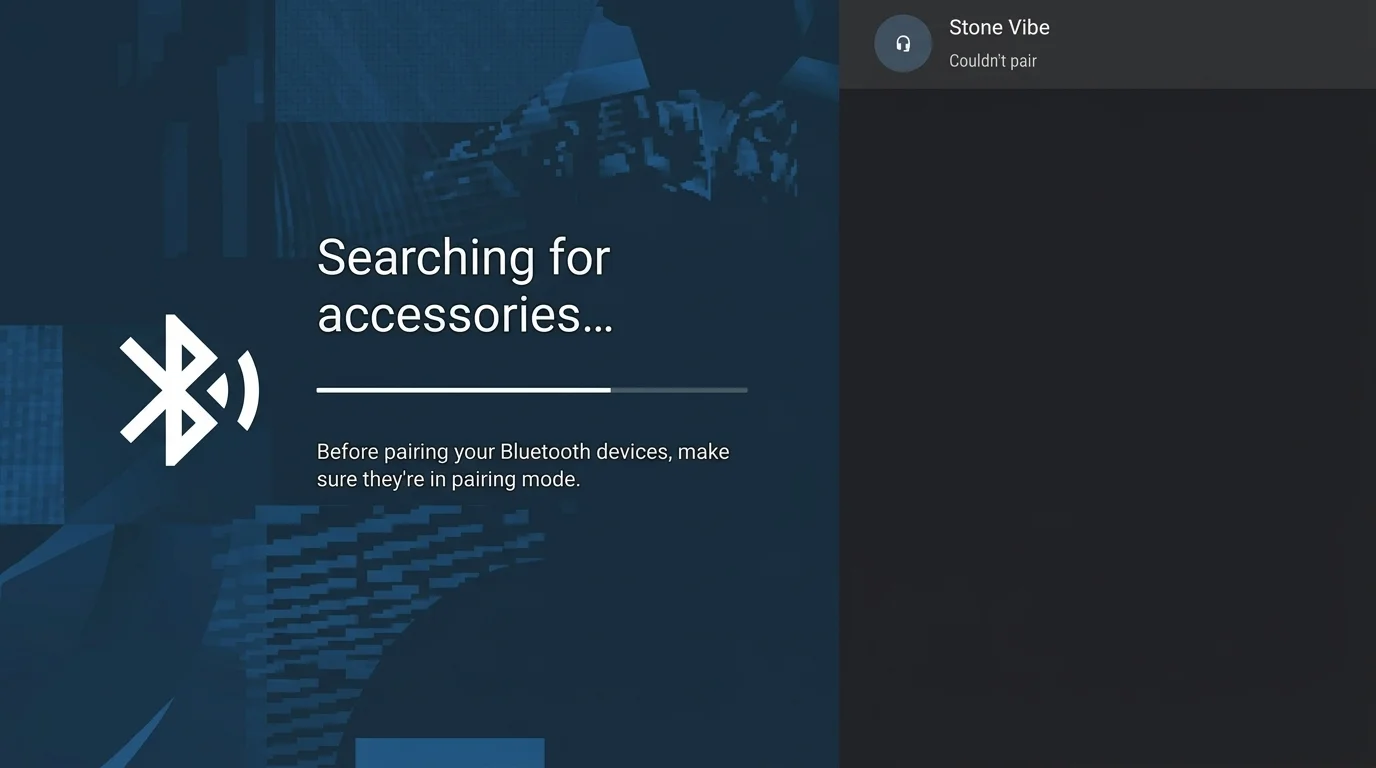
How to Fix Bluetooth Couldn’t Pair on Android TV
Use Remote Navigation Buttons to Unfreeze the Pair Screen
If your Android TV gets stuck on the “Pair/Cancel” screen and does not respond, you can try using your remote buttons to manually move the selection.
- Press and hold the Down button on your remote for around 10 seconds until the selection moves to Cancel
- Then press and hold the Up button for another 10 seconds until the selection goes back to Pair
- Once the Pair is highlighted, press the select button to confirm.

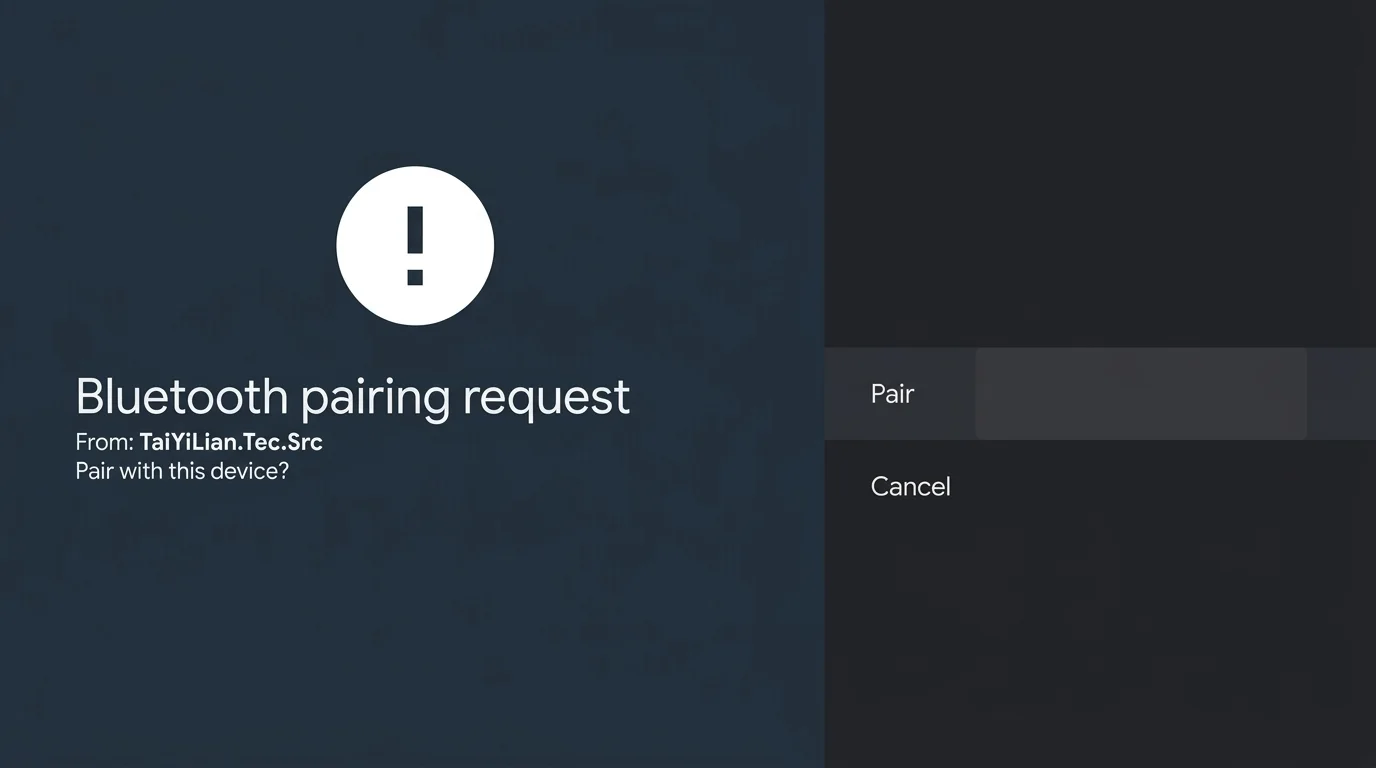
In my case, the screen looked completely frozen, and I could not move between options at all. But after holding the buttons for a few seconds, it finally responded and allowed me to select the option.
I am not exactly sure why this works, but it helped me fix the issue quickly after trying many other methods. It is definitely worth trying if your screen is stuck on the pairing page.
Disconnect the Device from Other Paired Devices
Another common reason behind this issue is that your Bluetooth device may still be connected to another device, such as your mobile phone. Many Bluetooth headphones and speakers do not support multiple active connections at the same time.
Make sure to turn off Bluetooth on your phone or any other device that was previously connected. You can also go into the Bluetooth settings on those devices and manually disconnect or forget the device.
Once the device is no longer connected anywhere else, try pairing it again with your Android TV.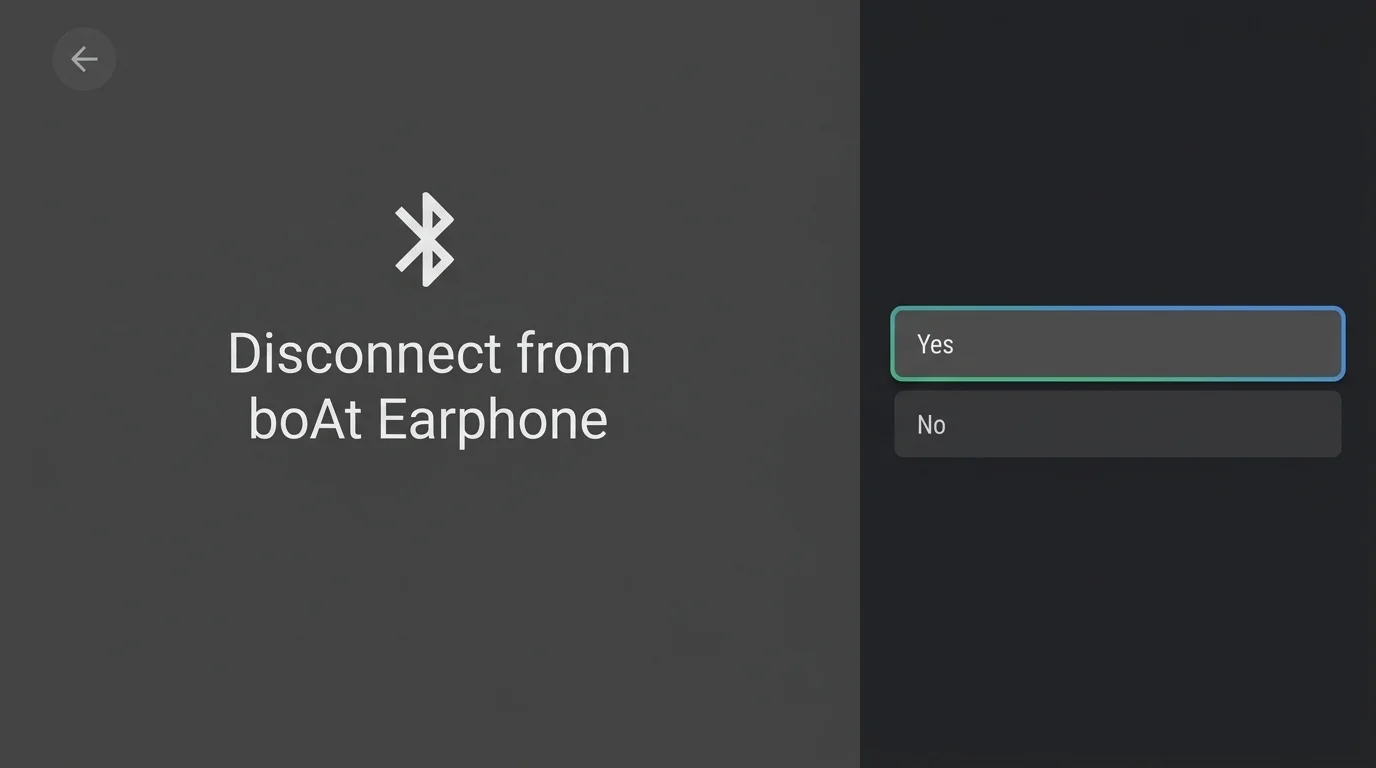
Remove All Paired Bluetooth Devices from the TV
If the issue still continues, clearing the existing Bluetooth list on your TV can help. Over time, saved devices can create conflicts during pairing, especially if some of them are no longer in use.
Head over to your Android TV Bluetooth settings and remove all previously paired devices one by one. After removing them, restart your TV and try pairing your device again.
Restart Your TV and Bluetooth Device
Your TV or Bluetooth device may have a temporary error that is stopping the connection. Turn off your Android TV and unplug it from the power source. At the same time, switch off your Bluetooth device, such as earphones, headphones, or speakers. Wait at least 1 minute before turning everything back on. Once both devices restart, turn on Bluetooth and try pairing again.
Use a Mouse to Select the Pair Option
If your remote is not responding on the pairing screen, you can try using a mouse instead. At times, the screen may freeze, or the remote may not move between options, which makes it hard to select anything.
So, connect a USB or wireless mouse to your Android TV. Once connected, use the mouse pointer to click on the Pair or Cancel option directly on the screen.
Use Your Phone as a Remote or Mouse
If you do not have a mouse, you can still control your TV using your phone. This is a great alternative if your remote is not working or you do not have a physical mouse.
You can install apps like Zank Remote on your Android/iOS phone and connect it to the same WiFi network as your TV. Once connected, you can use your phone screen like a touchpad to move around and click on options.
The app also supports features like D-pad navigation, keyboard input, volume control, and screen casting. Using the mouse control feature, you can easily click on the Pair button when your TV screen does not respond to the remote.
Also, many devices like Xiaomi phones come with a built-in remote app that can control a wide range of devices. You can use that as well if it is available on your phone.
Clear Bluetooth App Data and Restart Devices
If nothing else worked for you, try clearing the Bluetooth data on your TV. Go to Android TV Settings > Apps > System Apps > Bluetooth. Open it and clear both data and cache.
After that, turn off your TV and unplug it for a short time. Also, switch off your Bluetooth device, like earphones, headphones, or speakers. Turn everything back on and try pairing again.
Factory Reset Your TV (Last Option)
I know this is not an ideal step, but in some cases, it is the only way to fix deeper issues. Try this only if all the other methods have failed. However, you need to keep in mind that it will erase all data on your TV and bring it back to its original state, just like when you first set it up.
Navigate to the Android TV Settings > Reset option, and follow the steps to reset your Android TV. Keep in mind that this will remove your apps, accounts, and saved settings, so you will need to set everything up again from scratch.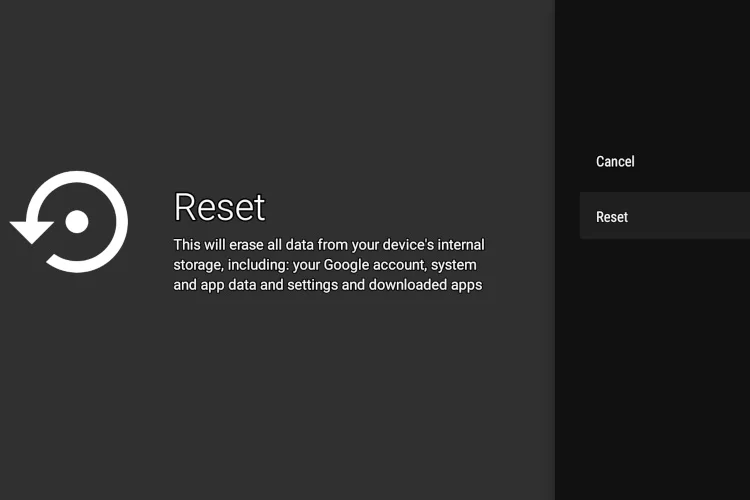
I am pretty sure one of these methods will fix the Bluetooth “Couldn’t Pair” issue on your Android TV. Give them a try and see what works for you.
If you found a different way that worked, or if one of these helped you, feel free to share your experience. It might help others facing the same issue.