Zoom grew really fast over the past few years. It became a daily tool for meetings, online classes, and staying in touch with people. Many of us now depend on it for work and learning, so even small issues can feel like a big deal.
Over time, people have started noticing different problems while using Zoom. Some users face lag, others get disconnected, and a few notice problems while sharing screens or taking remote control. These issues can be frustrating, especially when your internet works fine for browsing or other apps.
One issue that keeps coming up is the message “Your internet connection is unstable.” It can show up even when you are using a wired connection with good speed. This can make it hard to control shared screens or stay in meetings without interruptions. Below are some troubleshooting methods you should definitely try to fix this issue and improve your Zoom experience. 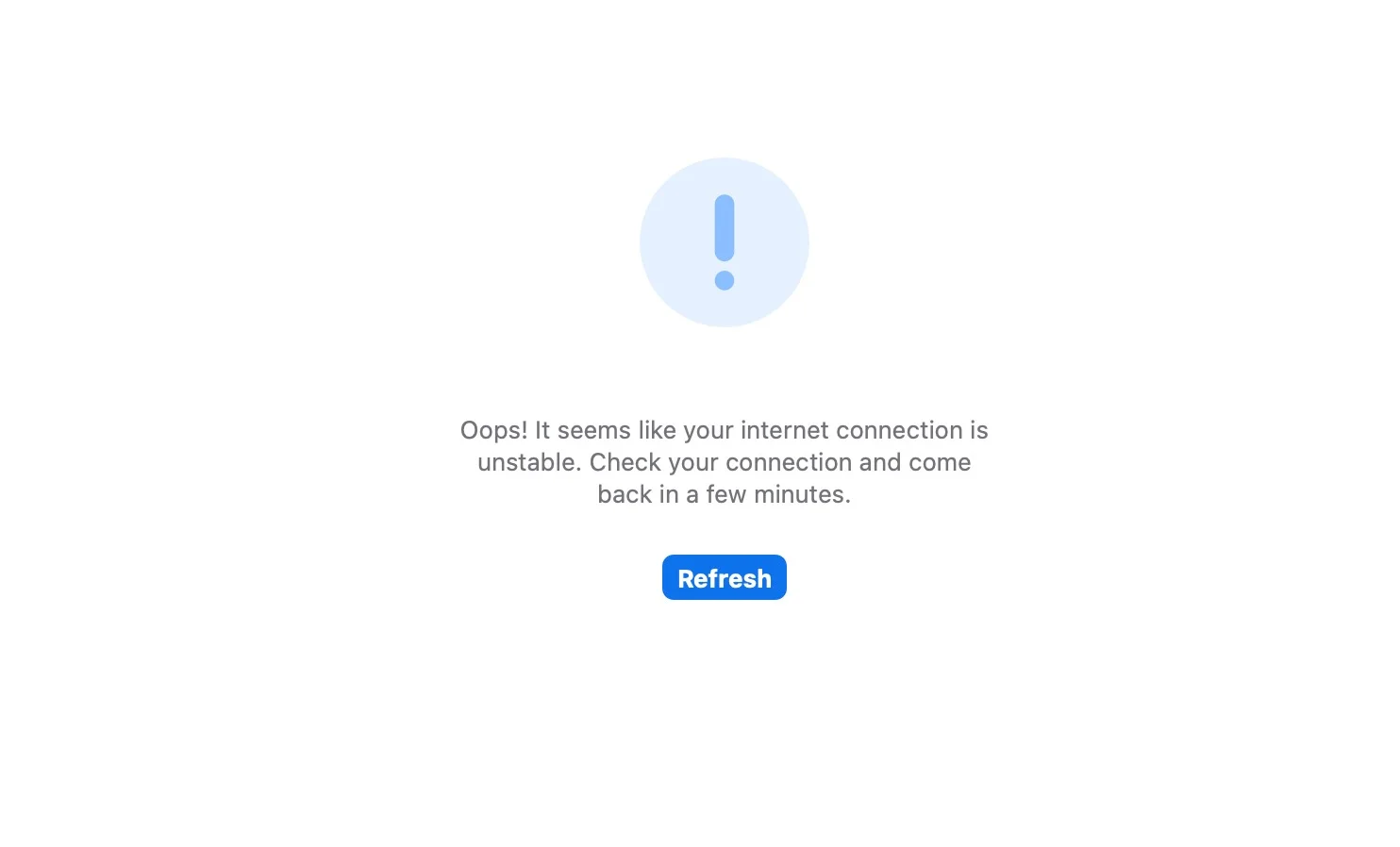
7 Quick Ways to Fix Zoom “Your internet connection is unstable” Error
Restart Network Devices and Reinstall Zoom
- Turn off your modem and router.
- Wait for about 60 seconds.
- Now, turn them back.
- On your computer, uninstall Zoom from the system settings or control panel.
- After that, download the latest version of Zoom from the official website.
- Install it again and sign in to your account.
Restart Your Wi-Fi Router
- Press and hold the power button on your WiFi router until it turns off.
- Unplug the router from the power source.
- Wait for a few minutes to allow the device to fully reset.
- Plug the router back into the outlet.
- Turn it on and wait until the internet connection is restored.
Close Unnecessary Background Applications
Applications running in the background can use internet bandwidth and system resources without you noticing. This can affect how Zoom performs during meetings, especially when screen sharing or using remote control.
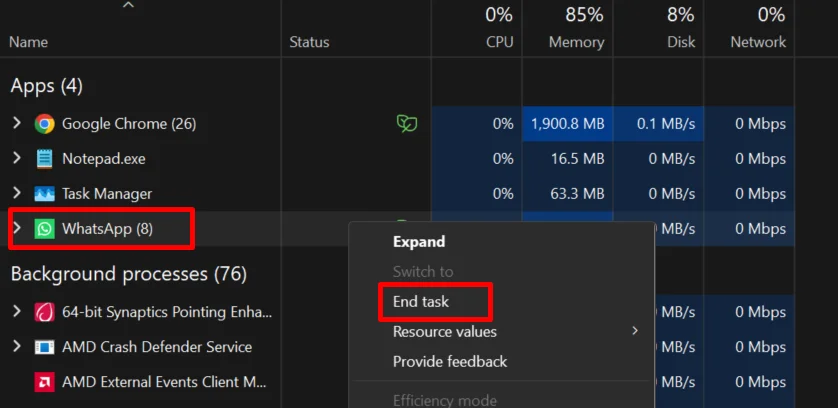
- Press Ctrl + Shift + Esc on your keyboard to open Task Manager.
- Click on the Processes tab to view all running applications.
- Now, you need to find the apps that are using high network or CPU resources.
- Select those applications one by one.
- Click on End Task to close them.

Turn Off VPN Service
If you are using a VPN service, it can change how your internet traffic is routed, which may lead to delays, connection drops, or warning messages during meetings. This is not limited to Zoom, as it can also affect other websites and apps you use.
Even if you have installed a VPN to access geographically restricted content or for faster browsing, it is best to disable it before using Zoom.
Check Your Internet Connection and Contact Your ISP
In many cases, this issue is linked to the quality of your internet connection rather than the app itself. Even if your connection appears fine for browsing, hidden network problems can still affect video calls, screen sharing, and remote control features in Zoom. It is important to verify your connection performance and involve your internet service provider if needed.
So, you need to check three key factors that directly impact call quality. Upload speed is important for sending your voice and video. Download speed affects how well you receive audio, video, and shared content. Packet loss is another critical factor, as it shows if any data is being lost during transmission. Ideally, your upload and download speeds should reach at least 90 percent of what your ISP promises, and packet loss should always remain at zero.
You can check your speeds using popular, reliable tools like Speedtest by Ookla or Measurement Lab Speed Test. If the results are consistently low, report this to your ISP with the exact numbers.
To check packet loss, you can use the ping command on your device.
- Open Command Prompt on Windows
- Now, type a continuous ping command such as ping -t yourispwebsite.com, and let it run for a few minutes.
- Stop the test and review the results. Any packet loss should be reported.
If the issue happens at specific times, running a continuous ping test during those moments can help identify network drops. You may also try connecting your computer directly to the router instead of using extenders or intermediate devices to rule out internal network issues. In some cases, older cables or equipment can be the reason for performance issues. Your ISP may need to inspect and replace faulty lines or check signal levels and error rates through the modem interface.
Refresh Your IP Address
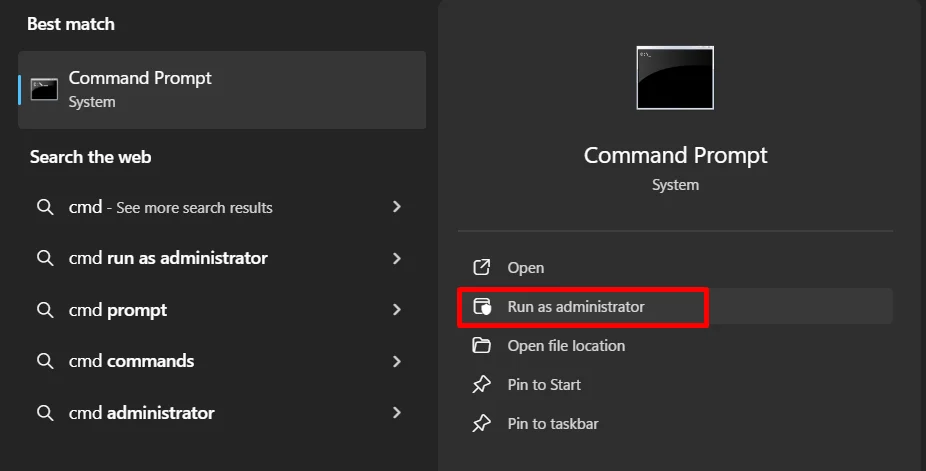
- Open the Start menu and search for Command Prompt.
- Right-click on it and choose Run as administrator.

- In the Command Prompt window, type the commands listed below one by one and press the Enter button after each:
netsh winsock reset
netsh int ip reset
ipconfig /release
ipconfig /renew
ipconfig /flushdns
- After running all the commands, restart your computer.
Clear Preferences and Reinstall the App (on Mac)
If you are using a Mac and noticing this issue while connected to WiFi, resetting Zoom’s saved preferences and installing a fresh copy of the app can help fix it.
- Open Finder, then click Go in the top menu.
- Paste ~/Library/Preferences/ZoomChat.plist and press Enter to open the file location.
- Close Zoom completely, then find and delete the ZoomChat.plist file.
- Now, you need to uninstall Zoom from your Mac.
- After doing it, download and install the latest version from the official Zoom website.
- Open the software, sign in, and make sure you choose the correct version for your Mac, either Intel or Apple Silicon.
ALSO READ: