Instagram changed the way people spend time on their phones after Reels became a huge hit. A quick visit to check one message can easily turn into hours of scrolling through videos, photos, and stories. That is why it feels like a big problem when the Instagram app suddenly won’t let you sign in and keeps showing an “Incorrect Password” message even though you know the password is right.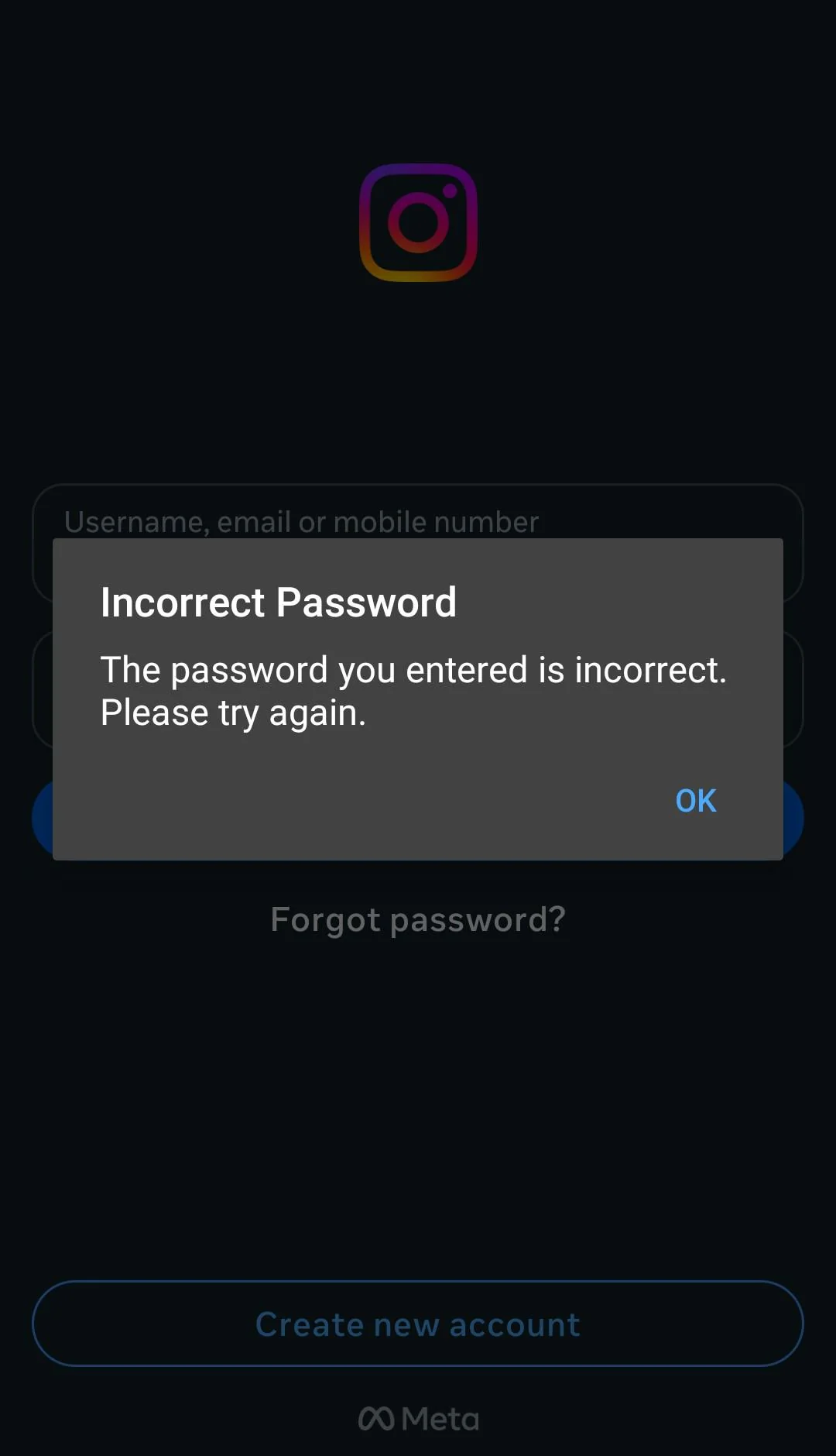
I went through this myself after I switched to a new iPhone. Everything worked fine on my old phone, but the new one kept saying my password was wrong. I reset my password more than once, removed and installed the app again, and kept trying for days. The same Instagram account signed in without any issue on the website, desktop, and even another device, which made the whole situation even more serious. After looking into it, I found that people have been reporting this issue for years. It is not limited to iPhone either. Android users have also faced the exact same login problem.
Since I have dealt with this myself, I spent time finding what really works. After trying different methods and reading reports from other users with the same issue, I finally found the fixes that solved it. If your Instagram account works everywhere except the app on your phone, check the solutions below. I am confident one of them will help you fix the problem today.
Instagram Incorrect Password but Password Is Correct? Fix It on iPhone & Android
Set Up Your iPhone as a New Device
I saved this fix for the top because it is the one that finally worked for me. It was not the first thing I tried. In fact, I spent days testing other ideas before giving in and resetting my iPhone. Since this method takes more time than the others, I still suggest trying the easier fixes below first. If none of those solve it, come back and try this one.
Before resetting your iPhone, back up your important data to iCloud. Make sure your photos, documents, contacts, passwords, and other personal files are safely stored.
After that, erase your iPhone and set it up again using the same Apple ID. During the setup process, do not restore your iPhone from a full iCloud backup. Instead, set it up as a new device. Once the setup is complete, your photos and other files stored in iCloud can be downloaded again.
The important part is to avoid restoring your apps and app data. When I restored my entire backup the first time, the Instagram app showed the exact same “Incorrect Password” error again. I had to reset the phone once more and set it up as a new iPhone. After reinstalling my apps and signing back into them manually, Instagram finally accepted my login without any issue.
It is definitely more work than the other fixes in this guide, so I would only use it after trying everything else. Still, if your Instagram app keeps rejecting the correct password while the same account signs in without any problem on the website or another device, this method is worth trying.
Sign Out of Every Instagram Session and Try Again
One thing that helped quite a few users was clearing every active Instagram login from their account before trying to sign in again on the phone. If your account opens without any issue in Safari, Chrome, or on a computer, you can do everything from there.
- Open Instagram in a web browser and sign in to your account.
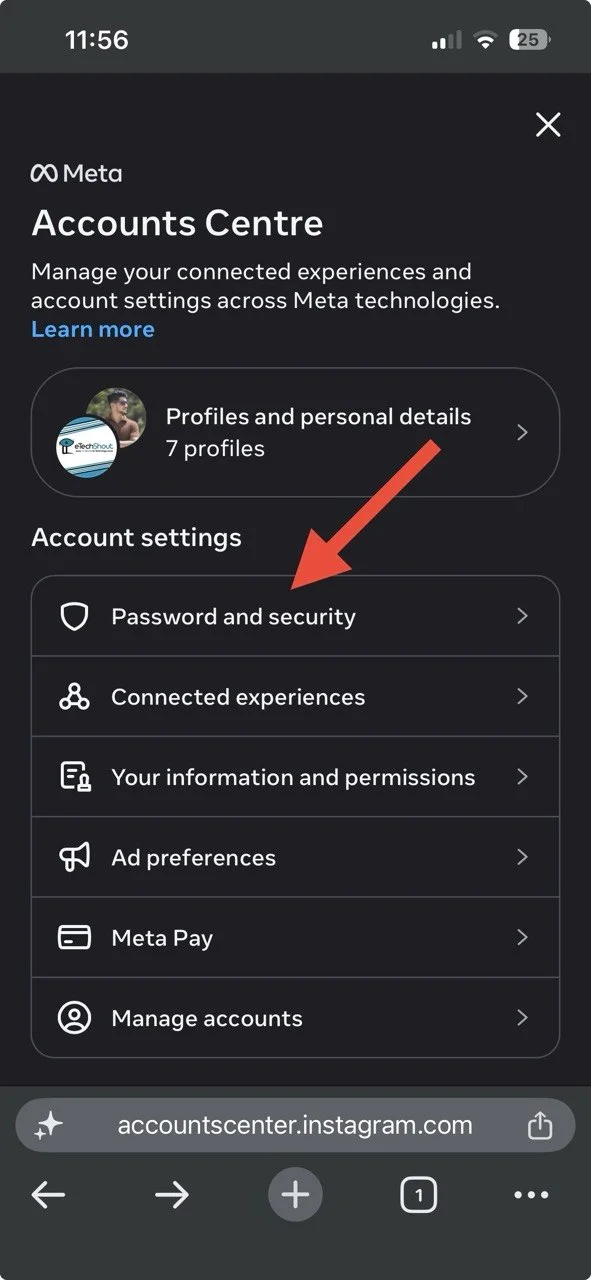
- Go to Settings, then open Accounts Center.
- From there, select Password and Security.

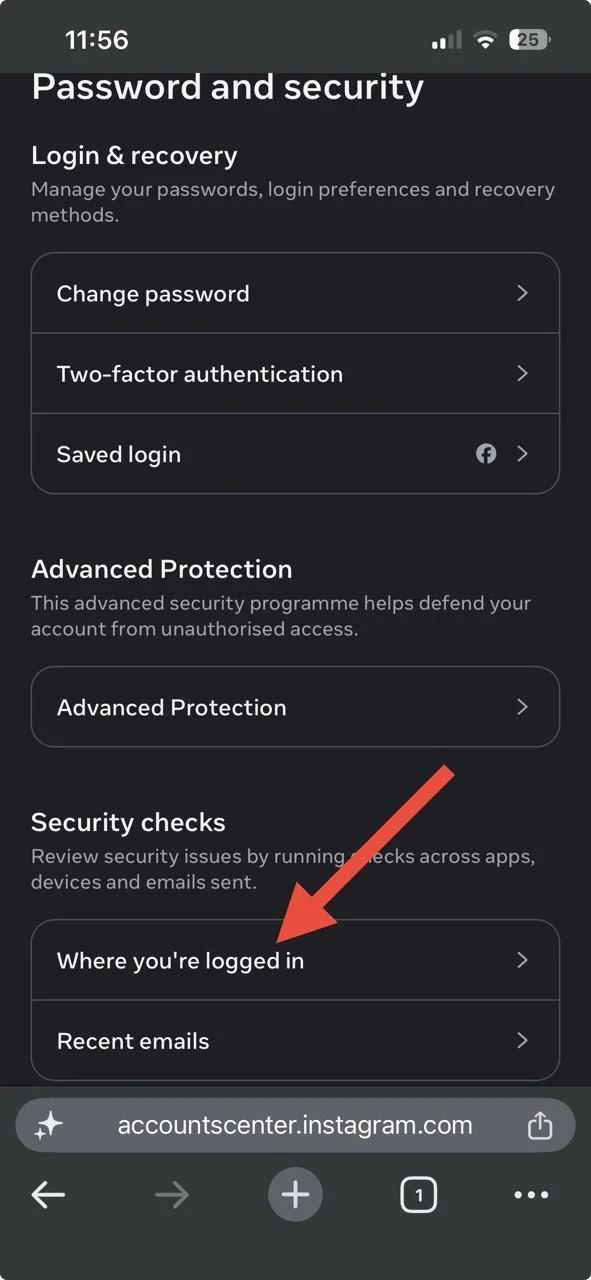
- First, open Where You’re Logged In under Security Checks
- Now, sign out of every device listed.
- Once that is done, return to Password and Security, open Two-factor Authentication
- Select your Instagram account, and turn it off for now to remove the extra verification step while you test the login.
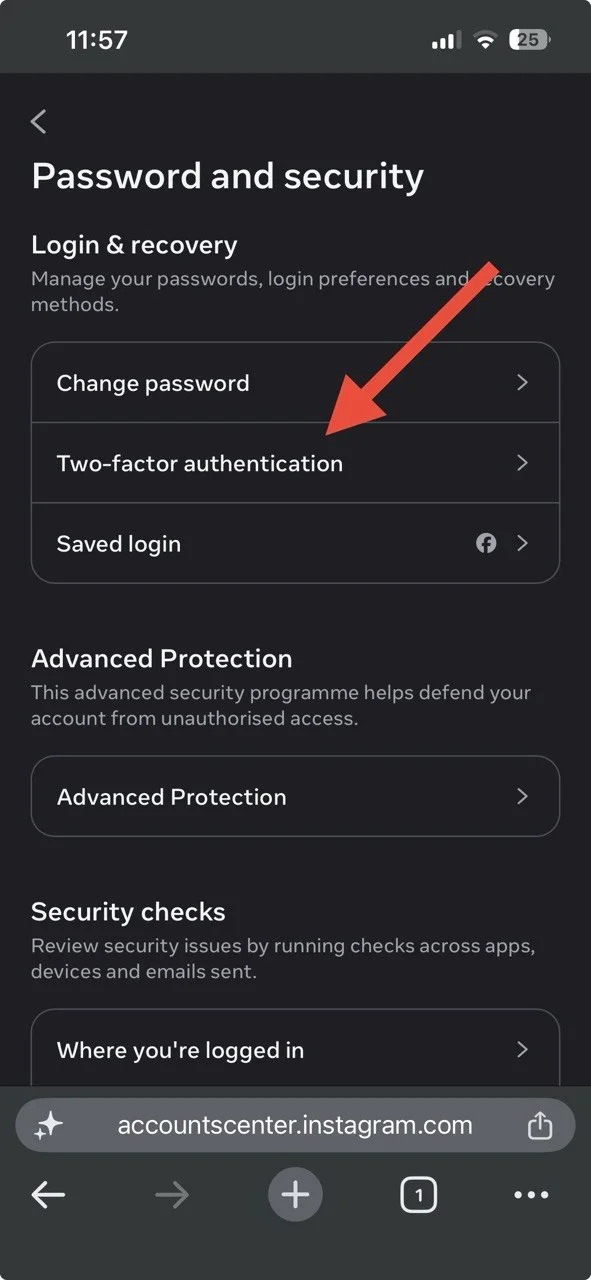
At this point, delete the Instagram app from your phone and install it again from the App Store or Google Play. Open the app and try signing in with your account.
Reset Your Password Through the “Forgot Password” Option
If Instagram keeps rejecting the correct password in the app, try resetting it directly from the login screen instead of entering your current password again.
Open the Instagram app and enter your username or email address. Instead of typing your password, tap Forgot Password? Then enter the email address or phone number linked to your Instagram account and tap Continue.
Instagram will usually send a verification code, but if you notice a Can’t Confirm Account? option, tap that instead and choose the recovery method you still have access to. For most people, that will be their email address.
Once the code arrives, type it in and follow the remaining steps. Instagram should then ask you to create a brand new password. Finish the reset, return to the login page, and try signing in with the new password.
This is different from simply changing your password while already signed in on a browser. Going through the full recovery process gives Instagram a chance to verify your account again, which has been enough to clear the endless “Incorrect Password” message for some users.
Try a Different Internet Connection or Use a VPN
If Instagram keeps saying your password is incorrect on the app while the same account signs in on another device or in a web browser, there is a chance your current IP address has been temporarily restricted.
Before changing anything else, disconnect from your current WiFi and switch to mobile data. If you are already using mobile data, connect to a different WiFi network and try signing in again. A different network means a different IP address, and that alone has been enough for some users to log in successfully.
If the error still appears, install a VPN app on your iPhone or Android phone. Connect to a server in another country, then open Instagram and try signing in once more.
Try Signing In Through a Cloned Instagram App
This is one of those fixes that sounds odd at first, but it actually worked for some users after nothing else helped. Instead of using the original app, they signed in through a cloned copy of Instagram.
If you own an Android phone from brands like Realme, vivo, OPPO, Xiaomi, OnePlus, HONOR, or Nothing, there is a good chance your phone already has an app cloning feature built in. Open your phone settings, look for App Clone, Clone Apps, Dual Apps, or a similar option, and create another copy of Instagram.
If your phone does not have this feature, you can also try a app cloning tool from the App Store that creates a separate Instagram instance. Once the cloned app is ready, enter your account details and see if the login goes through.
If the login problem is tied to the existing app data or session on your phone, the cloned version may bypass it. This solution is mainly available on Android devices. If your phone supports app cloning, it only takes a minute to test and could save you from resetting your device.
Contact a Real Meta Support Agent Through Meta Verified
If you have already reported the problem through Instagram’s help forms and never received a useful reply, this may be your best option. A lot of people say they kept sending reports for days or even weeks, only to receive automatic replies that never addressed the actual login problem.
If your account is important, consider subscribing to Meta Verified. Besides the verification badge, it gives you access to Meta support where you can chat with a real support agent instead of relying only on automated responses.
Once you are connected, explain your case as clearly as possible. Tell them that your account signs in on the Instagram website but the mobile app keeps showing an Incorrect Password error. Also mention that you have already tried the normal recovery options and the Instagram account recovery form without success.
Other Fixes You Can Try
Hopefully, one of the solutions above has fixed the “incorrect password” problem on Instagram since they are based on methods that have worked for real users facing the same issue. If the error still appears, here are a few more things worth trying:
- Clear the Instagram app cache.
- Clear the app data.
- Force stop the app, then restart your phone.
- Update Instagram to the latest version.
- Uninstall and reinstall the Instagram app
- Try different keyboard app.
- Log out of all devices.
- Reset your device completely. (If you’re an iPhone user, do not sign in with the same Apple ID.)