Android has grown into the world’s biggest mobile operating system, and almost every phone brand now includes face unlock. Google also made a strong return with the Pixel lineup, bringing smart AI features and excellent cameras. Face unlock is one of those features that makes unlocking your phone quick and easy, so it can be surprising when it suddenly stops working.
A lot of Android users have seen the “Can’t verify face. Hardware not available” error. This is mostly reported on Google Pixel phones like the Pixel 4 and Pixel 4 XL, where face unlock can stop working without any warning. In some cases, you cannot even remove your saved face data or set it up again. Pixel phones are the main ones affected, though a few users with brands like Nothing have also reported the same error. 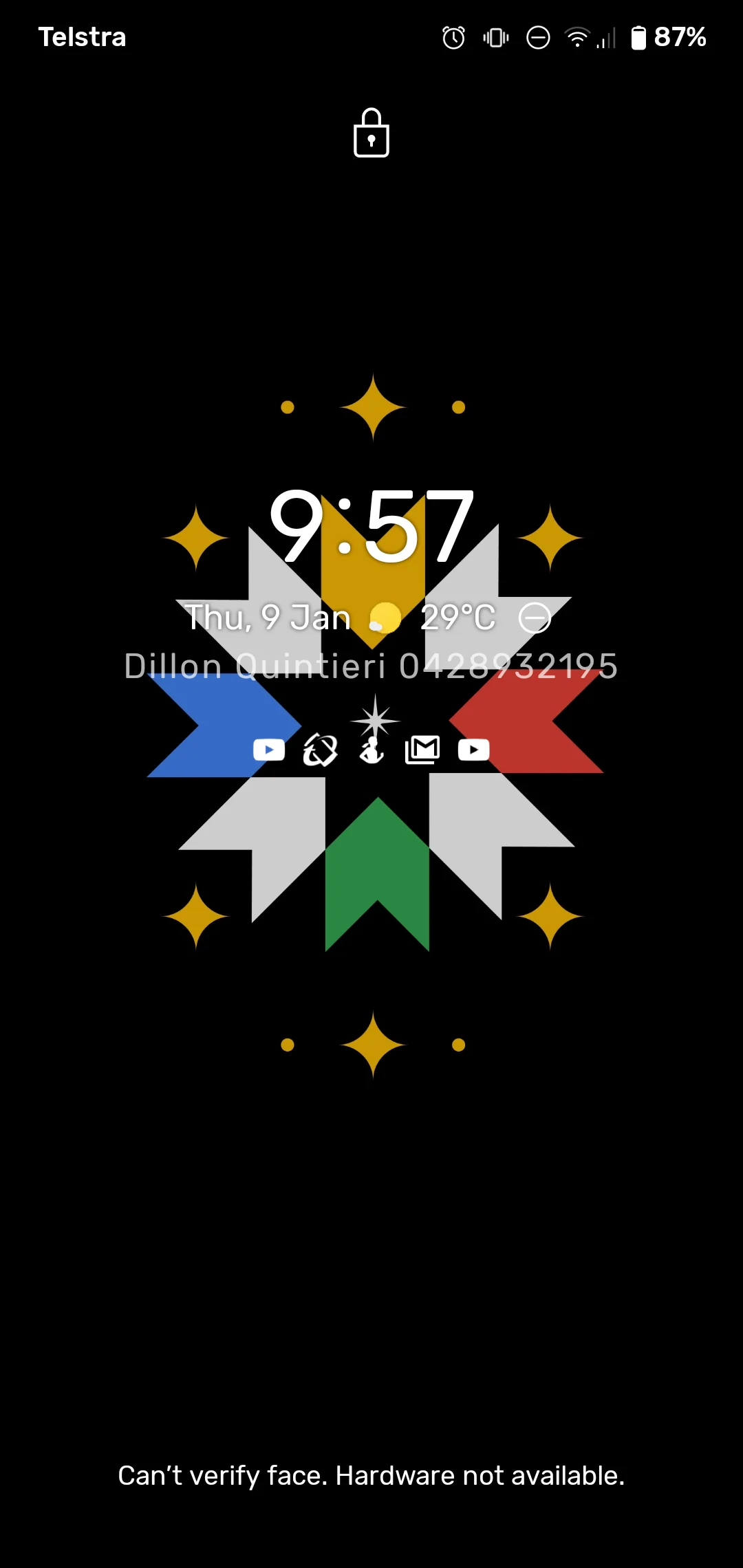
I ran into this issue too, I had no idea what caused it. I checked forums, read through user reports, and spent quite a bit of time testing different ideas until I found the fixes that actually made a difference. So instead of wasting hours searching through random posts, you can simply try the methods shared below.
5 Easy Ways to Fix “Can’t verify face. Hardware not available” Error on Android
Resync Your Google Account
If you are seeing the “Can’t verify face. Hardware not available” error, try resyncing your Google account first.
Note: This fix was shared by a user who ran into the same issue. It may not work for every device, but it is quick to try and does not require a factory reset.
- Open Settings on your phone.
- Go to Users & Accounts or Passwords & Accounts.
- Select your Google account.
- Tap Account sync and let the sync complete. If needed, tap Sync now.
- Once the sync is finished, restart your phone.


Factory Reset Your Phone
This is the solution that worked for me, which is why I placed it near the top of this guide. That said, I do not recommend trying it first. If you want to avoid resetting your phone, you can go through the other solutions below and come back to this one only if nothing else fixes the problem.
A factory reset from your phone’s Settings can fix the “Can’t verify face. Hardware not available” error. According to user reports, resetting the device this way also clears the Titan M security chip, which stores sensitive data such as Face Unlock information. Once the reset is complete, you can set up Face Unlock again.
Before you continue, make sure you back up all your important data. A factory reset erases your apps, settings, photos, files, and everything stored in your phone’s internal storage.
Update Your Phone to the Latest Software
If the “Can’t verify face. Hardware not available” error appeared after a software or security update, check if a newer update is available. Google and other Android manufacturers often release follow up updates to fix bugs found in earlier releases.
- Open Settings.
- Tap System.
- Select System update or Software update.
- Tap Check for updates.
- If an update is available, download and install it.
- Lastly, restart your phone after the installation is complete.
Roll Back to an Earlier Security Patch
If the error started appearing right after installing a security update, the update itself could be the cause. One user reported that Face Unlock stopped working after installing a newer security patch, but the issue disappeared after rolling back to an earlier version.
To do this, download the correct factory image for your Pixel device from Google and flash it to your phone.
Keep in mind that flashing a factory image is an advanced process. It can erase your data if not done carefully, so create a full backup before you begin. Also, make sure you download the factory image that matches your exact Pixel model and follow Google’s flashing instructions carefully.
Note: This solution is only worth trying if the error first appeared immediately after a security update.
Remove Your Face Data and Set It Up Again
If restarting your phone only fixes the issue for a short time, try removing your existing Face Unlock data and registering your face again..
Open Settings > Security & privacy > Face & Fingerprint Unlock. Remove your saved face data and restart your phone. Then set up Face Unlock again by following the on screen instructions.