YouTube is no longer just a place we visit to watch a video and leave. It has become part of our everyday routine. Creators have also built their work around YouTube, while businesses and advertisers now spend a huge amount of time and money on the platform. In many ways, YouTube has become a small world of its own.
Then there are those little homepage changes that leave you wondering what happened. You may have clicked “Show fewer Shorts” or “Not interested” while browsing, only to notice that the Shorts section has disappeared from your homepage. You may look around YouTube and find plenty of information about creating or uploading Shorts, but that is not what you are looking for. You simply want the Shorts feed from other creators to appear on your homepage again.
I went through the same issue while using YouTube, so I know how strange it feels when a section you normally see suddenly disappears. After checking different settings and trying a few things, I found a way to bring the Shorts section back on my homepage. If your Shorts feed has also disappeared after clicking “Show fewer Shorts” or “Not interested,” here is what worked for me.
YouTube Shorts Disappeared From Homepage? Try These Fixes
Clear Your “Not Interested” Feedback
If you have marked YouTube content as “Not interested” or selected “Don’t recommend channel,” that feedback can affect what appears on your homepage. Clearing this feedback can give YouTube a fresh signal about the content you want to see.
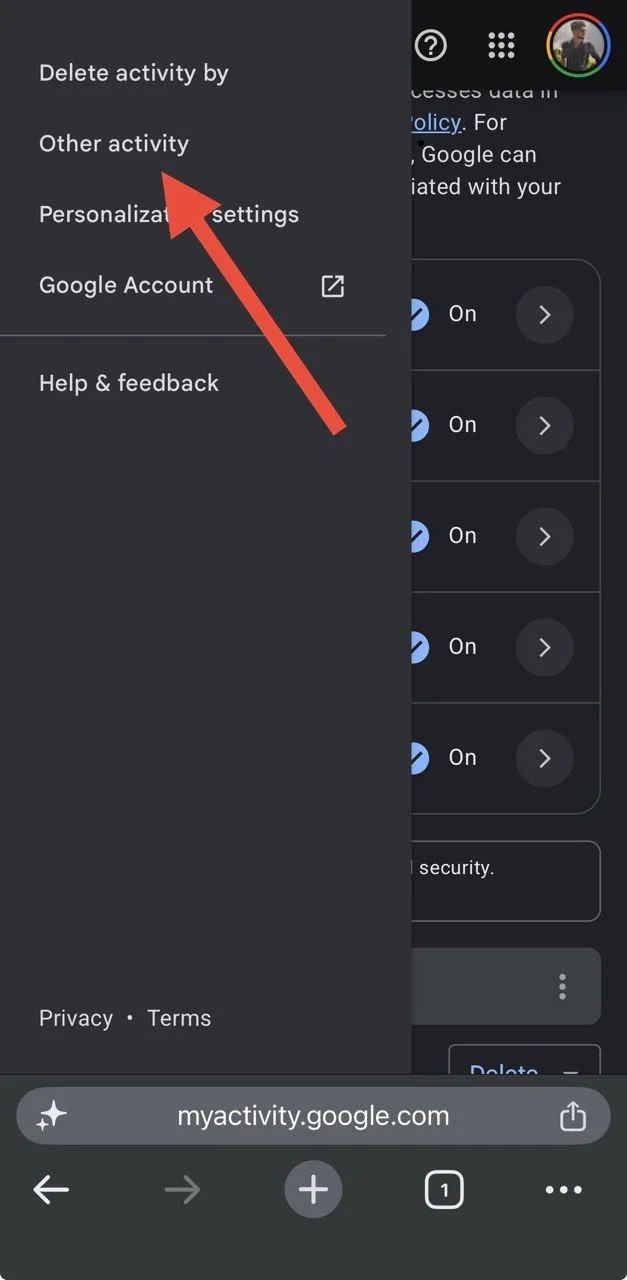
- Open Google My Activity on your browser and sign in to your Google Account if asked.
- From the left side menu, click Other activity.

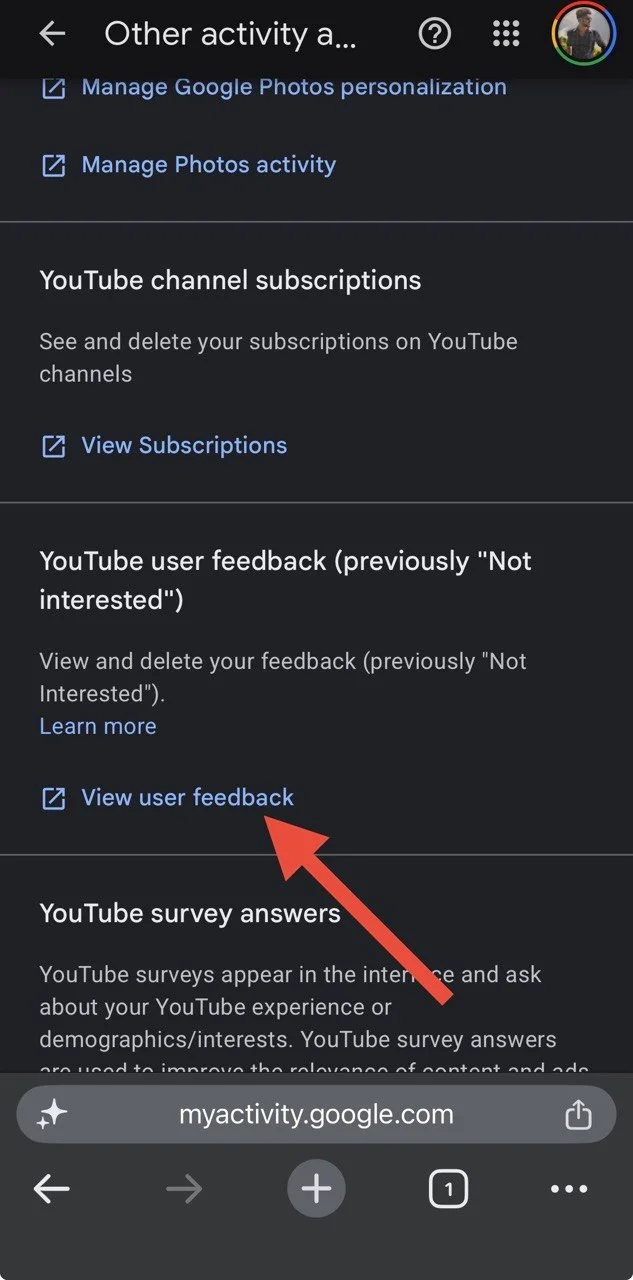
- Now, scroll down and find the YouTube “Not interested” feedback and click View user feedback

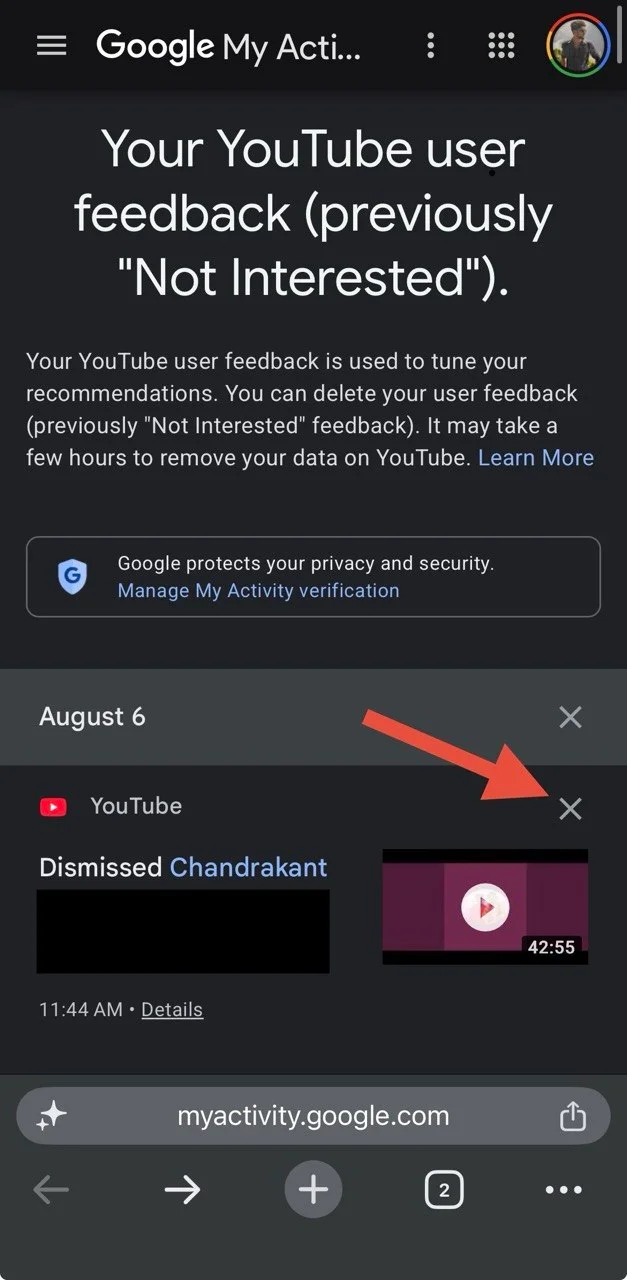
- Now, tap on the X mark
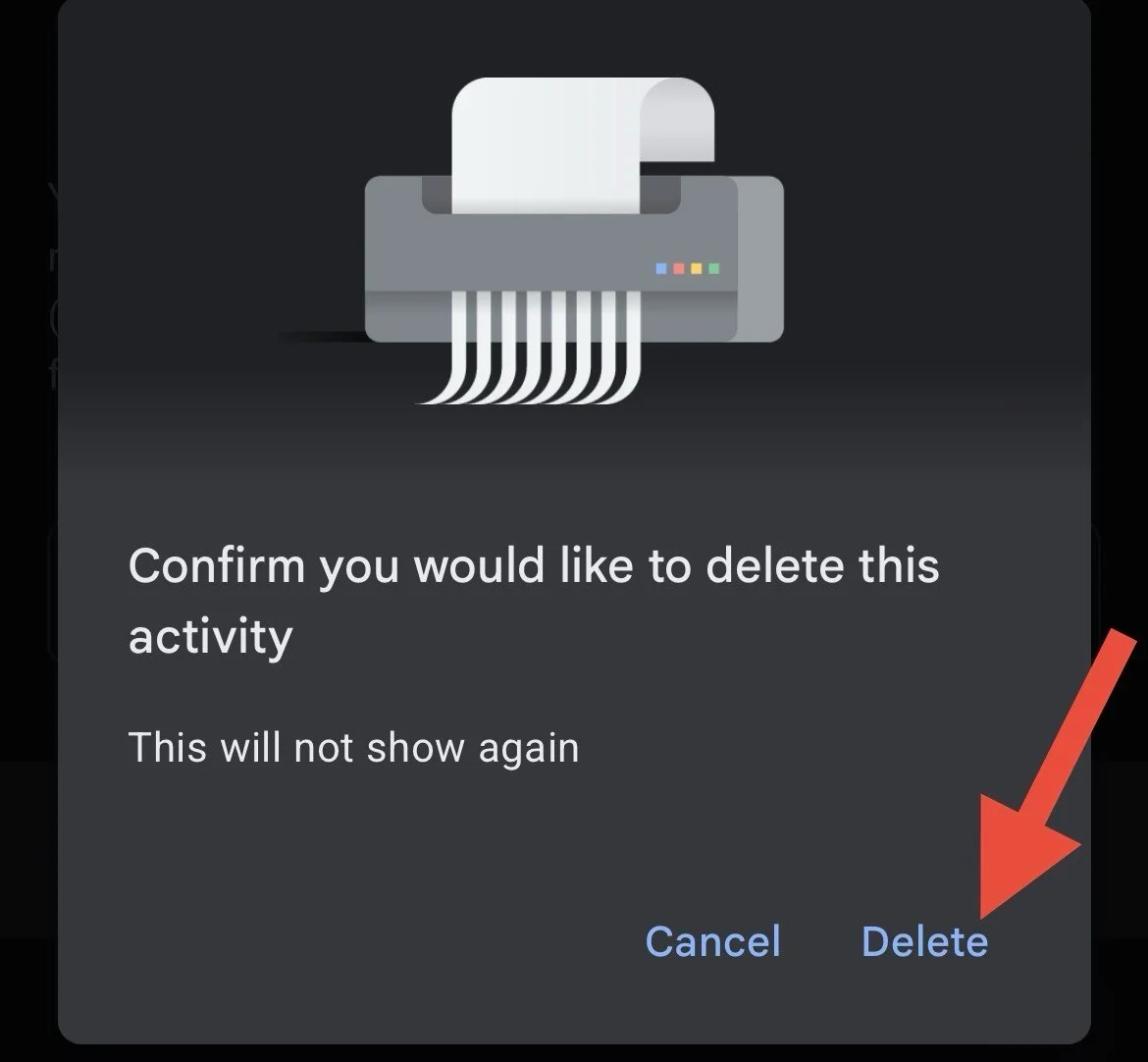
- After that, click Delete to confirm to remove the saved feedback.

- That’s it! The Shorts section may take a little time to appear again as YouTube updates your recommendations.
Watch More Shorts to Update Your Feed
YouTube uses your recent activity to understand what you want to see. If your account has little recent interest in Shorts, the platform may show other types of content on the homepage.
If Shorts are missing, spend a little time watching Shorts again:
- Open YouTube and use the search bar to look for a topic you normally enjoy watching in Shorts.
- Open a few Shorts from the results and watch them for a while.
- If you find Shorts you like, use the Like button or continue watching similar videos.
- You can also search for different Shorts topics that match your interests instead of relying only on the homepage.
- After using YouTube this way for a while, return to your homepage and check the Shorts section.
Restart Your App or Browser
On your phone, swipe YouTube away from the recent apps screen so it is fully closed.
If you are using YouTube through a browser, close the YouTube tab first. Then quit the browser completely. After that, you can visit YouTube, and reload the homepage.
Restart the Device
If Shorts are still missing, restart your phone, tablet, or computer. Turn the device off, wait a few seconds, then turn it on. After that, check the homepage once it loads.
Clear Cache or App Data
On Android
- Open Settings on your phone.
- Go to Apps > YouTube > Storage.
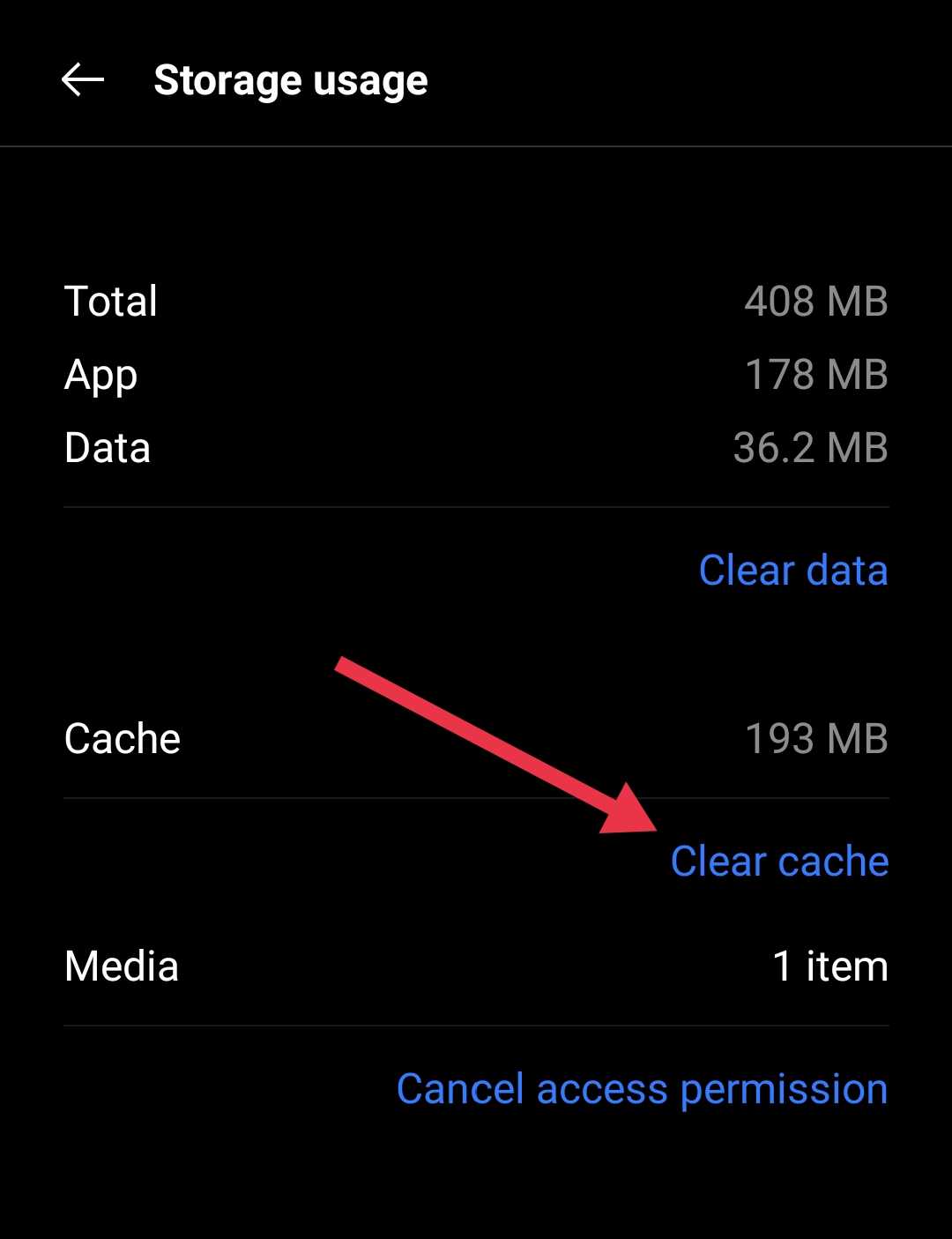
- Select Clear Cache.

On iPhone or iPad
iOS does not have a direct option to clear the YouTube cache. You can offload the app instead.
- Open the device Settings > General.
- Select iPhone Storage.
- Select YouTube and tap Offload App.

- Aftr that, tap Reinstall App.
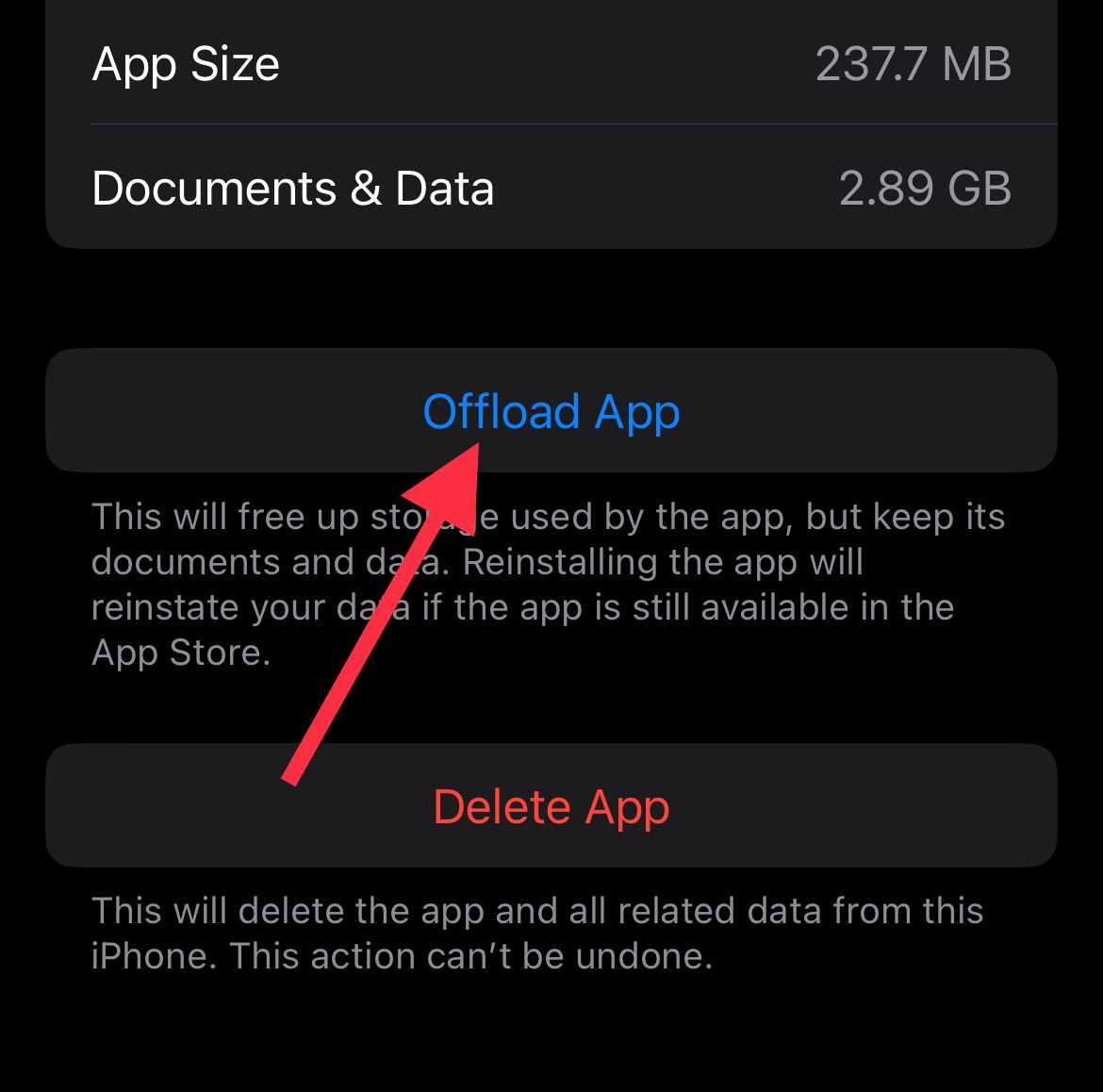
You can also check the App Store and install any available YouTube update.
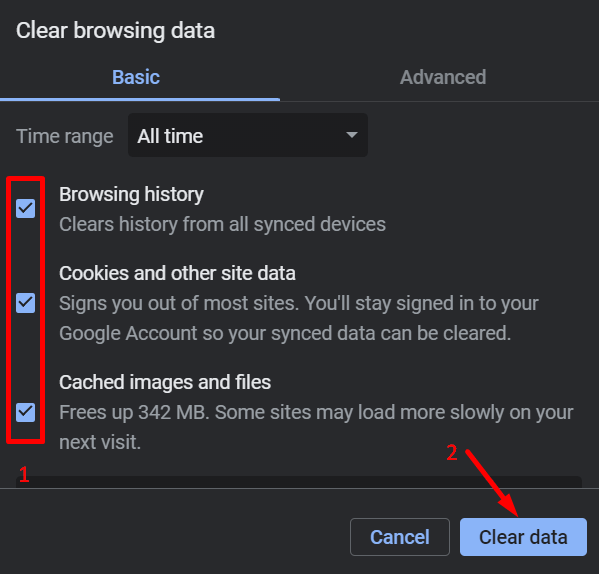
On a Web Browser
Open your browser Settings.
- Go to your browser menu button or you can go to Settings > Privacy and Security.
- Look for Delete Browsing Data.

- Select Cached files and images.
- Clear the selected data.


Give YouTube Some Time
If Shorts are still missing from your YouTube homescreen, just give it a little time. YouTube may need a while to pick up your new activity and update the homepage. So, keep using YouTube as usual and check the homepage again later. You may find the Shorts section back after the recommendations have updated.
RELATED GUIDES:
- How to Fix YouTube Shorts Comments Not Showing on Android or iOS
- How to Fix YouTube Shorts Like, Comment, Share Buttons Not Showing Issue
And that should hopefully sort out the YouTube Shorts not showing on homepage issue for you. If one of the methods above worked, drop a comment and tell us which one fixed it. Found another easy way to bring Shorts back? Share that too. It could save someone else a lot of time.