ZArchiver has become a handy app for Android users who deal with ZIP, RAR, 7Z, and other archive files. It is also widely used for moving and managing ROMs, game files, mods, and large downloads. For most file tasks, ZArchiver makes the job quite simple. Still, there are times when the app suddenly refuses to open an archive and shows an error message.
One message that can catch you off guard is “Operation completed with errors.” You may see it when trying to extract a downloaded file, a ROM set, or another archive stored on your phone or SD card. 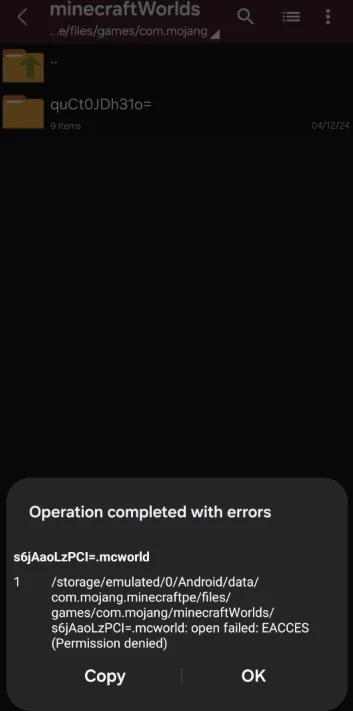
We have already covered troubleshooting guide on ZArchiver access is denied error in our earlier article. Now there is another error worth looking at. If ZArchiver is showing this message on your device, this guide will cover the different ways you can bypass the error.
ZArchiver Operation Completed With Errors? Here’s What to Do
Use Shizuku to Give ZArchiver Extra Access
The “Operation completed with errors. Cannot open file as archive” message can also appear when Android limits ZArchiver’s access to a file or folder. This is more common on newer Android versions, where access to certain folders is restricted. In this case, the archive may be fine, while ZArchiver is unable to read it correctly.
Shizuku can help with this. It gives supported apps access to certain Android system permissions without rooting the phone. ZArchiver can use Shizuku for supported file operations, including work with folders that have tighter access rules. The setup only takes a few steps.
- Download and install Shizuku from the Google Play Store, then open it.
- In Shizuku, look for the Pairing option and leave the app open.

- Now open your phone’s Developer options and turn on Wireless debugging.

- Tap Pair device with pairing code. Android will show a pairing code on the screen.

- Enter that code in Shizuku when prompted.
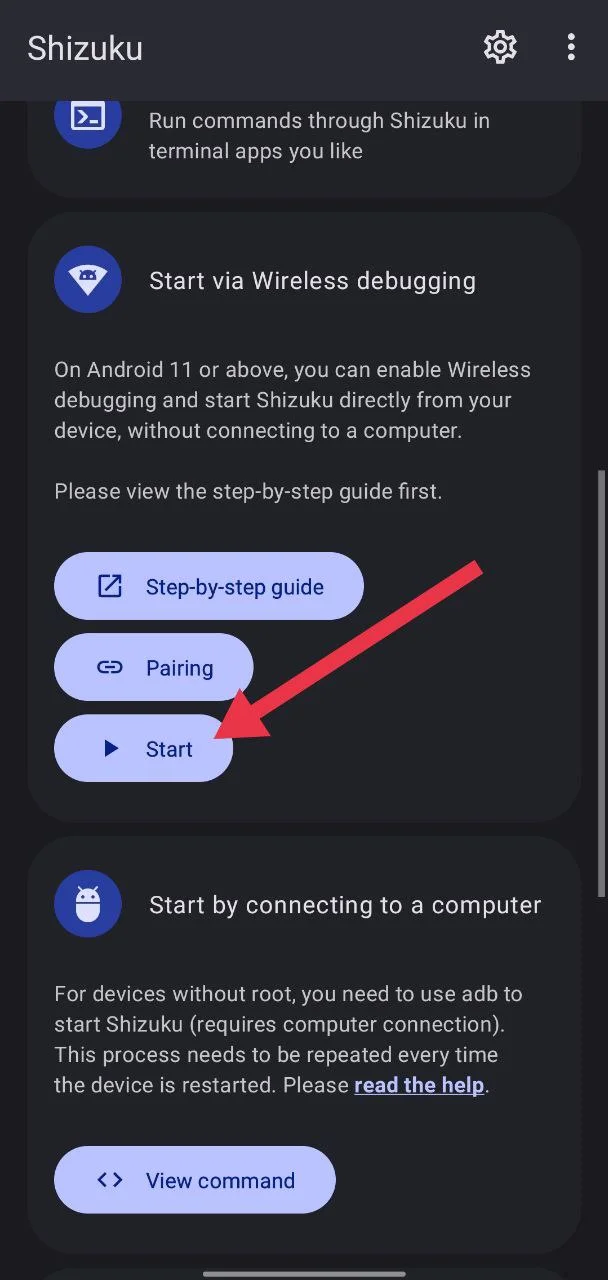
- After the pairing is complete, return to the main Shizuku screen and tap Start to start the Shizuku service.

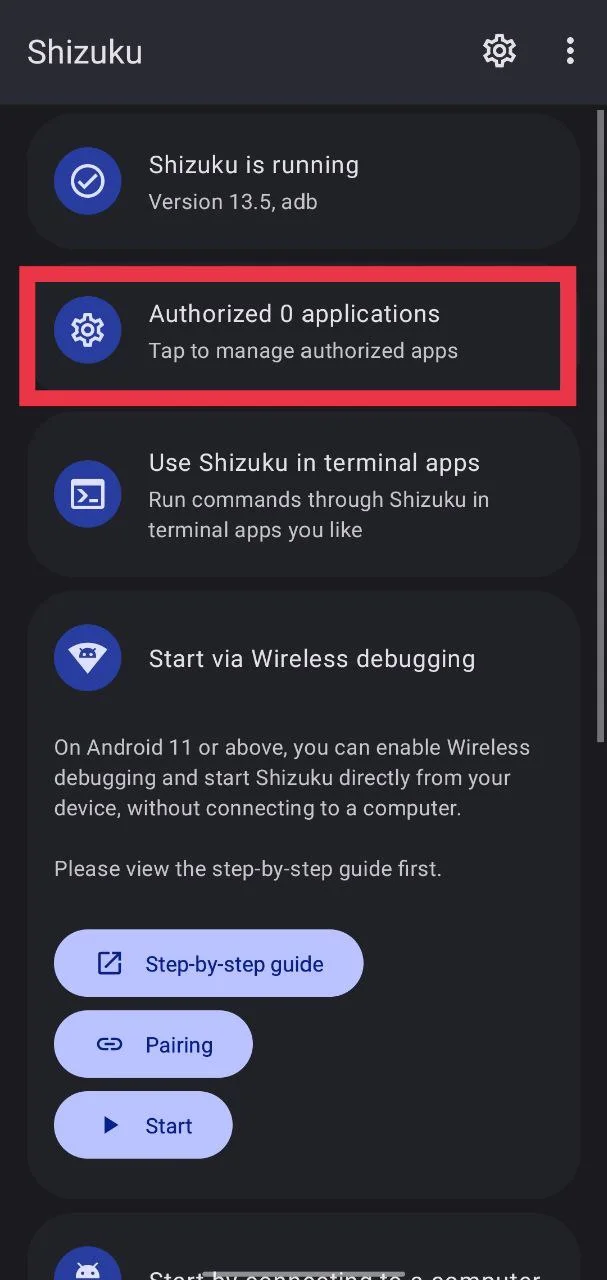
- Open Authorized applications in Shizuku and allow ZArchiver to use the service.

- Next, open ZArchiver and tap the three dot menu in the upper right corner.
- Go to Settings and under the Root section, select Shizuku as the root access method.
- Now, turn on the options related to using Shizuku for Android file operations.
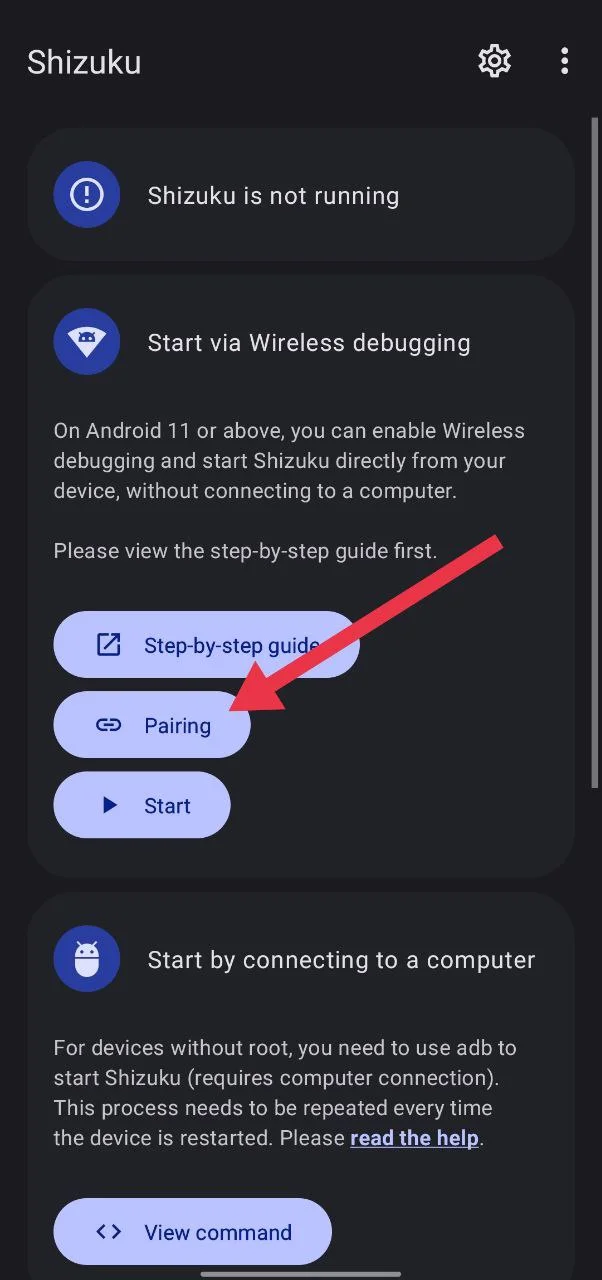
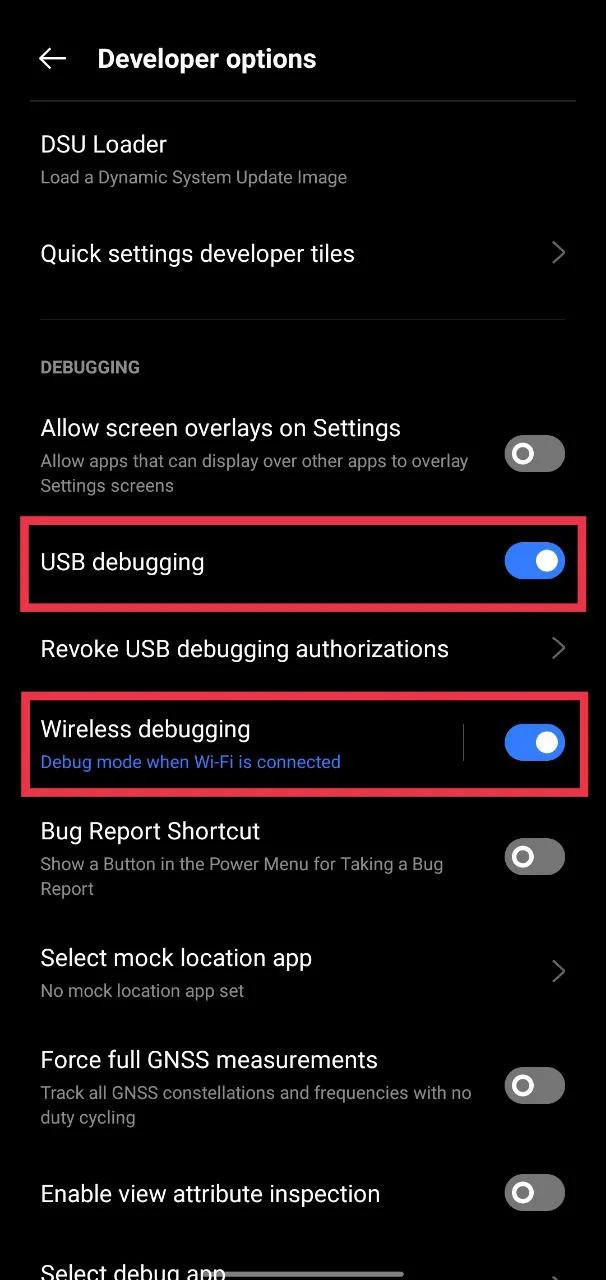
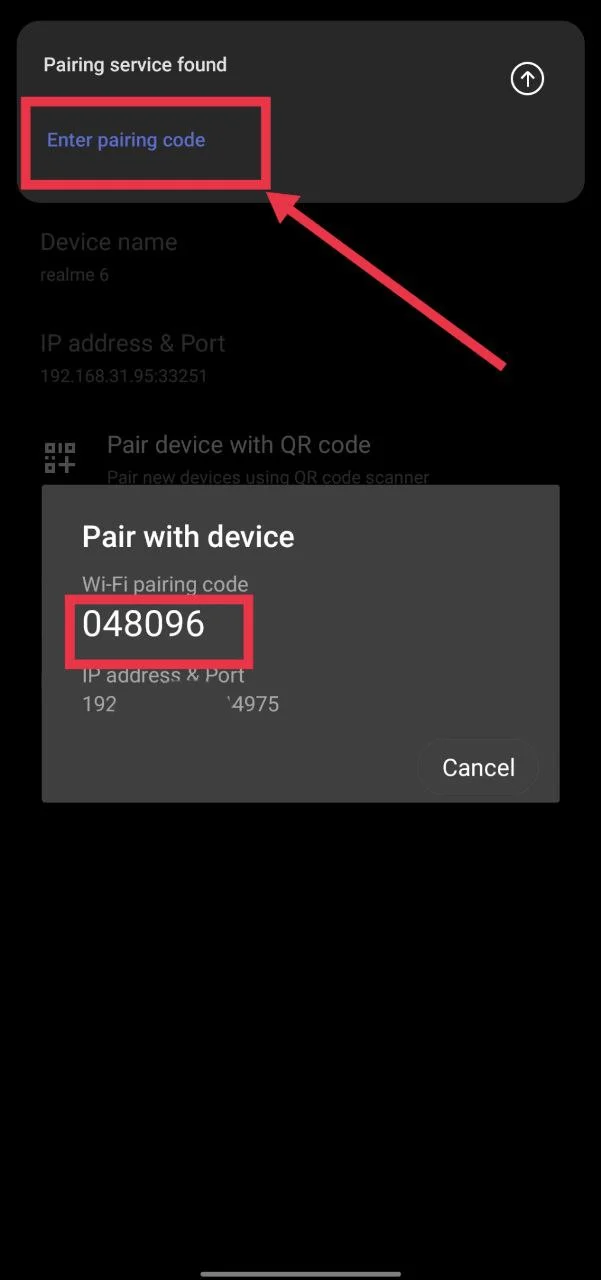
Now open ZArchiver and try the same archive again. Try opening or extracting the file that showed the “Operation completed with errors” message. If Android access restrictions were causing the problem, Shizuku can provide ZArchiver with the extra access needed to work with the file.
Update ZArchiver
An older version of ZArchiver can also cause archive errors, mainly on newer Android versions. Check the Google Play Store for latest version of ZArchiver app. Install the available update as soon as possible as a newer version may include fixes for file access and archive handling.
Clear ZArchiver Data
On you Android device, navigateto to Settings > Apps > ZArchiver > Storage and tap Clear data. Then open ZArchiver again and try the same archive. Keep in mind that clearing data will reset the app settings, so you may need to set them up again.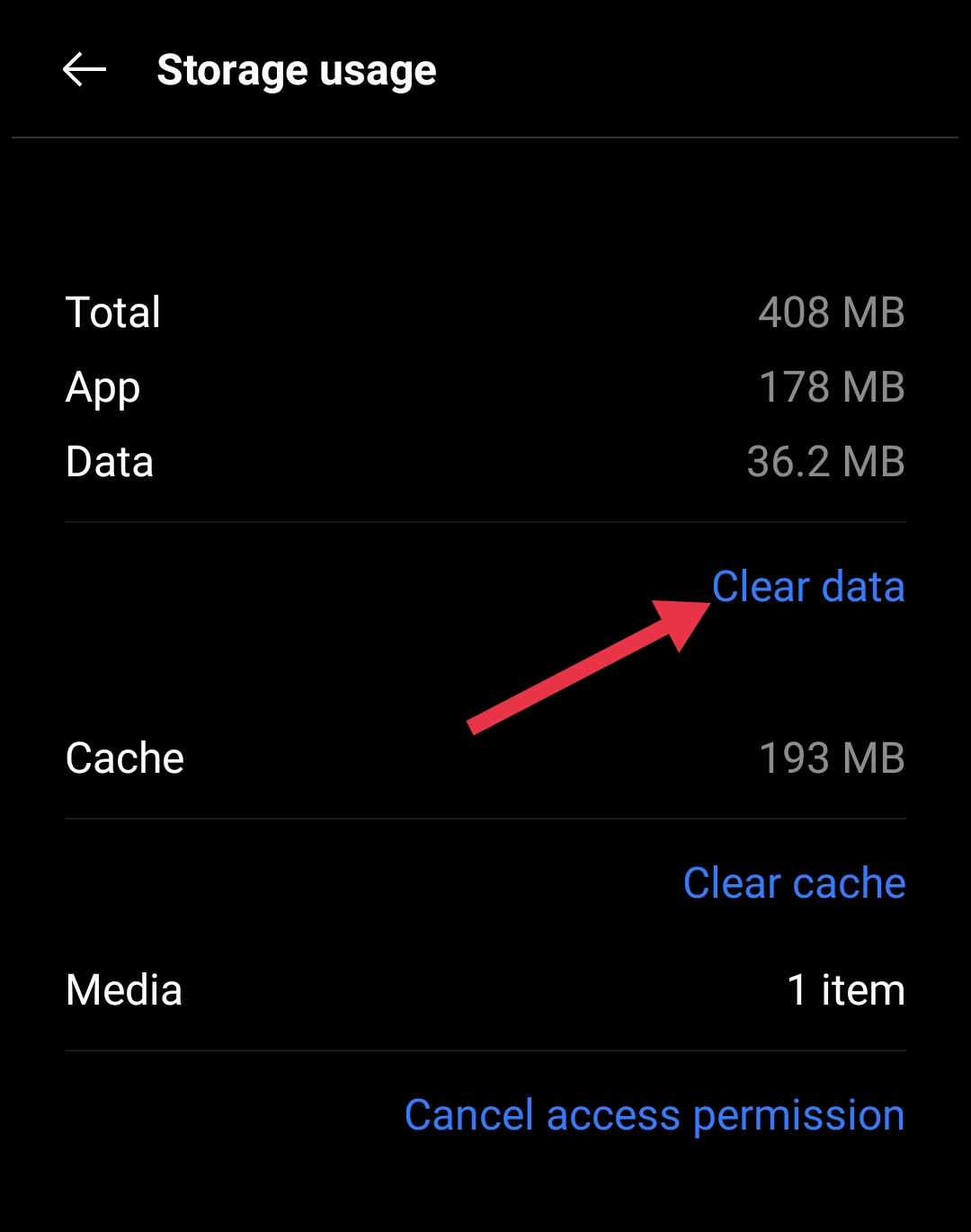
Try Another File Manager App
If ZArchiver still shows “Operation completed with errors”, another file manager can be worth trying. You can try apps such as Files by Marc or Material Files, as these may handle access to Android folders differently. Install one of them, open the same location, and try accessing or moving the archive file again.
So, did any of these methods fix the ZArchiver “Operation completed with errors” message for you? If you found another method that worked, feel free to share it in the comments. It could help someone else who is dealing with the same error.
If ZArchiver still shows the same error after trying these methods, you can also try opening or extracting the archive on a PC. A computer may handle the file without the Android access limits that can affect ZArchiver.