Have you tried signing in to WhatsApp only to see “Temporarily unavailable for 1 hour” on the screen? The message can appear during phone number verification, after entering a PIN, or while waiting for a verification code. Even after the displayed time passes, the same message may show up again.
The situation can be harder to understand when the message keeps returning after each attempt. You may wonder why WhatsApp is still showing an hour-long wait and what is causing the verification process to remain unavailable.
So, what does the “WhatsApp is temporarily unavailable for 1 hour” message mean, and why can it continue appearing for days in some cases? The answer depends on what is happening during the account verification process. Check out the below sections to know more alongside the solutions. 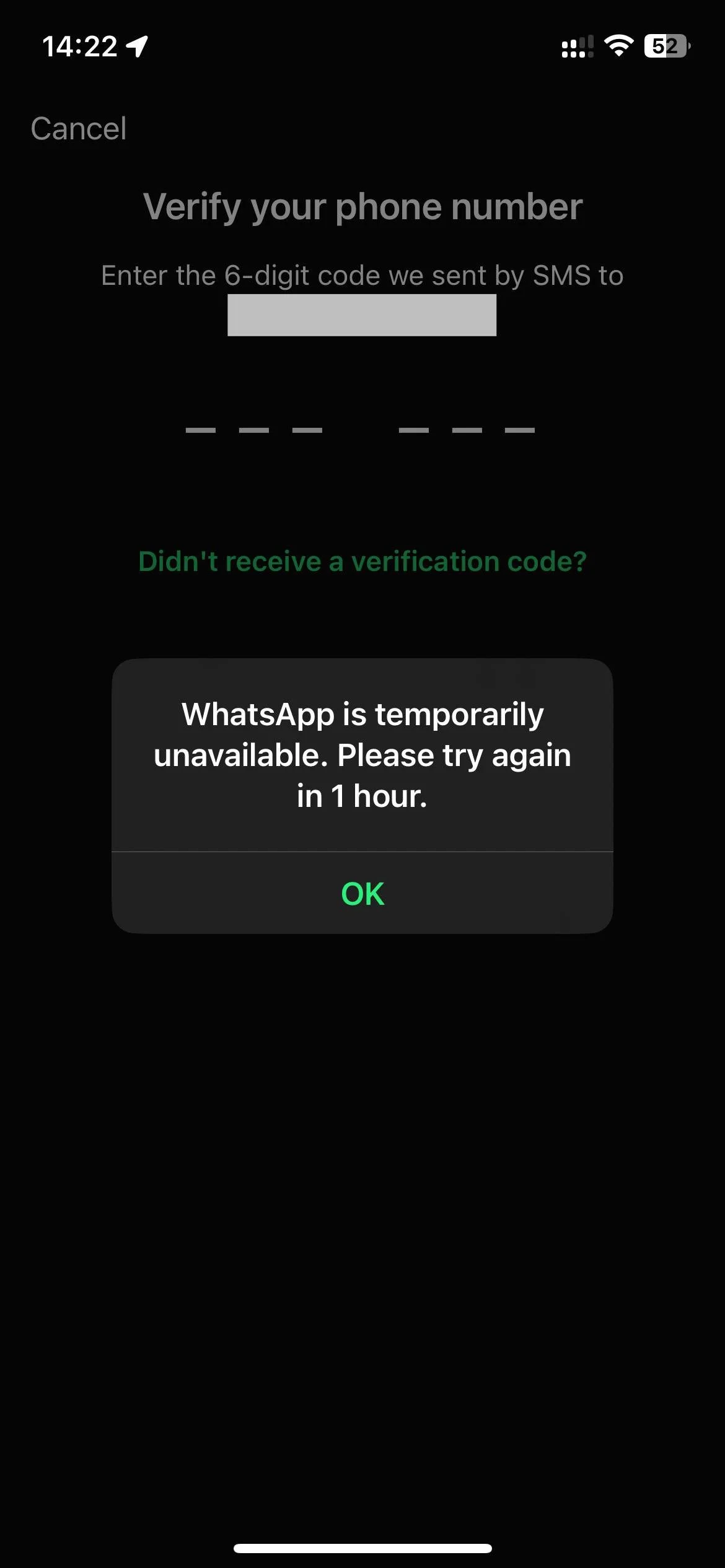
What Does “Temporarily Unavailable for 1 Hour” Error Mean on WhatsApp?
WhatsApp asks you to verify your phone number when you create an account or move your existing account to another phone. This verification usually uses a six-digit code sent to your number through SMS or provided during a phone call.
A temporary waiting message can appear when WhatsApp detects repeated verification attempts within a short period. At that point, you may see a countdown telling you to wait before another verification attempt can be made.
WhatsApp puts this limit in place to protect your account. It stops people from repeatedly requesting verification codes in an attempt to access a number that does not belong to them.
WhatsApp also advises users not to guess the verification code. Entering the wrong code again and again can temporarily lock the verification process, so you need to wait until the timer shown on the screen has ended before trying again.
WhatsApp is Temporarily Unavailable for 1 Hour? Try These Fixes
Delete Your Number From Meta Business Suite
Your phone number may still be connected to a WhatsApp Business Platform account in Meta Business Suite. That connection can matter if you are trying to register the number again and WhatsApp keeps showing the “Temporarily unavailable for 1 hour” message.
You can remove the number from the WhatsApp Manager section inside Meta Business Suite. Once the number is deleted from that account, the connection with that WhatsApp Business Platform account is removed as well.
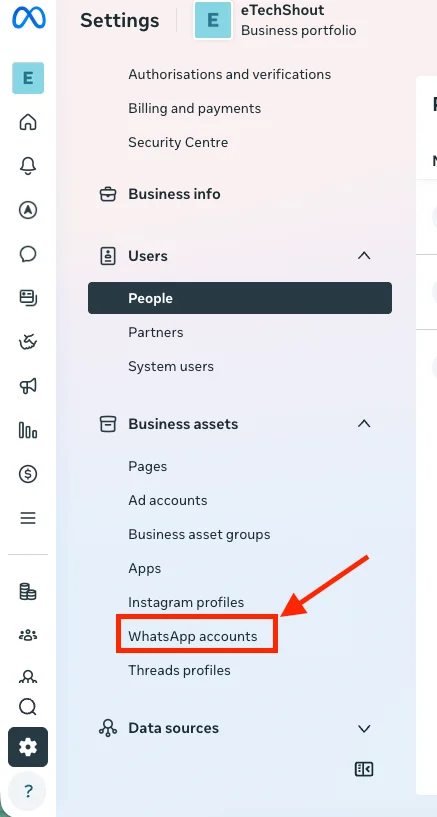
To do this, open the WhatsApp accounts section in Meta Business Suite.
- Open the Meta Business Suite.
- Log in to your account and then click on Settings options
- Then go to the WhatsApp accounts section and select the WhatsApp account that is connected to your phone number.

- After selecting the account, the People, Settings, and Pages tabs will appear on the right side. Open the Settings tab and select WhatsApp Manager.
- Inside WhatsApp Manager, open the Phone numbers section.
- Under Phone numbers, select the number you want to remove and click the Delete icon.
- A few instructions will appear on the screen. Complete those instructions to remove the number from the account.
You may be asked for the password of the Facebook account connected to your WhatsApp Business Platform account. This can happen when the number was connected to that account at some point.
There are also a few conditions to keep in mind. Only admins of the WhatsApp Business App can delete a number. The number can be deleted only when no paid messages have been sent from that account during the past 30 days.
Also, deleting the number removes the WhatsApp Business Platform data connected to it. A phone number deleted from a WhatsApp Business Platform account cannot be used again with another WhatsApp Business Platform account.
Contact Meta Support
If you do not see the option to delete your phone number from WhatsApp Manager, or the deletion process is not working, you can contact Meta Support. Their support team can check the business account connected to your number and help with the removal request.
You can contact them through Meta Business Manager. The support form will ask for some basic information about your account and the issue.
- Open Meta Business Manager and log into your account.
- In Meta Business Manager, click Help, then select Help again.
- Once the help sidebar opens, click Contact Support Team.
- Under “Where is the issue occurring?” select the business account registered to the phone number you want to delete.
- Under “What issue are you experiencing?”, select Other Business Manager issue.
- In the “Get help” section, select Chat.
- Enter your contact details in the Email and Phone Number fields.
- In the Message field, explain that you want to remove your phone number from the WhatsApp Business Platform. You can use this message: “Hi, I would like to delete my phone number from the WhatsApp Business Platform.”
- Once you have entered all the required details, click Start Chat. A Meta support representative will then connect with you and help with your request.
Wait Until the One-Hour Timer Ends
When WhatsApp shows a one-hour verification timer, the restriction is tied to the verification process on WhatsApp’s side. Waiting for the full period gives the timer a chance to expire before you make another verification attempt.
It can be tempting to keep trying while the countdown is running, particularly when you need access to your account. Repeated code requests, reinstalling WhatsApp, or changing the number during this period will not remove the timer.
WhatsApp’s registration guidance recommends waiting until the displayed timer has finished before requesting another SMS or phone call. Once the full hour has passed, the verification process can be tried again.
Make Sure Your SIM Can Receive SMS and Calls
WhatsApp needs to send a verification code to your phone number during registration. So you need to check if your SIM can receive normal SMS messages and phone calls.
Ask someone to send a regular text message to your number. If that message does not arrive, the issue may be related to your SIM card, mobile network, carrier service, or phone.
You can also ask someone to call your number and check if the call reaches your phone. This matters because WhatsApp may provide phone call verification when SMS verification is not available.
Request the Verification Code Only Once
Once the one-hour timer has finished, request a new SMS verification code and give it some time to arrive. Sending repeated requests one after another can lead to another waiting period during the verification process.
SMS delivery is not always instant. Your mobile carrier or network conditions can cause a short delay, so avoid pressing Resend SMS repeatedly while waiting for the message.
Use WhatsApp Voice Call Verification
If the verification SMS is still not arriving, WhatsApp may provide another way to verify your phone number through a voice call. This option can be useful when SMS delivery is delayed or the verification message is not reaching your SIM.
After the required waiting period, check the verification screen voice call option.
Select the available voice call option, and WhatsApp will call your phone using an automated system. The call will provide a verification code, which you can enter on the WhatsApp verification screen.
RELATED GUIDES:
- How to Fix WhatsApp “Please wait a moment. App maintenance in progress”
- How to Fix WhatsApp “Unable to restore your chats from this backup”
- How to Fix WhatsApp Stuck on Initializing
- How to Fix “Login not available right now” on WhatsApp
- How to Fix WhatsApp “Unexpected Error Please Link Again”
I hope this article cleared up your doubts about the “WhatsApp is temporarily unavailable for 1 hour” popup and gave you a few useful ways to deal with it. If one of these methods worked for you, share it in the comments. And if you found another way that helped, feel free to mention that too. It might help someone else facing the same issue.