YouTube videos do not always play as expected. Lately, some users have reported seeing the message “There was a problem while playing” on their screens, followed by a Playback ID made up of random letters and numbers. The same message can pop up on a PC or mobile, even when you are simply trying to watch a regular video.
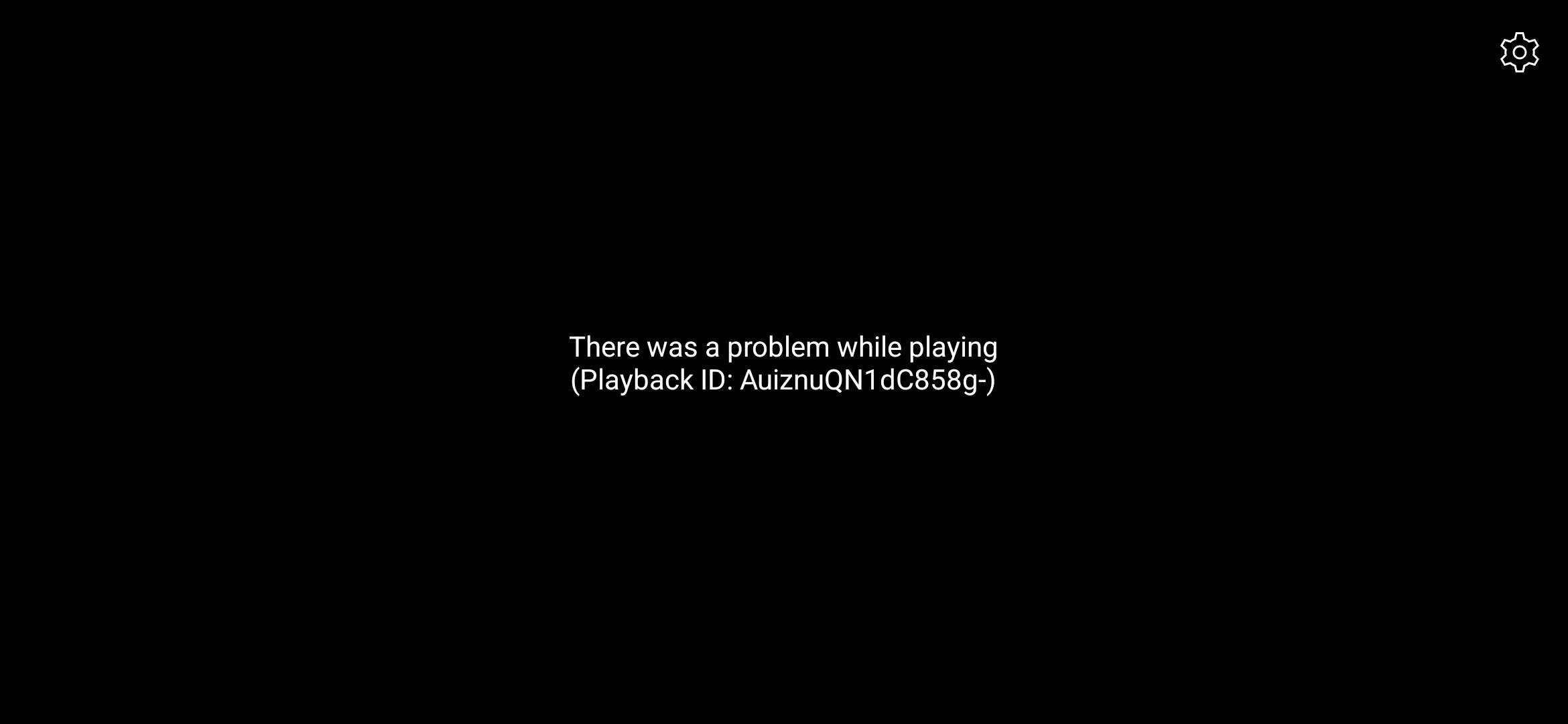
The strange part is that the error does not always behave the same way. For some users, it appears for a few seconds before the video starts playing. Others see it again and again while trying to watch videos on their mobile phones.
So, what causes this message to appear? Is it an issue with YouTube itself, the device you are using, or something else? The error does not always point to one clear cause.
If you are seeing this message on YouTube, check out the solutions below to find out how to fix the “There was a problem while playing” error.
How to Fix “There Was a Problem While Playing” With a Playback ID
Reload the YouTube Page
On your PC, click the Reload button beside the address bar or press Ctrl + R on Windows. Mac users can press Command + R. Give YouTube a few seconds to load and play the video again.
If you are still seeing the same message, try reloading the page two or three more times. You can also close the YouTube tab and open YouTube again to try playing the video.
Check YouTube Server Status
If the same playback error is showing up for lots of users around the same time, the issue may not be with your PC or phone at all.
You can search for YouTube on social media platforms like X and Facebook and see if other users are reporting the same error. You can also check YouTube’s official social media accounts for updates about service issues.
Keep in mind that YouTube does not always post an update for every small issue. So, if you cannot find any official notice, reports from other users may still give you an idea of whether the problem is affecting others too.
Check YouTube in Incognito Mode
I have found this useful for checking if a problem is limited to the regular browser window, since Incognito uses a separate browsing session and usually disables extensions unless they are allowed to run there.
In Chrome, press Ctrl + Shift + N on Windows or Command + Shift + N on Mac to open an Incognito window. Open YouTube, play the same video, and see how it behaves.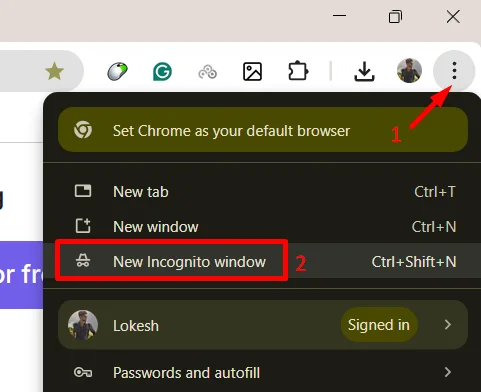
If the video plays without showing the error, the issue may be linked to an extension or saved browsing data in your regular browser. Incognito mode does not fix the underlying issue by itself, but it helps narrow down where the problem might be coming from.
Disable Browser Extensions
If you use ad blockers such as uBlock Origin, this is worth checking. Some users rely on these extensions to block or bypass ads on YouTube, but changes to how YouTube handles ads can sometimes interfere with video playback and trigger the “There was a problem while playing” error.
To check this, open your browser and head to the Extensions section from the menu. Now, temporarily disable your ad blocker and other tools you have added, including extensions that manage scripts or block page content.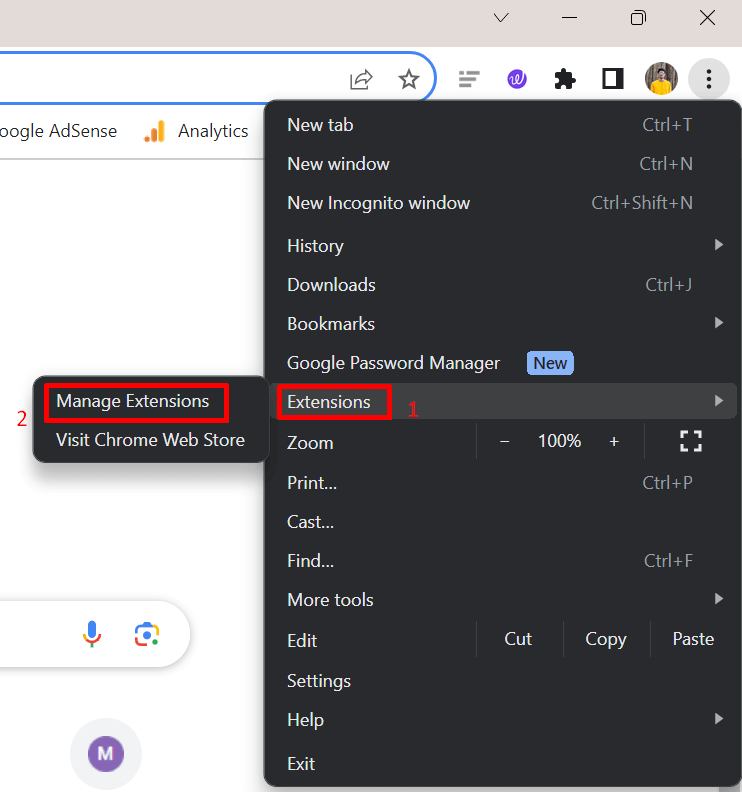
Once you have turned them off, close the browser and launch it again. Open YouTube and play a video as you normally would.
Clear Browser Cache and Cookies
Your browser keeps small files and website data so pages can load faster on your next visit. Some of this stored data may cause trouble with websites in the long run. Clearing the cache and cookies is worth a try when videos keep showing the same playback error.
On your PC, you can clear this data in a few steps:
- Press Ctrl + Shift + Delete on Windows or Command + Shift + Delete on Mac.
- A window with browsing data options will appear.
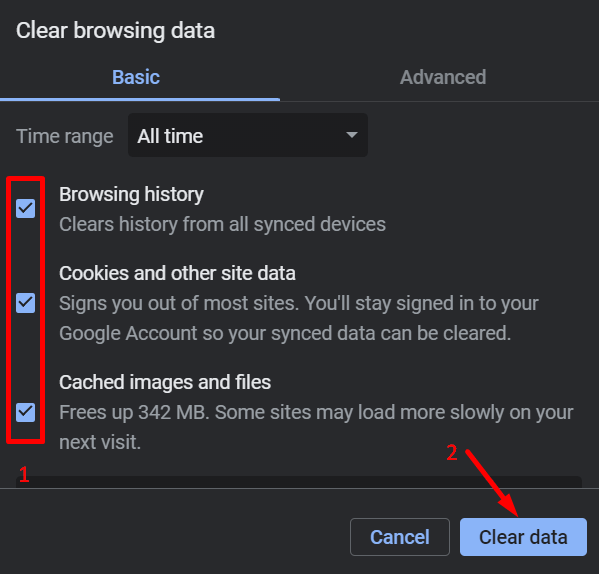
- Select Cookies and other site data and Cached images and files.
- Choose the time range you want to clear, then click Delete data or Clear data.

- Once the process is complete, open YouTube again and play a video. Keep in mind that clearing cookies may sign you out of websites, so you might need to log in again.
On mobile: Open your browser and head to its menu. Find the History or Browsing data section, then look for the option to clear browsing data. Select cookies and cached files before confirming.
Reinstall the YouTube App
This is particularly useful if the error continues even after updating YouTube. Removing and reinstalling the app can replace its installed files, though it will not fix a problem caused by YouTube’s servers or your internet connection.
- On Android: Find YouTube in the Google Play Store and check which options are available. If you can uninstall it, remove the app and install it again. Some Android phones include YouTube as a built-in app, so you may only be able to remove its updates. In that case, update it again through the Play Store.
- On iPhone: Press and hold the YouTube icon, choose Remove App, and then select Delete App. Open the App Store, search for YouTube, and reinstall it.
Once the app is installed, sign in to your account and test a few videos. Your subscriptions and playlists are tied to your account, so they should still be there.
Try YouTube in Another Browser
If you usually watch YouTube in Chrome, try opening it in a different browser for a change. Some users report seeing playback errors in Chrome, while the same videos play in another browser. This does not mean Chrome is always the cause, but testing another browser helps narrow down the issue.
Windows users can try Microsoft Edge, which is already installed on most Windows PCs. Firefox, Brave, and Opera are other options worth considering. On a phone, you can use the browser that came with your device or install another one from the relevant app store.
Try Using a VPN
Your regular internet connection could be part of the problem, so testing YouTube with a VPN is worth a try. A VPN connects you through a server in another location, which may help if the error is related to the route your connection takes to reach YouTube.
Opera GX is worth trying here because it gives you a different browser along with a built-in free VPN. You can test both without installing a separate VPN app. Open YouTube in Opera GX, enable its VPN, connect to an available location, and play the video again.
If you already have a VPN app, there is no need to install another one. Just connect to a different server and try playing the video in your usual browser.
RELATED GUIDES:
- How to Fix “Sign in to confirm that you’re not a bot” on YouTube
- How to Disable YouTube “Video Paused. Continue Watching”