WhatsApp has come a long way from being a simple messaging app to becoming part of our everyday routine. Even with spam messages and other issues frustrating users, millions of people continue to rely on it to stay connected. Over time, features like chat themes and custom wallpapers have made conversations feel more personal, allowing users to choose backgrounds that match their taste instead of sticking with the same look for every chat.
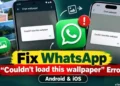
Custom wallpapers are a small feature, but they can make a noticeable difference to the way a conversation looks. However, some users have recently reported that they cannot change their chat wallpaper and instead see the error message “Unable to load wallpaper. Please try again.”
I ran into this issue myself and found it frustrating when WhatsApp refused to load a wallpaper from the gallery. After looking into the problem, I explored different ways to get the custom wallpaper feature working again. If you are facing the same error, check out the methods below that helped me fix it, along with other approaches reported by users experiencing the same problem.
How to Fix WhatsApp “Couldn’t load this wallpaper” Error
Set the Wallpaper Directly From an Image in WhatsApp
I faced the same issue on my phone when I tried to change the wallpaper through WhatsApp Settings > Chats > Wallpaper. Instead of loading the selected background, WhatsApp kept failing to apply it. I found another way to set the wallpaper without using this menu.
First, I sent the wallpaper image I wanted to use to my own WhatsApp chat. Then, I opened the image, tapped the three dots in the top right corner, and selected Set as wallpaper.
After that, I tapped Set wallpaper and chose For all chats in light theme.
This worked as an alternative to changing the wallpaper through the usual settings menu. If WhatsApp is showing the same wallpaper loading error on your phone, give this method a try and see if it works for you.
Update WhatsApp to Version 2.26.42.71 or Later
If you are still unable to change your WhatsApp wallpaper, the problem may be related to the version installed on your phone. Several users reported that updating WhatsApp to version 2.26.42.71 or later resolved the issue. After installing the newer version, they were able to open chat themes, select a custom wallpaper, and apply it without encountering the error.
First, check the Google Play Store for a WhatsApp update. If the required version is not available yet, you can check an APK distribution website, such as Uptodown, for a newer release. Make sure you download the correct version for your device and verify that the app is legitimate before installing it.
Important: If you need to uninstall your existing WhatsApp installation before updating, back up your chats first. Open WhatsApp > Settings > Chats > Chat backup and create a backup to your Google account. Wait for the backup to finish successfully before proceeding. Also, confirm that you can access the Google account associated with the backup so you can restore your chats and media if needed.
Check for WhatsApp Updates Through the Official App Store
If you are using an iPhone, downloading and installing a WhatsApp APK from a third party website is not an option, as iOS does not support installing standard Android APK files. Instead, check whether a newer version of WhatsApp is available through the Apple App Store.
Open the App Store, search for WhatsApp, and tap Update if the option appears. Once the update is complete, open WhatsApp and try changing your chat wallpaper again.
Android users can follow the same approach through the Google Play Store. If the required version is not available there, they can consider the previous solution of installing a newer Android version from the internet. For iPhone users, however, you will need to wait until the relevant update becomes available through the App Store.
Choose a Different Photo From Your Gallery
If WhatsApp opens the wallpaper selection screen but fails to apply the photo you picked, try choosing a completely different image. The problem might be with that particular file rather than the wallpaper feature itself.
I would suggest picking another photo from your gallery and checking whether WhatsApp applies it successfully. If the second image works without any error, go back to the original photo and try using a freshly saved copy of it.