Spotify is where a lot of us spend time listening to music, finding new songs and making playlists for our favourite tracks. I personally like how easy it is to find almost any song on the app. Now imagine opening Spotify one day and seeing songs in your recently played list that you have never heard before. Or maybe your music suddenly stops because someone else has started playing songs from your account. That is when you might wonder if someone else has access to your Spotify login.
This can be a little concerning, mainly if you are paying for a premium subscription and sharing the account with just one or two family members. You may know exactly who has your password, yet still notice unfamiliar songs, new playlists or playback on another device. Naturally, you would want to know who is using your account and how many devices are connected to it.
So, is there a way to see all the devices logged into your Spotify account? Yes, you can check this information and look for devices you do not recognise. Below, I have explained the different ways to check your Spotify logged in devices.
How to Check Spotify Logged In Devices and Stop Unauthorized Access
Check Spotify Connect Devices on Your Phone
Spotify has a feature called Spotify Connect that lets you play music on different devices, such as phones, computers, smart TVs and speakers. If you want to see which devices are available for playback through your Spotify account, you can check the Connect list in the mobile app on both Android and iPhone.
- Open the Spotify app on your iPhone or Android phone.
- Select any song and let it play.
- Open the Now Playing screen and tap the Devices icon (a small screen and speaker symbol) near the bottom of the screen.

- Spotify will show devices currently available for playback. You may see your phone, computer, TV or smart speaker in the list.
- Check the names carefully and see if you recognise all the devices listed.
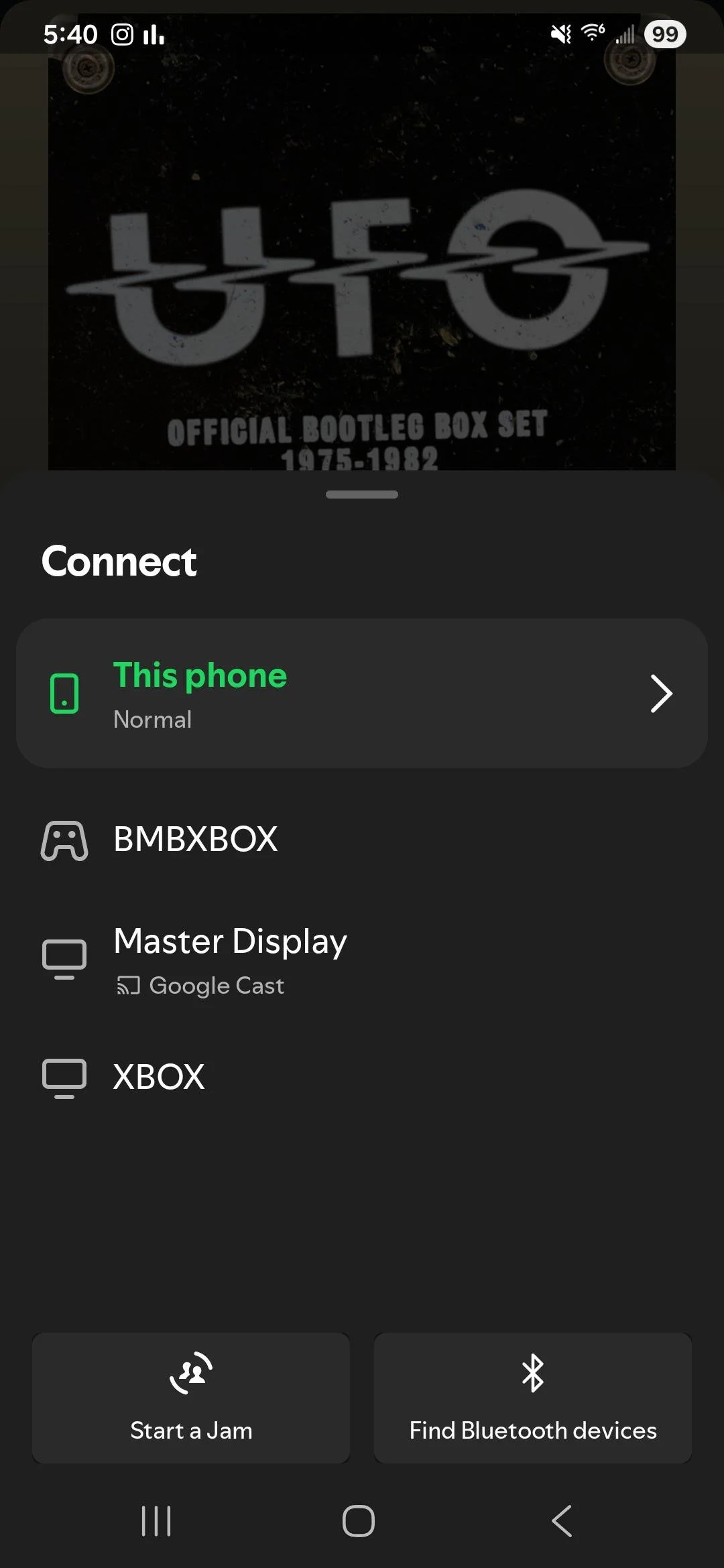
Note: The Spotify Connect list only shows devices currently available for playback. It does not show every device logged into your account. So, if you cannot find an unfamiliar device here, it does not necessarily mean nobody else has access to your account.
Sign Out of Spotify on All Devices Using the Website
If you think someone else has access to your Spotify account, signing out of all devices is one way to remove their access. Spotify has a feature called “Sign Out Everywhere” that lets you log out of your account across your connected devices at once. You can find this option through the Spotify website.
- Visit this overview page of Spotify using a web browser on your computer or phone.
- Enter your Spotify email address and password to access your account.
- Scroll down and click on Sign Out Everywhere to log out of your Spotify account on your connected devices.

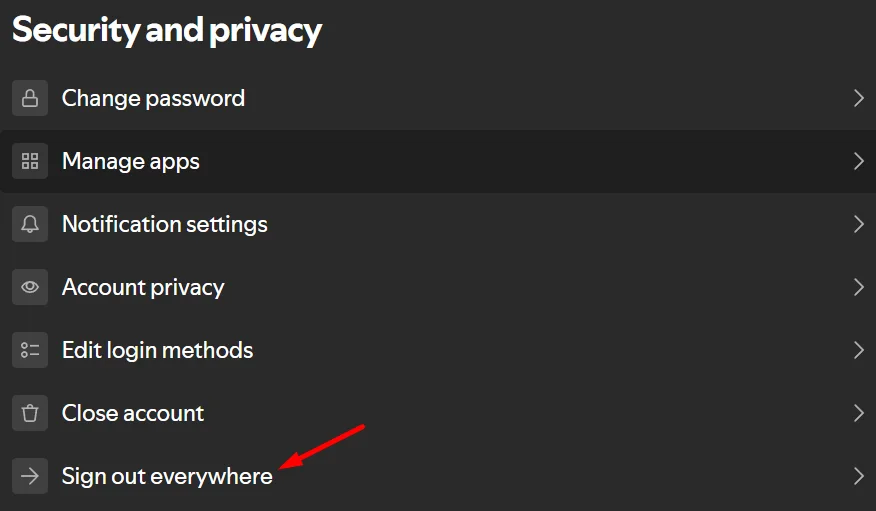
Once you do this, you will need to log in again on your own devices, including your phone, computer, smart TV and speakers. Also, keep in mind that this option may not sign you out of certain third-party devices, such as gaming consoles or partner devices. For added security, change your Spotify password as well.
Remove Access for Third Party Apps and Change Your Password
If you notice songs in your Spotify listening history that you have never played, another app or an unknown person might have access to your account. This can happen when you connect Spotify to third-party apps or services. If you do not recognise the apps linked to your account, it is worth checking them and removing any access you no longer need. Here is what you can do.
- Visit the Spotify Account Overview using your browser and log in.
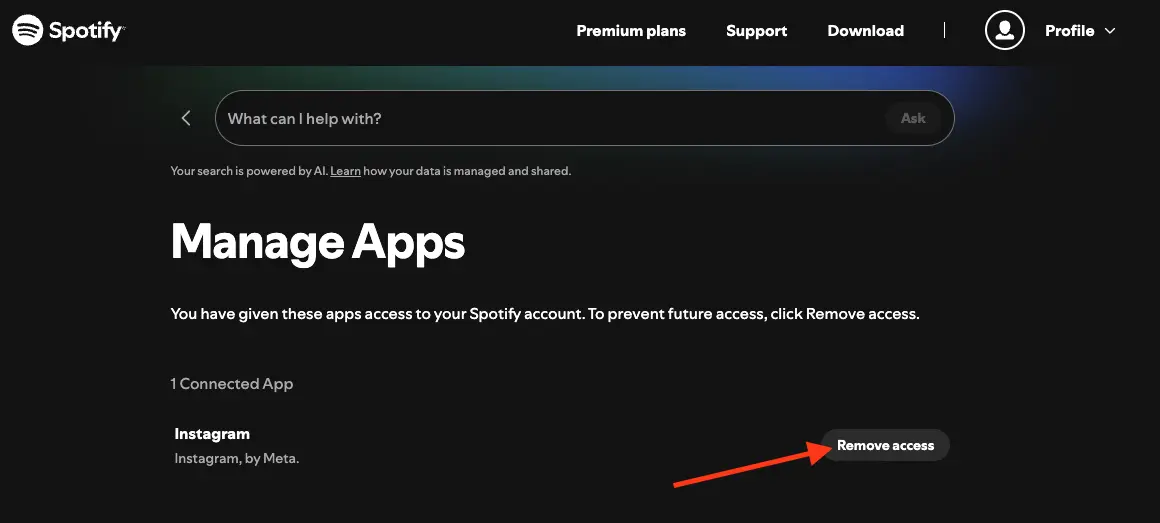
- Click on the Manage apps section in your account settings. You will see the apps and services that have access to your Spotify account.

- Now, check the list and click Remove Access next to any app you do not recognise or no longer use.

- Return to your account overview and select Sign Out Everywhere to log out of your account on other devices.
- After all the above steps, change or create a new password for your Spotify account. Use a password that you have not used for other websites or apps.
- After completing these steps, log back into Spotify on your own devices.

I hope you were able to find out which devices are using your Spotify account and remove any you did not recognise. If you came here because of unknown songs in your listening history or playlists you never created, I hope these steps helped you figure out what was going on. If you know another way to check Spotify logged in devices, do share it in the comments. It might help someone else who is facing the same issue.