If you take screenshots regularly on your Windows PC, you probably know how useful the Snipping Tool is. It lets you capture a full screen, a particular window, or just a small part of your screen without installing another app. Microsoft previously had two separate tools, Snipping Tool and Snip & Sketch, but later brought their screenshot features together into the modern Snipping Tool. So, if you are using Windows 10 or 11, this is the tool you probably rely on whenever you need to capture something quickly.
But what if you press Windows + Shift + S and nothing happens? Or you open the Snipping Tool, click the New button, and the app suddenly closes? I have seen users report different versions of this same problem. Some see a small error box with an X and an OK button, while others can capture the screen but cannot save the screenshot. In some cases, the tool works for a few captures and then stops responding completely.
I ran into this issue myself, and I know how inconvenient it is when you just want to take a quick screenshot but the tool refuses to cooperate. I spent some time trying different things to find out what was going wrong. After testing a few methods, I managed to make it work again. I have shared the methods that helped me below, so you can try them on your Windows PC.
How to Fix Snipping Tool Not Opening/Crashing in Windows 10/11
Restart Windows Explorer from Task Manager
Before trying anything complicated, I would suggest checking Task Manager. I also came across an interesting finding from another Windows user. Apparently, the Screen Snipping process can sometimes remain stuck in the background instead of closing properly. When this happens, pressing Windows + Shift + S does nothing, even though the screenshot tool is still on your PC.
- Press Ctrl + Shift + Esc to bring up Task Manager.
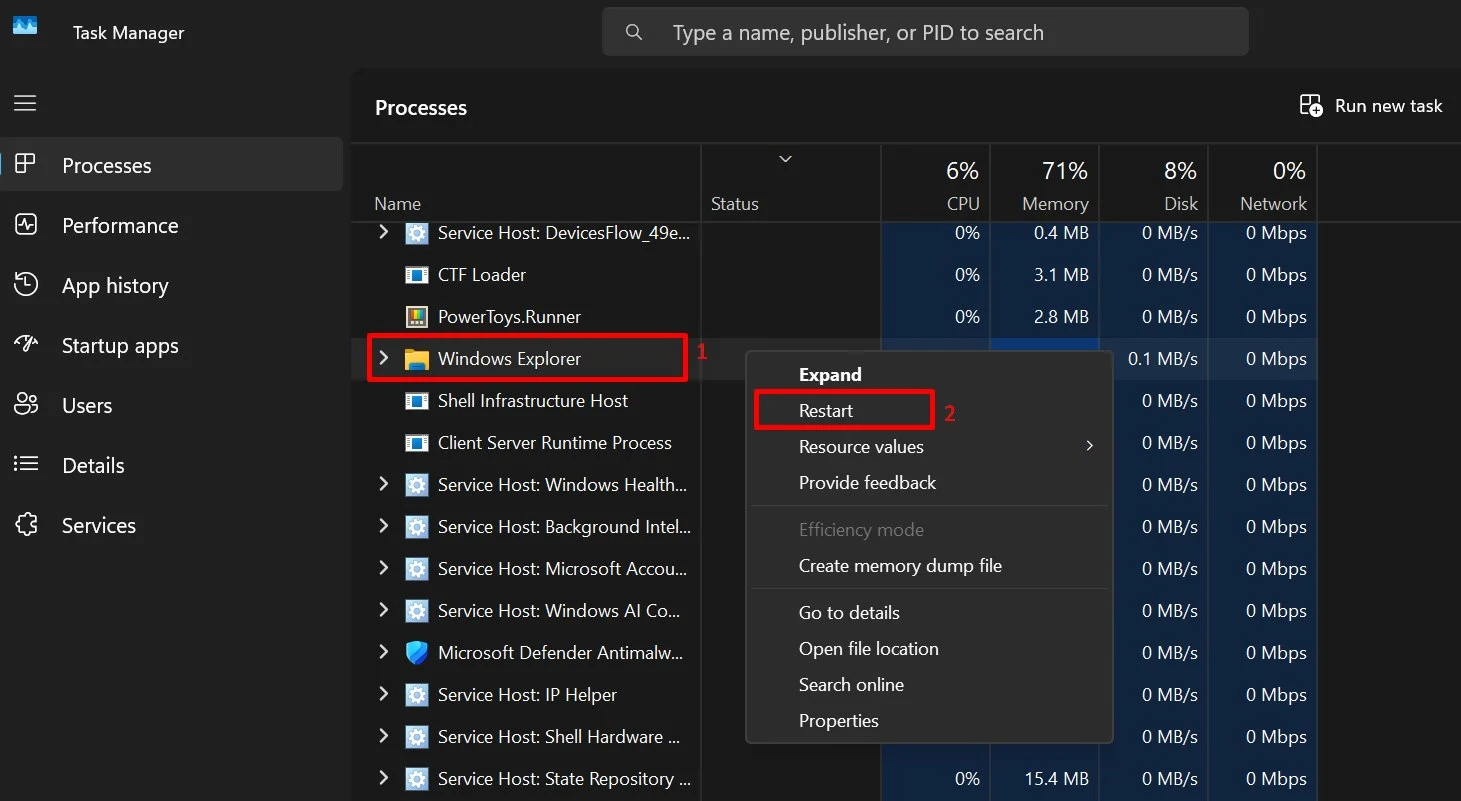
- Find Windows Explorer in the list of running processes.
- Right click on it and select Restart.

- Your taskbar and desktop may disappear for a moment. Wait until they appear again.
- Now press Windows + Shift + S and try taking a screenshot.
You can also open Task Manager, find Screen Snipping under Background processes, right-click on it, and select End task. You should then be able to use the shortcut again. The process may get stuck again after taking a bunch of screenshots, but this is a quicker workaround.
Repair or Reset the Snipping Tool
If restarting Windows Explorer didn’t make any difference, the problem might be with the Snipping Tool app itself. Windows has built-in Repair and Reset options that you can try without reinstalling the app.
- Press Win + I to open Windows Settings.
- Click Apps and select Installed apps.
- Type “Snipping Tool” in the search box.
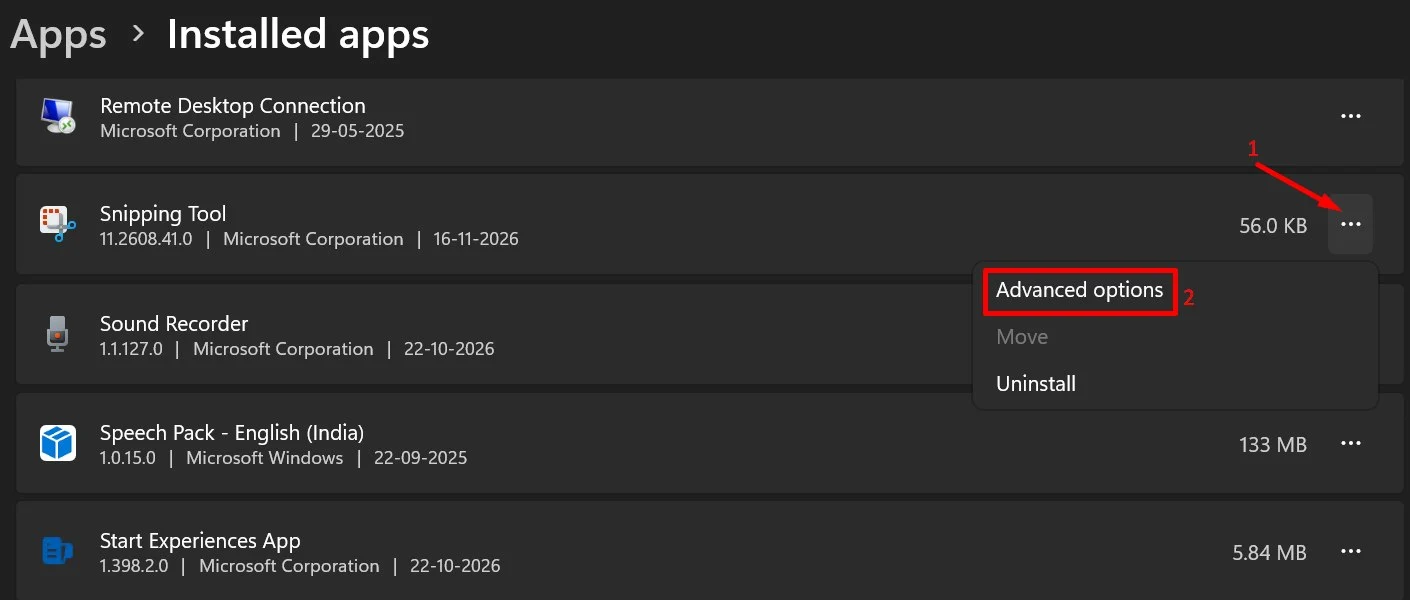
- Click the three dots next to the Snipping Tool and select Advanced options.

- Scroll down and click on Repair

- After that, open the Snipping Tool and check if you can take a screenshot.
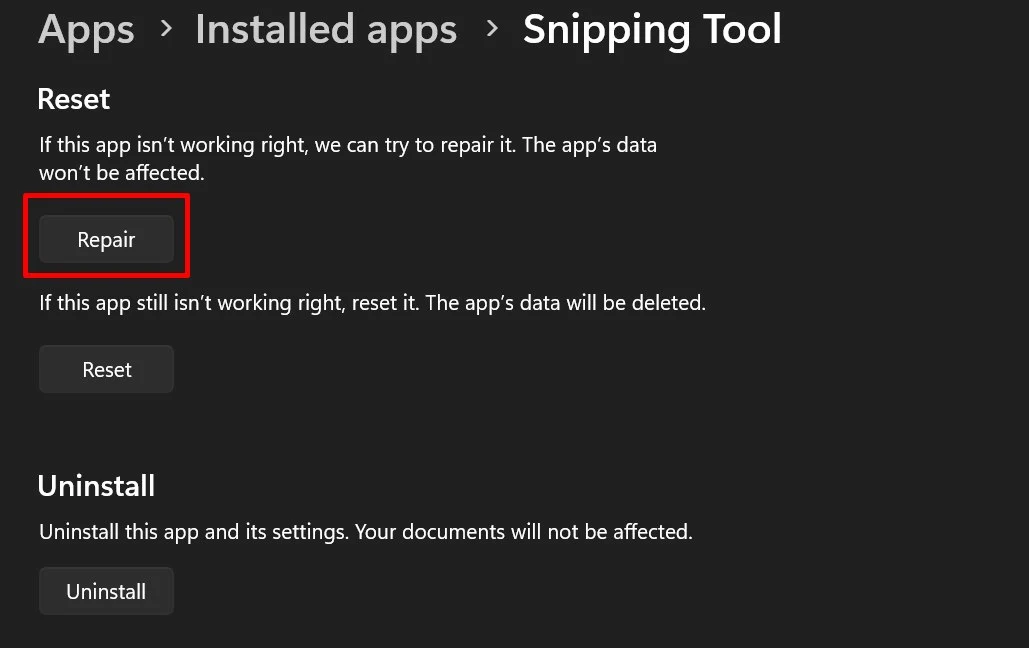
If the same problem continues, return to Advanced options and click Reset. This clears the app’s data and settings, so you may need to adjust your preferences again.
Uninstall Snipping Tool and Restart Your PC
If you are still having trouble with screenshots, you can try removing the older Snipping Tool app from your PC. Some Windows users have found that uninstalling it and restarting the computer helped bring the screenshot functionality back.
- Press Windows + I to open Settings.
- Go to Apps > Installed apps.
- Search for the Snipping Tool.
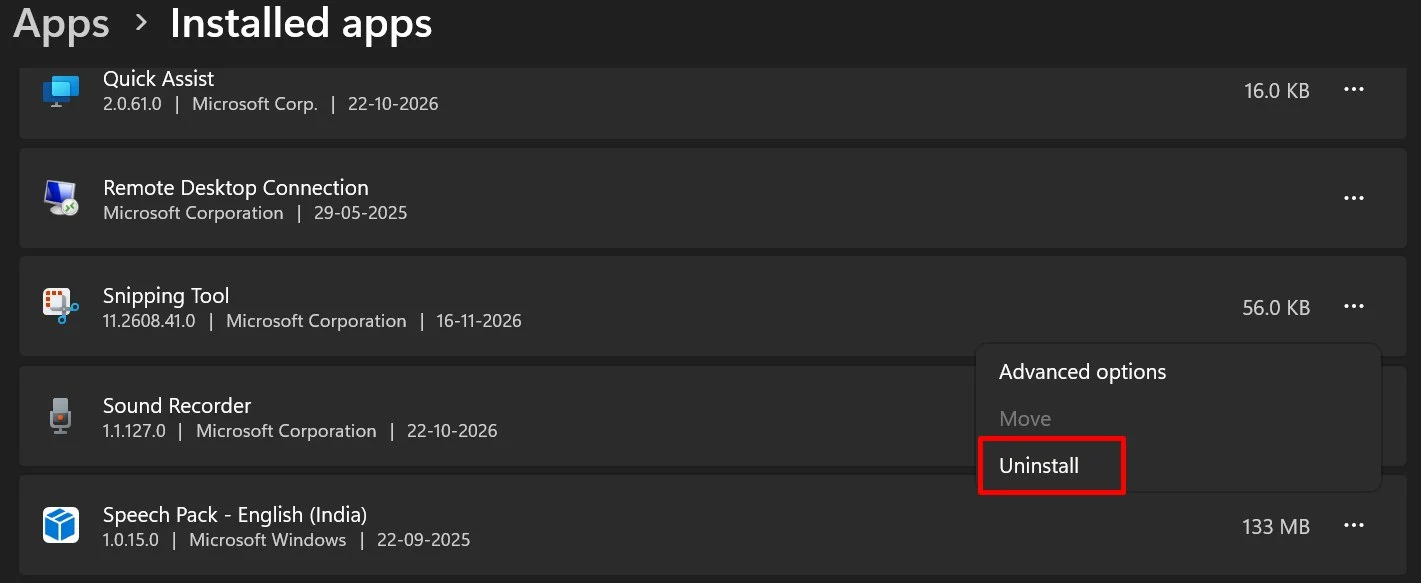
- If it appears in the list, click the three-dot menu next to it.
- Select Uninstall and confirm your choice.

- Once the uninstallation is complete, restart your computer.
- Now, install the Snip & Sketch again from the Microsoft app store.
Note: Microsoft has changed the names and versions of its screenshot apps over the years, which can make it a little difficult to identify the right one. Snip & Sketch was originally a separate screen capture and annotation app in Windows 10, but its features were later merged into the upgraded Snipping Tool in Windows 11. As of 2026, the updated app appears in the Microsoft Store as Snipping Tool. So, keep this in mind when searching for Snip & Sketch in your installed apps list.
Run the ms-screenclip Command
I found another interesting workaround shared by a Windows user. Instead of opening the Snipping Tool manually, you can call its screen clipping feature directly through the Run command. This is worth a shot if both Windows + Shift + S and the Print Screen key have stopped doing anything.
- Press Win + R to open the Run window.
- Enter ms-screenclip: in the box.

- Click OK or press Enter and see if the screen clipping interface appears.
- Once it opens, close it and test both Windows + Shift + S and Print Screen.
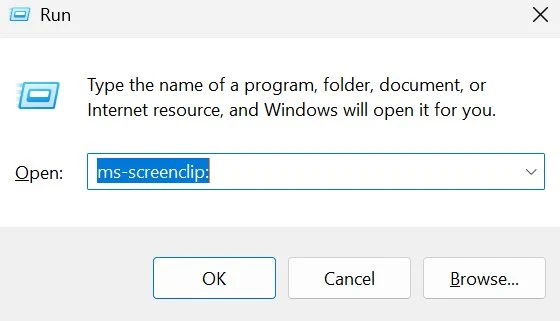
What makes this method worth trying is that the user who shared it reported that both shortcuts started working again, even after restarting the PC. I haven’t found a reason why this command brings the shortcuts back, but if yours have stopped responding, give it a try.
Turn Off Do Not Disturb in Windows
Windows has a Do Not Disturb feature that can silence notifications from apps, including the screenshot notification that normally appears after taking a snip. If this feature is enabled, you might think the screenshot hasn’t worked when the notification is simply being hidden.
- Press Windows + I to open Settings.
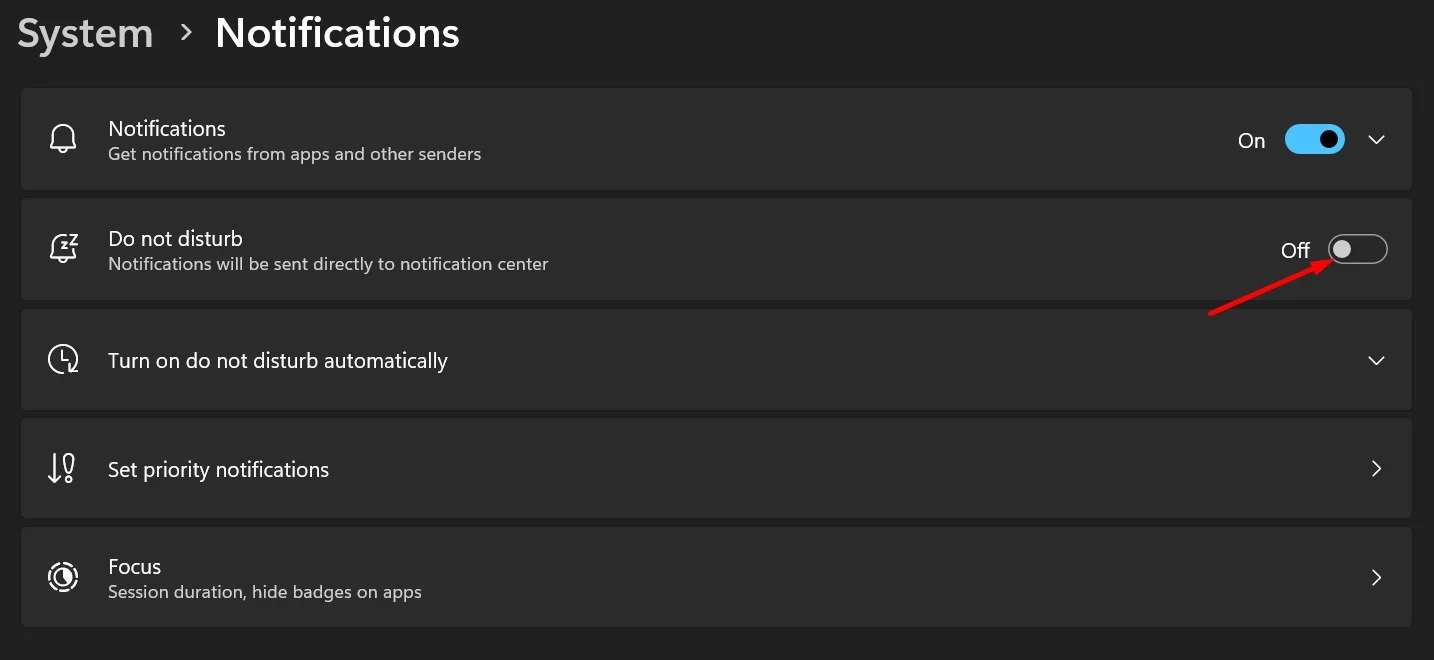
- Go to System > Notifications.
- Now, toggle off the Do not disturb option.

Update Windows and Snipping Tool
When was the last time you checked for Windows updates? If you have been postponing them for a while, your current Windows build or Snipping Tool version might be missing important bug fixes. Microsoft regularly releases updates to fix such bugs or issues.
To Update Windows:
- Open Settings on your Windows OS.
- Select Windows Update from the left sidebar.
- Click Check for updates.
- If any updates are available, download and install them.
To Update the Snipping Tool:
- Open the Microsoft Store.
- Click Library in the bottom left corner.
- Select Get updates.
- Wait for Microsoft Store to check for available app updates and install them.
Once both updates are complete, restart your PC and try opening Snipping Tool again. Also, if you want to check if Microsoft has acknowledged any known Windows issues, you can visit the Windows release health dashboard.
Try Alternative Screenshot Apps
If none of the above methods fixed the problem, you don’t necessarily have to stick with the Windows Snipping Tool. There are plenty of third-party screenshot apps available, and some of them are worth trying if you capture screenshots regularly.
You can start with Greenshot or Lightshot. Both are handy for capturing selected areas of your screen, making quick edits, and saving screenshots. They need a little setup when you first install them, but once configured, they are quite easy to use.
These are just two examples. You can also explore other screenshot tools and choose one that fits your needs. If you take screenshots frequently like I do, having an alternative installed can save you the trouble of dealing with the Snipping Tool every time it stops working.
ALSO READ: 6 Methods to Set Lightshot as the Default Screenshot Tool
I hope you managed to fix the Windows Snipping Tool not opening or crashing issue using one of the methods I shared above. If you found a different fix that worked on your PC, do share it in the comments. I’d love to hear what worked for you, and it could save another reader from going through the same problem. Thanks for reading, and I’ll see you in the next one!