AnyDesk is widely used to access computers remotely, so seeing the “desk_rt_ipc_error” can be unexpected when a connection suddenly stops working. The computer may still appear online with its AnyDesk ID, yet the remote session may fail to connect.
The issue can appear on different systems, including Windows, macOS, and Linux. For some users, AnyDesk works normally for days before the error appears. 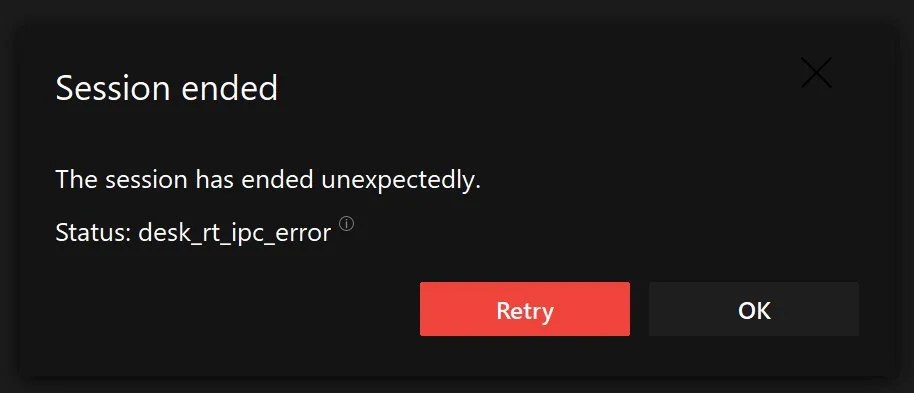
What makes this error worth looking into is that the computer can appear reachable while AnyDesk itself cannot establish the remote session. So, what exactly causes “desk_rt_ipc_error”, and why does it happen on different operating systems? The cause can be linked to different parts of the remote session, depending on the system and what happened before the error appeared.
Below, we’ll look at what can cause the “AnyDesk desk_rt_ipc_error” and a few ways you can try to fix it.
How to Fix AnyDesk desk_rt_ipc_error on Windows, Mac, and Linux
Whitelist AnyDesk on Firewall
Your firewall can sometimes prevent AnyDesk from communicating with the remote computer. Adding AnyDesk to the firewall’s allowed apps list lets it communicate through the network without being blocked.
- Open the Control Panel and select System and Security.

- Then open Windows Defender Firewall.
- On the left side, click Allow an app or feature through Windows Defender Firewall.

- Click Change settings. Find AnyDesk in the list and select its checkbox.

- Once that is done, click OK to save the change.
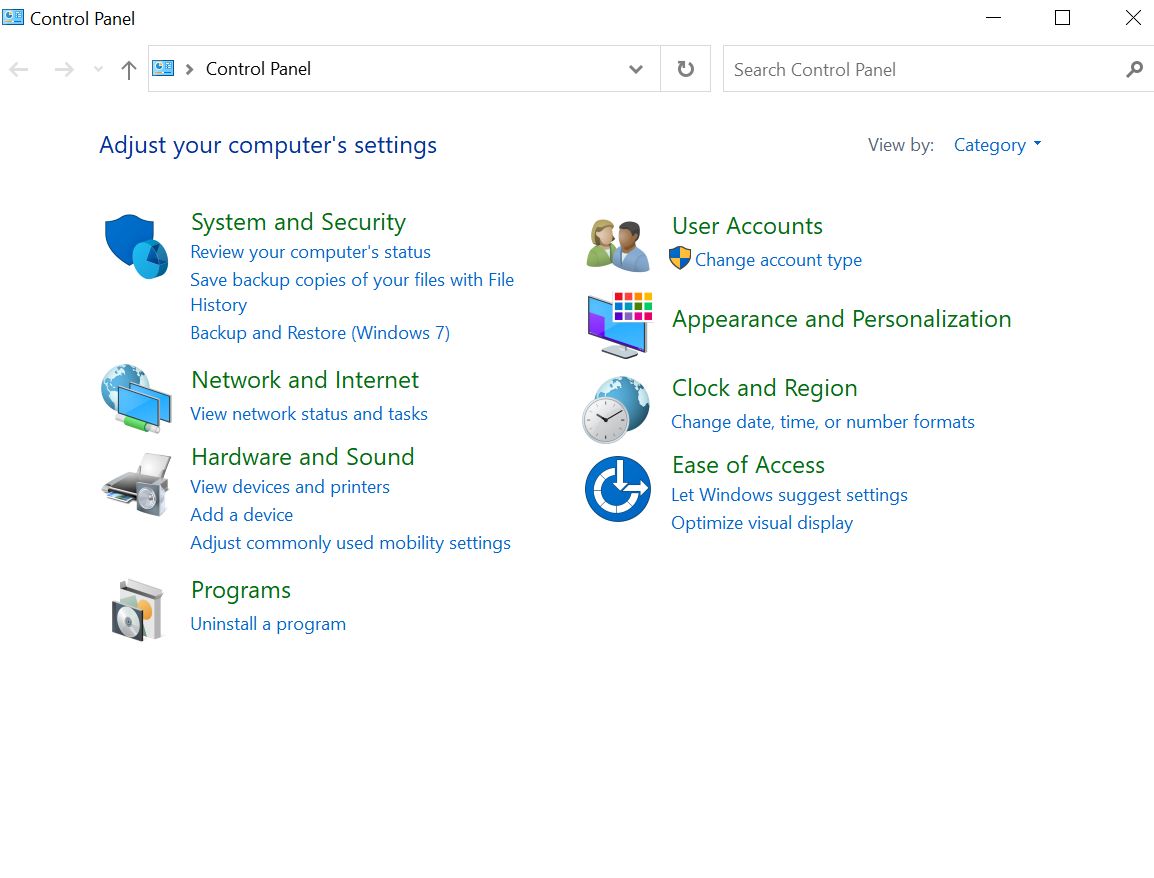

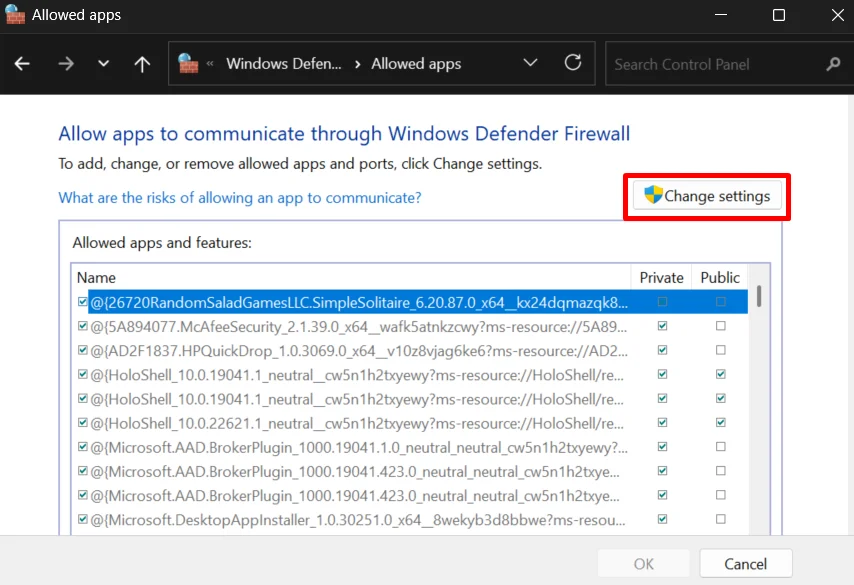
Try the AnyDesk connection again after changing this setting. If AnyDesk was being blocked by the firewall, allowing it through should remove that restriction.
Disable Ransomware Protection
Windows Security has a feature called Controlled folder access that can restrict apps from accessing certain folders. In some cases, this can interfere with AnyDesk and lead to connection errors.
- To check this setting, search for Windows Security from the Start menu and open it.
- Click Virus & threat protection.
- Scroll down until you see Ransomware protection, then select Manage ransomware protection.

- You will see the Control folder access option. Turn the toggle off and confirm the change if Windows asks for confirmation.
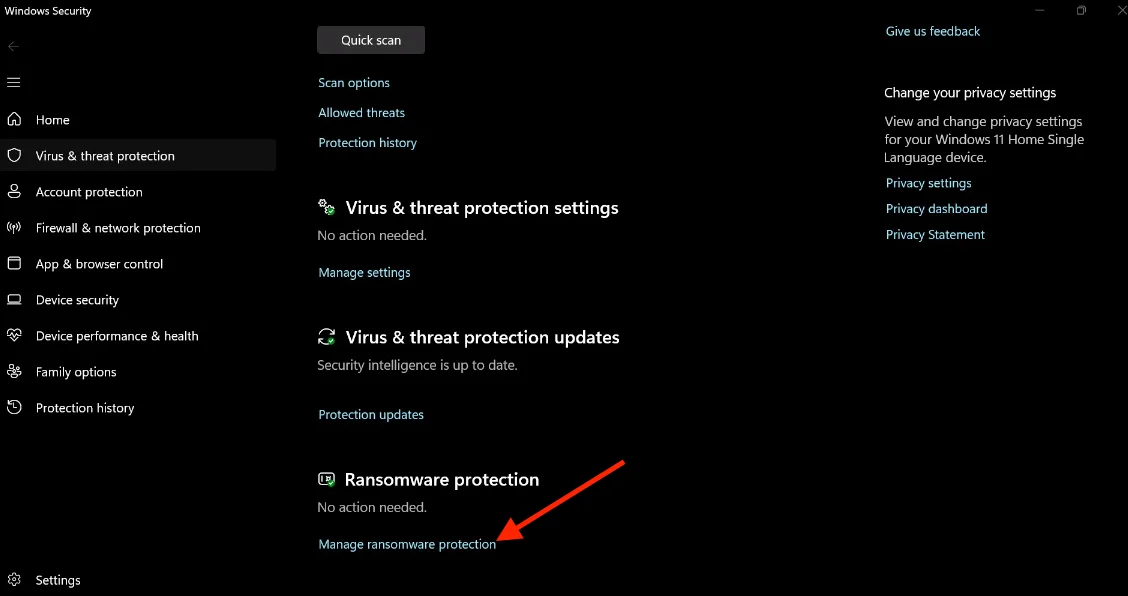
Once the setting is disabled, try connecting to the computer through AnyDesk again and see if the error has disappeared.
Check the Date and Time Settings
AnyDesk desk_rt_ipc_error can also appear after a daylight saving time change or when the computer’s clock has not synced correctly with the time server.
Windows 11
- Press Win + I to open Settings.
- Select Time & language > Date & time.
- Turn on Adjust for daylight saving time automatically.

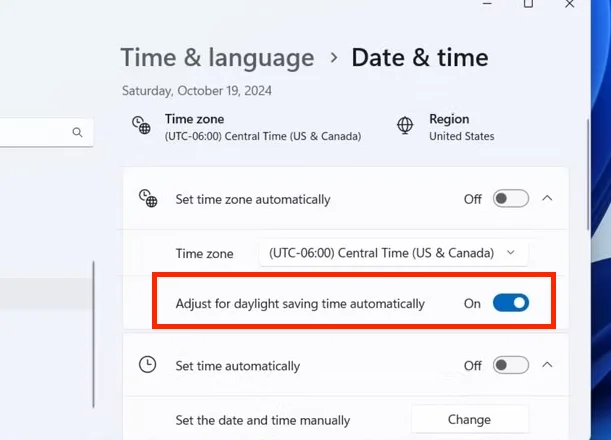
Windows 10
- Open Settings from the Start menu.
- Select Time & Language > Date & Time.
- Turn on Adjust for daylight saving time automatically.
If the option is unavailable, automatic time zone may be enabled.
Remove AnyDesk Data
Old AnyDesk data can also cause connection problems. Closing the app may not be enough here, as an AnyDesk process or service can still be active in the background.
- Press Ctrl + Shift + Esc to open Task Manager.
- Find AnyDesk in the list of running processes, right click it, and select End task.
- Next, stop the AnyDesk service.
- Once the process and service are no longer running, open File Explorer and remove these two AnyDesk folders:
- C:\ProgramData\AnyDesk
- %AppData%\AnyDesk
Enable Remote Access on Mac
If the firewall exception is already in place, the next thing to check on a Mac is the remote access settings. These options control how the Mac can be accessed from another computer.
- Open System Settings on your Mac and select General.
- Click Sharing to view the available sharing options.
- Now, turn on the below options:
- Remote Management
- Remote Login
- Remote Application Scripting (This is optional)

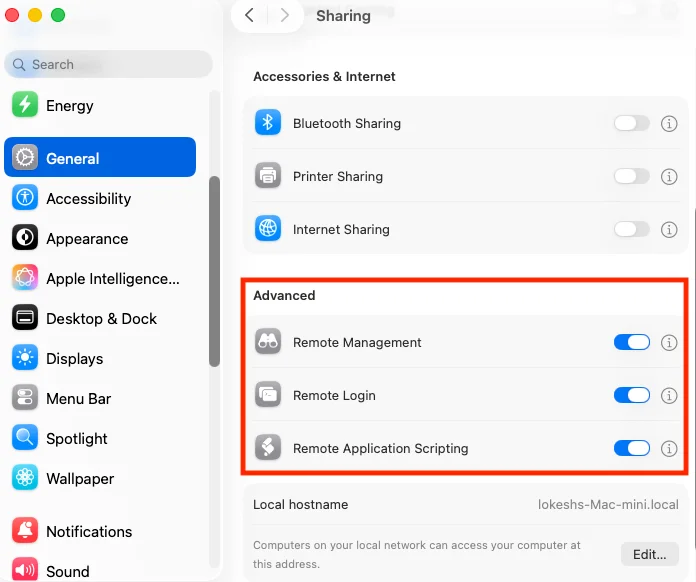
Disconnect and Reconnect the Power
A full power cycle can clear a temporary issue with the computer or its remote access services. Instead of using the normal restart option, completely disconnect the computer from its power source and then reconnect it.
- Shut down the remote computer.
- Unplug the power cable from the computer or power source.
- Leave it unplugged for a short while.
- Connect the power cable again and turn on the computer.
- Wait for the computer to fully start, then open AnyDesk and try the connection again.
This is based on a user reported fix, so it may not work in every case. Still, it is a quick thing to try when the computer is running but AnyDesk refuses to connect.
Disable Allow Direct Connections
AnyDesk normally tries to create a direct connection between the two computers when Allow direct connections is enabled. On some networks, firewall rules or security software can interfere with that connection and cause the session to end unexpectedly.
- Open AnyDesk Settings > Connection > General.
- Now, uncheck the Allow direct connections option.

- Close the settings and try the connection again.
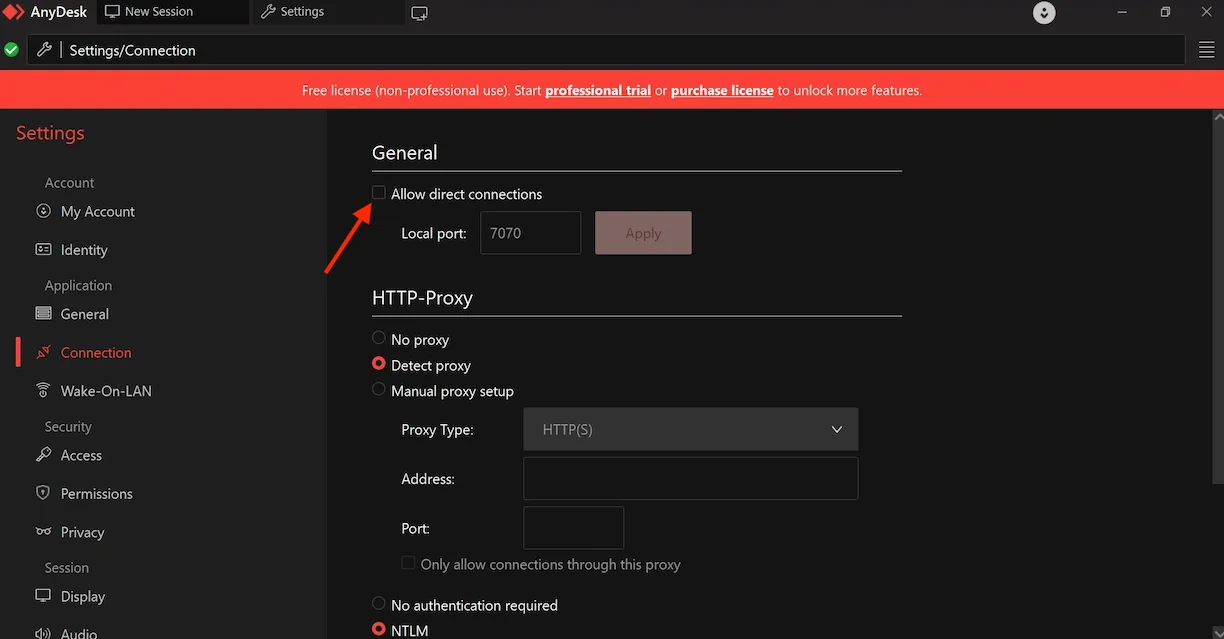
With this option disabled, the AnyDesk session is routed through AnyDesk servers instead of creating a direct connection between the two computers. AnyDesk states that these sessions are encrypted, so the company cannot access the session data.
Check the AnyDesk Service Status
An issue on AnyDesk’s side can affect connections even when your computer and internet connection appear to be working normally.
So, check the official AnyDesk status page to see if there is an active issue affecting connections or remote sessions. A service problem can prevent AnyDesk from connecting even when your computer and internet connection are working normally.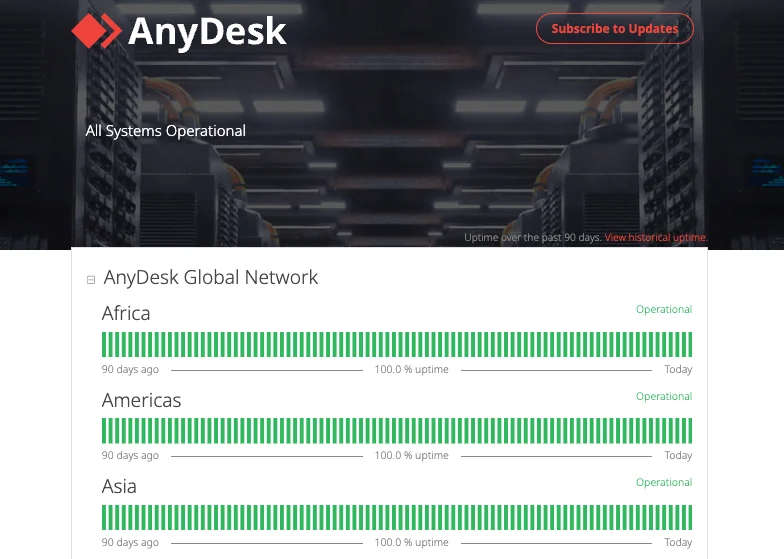
If several devices are showing the same connection issue at around the same time, an AnyDesk service problem is more likely. Still, a normal status page does not rule out a local network or computer issue.
Reinstall AnyDesk
As a last solution, you can remove AnyDesk from the computer and install it again. A fresh installation replaces the existing program files, which can help when the current installation has damaged or missing files.
- Uninstall AnyDesk using the normal app removal method for your operating system.
- Once AnyDesk has been removed, download the version that matches your operating system from the official AnyDesk download page.
- Now, install the newly downloaded version and open AnyDesk.
Try Another Remote Desktop App
If the desk_rt_ipc_error continues after trying the other solutions, using a different remote desktop app is another option. Apps such as RustDesk and TeamViewer can also be used for remote access, so you can try one of them and see if the connection works without the AnyDesk error.
RELATED GUIDES: