REDnote is a social media app from China that mixes TikTok’s creative content with Pinterest and Instagram’s swipeable image and video style. It lets users share photos and short videos to inspire, express creativity, and connect with others. The app has a simple design, customizable feeds, and tools to discover content. It covers many topics like food, fashion, DIY, and lifestyle. Since REDnote is used worldwide, changing the app’s language is important for a personalized and easy experience.
If you’re switching from TikTok to REDnote (Xiaohongshu), you might feel confused by all the Chinese text. But don’t worry! You can switch the app to English or any other language you like on both Android and iPhone devices. This step-by-step guide will show you instructions on how to change the language in REDnote.

How to Change Language in REDnote App
On Android
- Open the REDnote app on your Android device.
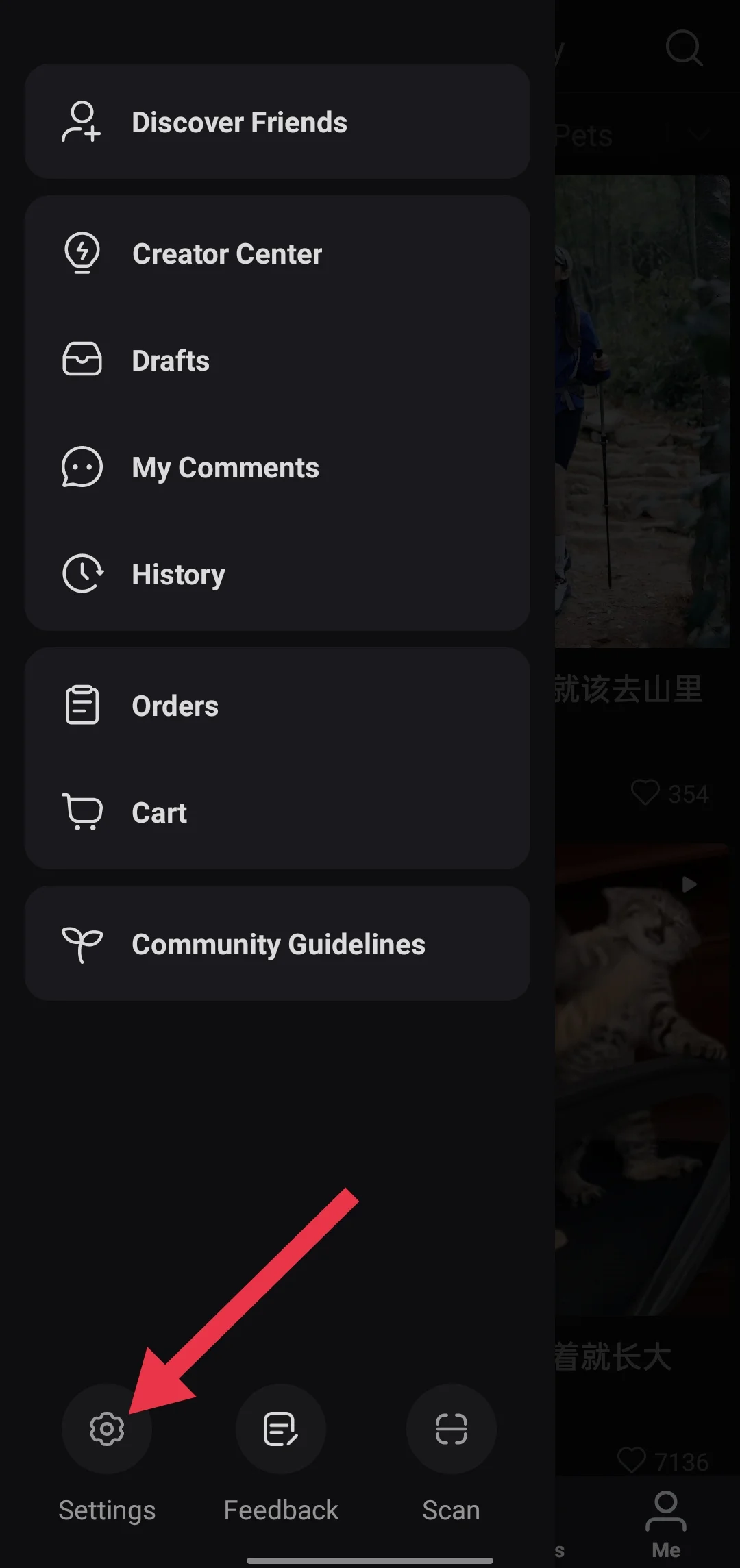
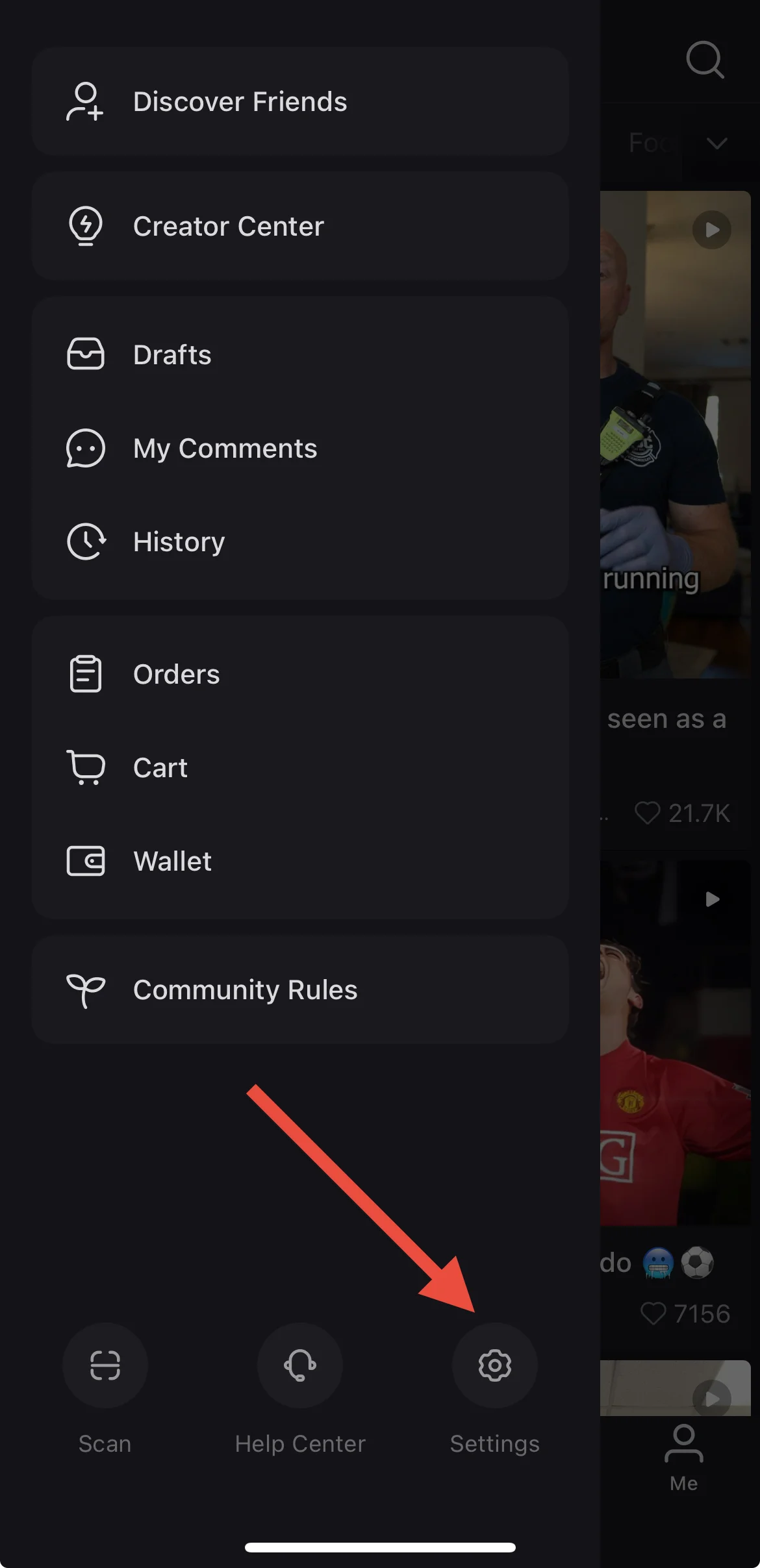
- Tap the menu icon in the top left corner.

- Tap the Settings icon from the bottom of the screen.

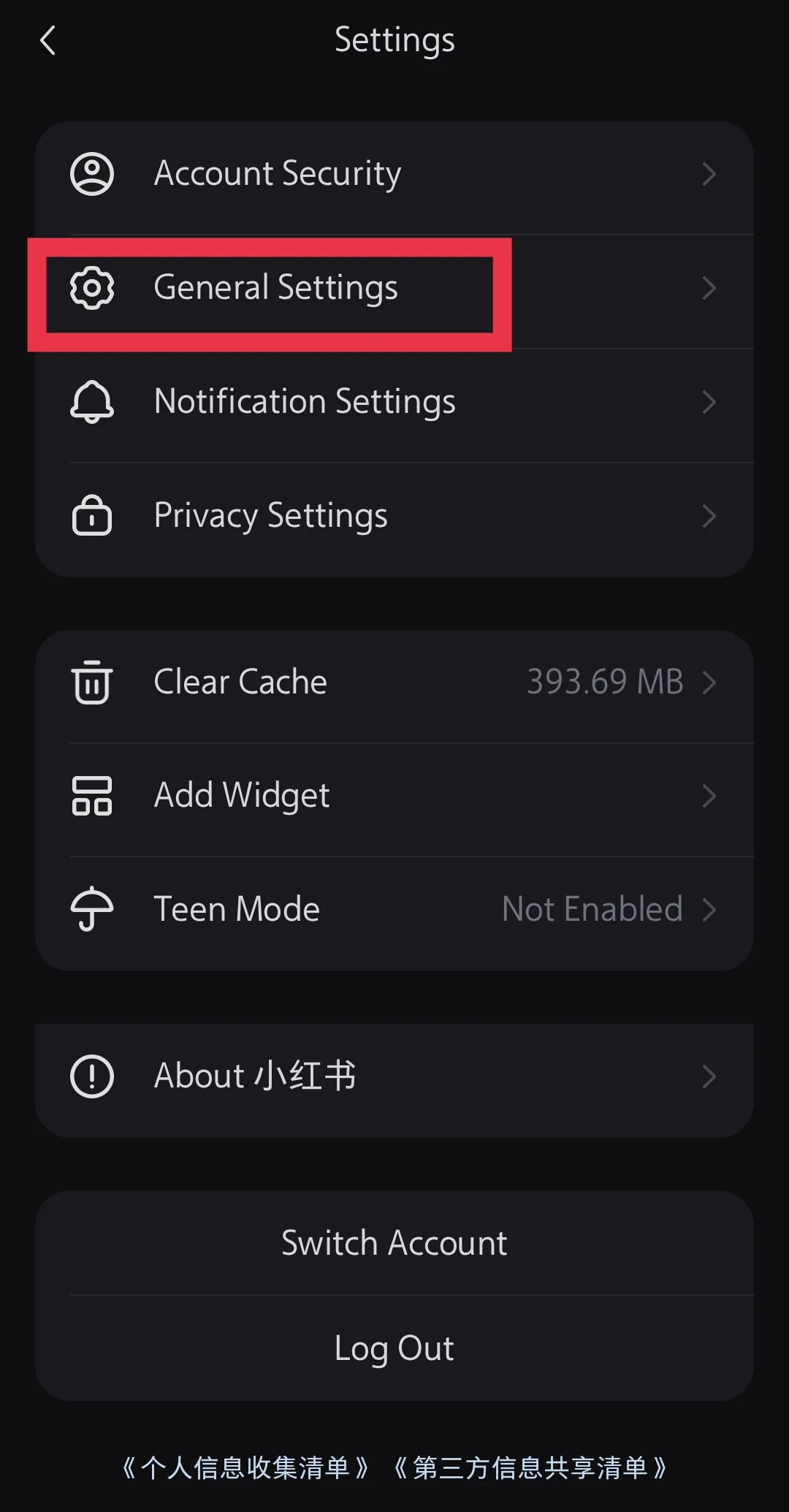
- After that select “General Settings“

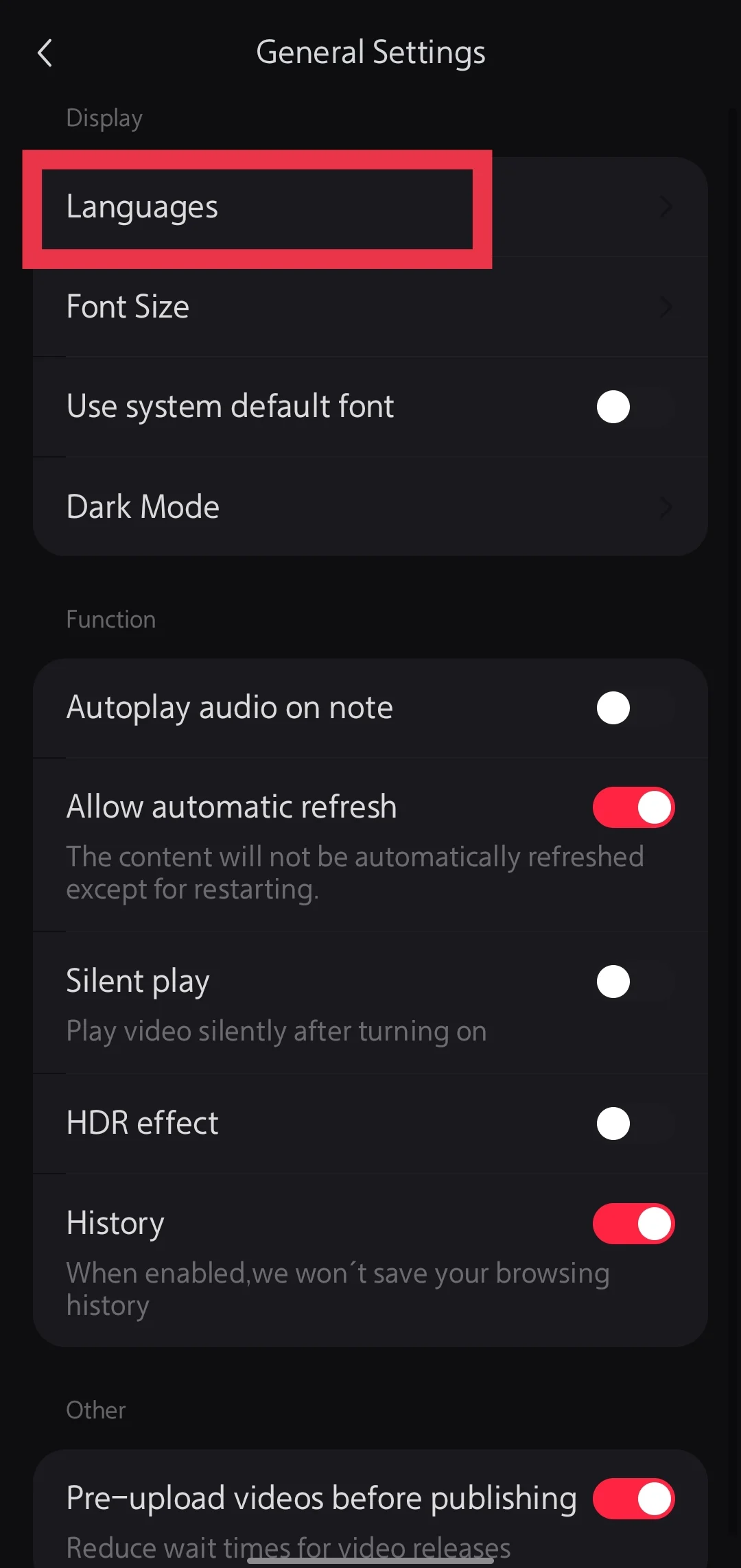
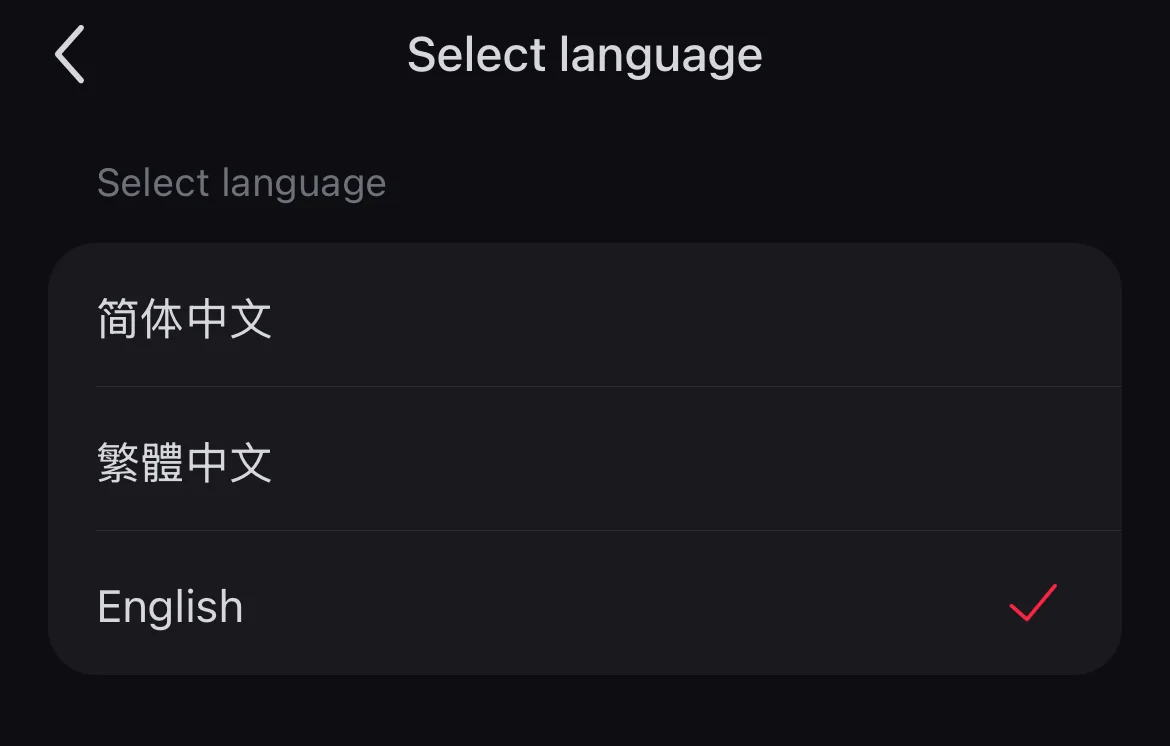
- Tap the “Languages” option, which is the first one on the list.

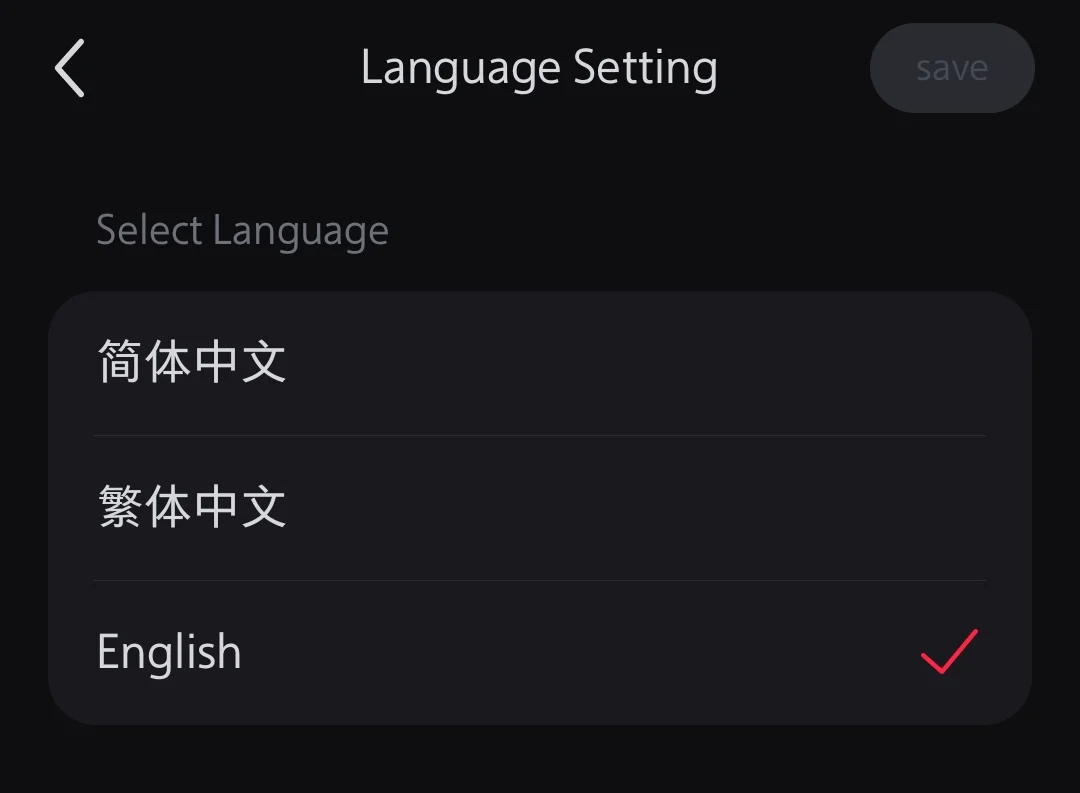
- Select “English” or any other language you want to set
- Now, tap the “Save” button at the top.


On iPhone
When you first install and log into the REDnote app on your iOS device using your phone number or Apple ID, the app should automatically detect your region and set the language to English. If it doesn’t, follow these steps to change the language on REDnote iOS app:
- Open the REDnote app on your iPhone.
- Tap the three horizontal lines (the hamburger menu) in the top left corner.

- Tap the Settings icon and select “General Settings” on the next screen

- Choose the “Languages” option at the top and select “English.”

- The app will refresh and switch to English, including the navigation menu and settings.

REDnote Videos with Chinese Titles or Comments? Translate Them Instantly
REDnote offers plenty of content in English, and some videos even come with both English and Chinese subtitles or captions. However, since the app is mainly used in China, you might still come across videos that are entirely in Chinese or have titles in Chinese. This is because the app reflects regional content preferences, and many users in China create and share videos in their native language. As a result, you may encounter content that doesn’t match your language setting.
Despite having some English-language features, REDnote doesn’t fully support English across the platform. For example, if you come across posts with Chinese captions, the app doesn’t automatically translate them. This can make it tricky to understand certain content, especially if you’re not familiar with the language.
Luckily, REDnote has recently added a one-click auto-translate button to posts. With just a tap, you can translate Chinese text into your English language instantly. You can use the Translate button to easily translate captions, comments, or other text, so you can understand what’s on the post or comment easily in English language. 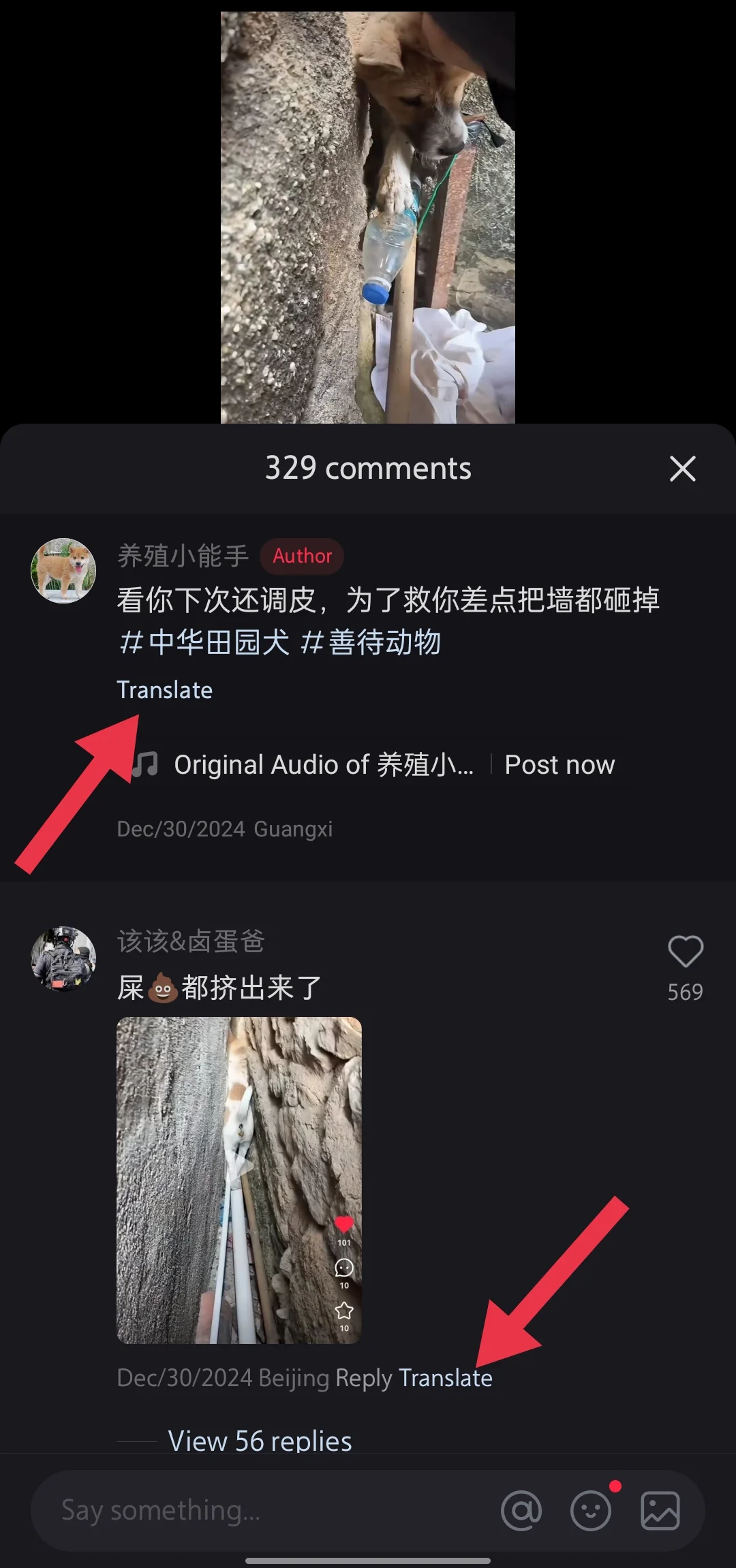
This feature uses advanced AI technology to provide fast and accurate translations, helping users understand posts in different languages. This translation feature is similar to the one on the Instagram app, where users can instantly translate foreign text with a simple tap.
That’s how you can change language in REDnote app to English or any other language. If you have any questions or face any issues, feel free to leave a comment below. If you’re looking to delete your REDnote account, check out our guide on how to do that easily.