A Samsung account is an important part of owning a Galaxy phone. It connects your device to Samsung services like Samsung Cloud, Samsung Pass, Galaxy Store, Samsung Wallet, and Samsung Find. From saved passwords and personal files to app downloads and account details, quite a lot of your phone’s features are linked to this one account.
Recently, I came across the “Processing failed” error while trying to access my Samsung account. The message can appear right after entering your password or while submitting the SMS verification code. Instead of completing the login, the screen simply shows an error, leaving you unable to access your account.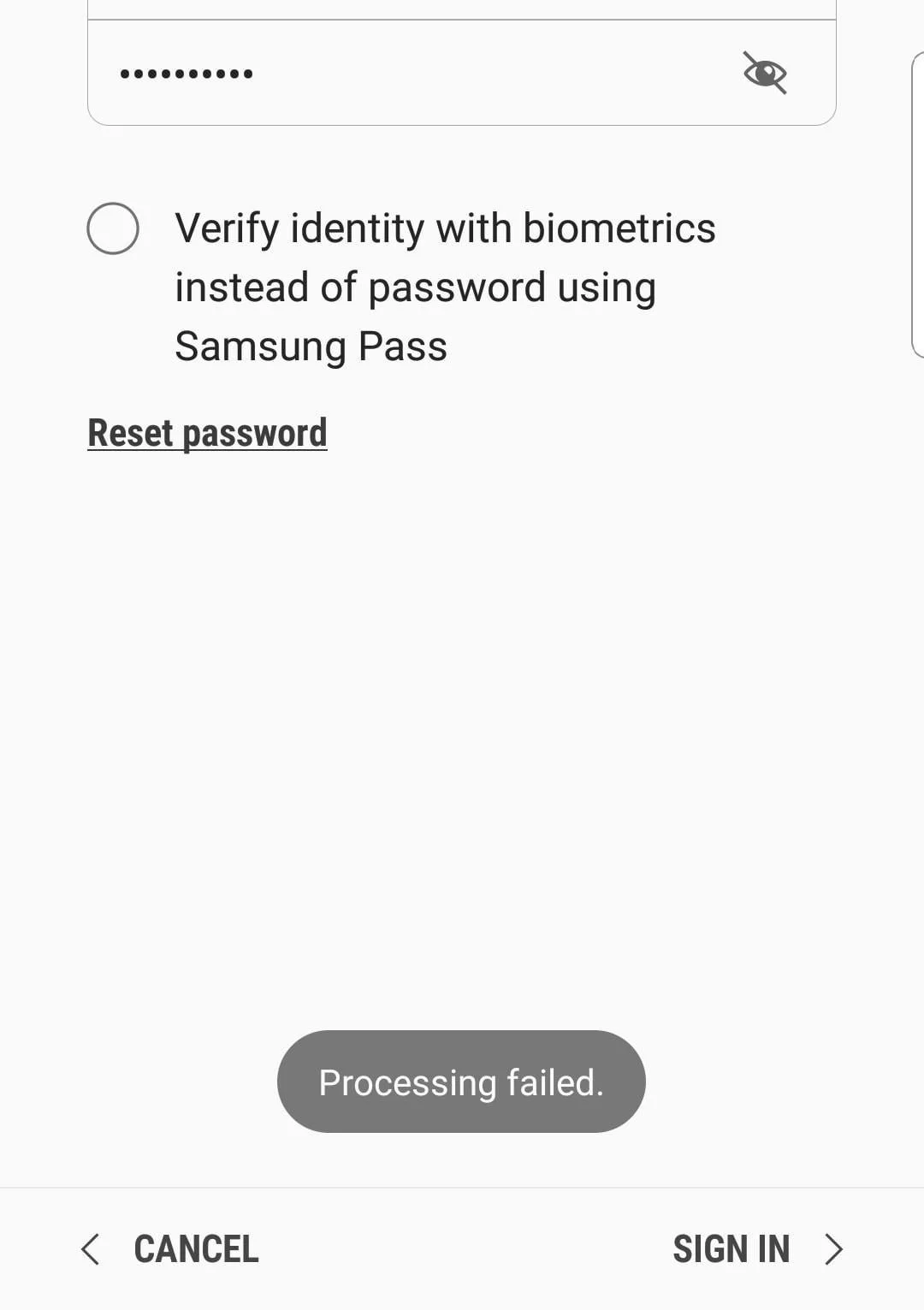
Looking through other users’ reports, I noticed that the same error appears in different situations. Some users cannot sign in at all, while others are already logged into their accounts but cannot download apps from the Galaxy Store or access account settings. A few have also reported being temporarily blocked from receiving verification codes after repeated attempts.
Having the same issue on your Samsung phone or tablet? Check out the methods below to fix the Samsung account “Processing failed” error to get access to the Samsung services linked to your account.
8 Easy Ways to Fix Samsung Account Processing Failed Error
Switch Between WiFi and Mobile Data
Your home WiFi network could be the reason Samsung Account is showing the “Processing Failed” error. In my case, the login worked as soon as I switched off WiFi and used mobile data instead. This suggests that certain network settings or restrictions may interfere with the connection to Samsung’s servers.
- Open the notification panel on your Samsung phone.
- Turn off WiFi and make sure mobile data is enabled.
- Open Samsung Account and try signing in again.
- Enter your password and complete the verification process.
If the login doesn’t work, you can also try the reverse by switching from mobile data to another WiFi network to see if the same error appears.
Turn Off Developer Options on Your Samsung Phone
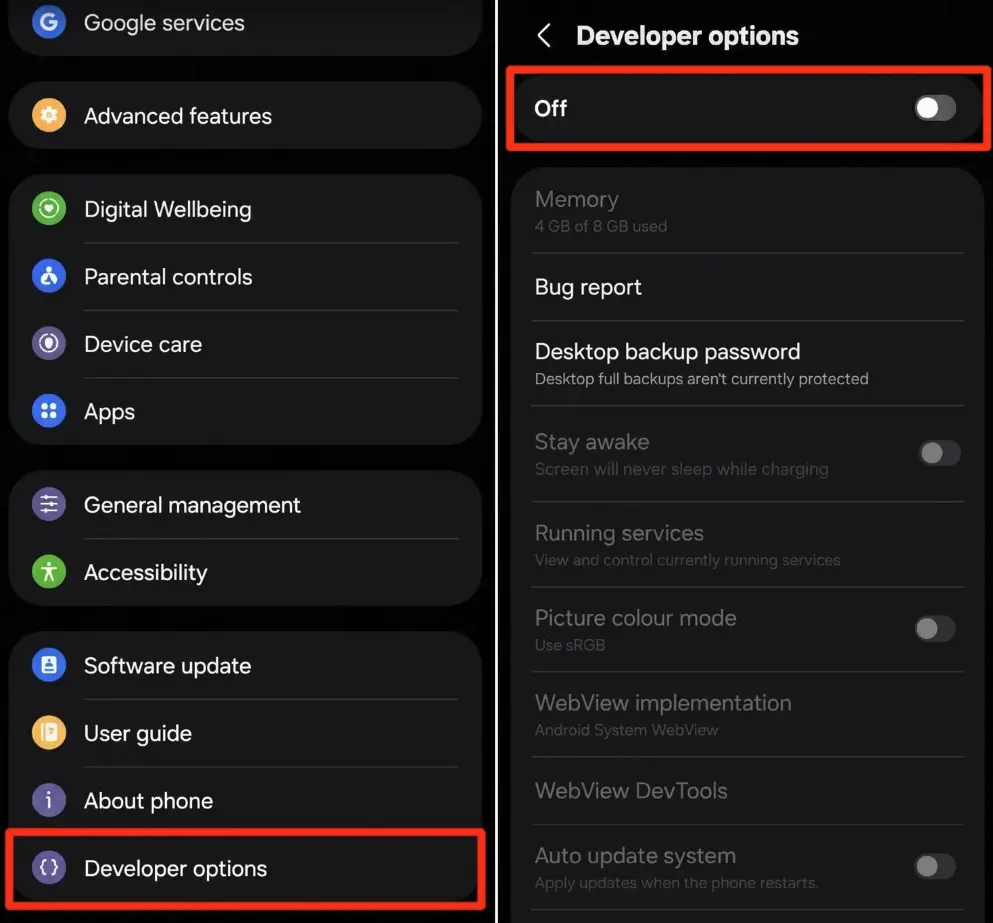
Developer Options gives you access to advanced settings that are normally hidden from regular users. However, certain settings in this menu may interfere with Samsung Account services. Turning off Developer Options is worth trying if the “Processing failed” message keeps appearing during login.
- Open Settings on your Samsung phone.
- Navigate to Developer options.
- Now, turn off the toggle at the top of the screen.

- Restart your phone and try signing in to your Samsung Account again.
Enable Automatic Date and Time
Your Samsung phone needs to have the correct date, time, and time zone to communicate with Samsung’s account servers. In some cases, incorrect time or date may result in an SSL certificate error, while others simply see the familiar “Processing failed” message.
- Open Settings on your Samsung phone.
- Tap General management and select Date and time.
- Turn on Automatic date and time.
- Now, enable Automatic time zone as well.

- Restart your phone and try signing in to your Samsung Account again.
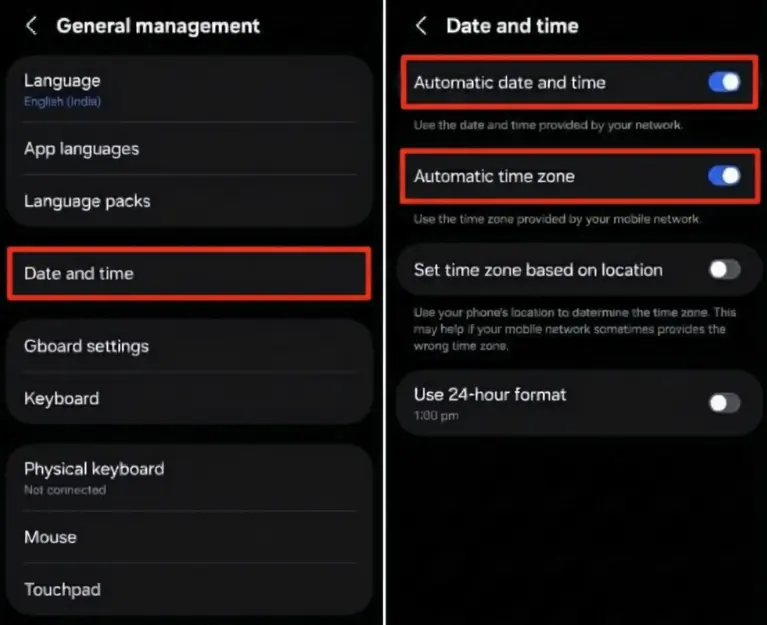
With these settings enabled, your phone can automatically match its clock and time zone with the correct network information.
Use a Samsung Account Backup Code
If the usual SMS verification keeps failing, backup codes may give you another way to complete the sign in. Samsung provides these codes under its two-step verification settings, allowing you to verify your identity without waiting for an SMS message.
- Open a web browser on your phone or computer.
- Visit the Samsung Account website and sign in to your account.
- Open Security settings and select Two-step verification.
- Now, Click on Backup codes section and generate your backup codes if they are available.

- Save the codes somewhere safe, such as by taking a screenshot.
- Aftr that, return to your Samsung phone and try signing in again.
- Select the backup code verification option and enter one of your saved codes.
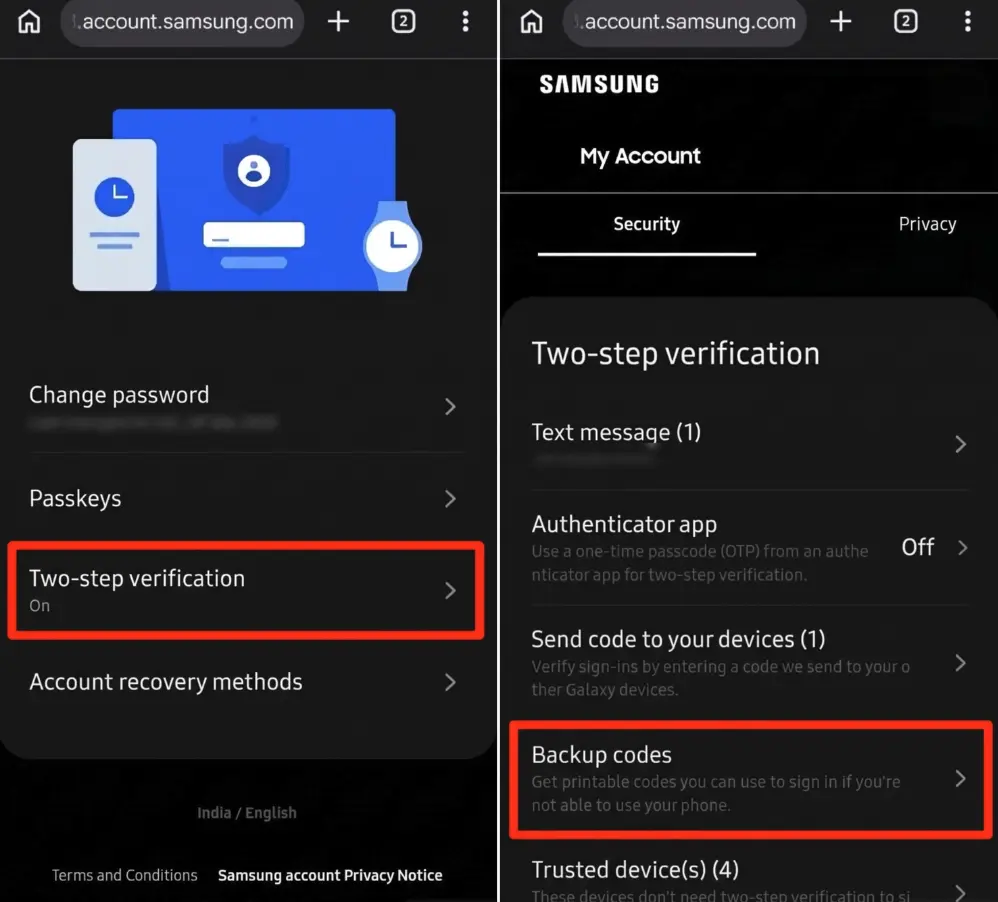
Samsung will use the backup code to verify your identity instead of sending a new SMS code. Keep the remaining codes somewhere safe, as each code can only be used once.
Clear the Samsung Members App Cache
One Samsung user shared an interesting fix after contacting Samsung Support about this login error. The support team suggested clearing the cache of the Samsung Members app. Surprisingly, that was enough to resolve the issue. The user had also restarted the phone multiple times before trying this, so clearing the cache was the change that finally helped.
- Open Settings on your Samsung phone.
- Tap Apps and select Samsung Members.
- Open Storage, then tap Clear cache.
- After this, restart your phone and check your Samsung Account login again.
Change Your Private DNS Settings
An ad blocking DNS service can sometimes prevent your Samsung phone from reaching the servers needed for account verification. This happened to users who had services like AdGuard and NextDNS configured on their devices. Even after moving to a new Samsung phone, their old DNS settings continued blocking Samsung Account requests, causing login errors across different Samsung apps.
You can check this setting directly from your phone.
- Open Settings > Connections.
- Select More connection settings.
- Tap Private DNS.
- Change the setting to Automatic.
- Tap Save and try signing in to your Samsung Account again.

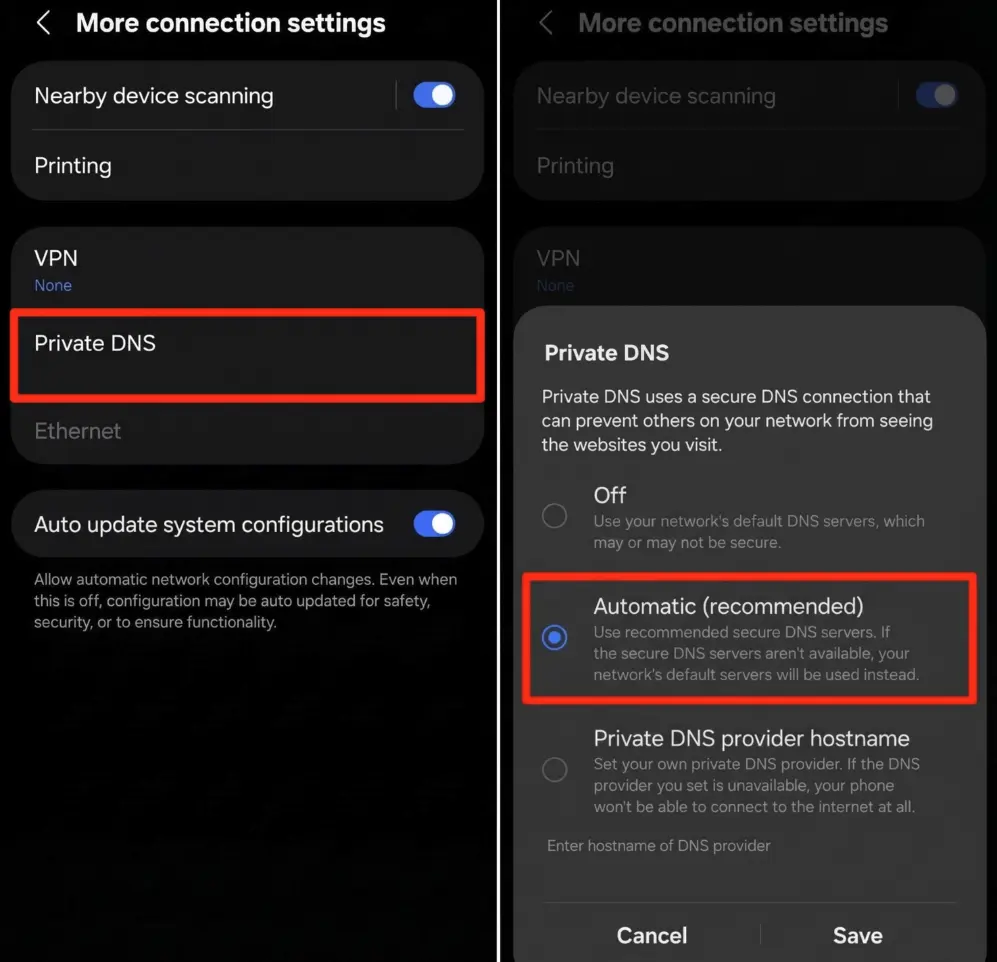
If you use an ad blocker, VPN, or custom DNS service, temporarily disable it before attempting another login.
Clear the Samsung Account App Cache
The Samsung Account app handles the sign in process on your Galaxy phone, so its stored temporary files are worth checking when login attempts keep failing. Since this is a system app, it may not appear in the regular app list until you enable the option to show system apps. Clearing its cache will remove temporary files without deleting your Samsung Account or saved login details.
- Open Settings > Apps.
- Tap the Filter and sort icon near the top of the screen.
- Now, enable Show system apps and tap OK.
- Scroll through the list and select Samsung account.
- Tap Storage > Clear cache.

- Return to the home screen and try signing in to your Samsung Account again.
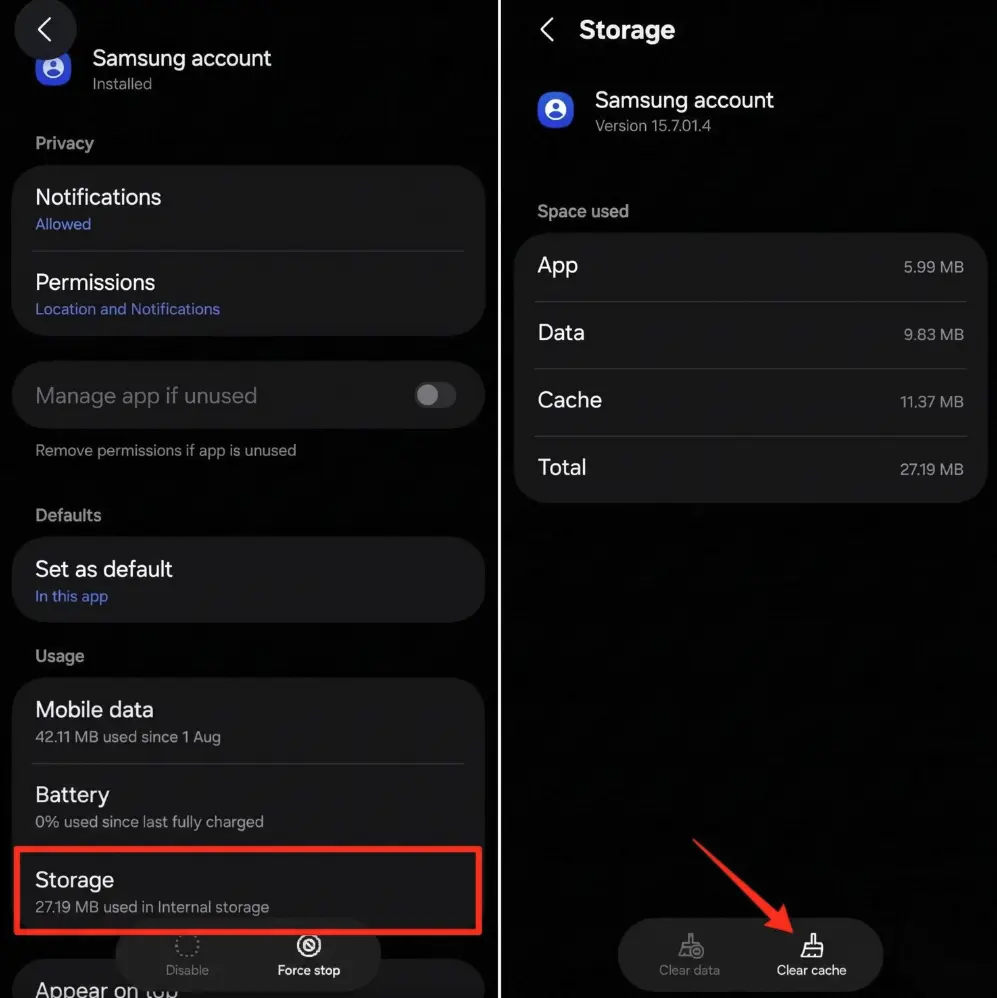
Make sure you select “Clear cache” rather than “Clear data, as the latter can remove stored app information.
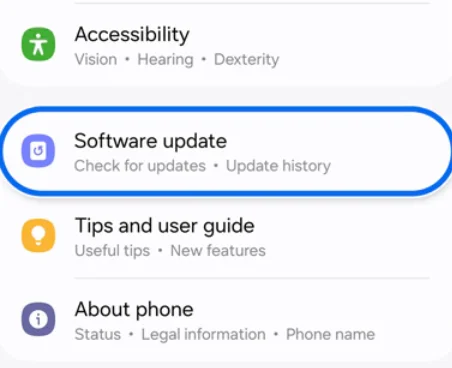
Check for the Latest One UI Software Update
Samsung may have already released a software update or security patch addressing account sign in problems, and your phone might still be running an older version. Since this error has affected users across different Galaxy models, checking for the latest available update is worth doing before considering more drastic options like a factory reset.
- Open Settings on your Samsung phone and tap Software update.

- Select Download and install.
- Wait while your phone checks for available updates.
- If an update appears, follow the on-screen instructions to install it.
Avoid Factory Resetting Your Samsung Phone
A factory reset may seem like a way to clear the Samsung Account error, but I would keep it as a last resort. Some users on Samsung Community have reported running into the same “Processing failed” message during the initial phone setup after performing a factory reset. In those cases, they could not move past the Samsung Account login screen, leaving the phone stuck during setup.
Before considering a factory reset, keep these points in mind:
- Back up your photos, contacts, files, and other important phone data.
- Open the Samsung Account website in a browser and confirm that you can sign in.
- Make sure you have access to your registered email address and phone number for verification.
- Check that your backup is complete before making any changes to the phone.
I would not recommend resetting your device just to deal with this particular error. You could end up facing the same login issue during setup, with fewer ways to access your phone.
- ALSO READ: How to Fix Samsung Members Server Error 400