WhatsApp is often the first place people turn to when they want to speak to someone directly. A quick voice call is usually all it takes, without having to ask for another number or switch apps. However, things take an unexpected turn when the screen displays “Call Unavailable” almost immediately after you tap the call button.
The strange part is that the problem may happen with just one particular contact. Your messages go through, you can chat as usual, and the other person can even call you without any trouble. Yet, whenever you try calling them, WhatsApp rings once and immediately shows “Call Unavailable.”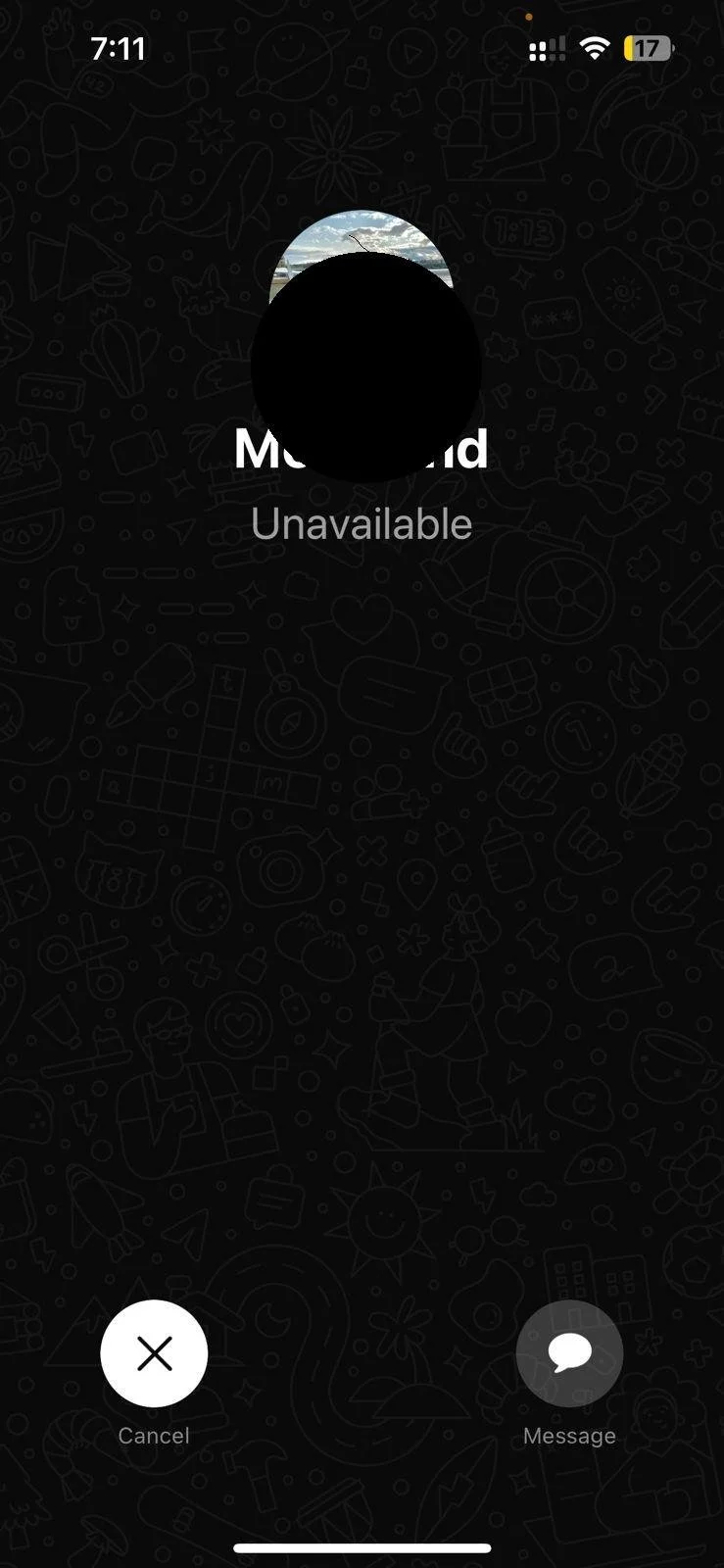
Naturally, you may wonder why incoming calls work while outgoing calls to the same person do not. Does it have anything to do with their WhatsApp account, call settings, or the way your two phones connect?
So, why does WhatsApp show “Call Unavailable” after just one ring for one contact, even though you can message each other and receive their calls? Let’s look at the reason for this particular call issue alongside the fixes.
Can’t Call Someone on WhatsApp? How to Fix WhatsApp Call Unavailable Error
Check Your Phone’s Blocked Contacts List
Even if you have not blocked someone on WhatsApp, their phone number might still be on your phone’s blocked contacts list. Your phone has its own call blocking settings, separate from WhatsApp, and a blocked number can affect calls between you and that person.
There is another possibility worth checking. You may have saved the same person’s number under multiple contact names. For example, that person’s number might appear in two different contact entries, and one of those entries could have been blocked accidentally. You might not even realise it because the contact you normally use still appears unblocked.
Here is how to check the blocked contacts list on your phone:
On iPhone
- Open Settings.
- Select Privacy & Security > Blocked Contacts.

- Now, look for the person’s phone number in the list.
- If you find it, swipe left on the number and tap Unblock.

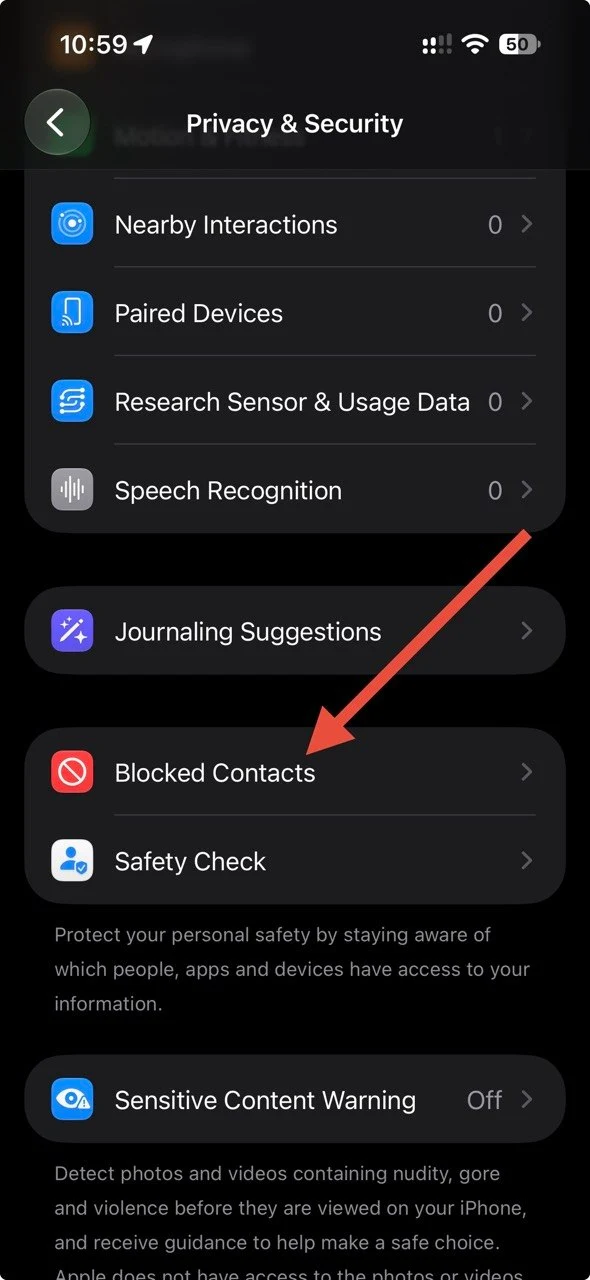
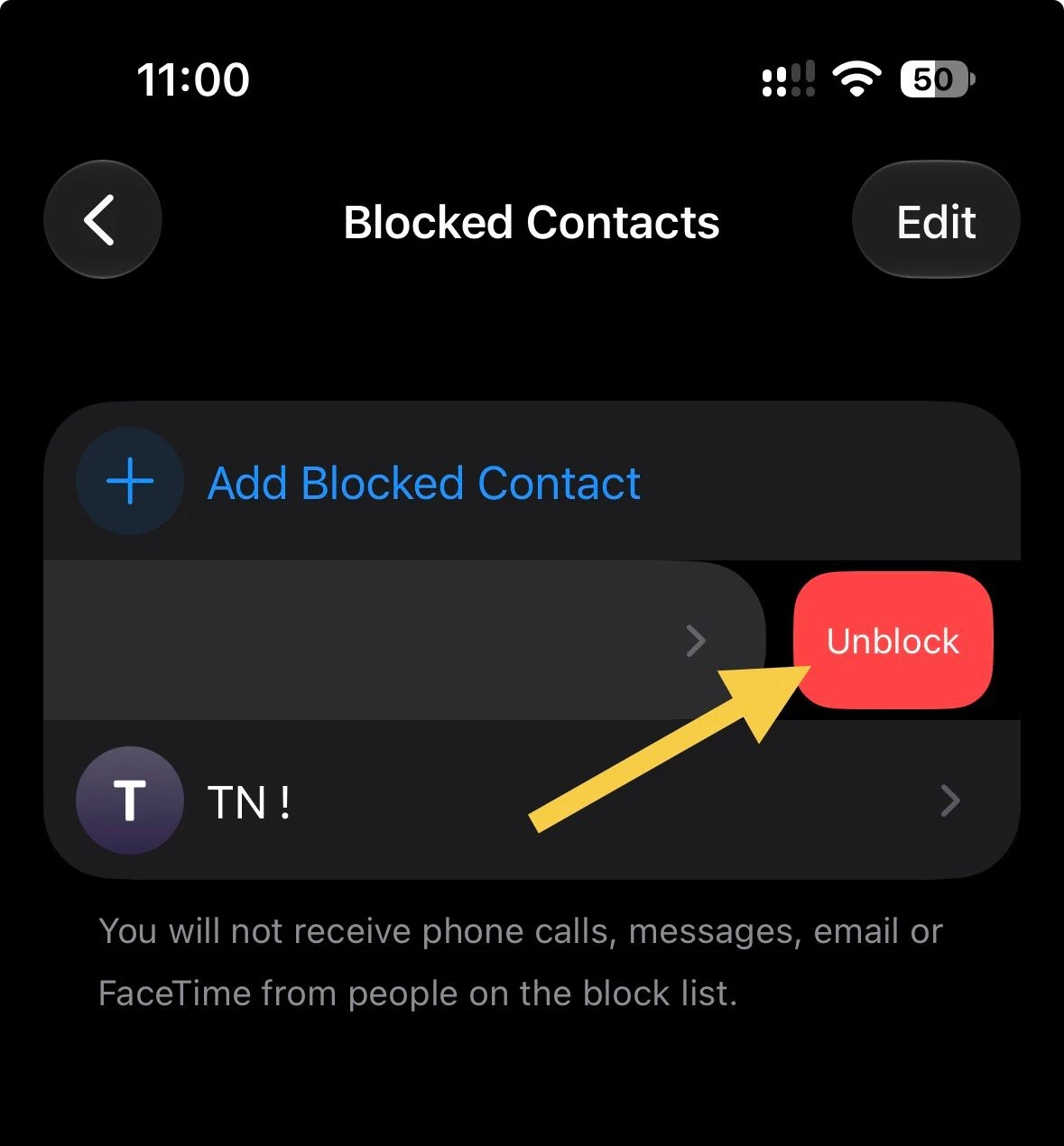
Note: On earlier iOS versions, you can find this setting directly under Settings > Phone > Blocked Contacts.
On Android
- Open the Phone app.
- Tap the three-dot menu and open Settings.
- Check if the person’s number appears in the blocked list.
- Remove the number from the blocked list if you find it.
Also, open your Contacts app and search for the person’s name or phone number. Check all matching entries, as you may have saved the same number more than once. One duplicate entry could be blocked even though the contact you usually use is not.
After checking both your phone’s blocked list and duplicate contact entries, try calling that person on WhatsApp again.
Delete and Re-add the Contact
An old contact entry may be worth ruling out, too. Your phone might have outdated or duplicate details for that person, and WhatsApp may still be using the existing contact information when you attempt a call.
- Open WhatsApp and block the contact you are unable to call.
- Delete your existing conversation with that person.
- Now, open your phone’s Contacts app and delete their saved number.
- After that, return to WhatsApp and unblock the number.
- Save the person’s phone number again as a new contact
- Open WhatsApp and start a new chat with the newly saved contact.
- Now, try making a voice call to check if the unavailable message still appears.
Important: Deleting a chat may permanently remove its messages if you do not have a backup. Save any important conversations before proceeding. Also, blocking is only a temporary part of this suggested process, so make sure the person is unblocked before testing the call.
Wait for 24 to 48 Hours Before Calling Again
I’ve seen this happen quite a bit with couples and friends who block each other during arguments and add each other back later. After repeated blocking and unblocking, WhatsApp calls may not work as expected, even after both people have unblocked each other.
Rather than trying to call repeatedly, leave the contact unblocked and give it a little time. Wait for 24 to 48 hours before attempting another WhatsApp call. Make sure both of you can still exchange messages and that neither account has the other number blocked.
This waiting period is a suggested workaround, not a confirmed WhatsApp fix. If calls remain unavailable after two days, the issue may have another cause.
Ask the Other Person to Check Focus Mode on Their iPhone
There is one iPhone setting that can easily go unnoticed because it may turn on automatically. It is called Focus Mode. Your contact might be using “Do Not Disturb” or another Focus profile without realising that it is affecting incoming calls from certain people.
Apple has a feature called Allow Repeated Calls inside Focus settings. When enabled, a second call from the same person within three minutes can ring even if the first call was silenced. This is worth checking if your WhatsApp calls fail on the first attempt but the other person can reach you without any trouble. Ask the person you are trying to call to check these settings on their iPhone.
Update WhatsApp
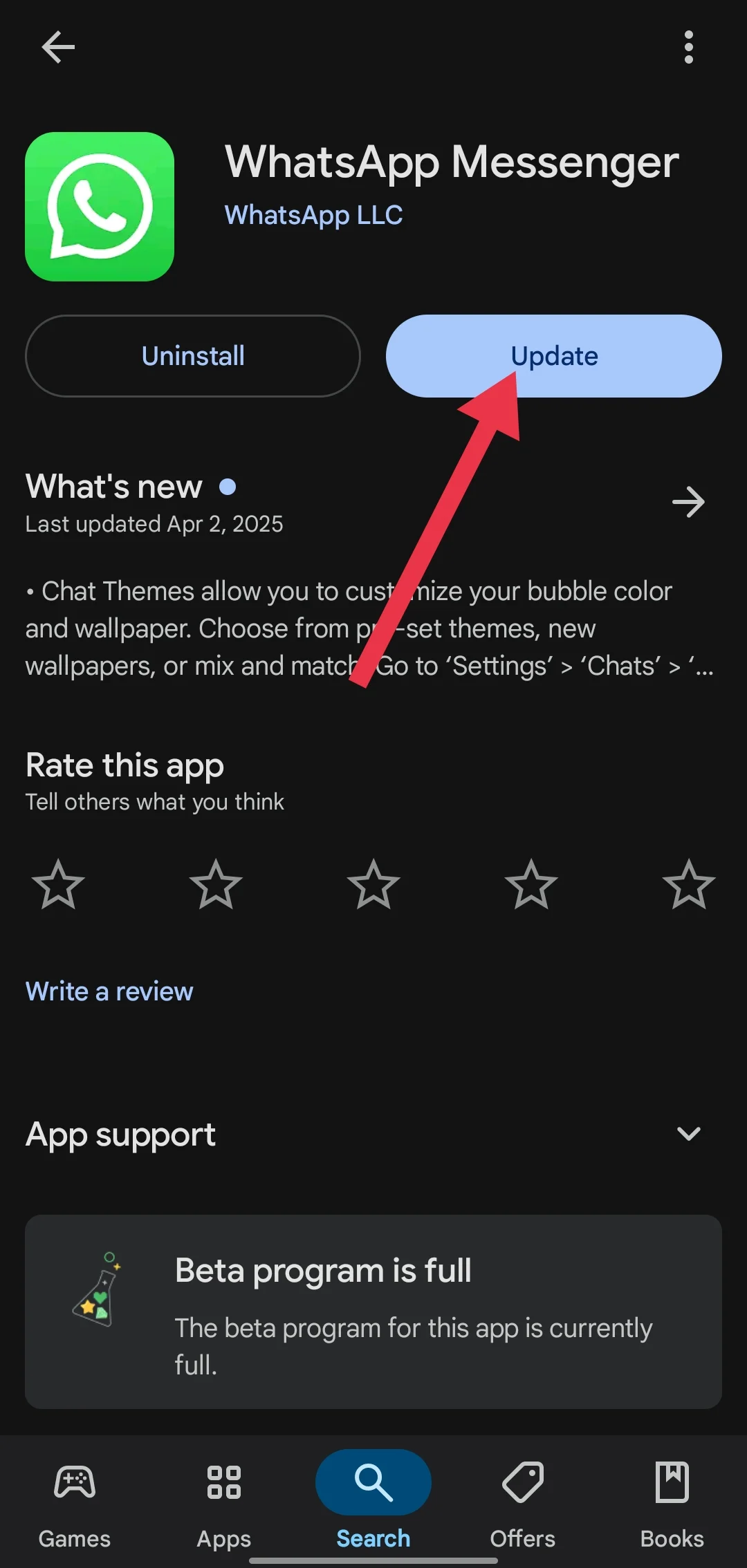
An older WhatsApp version may have a call related bug that affects communication with particular contacts. So, check if both you and the other person are using the latest WhatsApp version. An outdated app may have bugs affecting voice calls, and updating can bring fixes released by WhatsApp.
Ask the other person to check their WhatsApp version as well. Updating only your app may not be enough if the issue is related to an older version on their phone.
RELATED:
- How to Fix WhatsApp Call Failed Error
- How to Stop WhatsApp Calls From Someone Without Blocking
- How to Disable WhatsApp Call History in iPhone
- How to Fix WhatsApp “Call Failed, the Group Has Too Many Participants”
The WhatsApp “Call Unavailable” error can be tricky to figure out, mainly when messages work fine and the other person can call you without any trouble. Try the solutions above and see which one makes a difference on your phone. If you manage to fix it using another method, share it in the comments so other WhatsApp users can try it too.