Viber has been a popular messaging app since it started in 2010. People love it for its free calls, simple design, and fun features like stickers and emoticons. Compared to apps like WhatsApp and Telegram, Viber stands out by making chats more colorful and creative. Today, it connects millions of users across 193 countries.
What makes Viber different is the way it mixes fun with usefulness. It’s not just about sending messages or making calls, it’s about adding a personal touch to every chat. Many users enjoy how easy it is to share their feelings through stickers and emojis, making conversations feel lively and special.
Still, like any app, Viber sometimes has problems. One issue that annoys users is the “No Connectivity” error. Even with working internet, Viber might show a message saying, “An internet connection is required to complete this action. Please check your internet connection and try again.” This error can stop you from chatting or calling, causing frustration.
If this problem is troubling you, this article will explain what might be causing the error and guide you through easy steps to fix it.
How to Fix Viber No Connectivity
Check Your Internet Connection
The first thing to do when you see the “No Connectivity” error on Viber is to make sure your internet connection is working properly. 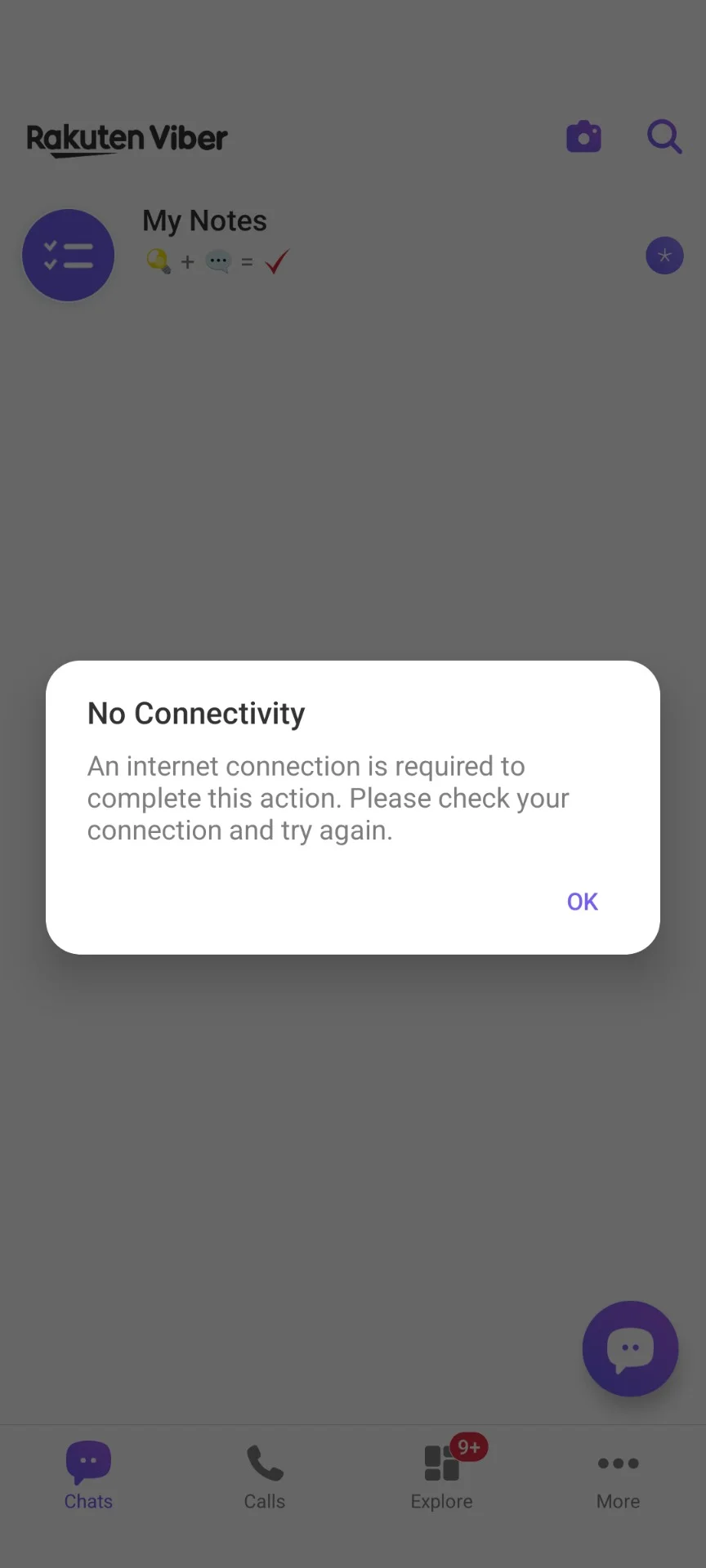
Test your internet to see if it works fine with other apps or websites. Open YouTube, search for a video and check if it plays without any delay. You can also try loading a webpage in your browser. If these work without any issues, your internet connection is likely fine. However, if they don’t load or are slow, your connection might have issues.
Try switching between Wi-Fi and mobile data or restarting your router. If your internet seems fine but Viber still shows the error, check if your signal strength is weak. Move closer to your Wi-Fi router or ensure you’re in an area with good mobile coverage. Use a speed-testing website or app to check your internet speed. If the speed is unusually low, contact your internet service provider.
Check for Viber-Specific Issues
If your internet is working well and other apps are working without any issues, but Viber still doesn’t connect, the issue might be with Viber itself. One way to confirm this is by visiting the Viber website. If the website also fails to load or shows an error, it could indicate a temporary server outage on Viber’s end. In such cases, there’s little you can do except wait for Viber to resolve the issue.
Check for VPN Interference
VPNs can sometimes affect the Viber app’s connectivity. If you’re using a VPN, try disconnecting it and see if Viber starts working. A VPN might block or slow down the connection needed for the app to work.
On the other hand, if you’re not using a VPN, consider connecting to one. In some cases, a VPN can bypass network restrictions or resolve regional connectivity issues, allowing Viber to work.
Reinstall Viber
If the issue is still there, try reinstalling Viber. First, delete/uninstall the app from your phone. After that, go to the App Store or Google Play Store and download Viber again.
Restart Your Device
Sometimes, restarting your phone can fix problems. Turn off your phone, wait for a few seconds, and then turn it back on.
Clear Data and Cache on Android
If Viber is still not working, try clearing the app’s data and cache. On Android, go to your phone’s settings, select Viber in the list of Installed apps, and select Storage. Then, tap on “Clear Data” and “Clear Cache.”
However, this option is not available on iPhone or iOS devices. If you’re using an iPhone, you can reinstall the app instead.
Contact Viber Support
If none of the steps work to solve the Viber No Connectivity error, you can contact Viber support for help. Visit this link to reach their main support. If that doesn’t solve the issue, try contacting support via chat at this link.
RELATED:
- How to Fix Viber No service there seems to be a problem error
- How to Solve Viber Activation Failed Error
- Solutions for Viber System Temporary Failure
We hope this guide helped you fix the No Connectivity issue on Viber. If you know any other solutions, feel free to share them in the comments.