If you are here looking for an answer, chances are you already know what Instagram Insights is and why it matters to you. It is that built-in feature you check to see how your posts and reels are doing. Even though it is still a fairly new tool for many users, it plays a big role in understanding your activity on Instagram.
Insights gives you a clear picture of reach, views, and engagement from your content. Creators’ business pages and brands depend on this data to see what connects with people. When those numbers are visible, it feels easier to plan content and stay confident about what you post.
But when Instagram Insights suddenly stops showing data or displays messages like “There was an error while loading your insights. Try again later” or “Insights unavailable,” it can throw you off. You open the section expecting numbers and end up with an error instead. That moment often pushes people to search for answers, and that is exactly why we made this guide to help you fix the issue quickly.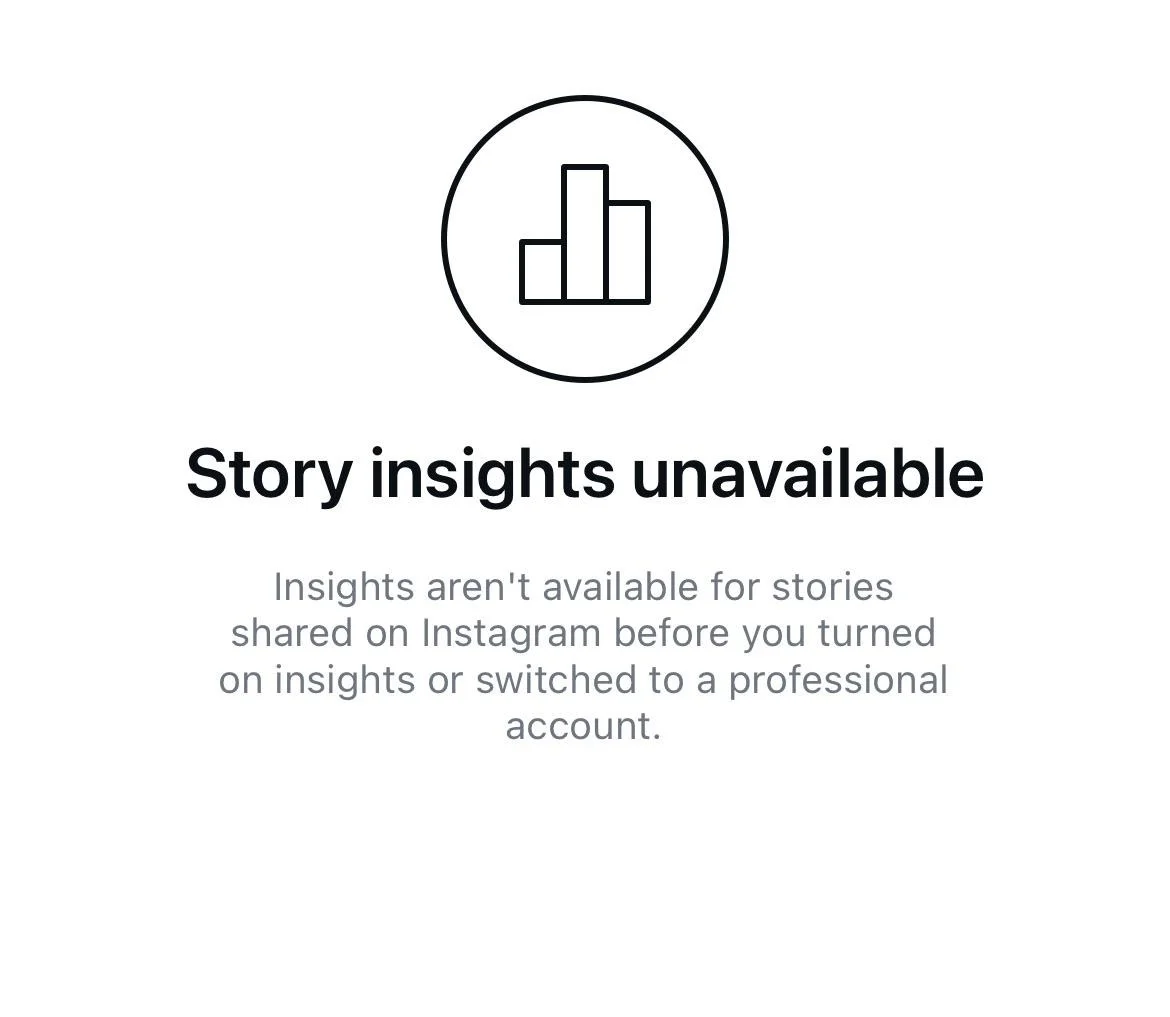
How to Fix the Instagram Insights Unavailable or Not Working Issue
Wait it Out
If your Insights suddenly disappear or show no data, it is very likely tied to a temporary issue on Instagram’s side. This happens to many users at the same time and is usually linked to a system update or background change. It does not mean your account is damaged or restricted.
In most cases, there is nothing you can do to force it to show up again. The data usually returns on its own after a few hours or sometimes a couple of days. During this time, posts still collect views and engagement even if you cannot see the numbers right away.
So, keep using Instagram as usual and avoid making random changes to your account. 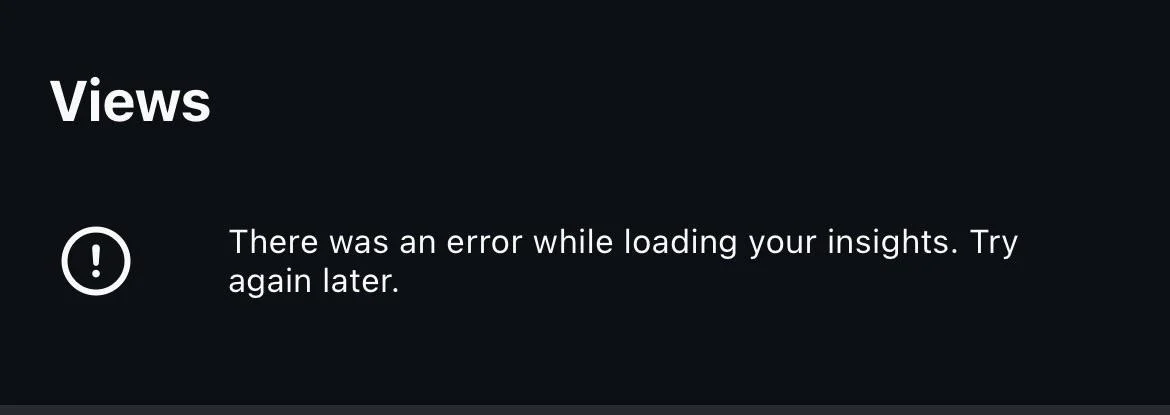
Check your Account Type
If you are new to Instagram Insights or trying to use this feature on a fresh account, your account type plays a big role. Insights do not appear on personal accounts, so if the option is missing, this is often the reason behind it.
- To check, open Instagram and go to your profile.
- Tap the three-line menu and look under the section called For professionals.
- If you see Account type and tools, your account is still personal.

- If it shows Creator tools and controls, you are on a creator account.

- If it says Business tools and controls, then your account is set as a business profile.


Also, keep in mind what Instagram mentions on its official support page. Insights are only available for posts shared after switching to a creator or business account. Posts published before the switch will not show any insights data. If you later move back to a personal account, any existing insights data is cleared and cannot be accessed again.
Log Out and Log Back In
At times, Instagram does not load Insights due to a sign in related issue. When this happens, posts and reels may not show any data even though they are performing fine.
- Open the Instagram app and go to your profile page.
- Tap the three-line menu in the top corner to open settings.

- Scroll all the way down and click on the Log out option.

- Once logged out, log back in again using your account details.


Clear the Instagram App Cache on Android
At times, Instagram stores old or broken temporary data that can stop Insights from loading new numbers.
If you are using an Android phone, open your device Settings > Apps > Instagram > Storage and cache > Clear cache and leave the data option untouched.
After that, restart your phone and open Instagram again to log in. Then head back to Insights and check if the data is visible.
Update the Instagram App
If you have not updated Instagram for a long time, there is a good chance the app version on your phone is outdated. This often happens when you keep using the version that came installed on the device when you bought it.
Instagram pushes new updates on a regular basis to keep features working as expected.
So, open the Google Play Store on Android or the App Store on iPhone and see if an update option is available for the Instagram app. Install the update if available.
Check Instagram Server Status

Occasionally, the issue has nothing to do with your account or phone. When Instagram servers face trouble, many features stop working.
Instagram does not have an official server status page, so you have to depend on third-party outage tracking sites or Instagram’s own social media handles for updates. A common option is Downdetector. Search for Instagram there and look at the outage graph. A sudden spike usually means many users are facing the same issue. Once Instagram fixes the server-side trouble, features usually return on their own.
Hope this guide helped you sort things out. If none of the steps worked, the last option is reaching out to Instagram support. Just keep in mind that getting a useful reply can take time, since many responses are automated and do not always solve the issue.
RELATED GUIDES:
- How to Fix Instagram Web Page Not Available [EASY WAY]
- “This Reel Is No Longer Available” — 5 Ways to Fix It on Instagram
If one of the methods above worked for you, drop a comment and let others know. And if you discovered another way that helped bring Insights back, feel free to share it as well. Your input could help someone else facing the same issue.