RCS chats are a modern messaging feature that upgrades regular SMS with extras like read receipts, typing indicators, and better media sharing. They work through apps like Google Messages and rely on both your device and mobile network to work. When everything is set up properly, RCS makes texting feel closer to an instant messaging app.
However, many users suddenly run into errors such as “RCS chats are not supported by your device” or “RCS chats are not supported by your carrier.” These errors often appear without any warning and can be hard to understand, especially when RCS was working perfectly before. For a lot of people, it is unclear whether the problem is coming from the phone, the app, or the network itself.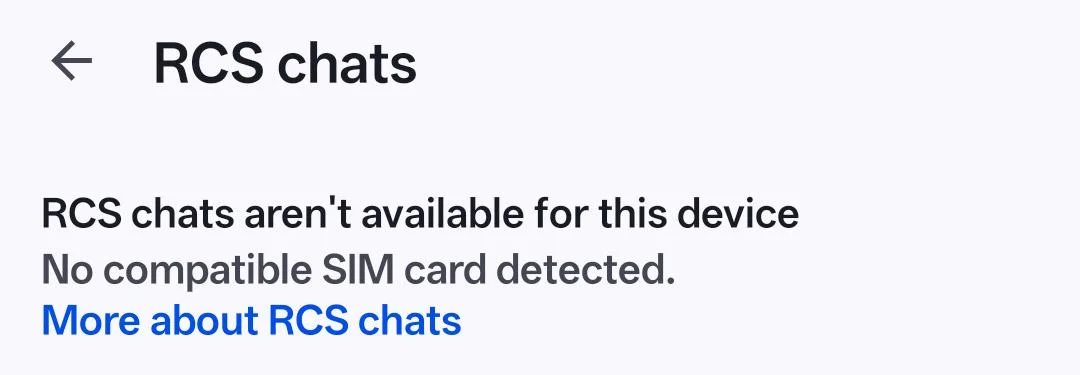
This issue is reported more often on Samsung and Pixel phones using Google Messages. Google usually controls how RCS works on Android, but updates and clear explanations are often slow. As a result, users are left guessing while chats fall back to SMS, and important messages generally stop working.
In the sections below, you will find five fixes for these errors that usually resolve the issue. 
How to Fix “RCS chats are not supported by your device”
Clear Carrier Services and Google Messages Data
This method resets the background services that RCS depends on. Follow the steps in order and do not skip any step.
- Slide down the notification panel from the top of the screen and tap the Airplane Mode icon. You can also open Settings and turn on Airplane Mode from there.

- Now, go to the main Settings app on your device.
- Scroll down and tap Apps to find the list of installed apps.
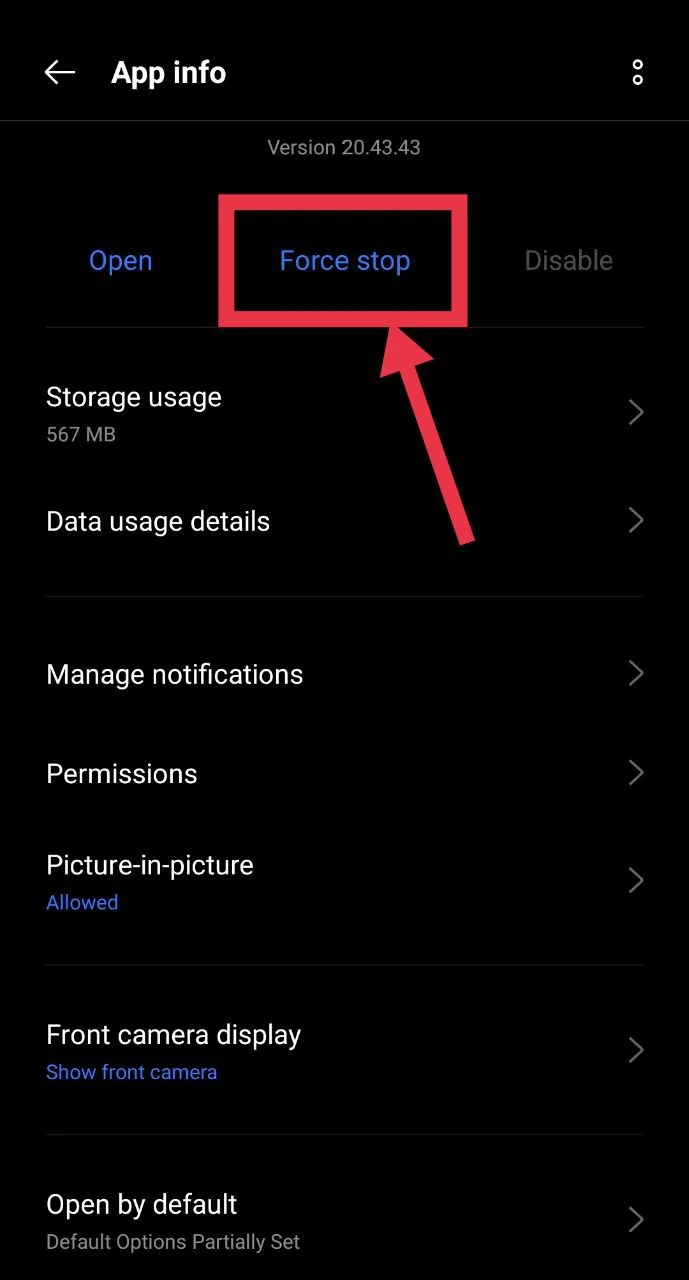
- Tap on the Carrier Services option
- After that, click on Storage, then tap Clear cache and Clear data.
- Go back and tap Force stop.

- Now, return to the Apps list and tap Google Messages.
- Tap Storage, then tap Clear cache and Clear data.
- Go back and tap Force stop.
- After that, open the notification panel again and tap the Airplane Mode icon to turn it off.

Reset RCS
This method unlinks your phone number from your Google account, which can help RCS reconnect instantly.
- Open the Google Messages app on your phone.
- Tap your profile picture in the top right, go to Messages settings, then Chat features, and turn off RCS chats.
- Tap your profile picture again and select Manage your Google Account.
- In your Google account menu, open the Personal info section.
- Scroll to the phone numbers section and tap your verified phone number.
- Tap Better sharing and switch it off.
- Go back to the previous screen, then return to the phone number settings.
- After that, enable Better sharing again.
- Now, go back to Google Messages, open Chat features, and turn RCS chats on.
Reinstall Google Messages and Manually Enable All Permissions
This fix has helped users who recently ported their number or switched carriers and found RCS completely disabled or grayed out. In many cases, the issue appears on Samsung devices where carrier-related settings interfere with Google Messages.
- Open Google Messages, tap your profile picture > Messages settings > Chat features, and turn off RCS chats.
- Go to Settings > Apps > Google Messages and tap Uninstall. If uninstall is not available, uninstall updates instead.
- Open Settings > Apps > Default apps > SMS app and select another app such as Samsung Messages.
- After reinstalling Google Messages from the Play Store, do not open the app.
- Go to Settings > Apps > Google Messages.
- Tap Permissions and allow every permission shown, even if they were previously disabled.
- Now open the Google Messages app, sign in, and set it as the default SMS app when prompted.
- Go to Chat features and wait for the “RCS is setting up” message. It should connect shortly after.
- Once connected, RCS chats should work just like before.
Uninstall and Reinstall the Messages App
- Open the Google Play Store
- Search for “Google Messages”
- Tap the app to open its Play Store page and tap “Uninstall.”
- If Uninstall is not available, you will see “Uninstall updates.” Click on it.
- After that, restart your phone
- Then open the Play Store again
- Go back to the Google Messages page
- Tap “Update” or “Install” to reinstall the latest version
- Open Google Messages and check Chat features.
Reinstall Carrier Services from the Play Store
This method is useful when you see the error “RCS chats are not supported by your carrier.”
- Open the Google Play Store
- Search for Carrier Services
- Click on the result to open the app page
- Tap Uninstall or Uninstall updates
- Then restart your phone by holding the power button
- Once booted, reopen the Play Store
- Now, reinstall or update Carrier Services.
RELATED: How to Fix “Please Wait While Voicemails Are Being Downloaded” Error
These are five ways to resolve “RCS chats are not supported by your device” or “RCS chats are not supported by your carrier.” Hope this guide was useful. If you find any other workaround that worked for you, feel free to share it with us.