Facebook, even in today’s era, the app still has a userbase, while not many use it for daily communicatio,n it has mainly became source of news, troll pages, and marketplace. Whatever the reason, there are billions of people who use it every day to scroll updates, watch videos, and stay connected. It continues to be one of the biggest social platforms in the world, along with Messenger and Instagram.
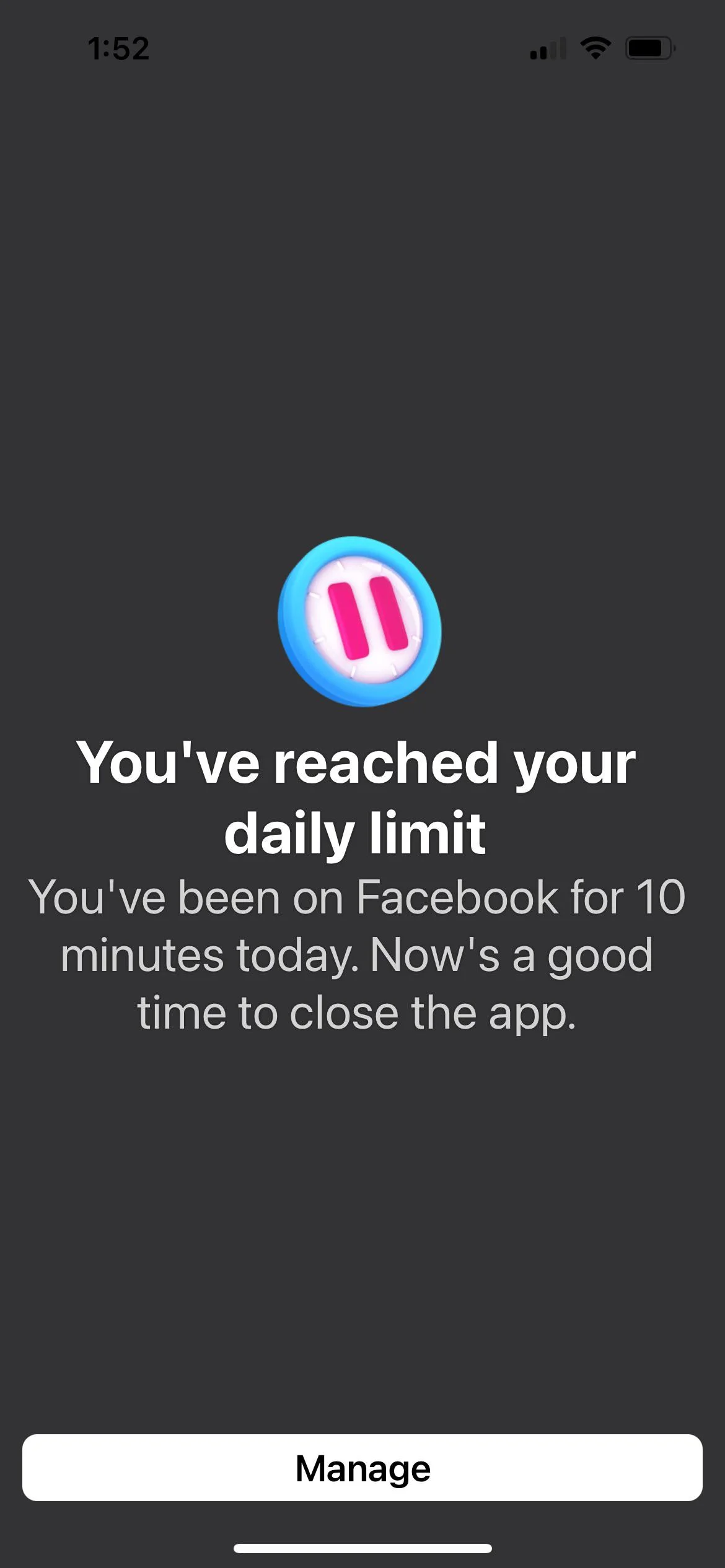
However, some users are now seeing a strange message that says they have reached their daily limit and need to close the app. This message can appear after using Facebook for only a short time. It may also show up when switching to Messenger or Instagram, which makes the experience even more confusing. There are very few discussions about this issue, and many people are left wondering why it is happening.
We also faced this problem out of nowhere, and it quickly became frustrating. Since there was not much clear information available, we decided to look deeper into it. In the sections below, how we managed to fix the daily limit reached message on Facebook.
How to Fix Daily Limit Reached Error on Facebook
Turn Off the Daily Time Limit Setting
In many cases, this message appears because the daily time limit setting is turned on. You may have enabled it earlier and forgotten about it, or it may have been switched on by mistake.
- When the error message appears on your screen, click on Manage.
- After that, select Manage settings. You will see the option that controls your daily time limit.
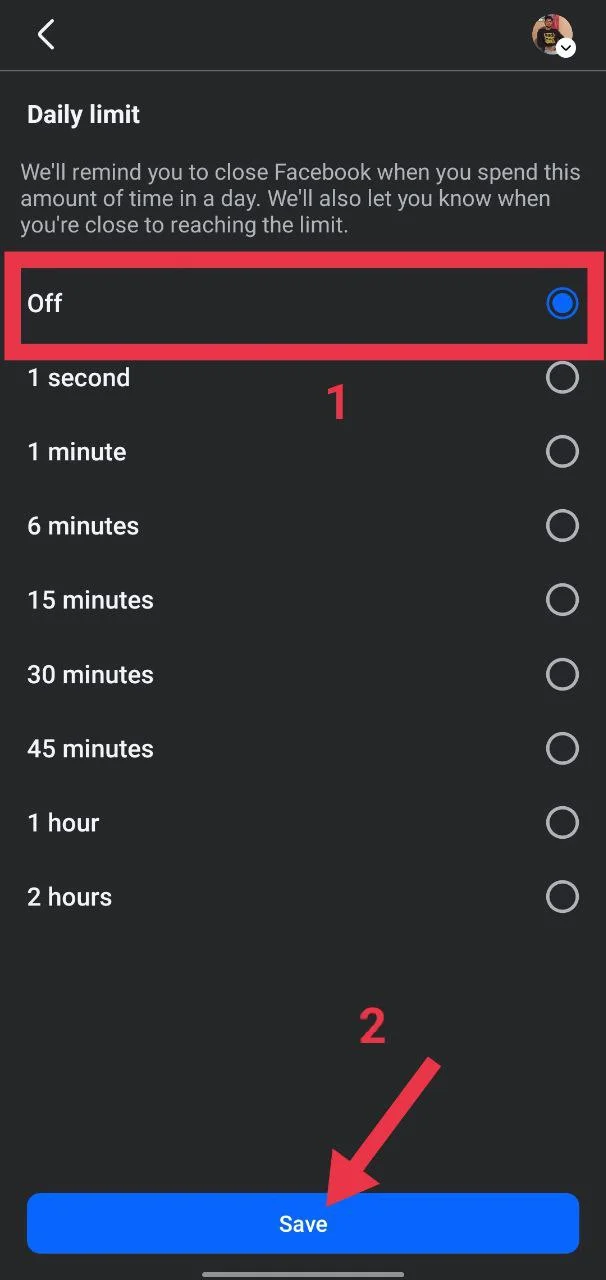
- Simply change the setting to Off and then click Save.
If nothing happens after you click the Manage button, do not worry; just follow the steps below.
- First of all, close the Facebook app completely from your app switcher or recent apps screen.
- Then open the Facebook app again.
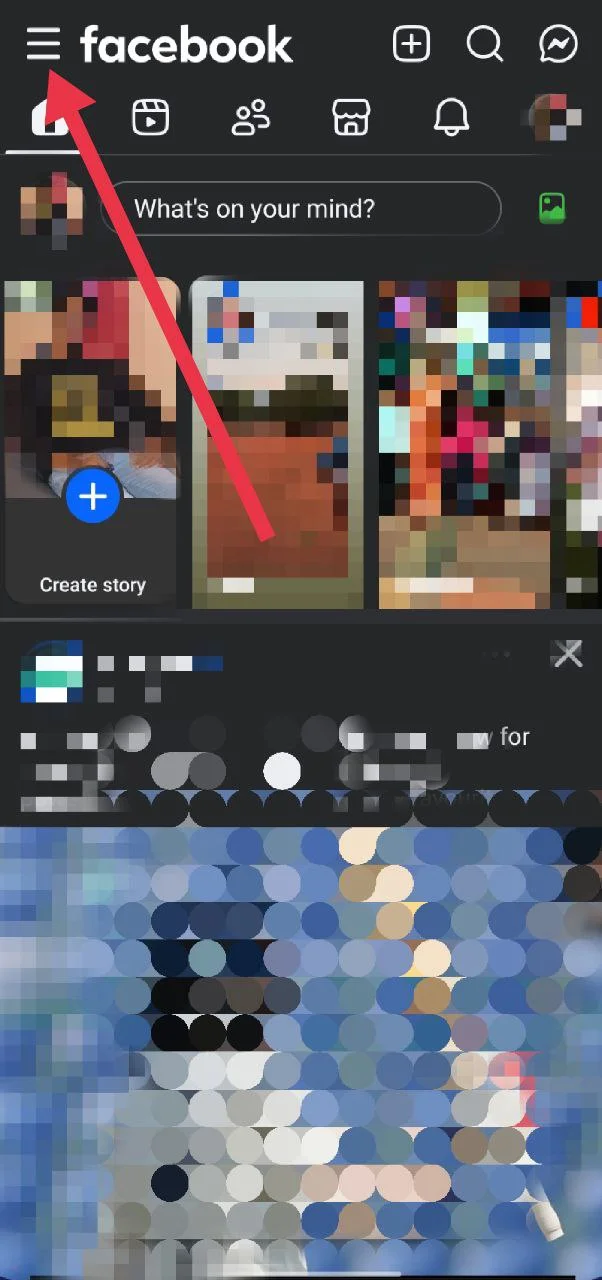
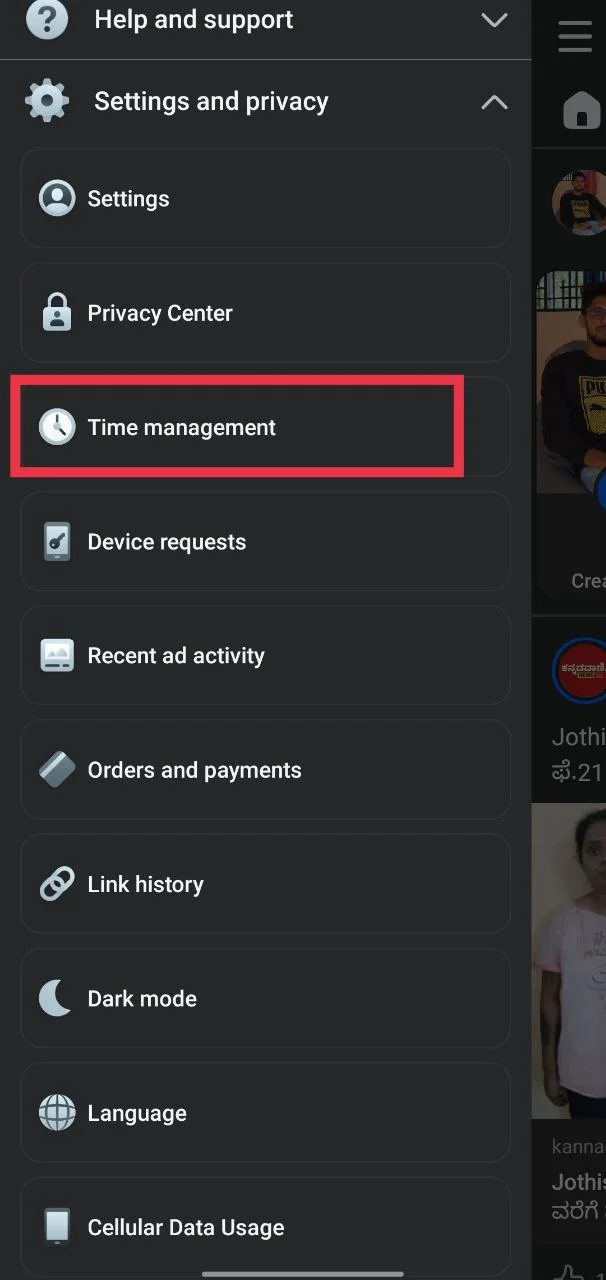
- Now, tap the menu button in the top left corner, go to Settings and privacy

- Then select the Time management option.

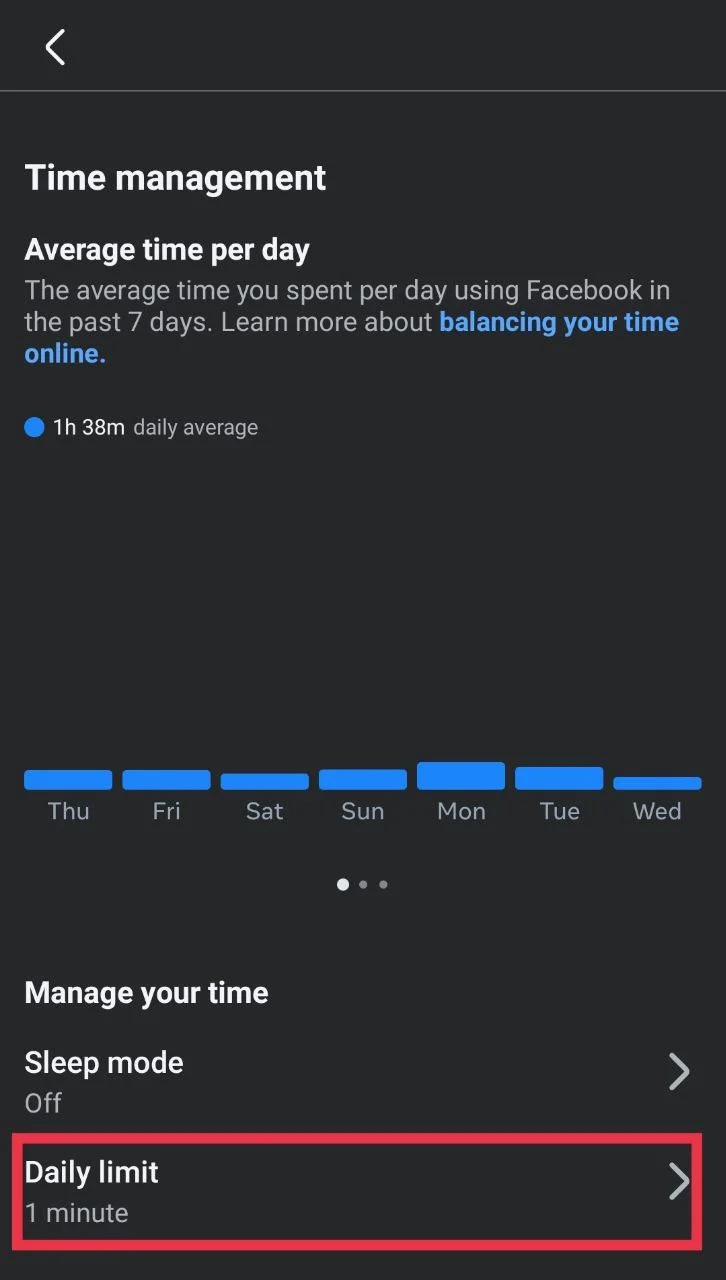
- From there, tap on the Daily limit button

- Now, set it to Off, and save your changes.
Update the App to Fix a Possible Bug
If you are not able to disable the daily limit from settings, or if the message still appears even after turning it off, it may not be a setting issue. We found that this problem can sometimes be caused by a bug that many users are currently facing. There have been multiple user reports about the same issue.
Unfortunately, there is no official fix from Facebook yet. However, what you can do is check for a new app update. Head over to the Play Store or App Store on your device and see if a newer version of Facebook is available. If there is an update, install it and then open the FB again to check if the time limit issue has been resolved.
Check Digital Wellbeing or Screen Time Settings
Another thing you should check is your phone’s built-in app limit settings. On Android, go to Digital Wellbeing and parental controls and see if there is any time limit set for Facebook, Messenger, or Instagram.
On iPhone, open device Settings > Screen Time > App Limits, and check if Facebook is listed there. If you find any limit, turn it off if you do not want it.
While many times this is not the actual cause of the problem, it is still worth checking and disabling it if any limit is set.
This is a very strange issue that has been happening to many users. The error appears out of nowhere, even when people have not knowingly set any daily limit. In some cases, when users tap on Manage, they do not even get the option to turn it off or change the setting, which makes the situation more confusing.
Another frustrating part is the option to set a one second daily limit. It does not make sense for anyone to use a one second limit. When this setting is turned on, whether by mistake or without knowing, the warning keeps appearing again and again. This makes it very difficult to quickly go back into settings and turn it off properly.
We hope Facebook fixes this issue soon with a proper update. If none of the above methods help, the only option left is to report the problem directly to Facebook through the app and wait for them to release a fix.