Facebook Messenger has been around since the early Facebook days, and people still use it every day to chat and share moments. It is one of the easiest ways to send photos, videos, and quick messages to friends and family. That is why so many people rely on it without thinking twice.
But lately, many users have seen a message that says “Unable to load camera roll” when they try to send a photo or while checking the media section on the app.
This usually happens when Messenger cannot access the media stored on your phone. There can be different reasons behind it. In the sections below, you will find a few ways to fix it.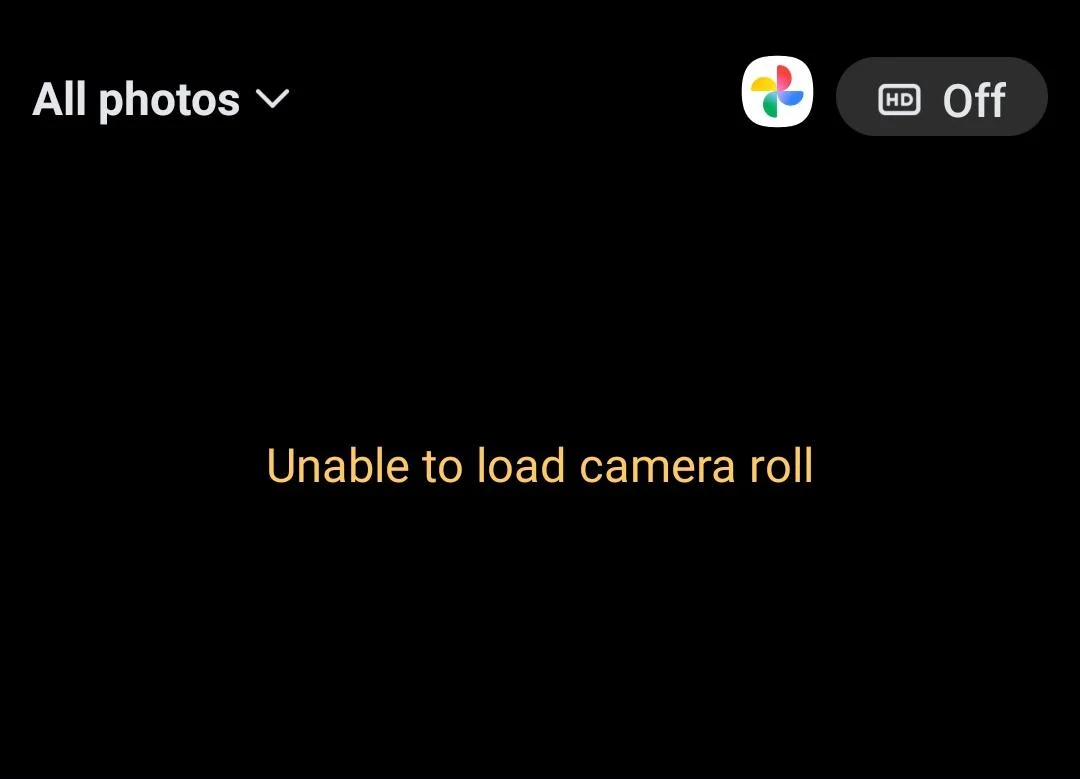
How to Fix Unable to Load Camera Roll on Facebook Messenger
Re-allow the Required Permissions
- First, open the Settings app on your phone.
- Scroll down and tap on Apps.
- Then choose All Apps or Manage Apps
- Now, click on Messenger in the list
- Now tap on Permissions.
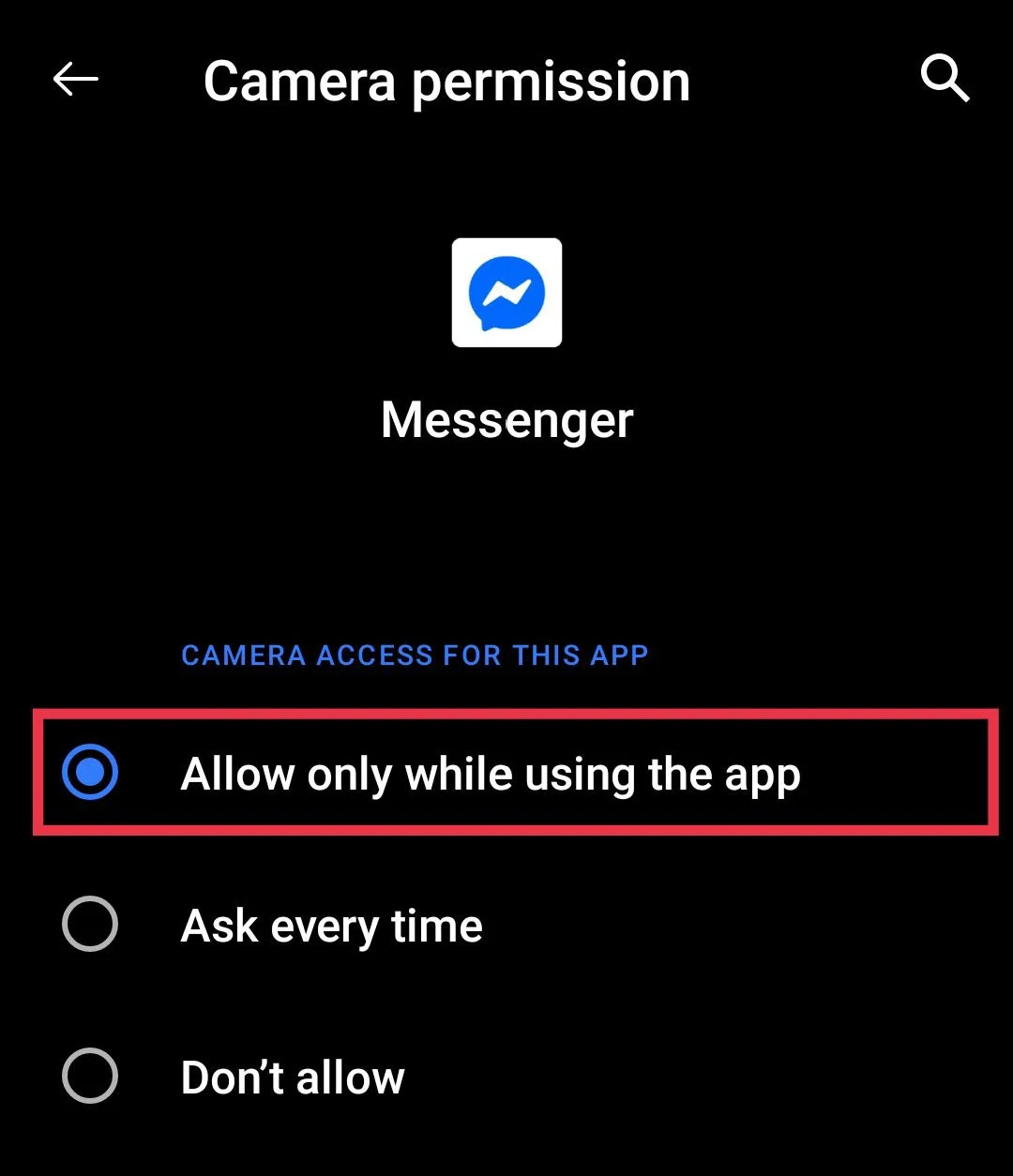
- From there, tap on Camera and choose Allow only while using the app.

- After that, go back to the Permissions screen and tap on Photos and Videos.
- Again, select Always allow all so Messenger can access your gallery anytime you want to send a picture.
Clear the App Cache
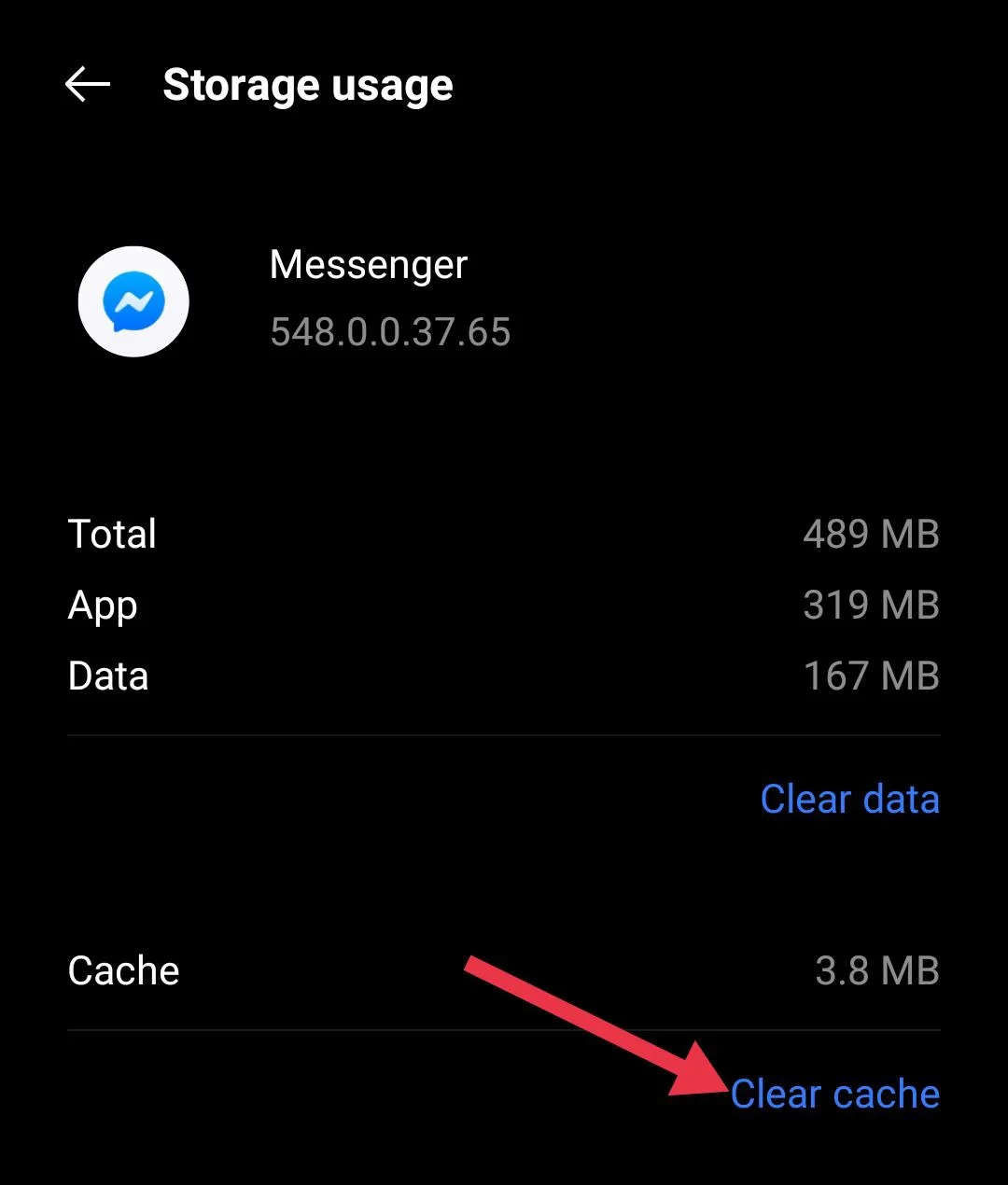
- Open the Settings app on your phone and tap on Apps.
- Then choose All Apps or Manage Apps
- Next, tap on Storage or Storage Usage.
- Now, click on Clear Cache.

- Once that is done, close the settings and open Messenger again.
Restart the Phone
- Press and hold the power button on your phone.
- When the options appear on the screen, tap on Restart or Reboot.
- Wait for your phone to turn off and come back on.
Update your Messenger app
Many people forget to update their Messenger app and use an outdated/old version. On Android, head to the Play Store, or if you are an iPhone user, open the App Store. Type Messenger in the search bar and open its page. If an update is available, tap Update and let it finish.
Reinstall the Messenger app
If the issue is still there, you can try reinstalling the app. You know how you delete any other app from your phone, it is the same process here. Just press and hold the Messenger app icon and tap Uninstall.
Once it is removed from your phone, go to your app store again. Open the Play Store on Android or the App Store on iPhone and download Messenger like you normally would.
Report the issue to Messenger support
If nothing has worked so far, you can let Messenger know about the issue directly from the app.
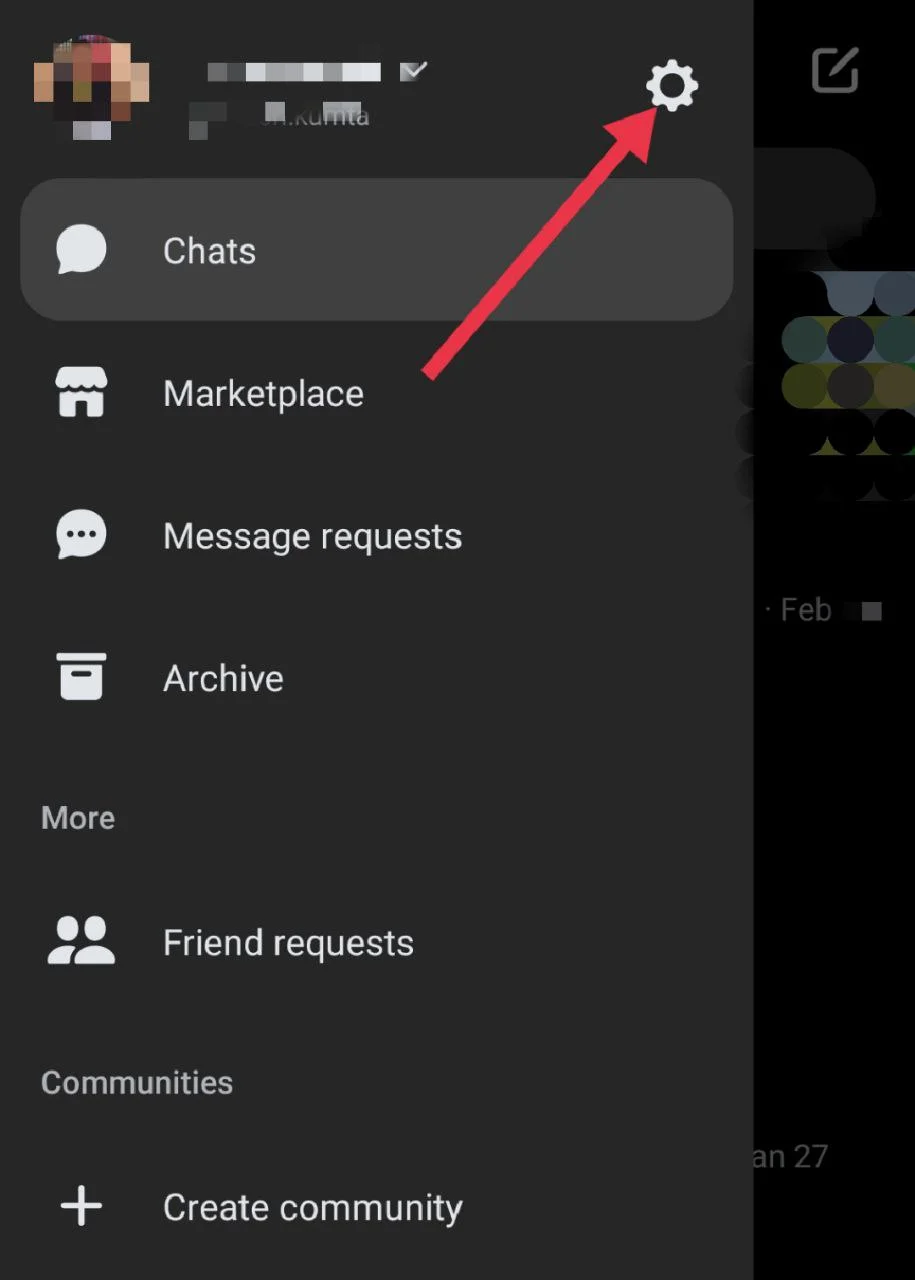
- Open Messenger and tap on the three lines menu button.
- From there, go to Settings.

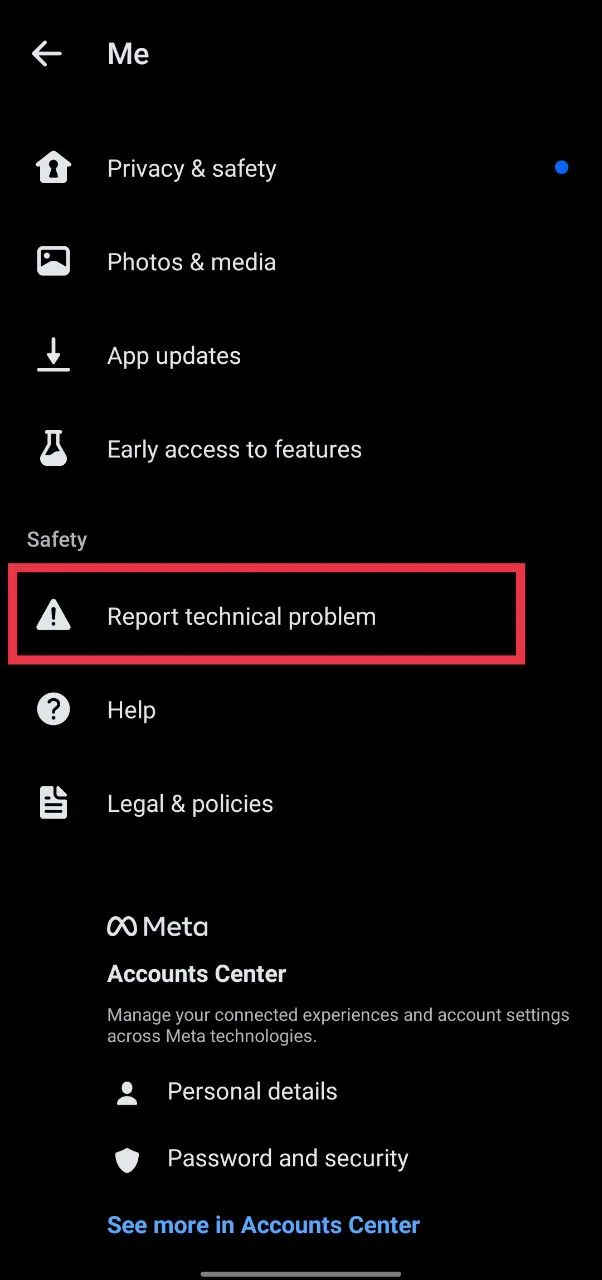
- Scroll down and tap on Report technical problem.

- Now, explain the issue in short sentences and attach a screenshot if you can.
- After that, send the report and wait for their response.
RELATED GUIDES:
- How to Fix Facebook Messenger “Couldn’t Send” Error
- How to Fix Messenger “This message is not available on this app version” Error
- How to Fix Messenger “Please restart Messenger to rejoin this chat” Error
That is how you can fix the “Unable to load camera roll” issue on Facebook Messenger. Try each method one by one and see which one solves it for you.
If one of these steps worked, let me know which method helped. And if you found another way to fix it, feel free to share it as well, so others can try it too.