Android System WebView is an important system component that allows Android apps to display web content without opening a separate browser. Many Android users are not aware of it because it works quietly in the background and is not something they use directly every day. Since Android System WebView usually does not appear on the home screen or in the app drawer, most people only notice it when checking the system apps section or when an error message like “Android System WebView has stopped” suddenly appears.
Since this component is closely connected to many apps, problems with it can affect the overall experience on your device. Many Android users have reported facing the same issue on different devices. In the guide below, I will share the different fixes that worked for us and may help you remove the Android System WebView error as well.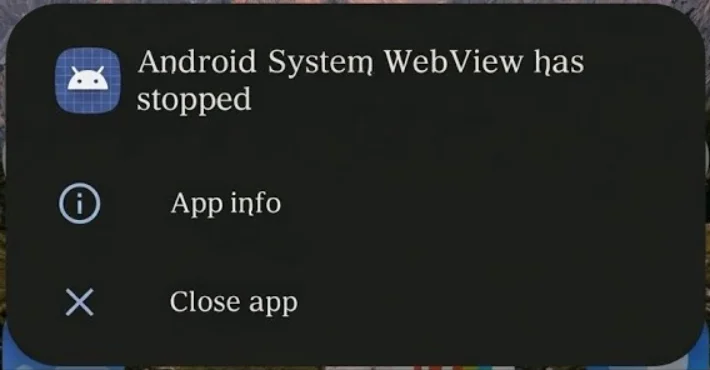
Android System WebView Has Stopped? Try These Fixes That Actually Work
Install the Latest Android System WebView Version
A quick look at Android forums and user discussions shows that an older version of the Android System WebView is often linked to this error. Since this component is used by countless apps behind the scenes, even a small issue with it can trigger app crashes and unexpected error messages.
The first thing worth checking is whether a newer version is available.
- Head over to the Google Play Store on your phone.
- Search for “Android System WebView“
- Open the app listing.
- If you see an Update button, tap it and allow the installation to complete.
- Restart your device.
After the phone powers back on, open the app that was showing the error and see if the problem has disappeared.
In case you are unable to update the Android System WebView from the Play Store, you still have other options. You can install the app from a trusted third-party app store or download the APK package from websites like APKMirror and similar sources.
Just make sure you pick a release that matches your Android version. To find that information, head over to your device:
- Settings > About Phone > Android Version
After installing the correct version, reboot your phone and check if Android System WebView is working without errors.
Update Your Phone’s Software
There is a good chance the problem is not coming from Android System WebView itself. If your phone is running an older software version, certain system components may not work well together.
- Open Settings.
- Tap Software Update, System Update, or a similar option.

- Press Check for Updates.
- Download any available update.
- Install it and let your phone restart.
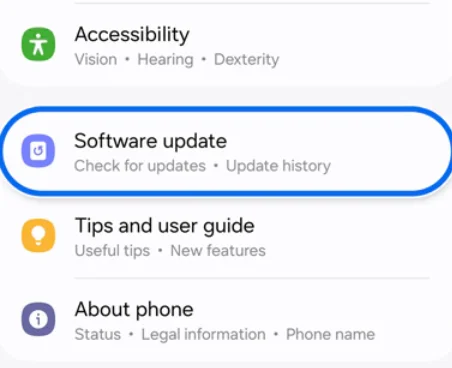
Keep in mind that brands like Samsung, Xiaomi, Realme, Vivo, Oppo, Motorola, and others may place this option in slightly different locations. If you cannot spot it right away, simply search for “update” inside the Settings app.
Update Google Chrome
A lot of Android users do not realize that Google Chrome and Android System WebView are closely connected. On newer Android versions, Chrome handles web content for apps, which means if Chrome has not been updated in a while, it could be the reason Android System WebView keeps showing errors.
Since Chrome is closely tied to WebView, updating it is a step you should not skip.
- Open the Google Play Store.
- Search for Google Chrome and tap on the Chrome app page.
- Tap Update if the button is available.
- Wait for the completion of the download and installation process
If you’re unable to update through the Play Store, you can also install the latest version from the internet or download the APK package from sources such as APKMirror.
Force Stop Android System WebView
At times, the Android System WebView has stopped error can remain stuck even after receiving updates. In such cases, forcing the app to close can be enough to clear minor issues that have built up in the background.
You can do this in less than a minute:
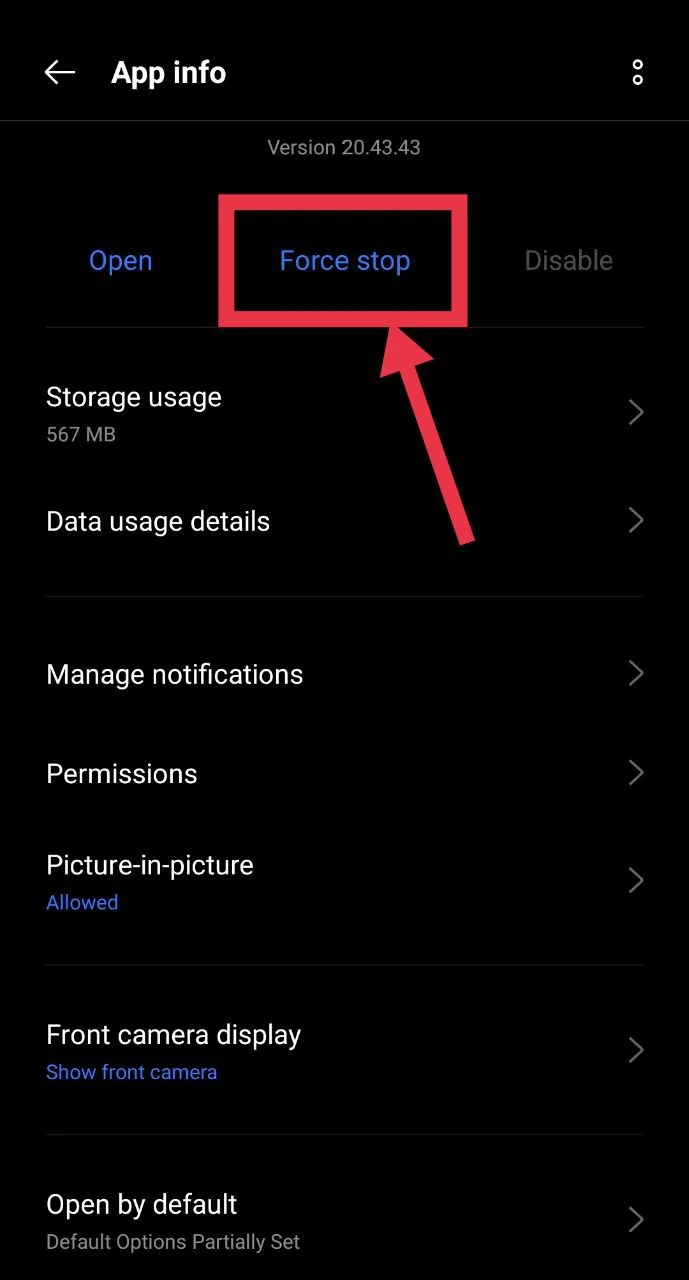
- Open Settings on your phone, then go to Apps > Android System WebView > Force Stop and confirm.

Clear Android System WebView Cache and Data
A good next step is to clear the app’s cache.
- Open Settings.
- Go to Apps or System Apps.
- Select Android System WebView.
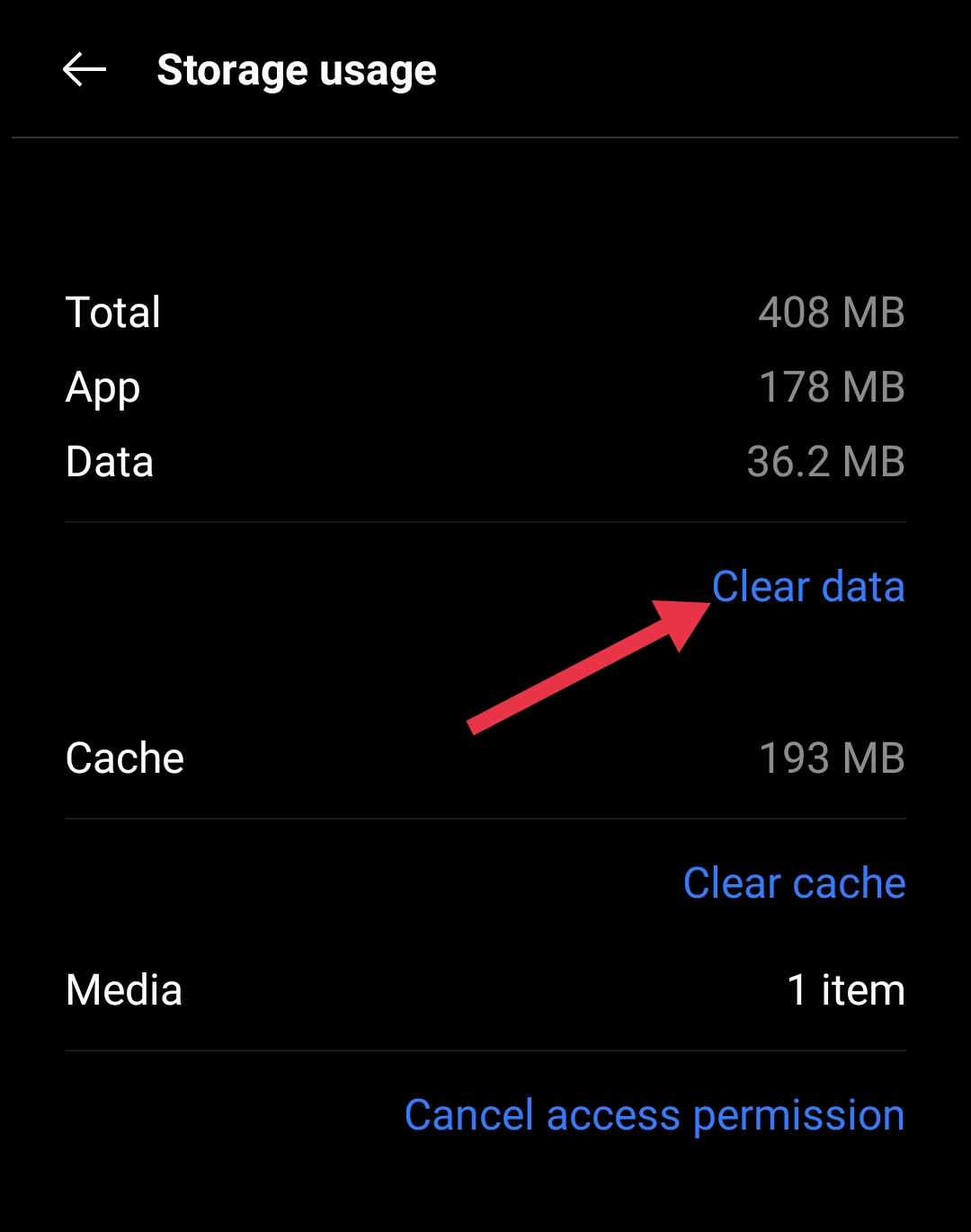
- Tap Storage.
- Press Clear Cache.


After clearing the cache, if the issue continues, or if the “Clear Cache” option is unavailable or greyed out on your device, you can go one step further and clear the app’s data as well.
- Return to the Storage section.
- Tap Clear Data or (Manage Storage > Clear Data).

- Confirm.
Uninstall Recent Android System WebView Updates
Not every update improves things. Every now and then, a new release can introduce issues on certain phones, even though it works fine on others. If the Android System WebView error only started showing up recently, rolling back the app to its original version is worth a shot.
You do not need to uninstall the app itself. Android lets you remove the updates while keeping the built-in version that came with your device.
- Open Settings.
- Head over to Apps or System Apps
- Click on Android System WebView to open the options
- Now, click on Uninstall Updates and confirm.

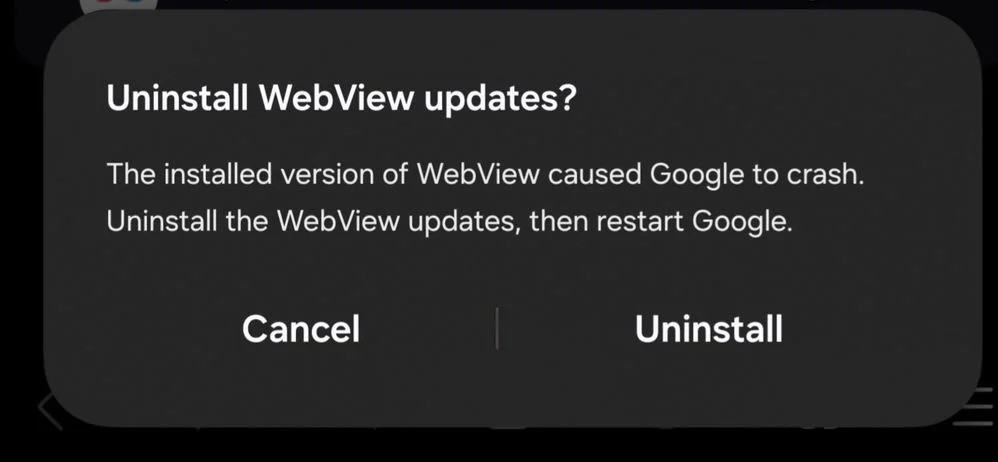
You can also do this from the Google Play Store > Android System WebView > Uninstall.
Factory Reset as a Last Resort
At this stage, there is not much left to try. If none of the fixes above made any difference, a factory reset is probably the only option remaining.
I would not recommend jumping straight to this method. A factory reset wipes the phone clean and removes installed apps, downloaded files, photos, videos, contacts, account settings, and everything else stored on the device. Because of that, it should only be considered after exhausting the easier fixes.
Before doing anything else, take a full backup of your important data. Upload your files to cloud storage, copy them to a computer, or use your phone’s built-in backup feature. Spending a few minutes on a backup now can save a lot of regret later.
When you’re ready:
- Open Settings.
- Navigate to Factory Reset, or a similar menu.

- Tap on Factory Data Reset or Erase All Data.

- Follow the instructions shown on screen.
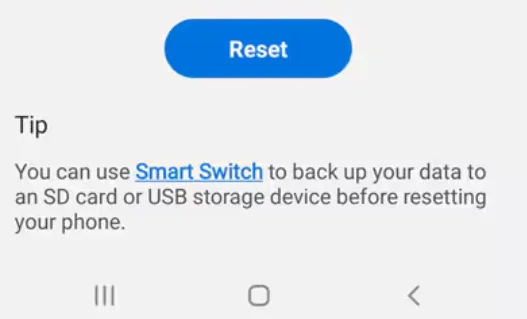
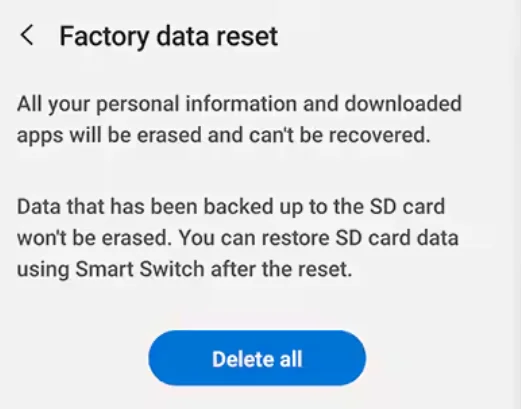
The wording may differ depending on the phone brand, but the reset option is usually not difficult to find.
That brings us to the end of this guide. By now, Android System WebView should hopefully be working without throwing the same error again.
On our device, none of the usual fixes made a difference at first. The issue finally disappeared after installing a newer Android System WebView APK manually, since the Play Store update kept getting stuck. Of course, what worked for us may not be the answer for everyone. Android devices come from different manufacturers, run different software versions, and can behave quite differently.
If you solved the “Android System WebView has stopped” error using one of the methods above, let us know which one did the job. And if you discovered another fix that is not listed here, feel free to share that too. Your suggestion might end up saving someone else a lot of time spent searching for a solution.