As Roblox has grown over the years, new features and extra security have been added to help protect user accounts. Even with all of that, login errors still show up from time to time.
One of them is the “An unknown error occurred. Please try again” message. It can appear after you finish the security puzzle, while trying to sign in, or only on one specific account. The worst part is that Roblox gives almost no clue about what actually caused the error. You try again, complete the verification again, and the same message appears.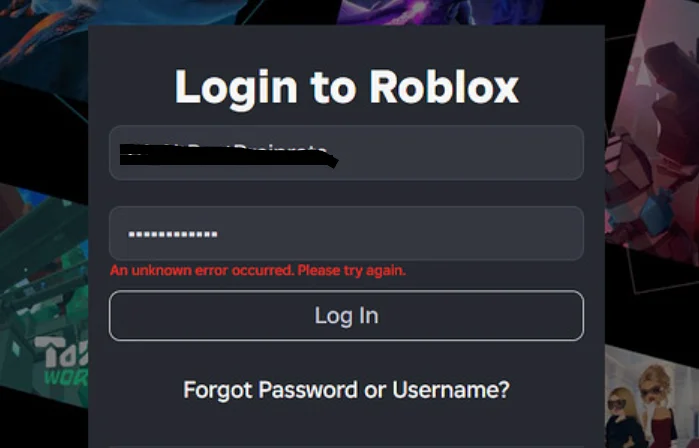
If you’ve been stuck on this screen, keep reading. The methods below cover the fixes that have worked for a large number of players.
6 Quick Fixes for Roblox “An unknown error occurred. Please try again” Error
Temporarily Turn Off Your Ad Blocker
If you use browser extensions like uBlock Origin, Privacy Badger, or another ad blocker, they can interfere with Roblox while it checks your login request. You may finish the security puzzle without any issue, yet Roblox still responds with “An unknown error occurred. Please try again”
Open your browser’s extensions page and turn your ad blocker off for a moment. Then reload the Roblox sign in page and try logging in again.
Turn Off Your VPN
A VPN can change the way your connection reaches Roblox. In some cases, that is enough to trigger these error messages during sign in or right after the security check. If you have an active VPN running, disconnect it before trying again.
Use an Incognito or Private Browser Window
It is easy to overlook Incognito mode because most people think it is only useful for private browsing. In reality, it also opens a new browser session without using your existing cookies, cached data, or most extensions.
Open a new Incognito window in Chrome, or use Private Browsing if you are using another browser. Visit the Roblox sign in page and enter your account details again. If your account opens here but not in your normal browser window, the issue is far more likely to be connected to your browser data than to your Roblox account itself.
Try a Different Browser
In some cases, the issue is limited to one browser. For example, some users were unable to sign in through Brave, while the same account worked without any issues in browsers like Chrome, Edge, or Firefox.
Open another browser that is installed on your device and try signing in there. If the login succeeds, the issue is likely related to your original browser rather than Roblox itself. At that point, you can continue using the browser that works or look into your original browser’s settings, extensions, or stored website data.
See If Roblox is Having Server Problems

When Roblox servers are having issues, login requests may fail and display the random error message even though there is nothing wrong with your account or device.
Visit the official Roblox Status page and look at the current server status. If login or authentication services are affected, the only option is to wait until Roblox resolves the issue. Once the servers are back online, you should be able to sign in without seeing the error again.
Reset Your Roblox Password
Even if you’re sure you’re entering the correct password, creating a new one can help resolve account authentication issues that trigger the frequent error message.
To change your password:
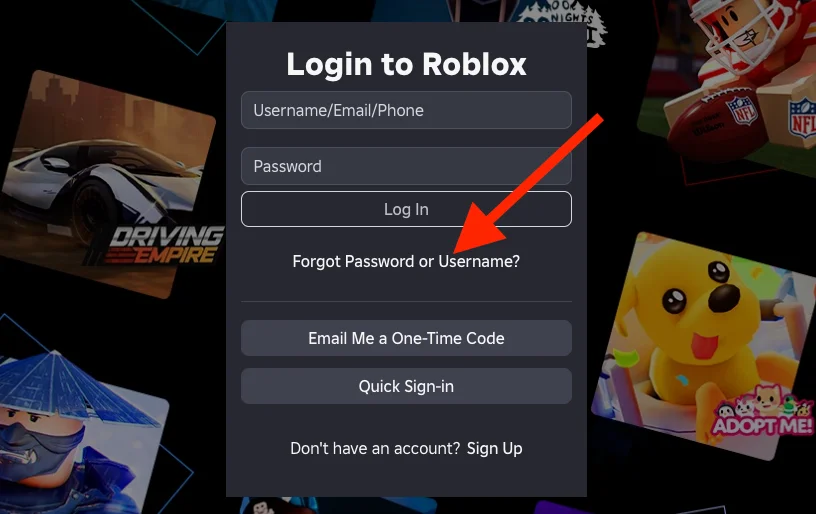
- Go to the Roblox sign in page and select Forgot Password or Username?

- Open the Password tab.
- Enter the email address or phone number connected to your Roblox account.
- Follow the verification link or code sent by Roblox.
- Choose a new password and save the change.
- Return to the sign in page and log in with your new password.
RELATED GUIDES:
- How to Fix “Roblox Encountered an Unexpected Error” on Windows
- How to Fix Roblox Error Code 2 Mobile & PC
- How to Fix Roblox Error Code 524
- [Fixed] Roblox Error 304: Roblox Has Detected Missing Or Corrupted Files
- Roblox Error Code 279: How to Fix (9 Ways)
Hopefully, this guide helped you fix the Roblox “An unknown error occurred. Please try again” error. If one of these methods worked for you, let us know which one solved the problem in the comments. If you found another fix that is not listed here, feel free to share it as well.