Instagram has changed a lot since it first launched as a simple photo sharing app. After Facebook, now Meta, bought Instagram in 2012, the platform kept growing and added new features that changed how people use it. Stories, Reels, short videos, and camera effects all helped Instagram become a big part of daily social media use. Today, people use it to share photos, create videos, post Stories, and build their own audience.
Filters have played a big role in this change. From simple color effects to face filters and real time camera effects, Instagram gives users many ways to change how their photos and videos look before posting them. For people who create content regularly, these Instagram filters have become part of their usual posting routine.
Some users have reported that Story filters do not load apart from the default Instagram filters, while others say that real time filters work with videos but fail when they try to use them on photos.
If you are facing the same problem, it can make creating Instagram Stories and posts much harder than usual. The issue may appear differently on different devices, with some users facing it on Android and others on iPhone. Below, we have listed different ways to fix Instagram filters not working.
How to Fix Instagram Filters Not Working on Android & iPhone
Select the Filter After Choosing Your Photo
If Instagram Story filters are not working when you try to apply them to a photo, try selecting the photo first and then choosing the filter. This can help the filter appear correctly instead of leaving the photo unchanged.
- Open Instagram and swipe right to open the Story camera.
- Tap the Gallery icon and select the photo you want to use.
- Once the photo is loaded into the Story editor, look through the available filters.
- Select the Real-Time filter you want to use.
- After selecting the filter, tap Done in the top right corner.
- After a few seconds, check the filter options again. The other available filters should start appearing.
- You can now select the filter you actually want to use and continue creating your Story.
Close and Reopen Instagram
On iPhone, swipe up from the bottom of the screen and pause to open the app switcher. Find Instagram and swipe up on the app to close it. On Android, open the recent apps screen and swipe Instagram away.
Android users can also force stop Instagram from the phone settings. Tap and hold the Instagram app icon from app drawer, then select App info and tap Force stop. [or from device Settings > Apps > Instagram > Force stop]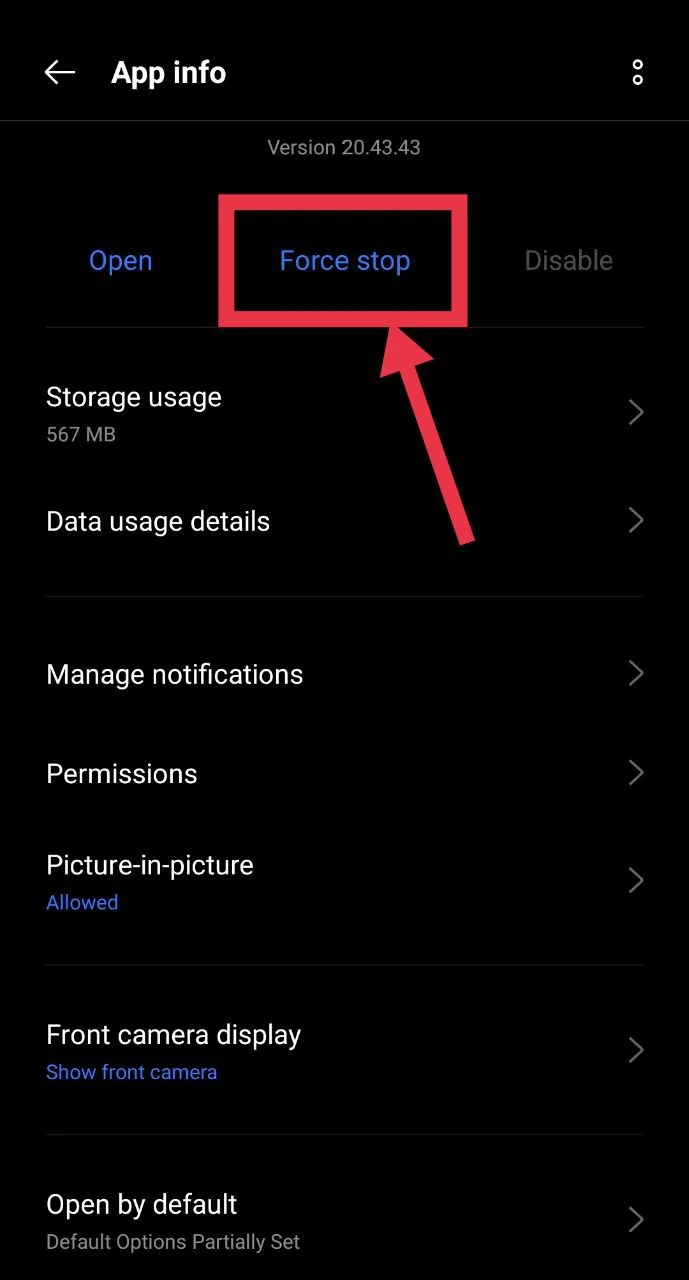
Restart Your Device
A quick device restart is worth trying at this point. Once your phone turns back on, open Instagram and check the Story filters again.
On Android, press and hold the Power button, then tap Restart when the option appears.
On an iPhone, press and hold the Side button and either Volume button until the power off slider appears, then slide it to turn off the phone. . You can also say “Hey Siri, restart my iPhone,” and tap Restart to confirm.
Check for an Instagram Update
An update may already be available for Instagram, so it is worth checking the Google Play Store or App Store. Instagram may have released a newer version that includes a fix for the filter issue. Open the store on your phone to see if an update button appears for the Instagram app. If it does, install the latest version.
Check Location Permission
Some Instagram effects use your location to provide filters based on where you are. If Instagram cannot access your location correctly, certain effects may fail to appear or load.
On Android, go to Settings > Apps > Instagram > Permissions > Location. If access is already allowed, select “Don’t allow,” then open the same setting again and choose “Allow only while using the app.”
On iPhone, head to Settings > Privacy & Security > Location Services > Instagram, select Never, then switch it back to While Using the App and turn on Precise Location.
Reinstall Instagram App
A reinstallation can be useful when the usual fixes have not helped. Delete Instagram from your phone, then install it again through the Google Play Store on Android or the App Store on iPhone. Once the installation is complete, sign in to your account and try the filters again to see if they appear.
Other Ways to Try
- Log out and log back in
- Try another Instagram account
- Check Instagram server status
- Contact Instagram Support