AnyDesk is widely used for remote desktop access, letting people connect to another computer from different devices. It is useful for remote work, file sharing, and support, so a working network connection is an important part of using the app.
A failed connection can appear in different ways. You may see AnyDesk stuck while connecting, a connection timeout, or a message saying, “Could not connect to the AnyDesk network (anynet_unknown).” DNS errors can also appear, making it harder to connect to a remote computer.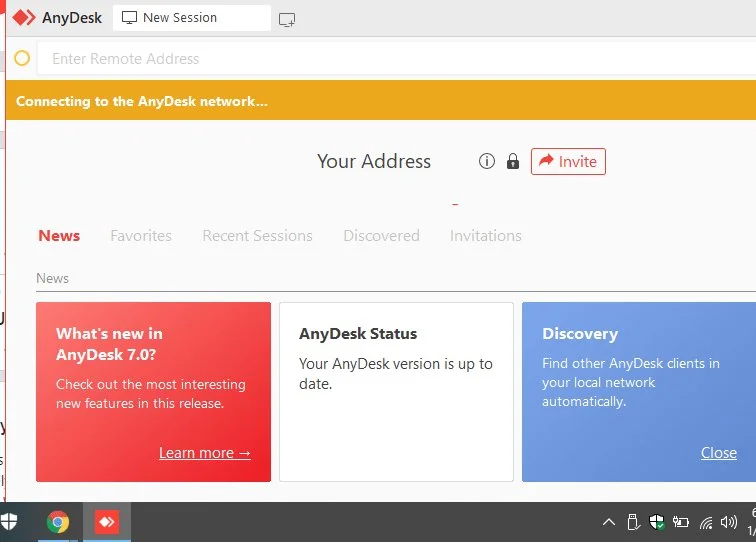
So, why does AnyDesk fail to connect to its network in the first place? Below, we have listed some tried and tested methods that have helped users fix the AnyDesk not connecting issue. You can work through these methods and see which one resolves the connection problem on your computer.
How to Fix AnyDesk Not Connecting: 9 Easy Ways That Work
Check Your Date and Time Settings
Incorrect date and time settings in Windows can prevent AnyDesk from connecting to its network. After a fresh Windows installation, the time zone may be set to the wrong location, which can cause connection problems.
Open the Windows date and time settings and check that the time, date, and time zone are correct. Make sure they are synced with the correct time zone for your location. For example, a fresh Windows installation may set the time zone to Pacific even though the computer should be using Eastern time.
One important detail is the AnyDesk installation itself. If AnyDesk was installed while the date or time was incorrect or not synced, simply correcting the settings may not resolve the error. In that case, reinstall AnyDesk after fixing and syncing the Windows date and time settings.
Remove AnyDesk Data
If the date and time on your Windows computer are already correct and AnyDesk still cannot connect, the saved AnyDesk data may be causing the issue. Closing the app alone may not be enough, since its process or service can continue running in the background.
Open Task Manager and find the AnyDesk process. End it, then stop the AnyDesk service as well. Once both are closed, remove these two folders:
- C:\ProgramData\AnyDesk
- %AppData%\AnyDesk
Clear the AnyDesk Data
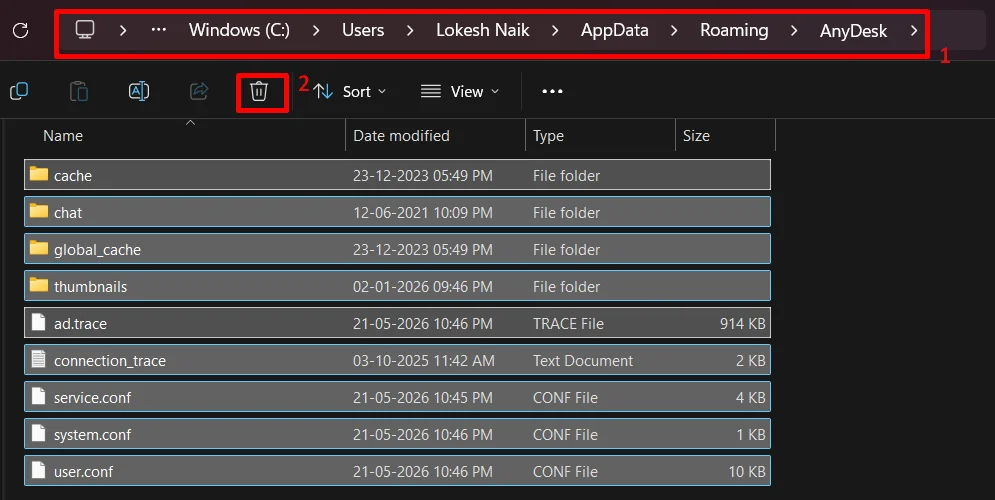
Using the downloaded AnyDesk file without installing it is a little different. In this case, there may not be an AnyDesk service on the computer, so you only need to close the app and remove its saved folder.
- First, close AnyDesk completely. Check the taskbar as well and exit it from there if it is still open.
- Then open: C:\Users\youruser\AppData\Roaming\AnyDesk
- Delete the AnyDesk folder from that location.

- After that, open the downloaded AnyDesk file again and check the connection.
- If the same error still appears, restart the computer and try opening AnyDesk once more.
Disable Direct Connections
Another setting worth checking is AnyDesk’s direct connection option. In some cases, turning this off can allow the connection to work normally.
Open AnyDesk and enter Settings, then select Connection and open the General section. Look for Allow direct connections and remove the check mark next to it. Once the option is disabled, try connecting again.
Check the Windows Network Profile
Windows 11 can set your internet connection as a Public network after a fresh setup. That setting can affect how apps such as AnyDesk communicate through the Windows Firewall.
Open your Windows network settings and check the current connection type. For a trusted home or office network, make sure it is set to Private instead of “Public.” After changing it, open AnyDesk and check the connection again.
You can also test the issue by temporarily disabling the Windows Firewall, but this should only be done for testing.
Try a VPN
Your internet provider can also be the source of an AnyDesk network connection error. In some cases, the provider may restrict or block the network connection AnyDesk needs.
An easiest way to check this is to connect your computer to a VPN and then open AnyDesk again. You do not need to change any other settings at this point. Just check if AnyDesk can connect while the VPN is active.
Check the Internet Connection on Both Devices
Before looking at other Windows or AnyDesk settings, check the internet connection on both computers. Open a few different websites on each device and see if they load. On hotel, office, or public Wi Fi, also check if a sign in page is waiting for you.
A quick test is to use another permitted connection, such as your phone hotspot. Change the network on one computer at a time and then test AnyDesk again. This makes it easier to see which connection is causing the problem.
For example, if AnyDesk connects through the hotspot but not through your usual Wi Fi, the issue may be linked to that network, its DNS service, or a filtering rule. That does not necessarily mean the router itself is faulty.
Check the AnyDesk Service Status
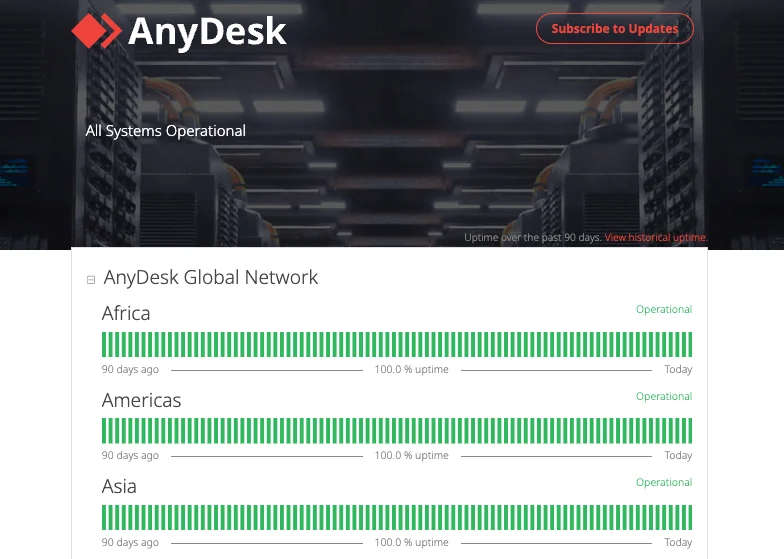
It is also worth checking if AnyDesk itself is having a service issue. Open the official AnyDesk status page and look for any active incident related to connections.
If AnyDesk stops connecting on several unrelated devices at around the same time, a service issue becomes more likely. On the other hand, a normal status page does not always rule out a local network issue or a new problem that has not been reported yet.
Update or Reinstall AnyDesk
An older AnyDesk version can sometimes cause connection drops or timeout errors, so it is worth checking that the app is up to date. Open AnyDesk > Settings > Access > Updates. Turn on Auto update so new versions can be installed as they become available.
If the update does not work, reinstalling AnyDesk is another option. Remove the current version from your computer, then download the latest installer from the official AnyDesk website and install it again.