KMPlayer has been around for a long time, and many of us still keep it on our phones for one simple reason. It plays almost every video format without asking too many questions. While new video players keep showing up, a lot of viewers still trust KMPlayer because it gives more control and handles heavy video files that other apps struggle with. That is why it still has a strong group of users who stick with it.
Now, if you use KMPlayer often, you may have seen a strange message pop up while trying to play a video. It usually talks about an external codec and shows a long name like libvlcjni.so CPU Arm64 v8a. For most people, this message appears out of nowhere, and nothing happens when you tap play.
If you opened this page after running into that codec message, you are exactly where you need to be. Before trying any fixes, it helps to first understand what this message is trying to tell you and why KMPlayer shows it on newer Android devices. Once that part is clear, everything else you read next will feel easier to follow.

What Does KMP External Codec Libvlcjni.so CPU ARM64-v8a Mean and What Causes It
When this message shows up on your screen, it is basically KMPlayer telling you that it cannot read the video or audio file on its own. The name libvlcjni.so points to a codec library that helps KMPlayer use VLC based decoding on Android. The CPU ARM64 v8a part simply matches the type of processor used in most new Android phones today. If this file is missing, not matching your phone, or located in the wrong place, KMPlayer fails to load or play the video and shows this error.
This error usually appears when KMPlayer tries to use an external codec and cannot find a version that works with your device. It can happen if the codec file is not installed at all, if the version does not support ARM64 processors, or if the app does not have permission to access it. In some cases, the codec exists but is placed in the wrong folder, so KMPlayer cannot detect it.
From what we have seen, this issue usually comes down to a few simple reasons. Many users are still using an older KMPlayer version that cannot handle newer video formats. In other cases, the external codec file is missing, incorrect, or saved in a folder where KMPlayer cannot find it. Using a codec that is not made for ARM64 v8a phones can also make the error to pop up, along with permission limits that stop the app from reading the file. On top of that, some video formats need extra codec support, and without it, KMPlayer won’t be able to play the file.
How to Fix KMPlayer Codec Libvlcjni.so CPU Arm64-v8a Error
Download and Install the Correct External Codec for ARM64 v8a
The error message clearly says that it cannot find a codec on your phone. In this case, you need to add the correct codec file yourself. KMPlayer supports this option, and it works well when done the right way.
- First, download the official external codec made for ARM64 v8a devices. You can use this official KMPlayer page
- On the page, make sure you pick the codec that clearly mentions libvlcjni.so and ARM64 v8a. Do not download any other version, as it will not match your phone.
- Once the file is downloaded, open a file manager app like ZArchiver or RAR.
- Now, extract the ZIP file so you can access the libvlcjni.so file inside it.
- After that, open your phone storage and go to Android data com.kmplayer files. If you do not see a folder named codec, create one yourself.
- Then move the libvlcjni.so file into that codec folder.
- After placing the file, close KMPlayer fully and open it again.
Once you do this, the app should automatically read the new codec file In most cases. So, try playing the same video again after following this method.
Alternative Method to Use The External Codec in KMPlayer
Let me share another way that has worked for many viewers when the codec message keeps showing up. This method is a bit different from placing the file inside the app folder, but it is easier for some phones.
- First, you need to download the libvlcjni.so codec file made for ARM64 v8a from the official KMPlayer page. You can also find it online by searching for the file name. Just make sure you pick a trusted website so you do not end up with unsafe files.
- Once the download is complete, extract the ZIP file to get the libvlcjni.so file.
- After extracting it, move the libvlcjni.so file into your main Downloads folder. This is the default folder that most apps can access without any limits. You can place it in internal storage or on your SD card, as long as it sits inside the Downloads directory.
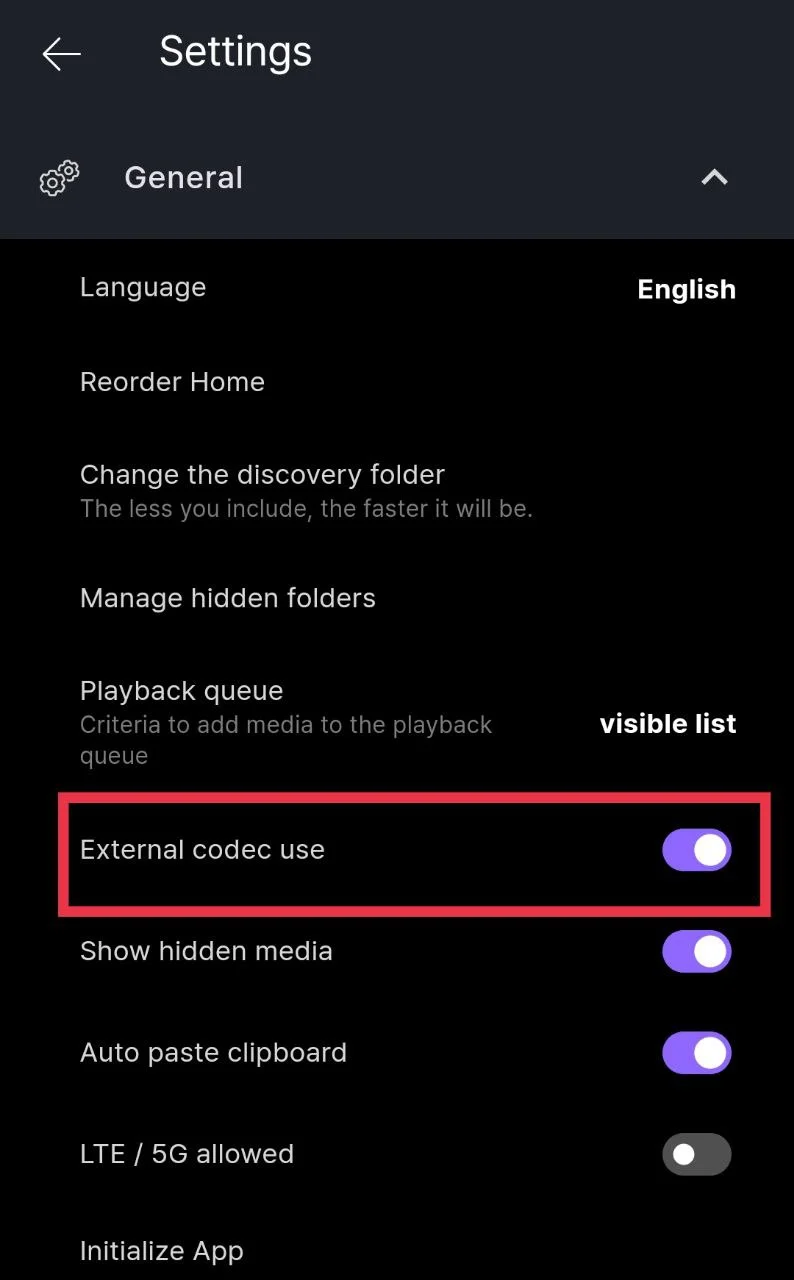
- Now open KMPlayer and head into the Settings section.

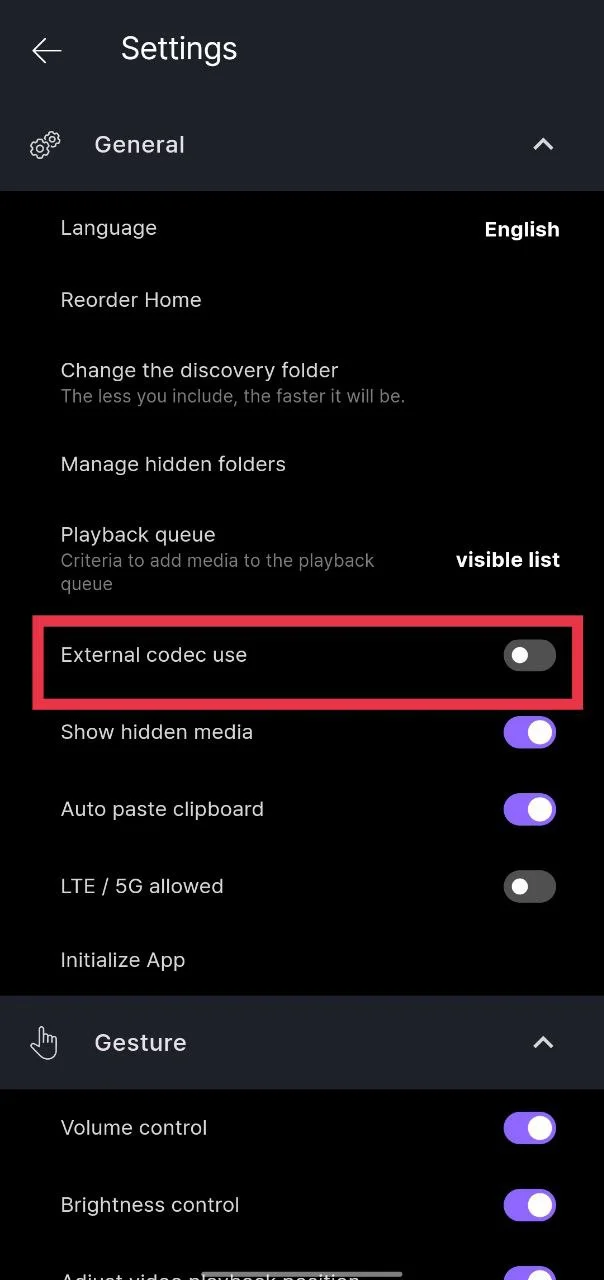
- Toggle on the External codec use option. This tells KMPlayer that it is allowed to look for codec files outside the app itself and use them for decoding media files.

- Once that is done, close KMPlayer completely and open it again.

If you keep getting the error, for best results, reload the app a couple of times so it can scan the storage and pick up the codec file. After that, try playing the same video file again.
Update the KMPlayer to the Latest Version
Many users ignore this, but it matters more than you might think. Older versions of KMPlayer may not handle newer video formats very well. The latest versions released officially by the developers often include improved built-in codecs, so the app may no longer need an external codec file. In some cases, the error message disappears on its own after installing the latest version.
Open the Google Play Store on your phone and search for KMPlayer. If you see an “Update” button, tap on it and let the app install the newest version. Once the update is done, close KMPlayer and open it again, then try playing the same video file.
Switch to the Internal Decoder
There is another option inside KMPlayer that you can try. The app includes its own decoder, and in many cases, that alone is enough to play the video.
- Open KMPlayer and play the file that shows the codec message.
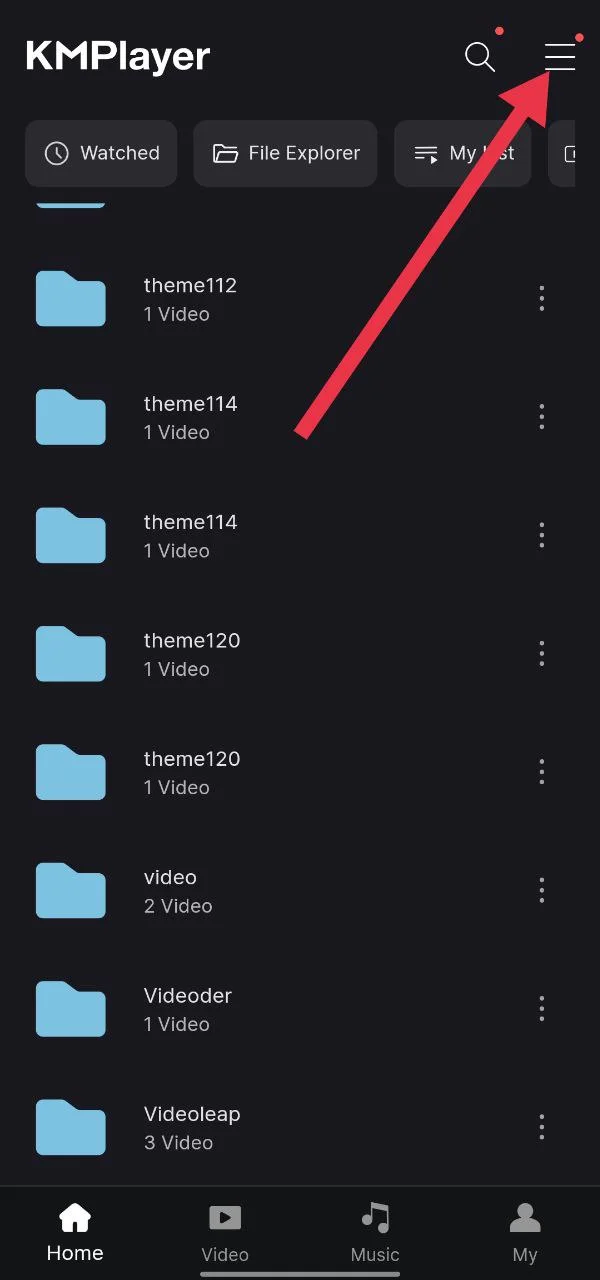
- On the player screen, tap the three-dot menu in the top-right corner.

- From there, tap on Settings
- Now, toggle off the External codec use option, then close the menu.

Clear KMPlayer Cache and Data
- Open your phone Settings > Apps > KMPlayer.
- Tap on Storage and Cache, then Clear cache first.
- After that, clear the data as well. But note that this removes saved data linked to the app.

- After that, open KMPlayer again and adjust the codec settings again.
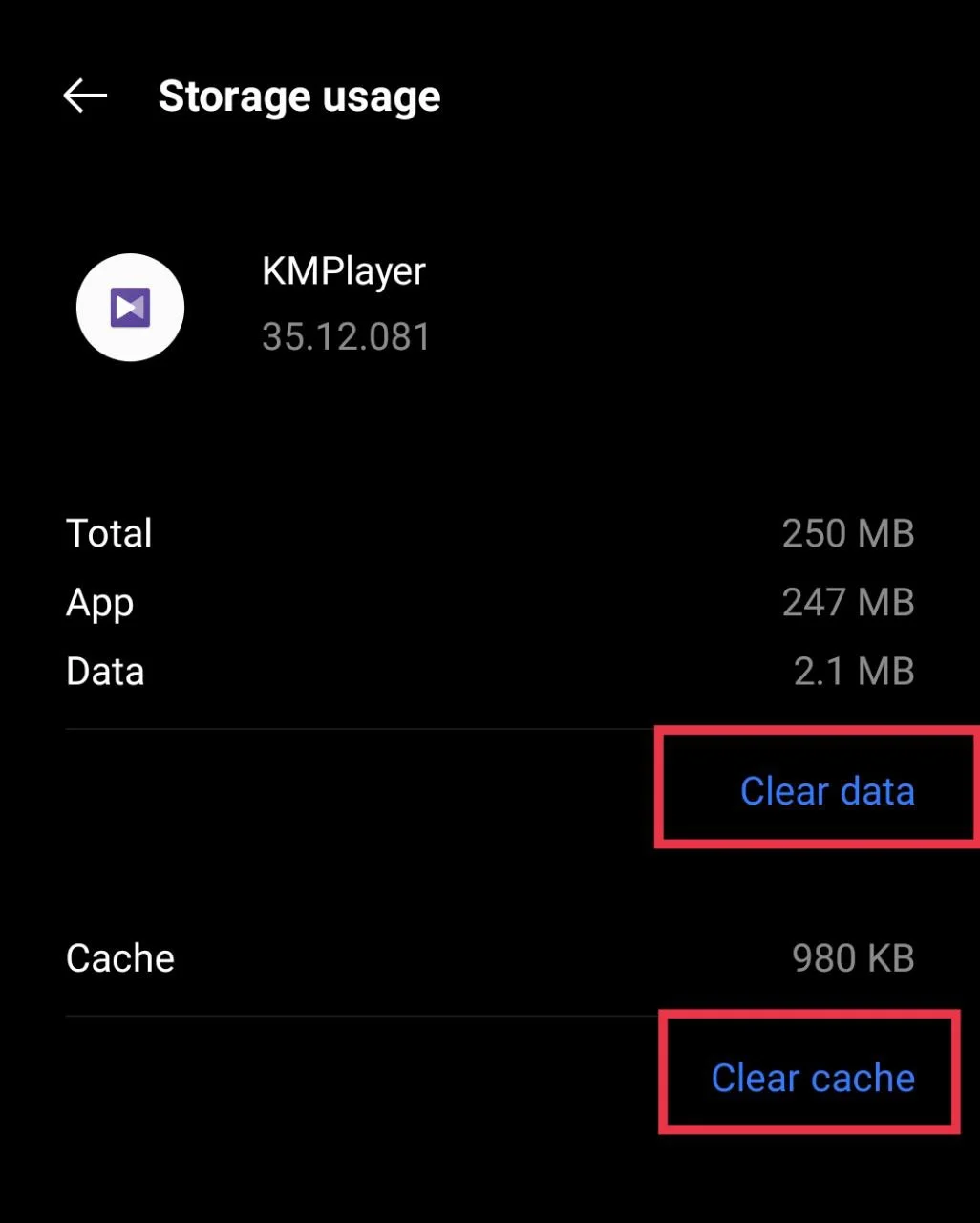
Note: Just remember that once you clear data of the app, your app settings and saved subtitles will be cleared, so you may need to add them back before watching your videos.
Allow Storage Access for KMPlayer
KMPlayer cannot read external codec files if it does not have permission to access your phone storage. This is often an overlooked step by most users.
- Open your phone Settings > Apps > KMPlayer.
- Tap on Permissions and make sure storage access and media or file access are allowed.
- If they are turned off or set to any other option, change it and give access to the storage.
- Once permissions are updated, close KMPlayer and open it again.
Try Alternative Video Player
If KMPlayer is still showing libvlcjni.so CPU ARM64-v8a error, it might be time to try a different player. VLC is one of the most underrated video apps on Android, even though it handles a wide range of formats without asking for extra codec files. Many viewers stick with KMPlayer for their own reasons, and that makes sense, but VLC is worth a try when nothing else works.
- Download VLC for Android from the Play Store and open it once the installation is done.
- From inside the app, locate the video file stored on your phone and play it directly.
VLC already works with ARM64 v8a devices, so you do not have to add any extra files or settings.
While we mention VLC here, you are not limited to it. There are hundreds of other video player apps available online, and you are free to choose the one that fits your viewing style and file types best.