Telegram has grown into a unique messaging app even with so many other messaging platforms around. You can use it for private chats, large groups, channels, file sharing, and communities built around different interests. Over time, it has become a regular place for people to connect and find information online.
Now, you may be here because Telegram suddenly shows the message “Too many attempts, please try again later.” Perhaps you saw it while trying to join different groups, or the message appeared while using your account in another way. Seeing the same warning can leave you wondering what is happening with your Telegram account.
The message itself does not tell you much about what caused it or how long you need to wait. That naturally brings up questions about why Telegram shows this warning, what it means for your account, and what you can expect while it is appearing. These are the details worth understanding before deciding what to do next.
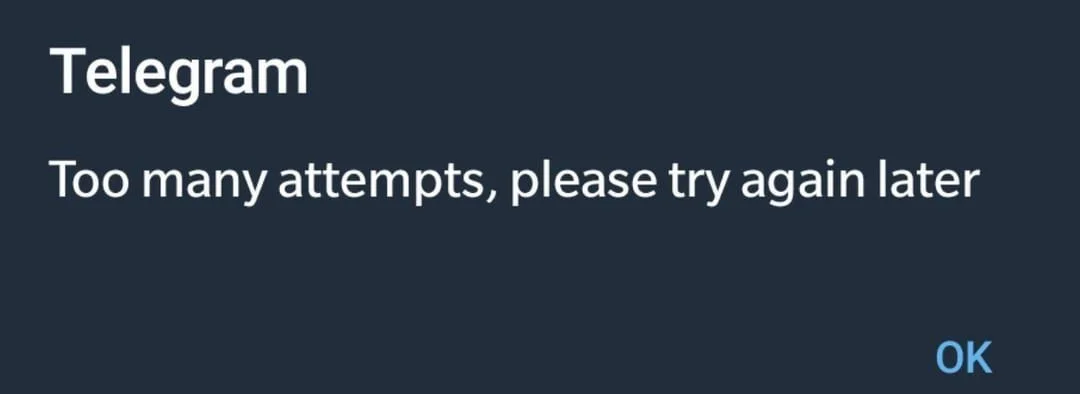
How to Fix Telegram “Too Many Attempts, Please Try Again Later” (Working Methods)
Clear Telegram Data and Try Another WiFi
One thing that worked for me was clearing Telegram’s app data and then connecting to a different WiFi network. This is worth trying if the “Too many attempts, please try again later” message keeps showing up.
First, force close Telegram completely. Then open your Andrid phone’s settings > apps > Telegram, and clear its app data. 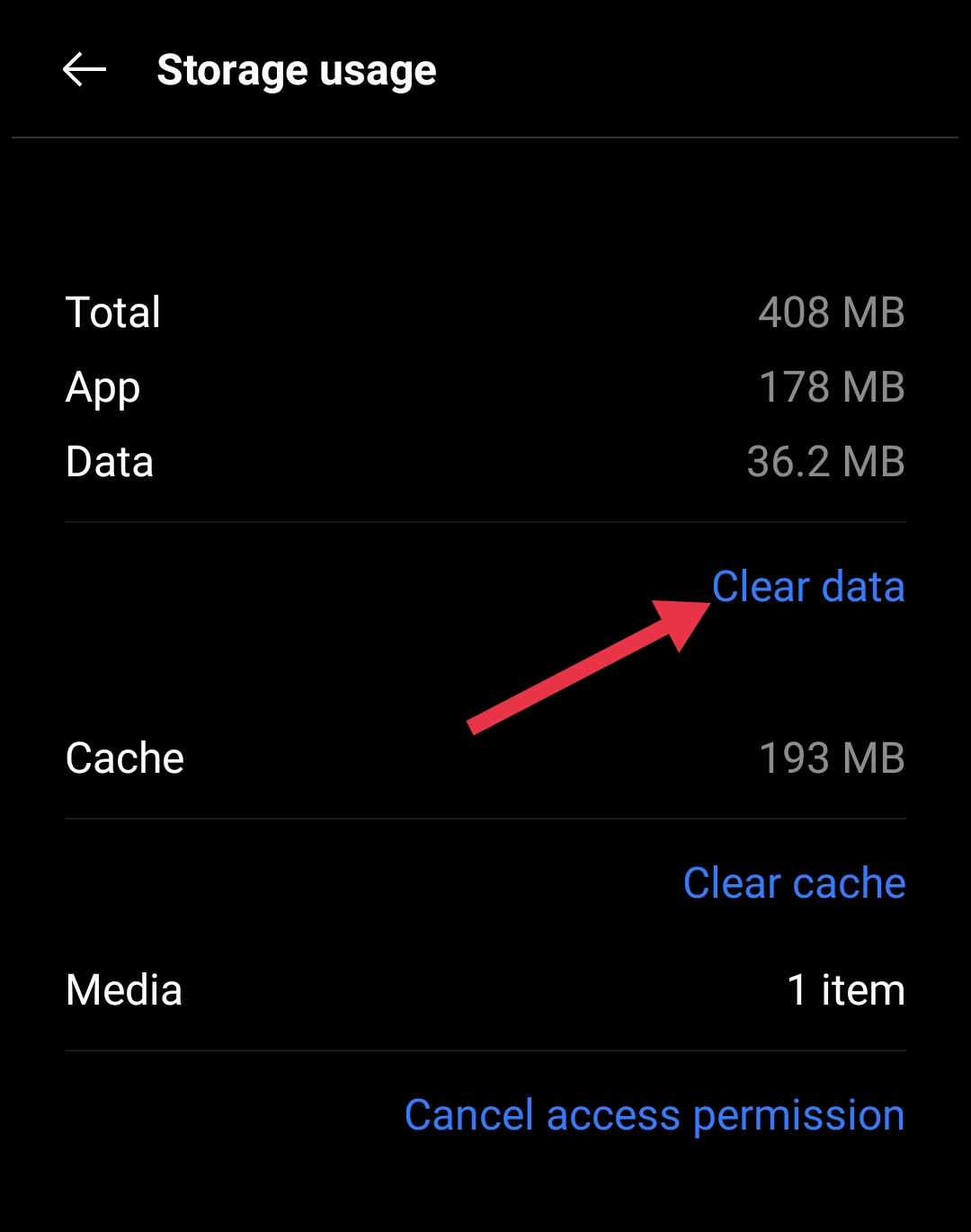
After that, connect your phone to another WiFi network. It could be a friend’s WiFi, a cafe network, or another trusted connection available to you.
Now open Telegram again and verify your phone number. Since the network connection has changed and the previous app data has been cleared, Telegram may handle the verification request differently. For me, this combination helped when the same message kept appearing.
For iOS users, since there is no option to clear app data, try uninstalling and reinstalling Telegram, then follow the steps mentioned above.
Use the Mobile App
Another thing worth trying is to give Telegram some time before making another login attempt. When this error message appears, avoid repeatedly trying to sign in. In my case, waiting for about 24 hours before trying again was useful.
Also, keep the login attempt limited to the Telegram mobile app. Avoid trying to sign in through Telegram Web or the desktop app during this waiting period. Once the 24 hours have passed, open Telegram on your phone and try to verify your number there.
The main point here is to give the account some time without sending more login requests. After waiting, use the mobile app for the next attempt rather than switching between different Telegram versions.
Wait Before Trying Again
In some cases, the repeated login attempts may be related to a security restriction on the Telegram account. For example, if your computer has been infected with a virus while Telegram was logged in, Telegram may temporarily restrict access as a security measure.
In such a situation, avoid making further login attempts for around 5 to 10 days. Repeated attempts during the restriction period may not help and could continue to trigger the same message.
Once the waiting period has passed, try accessing Telegram from a different device and a different internet connection.
ALSO READ: