Instagram has become more than just a platform for sharing photos and videos. Many users now use Instagram to promote their businesses, services, and share links to external websites. As you tap on these links and visit pages outside of the Instagram app, Instagram keeps a record of your link history.
Link history can be a useful feature, allowing you to easily revisit product links or interesting content you discovered while browsing Instagram. However, you may wish to have more control over this feature and decide whether Instagram tracks your link history or not. In this article, we will explore how to turn the link history feature on or off within the Instagram app.

What is Link History on Instagram?
Link history on Instagram is a convenient way to access sites you’ve recently visited without having to search for the original post or account that shared the link. Instagram compiles all the links you’ve tapped on in the app over the past 30 days, creating a record of your browsing activity.
If you’ve ever wished you could easily find that interesting product link you discovered while browsing Instagram, Instagram’s link history is a handy feature for you. This feature keeps track of all the external websites you’ve visited through links within the Instagram app.
How to Enable or Disable Link History on Instagram
Turn On Link History on Instagram Android/iPhone
- Open the Instagram app on your smartphone
- Go to your profile by tapping the profile icon in the bottom-right corner of the screen.

- Once you’re on your profile page, tap on the three horizontal lines (hamburger menu) in the top-right corner to open a pop-up menu.

- From the pop-up menu, select the option “Your activity.”

- Under the “Your activity” screen, scroll down until you find the option called “Link History.” Tap on this option to access your link history settings.

- If link history is already enabled, you will see a list of links you’ve previously visited within the Instagram app. The presence of this list indicates that the feature is active.


Alternatively, you can enable link history by following these steps:
- While browsing Instagram, click on any link to open the Instagram browser.
- Then click on the menu button from top-right corner

- Now, select “Browser settings” option that appears.

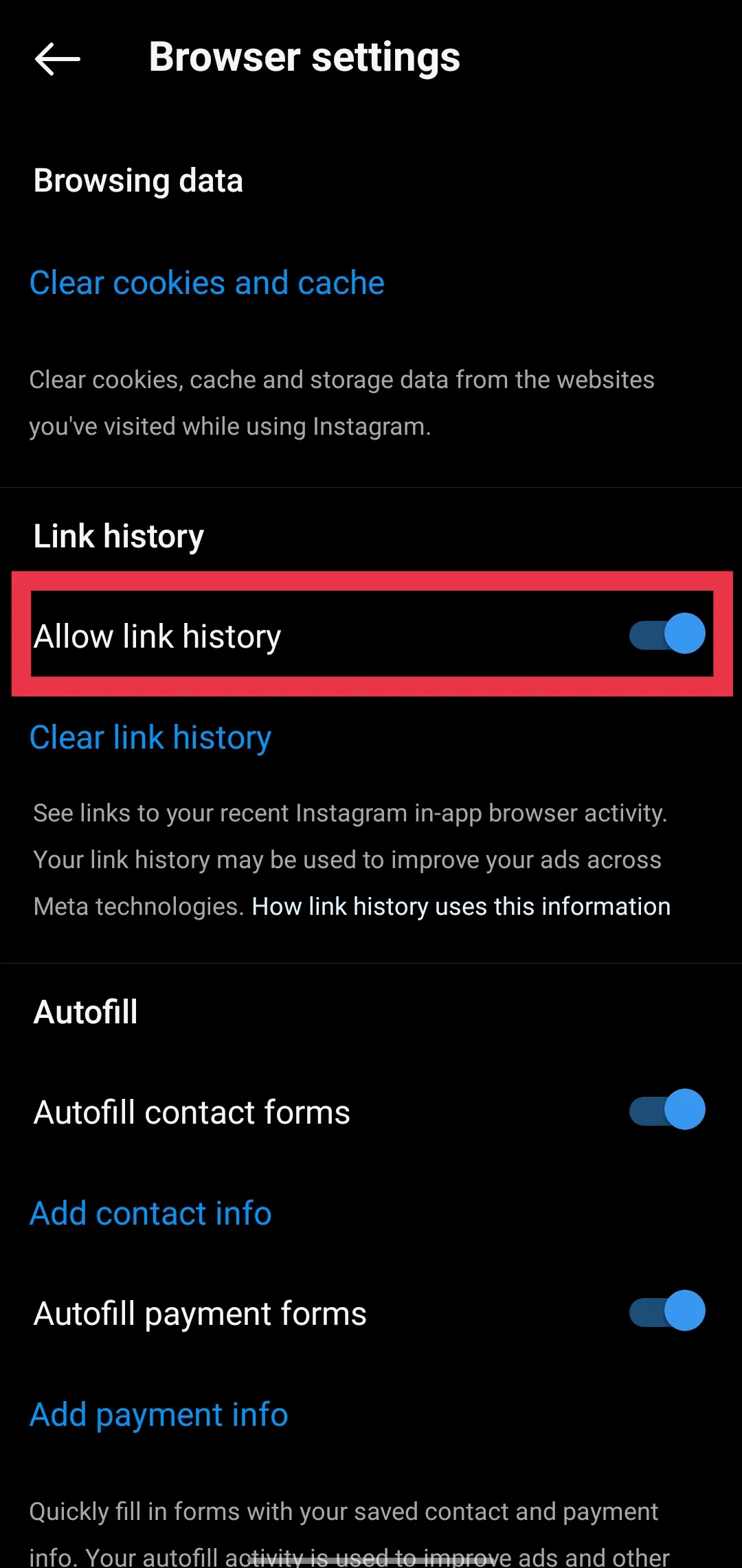
- In the browser settings, look for the “Allow link history” option and ensure that it is enabled.


Turn Off Link History on Instagram on Android/iPhone
While Link History feature can be handy for those who want to quickly retrieve a link they found interesting, some users may prefer not to have their Instagram browsing history recorded. If you value your privacy and don’t want Instagram to keep track of the links you visit, here is how to turn off link history on Instagram:
- Launch the Instagram app
- Navigate to your profile by tapping the profile icon located in the bottom-right corner of the screen.
- On your profile page, look for the three horizontal lines (also known as the hamburger menu) in the top-right corner. Tap on this icon to open a pop-up menu.
- Tap on the “Your activity” option.
- Within the “Your activity” section, tap on any link in your history. This action will open Instagram’s built-in browser.
- In the top-right corner of the browser, you’ll see an ellipsis (…) button. Tap on this button to reveal a menu, and then select “Browser settings.”
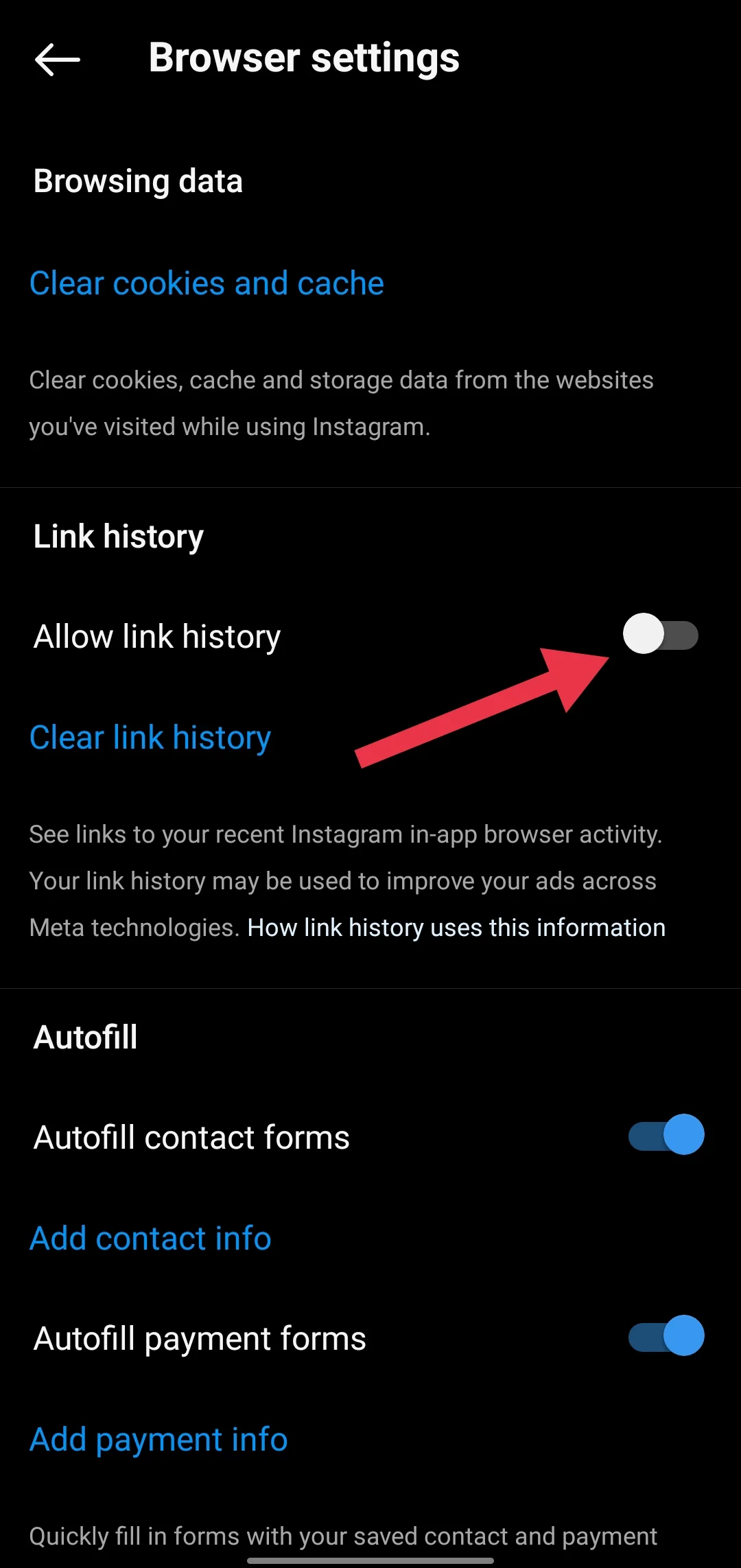
- In the browser settings, locate the “Allow link history” option. Toggle this option off to disable the link history feature.

- Instagram will prompt you to confirm your decision. Choose “Don’t allow” to complete the step.


Frequently Asked Questions (FAQs)
Can I see a history of the profiles I’ve clicked on Instagram?
No, currently Instagram does not have a feature to see a history of the profiles you’ve clicked on.
How do I check link history on Instagram?
To check your link history on Instagram, open the app > go to your profile > tap the three horizontal lines in the top-right corner > select “Your activity” from the pop-up menu, and then scroll down to find and tap “Link History.”
How do I clear my link history on Instagram?
To get rid of link history, go to your profile, tap the three horizontal lines in the top-right corner, select “Your activity,” scroll to “Link History,” and tap “Clear all.”
RELATED GUIDE: –