Threads has become one of Meta’s most promoted apps in recent times, especially as a direct competitor to X. Its arrival brought a quick rise in users who wanted a simpler place to share thoughts and connect with others. Although the number of active users has shifted over time, the app still attracts a large audience that enjoys a fast and open style of conversation.
As more people continue to use Threads, many have started noticing how the app shows their online status. A small green dot appears beside a profile to signal that someone is active, similar to the way Instagram and Facebook work. While this feature can make chatting easier, it also raises questions about how much information the app quietly shares by default.
What some users do not realise is that their online activity might be visible to people they follow or have interacted with. Because of this, many users want more control over their privacy and prefer to keep their activity hidden. If you ever wanted to hide your active status on Threads, here is how you can do it on Android, iOS, and desktop.
How to Turn Off Active Status on Threads on Android, iOS, and Desktop
On Android and iPhone
Most people use Threads on their phones, and the app is quite simple to move around in. If you want to stay online without everyone knowing, you only need to change one setting inside your privacy menu right from your profile.
- Open the Threads app and make sure you’re logged in.
- Head over to your profile section

- Now, tap the two-line menu in the top right corner.

- Tap Privacy, then Online Status.

- Choose the option that says No One.

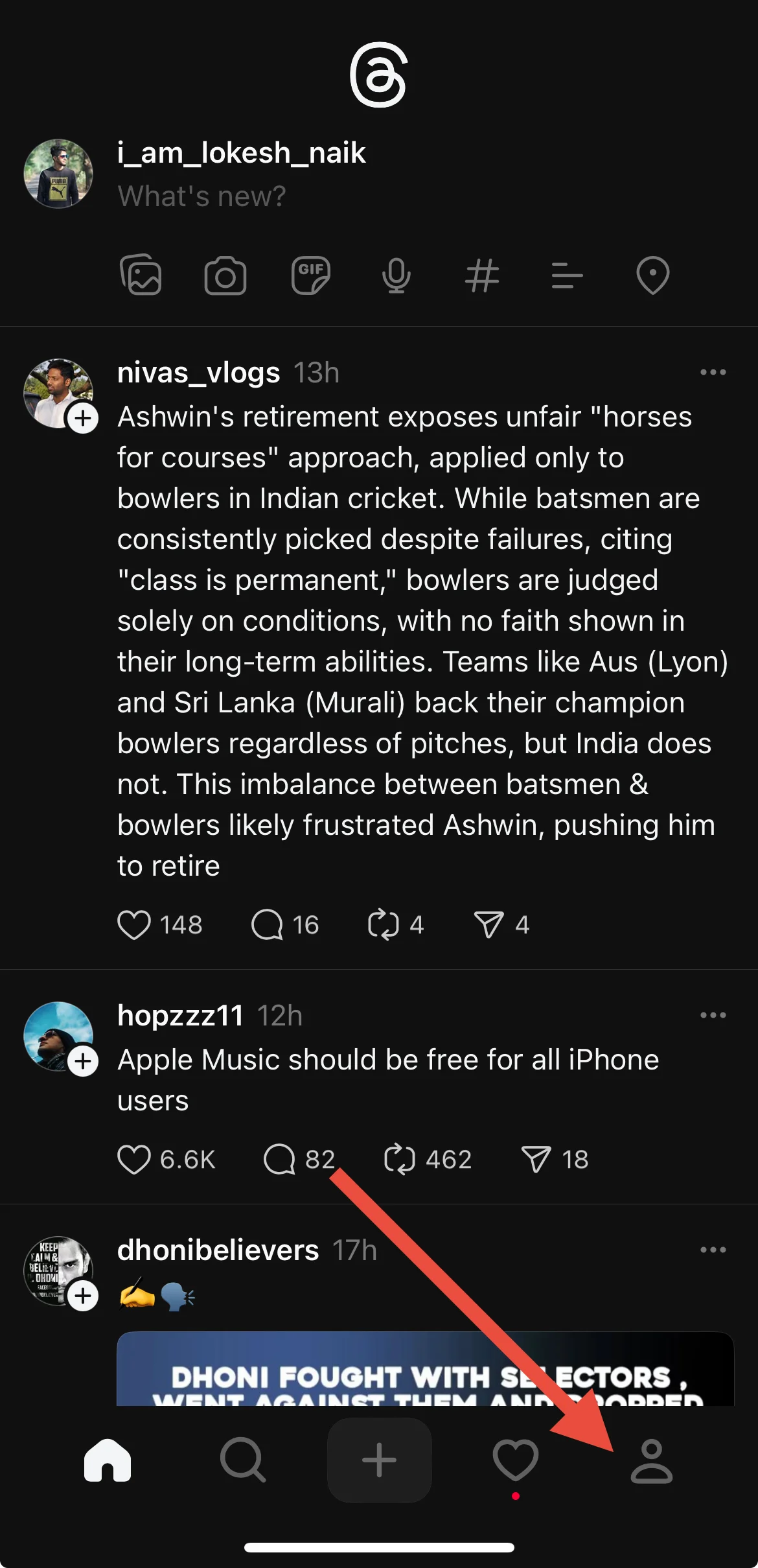
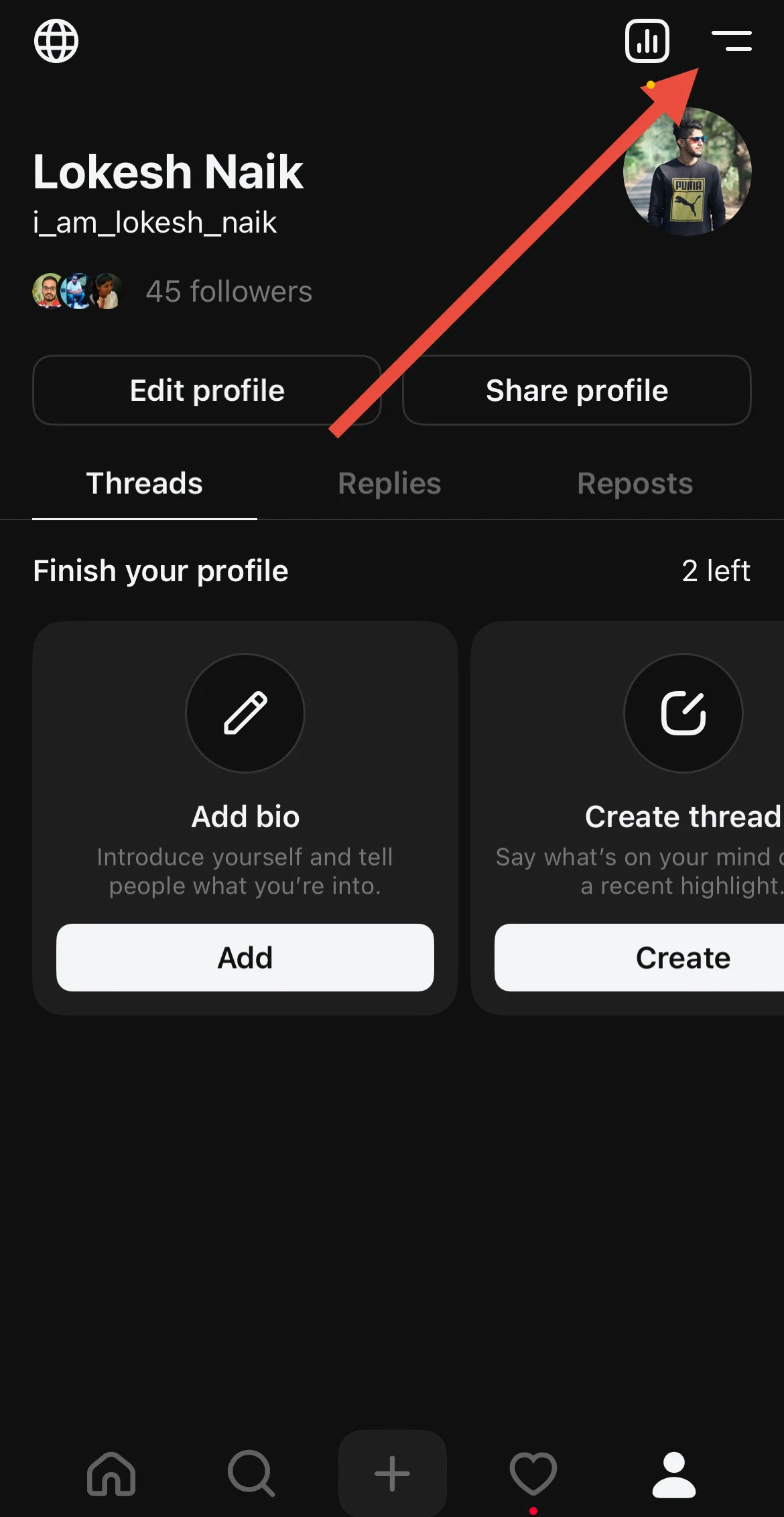
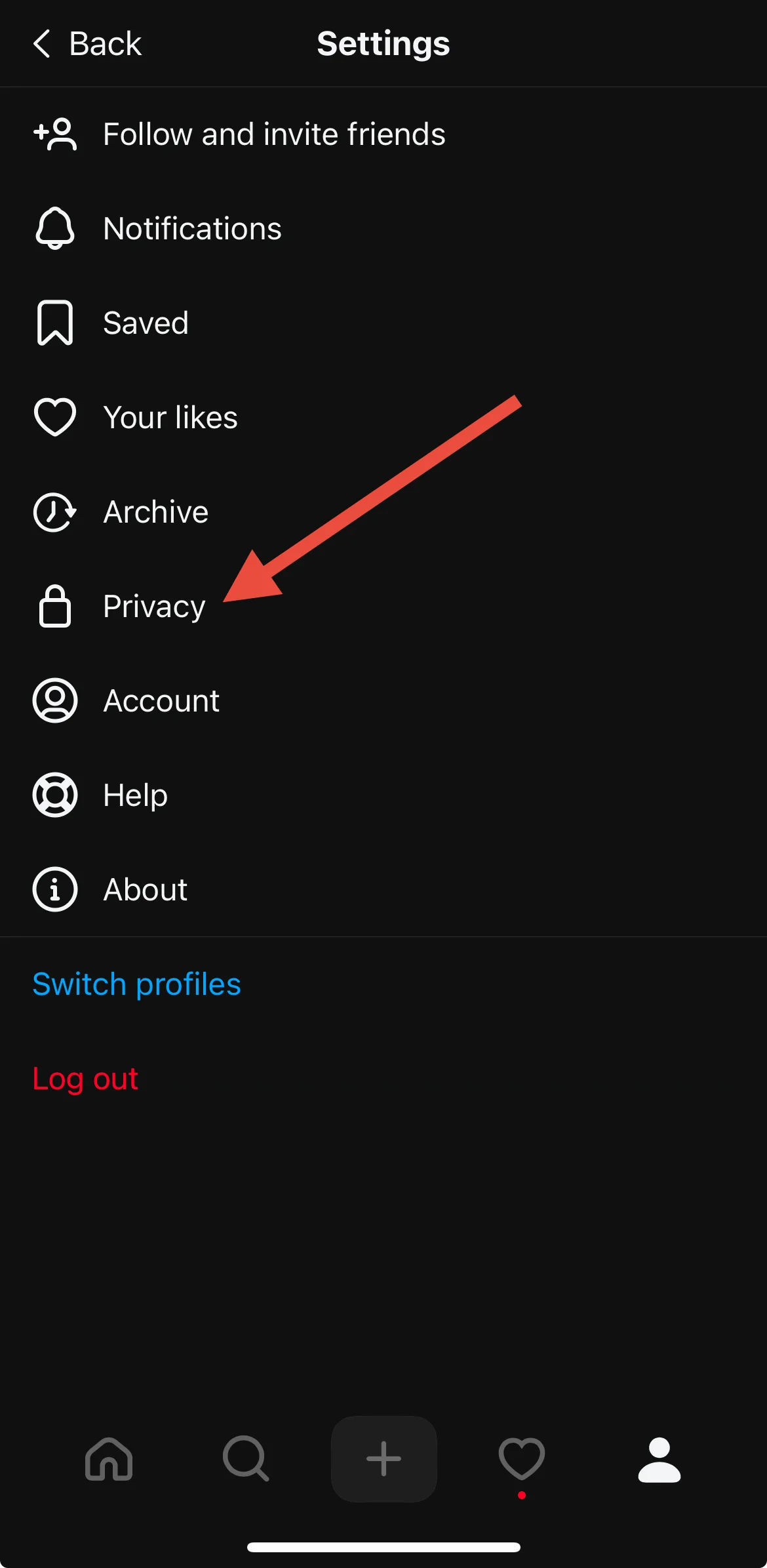
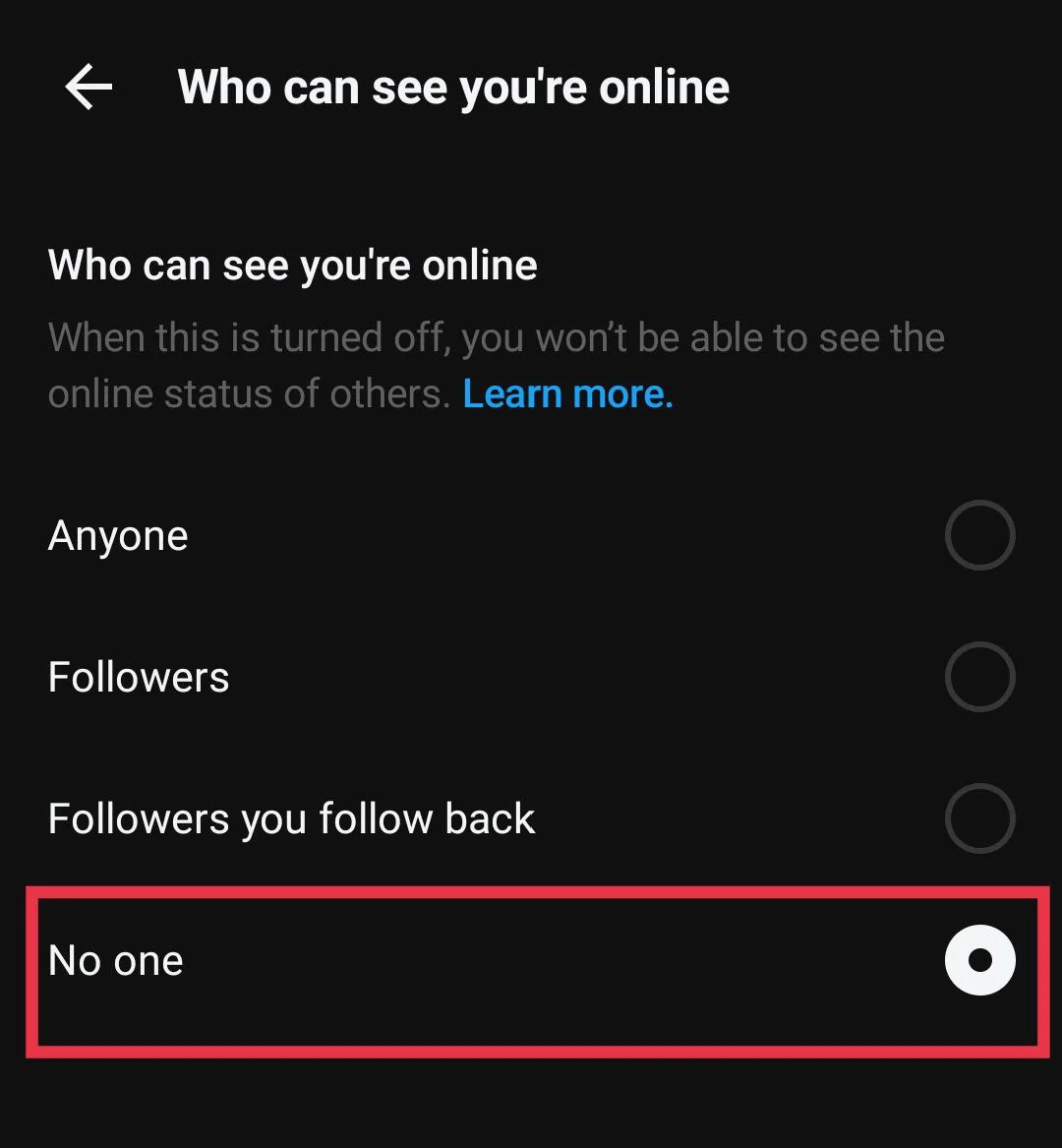
This will stop Threads from showing others when you are active, giving you some quiet space while you browse.
On Desktop
If you like using the Threads website on your computer, laptop, or Mac, you can quietly hide your online status there too.
- Open your preferred web browser, like Chrome, Microsoft Edge, Firefox, Brave, or Opera
- Now, visit the Threads official website and sign in.
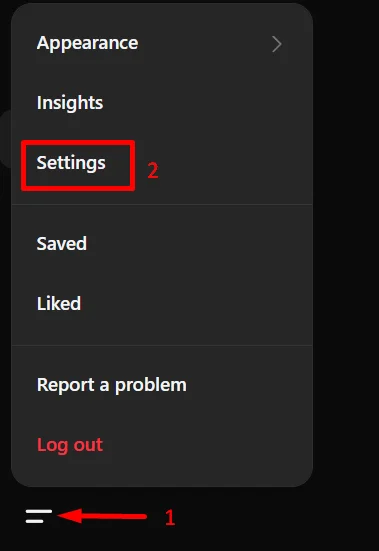
- Click on the two-line menu at the bottom left area, then choose Settings.

- Now, select Online Status under the “Privacy” section

- Then, set it to No One.

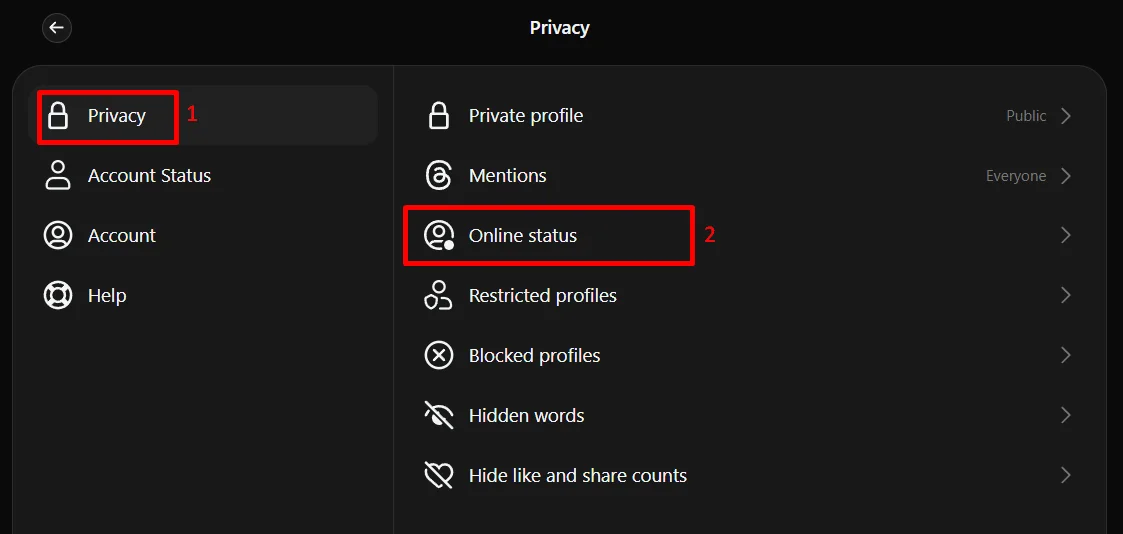

After this, Threads will stop showing your online activity to people who follow you and the people you follow. You can return to this menu later if you want to switch it again.
When you switch off your online status on your phone, the same change also moves to the desktop site. The same thing happens the other way around. Once you hide it on the computer, it stays hidden on your phone too.
RELATED GUIDES:
- How to Turn Off Threads For You on Instagram
- How to Turn Off Threads Notifications on Instagram: A Quick Fix!
- How to Turn Off Active Status on Snapchat
We hope this guide made things clear and helped you turn off active status on Threads. If you need any help, you can ask in the comments. You can also share this page with others who might find it useful.