Facebook is still one of those apps that people keep coming back to, even with so many new platforms around. It has its own charm and a huge group of users who enjoy sharing updates, catching up with friends, and looking back at old memories. One feature that really stands out is Facebook Memories. It brings up your old posts, photos, and moments from the past, helping you relive the days that made you smile. For many people, it’s like a little time machine that reminds them of birthdays, milestones, and friendships.
Recently, some users have noticed that their Facebook Memories feature is not working. The section might not show all memories, or notifications about past posts may just stop showing.
If your Facebook Memories have stopped showing up, keep reading to find out the reasons for this issue and how you can fix it with some quick troubleshooting methods.
10 Easiest Ways to Fix the Facebook Memories Not Showing Issue
Turn On Notifications for All Memories
If Facebook isn’t showing your memories, it might be because the notifications for them are turned off.
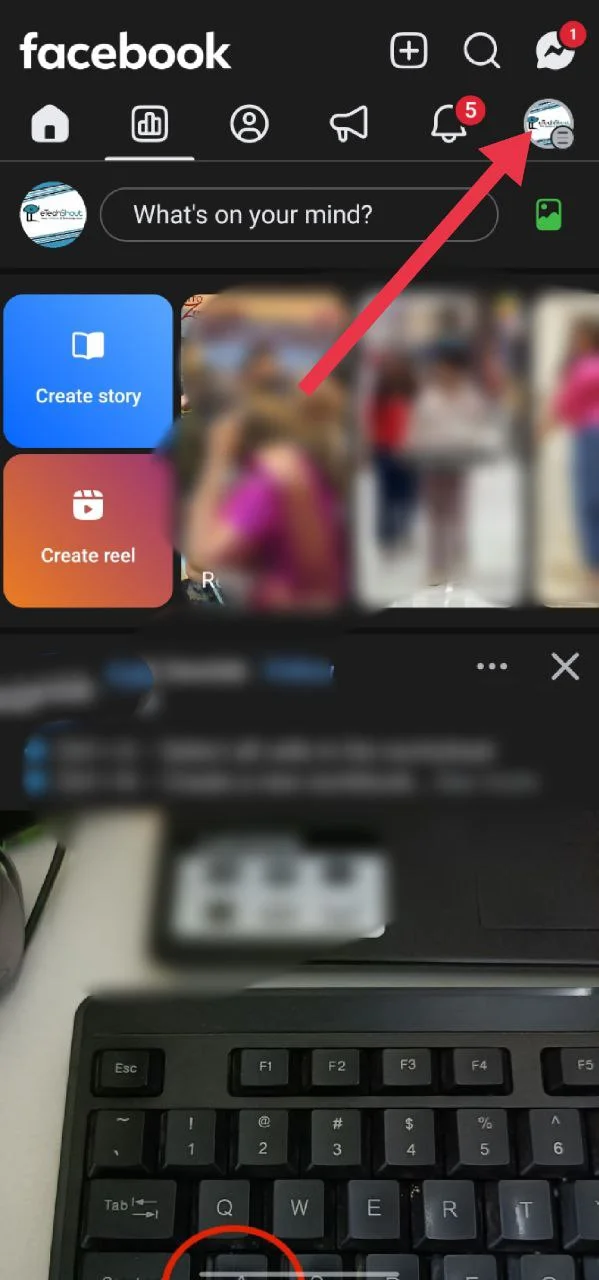
- Open the Facebook app and tap the menu icon (the three lines) in the top right corner on Android or the bottom right on iPhone.

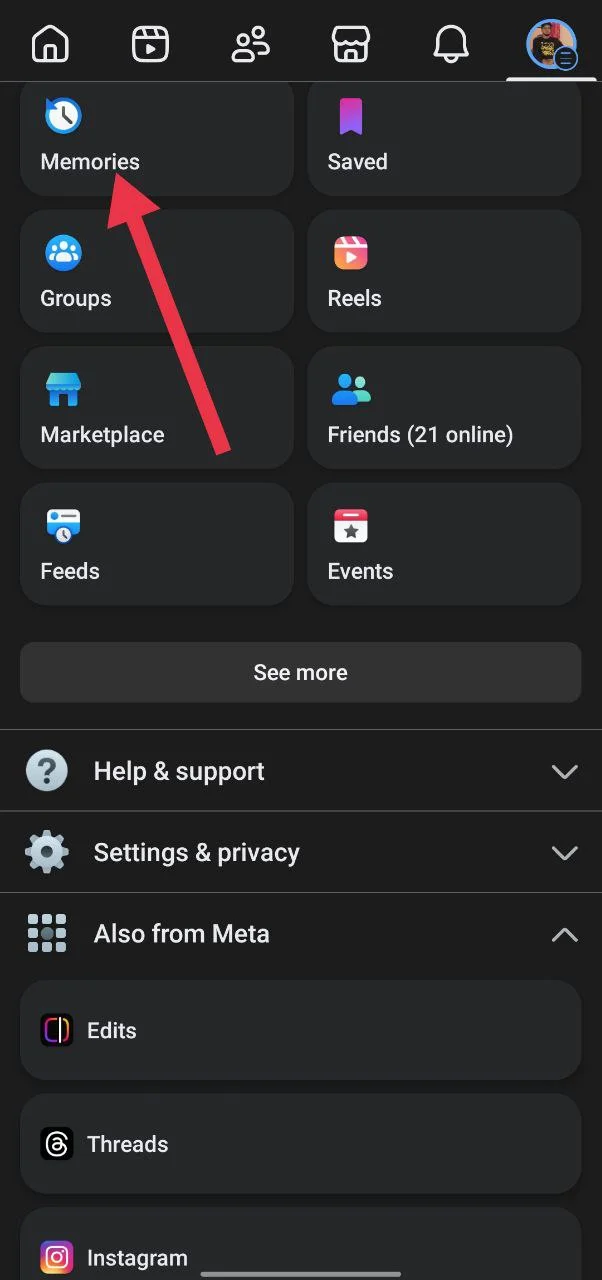
- Scroll down and tap “Memories” from the list.

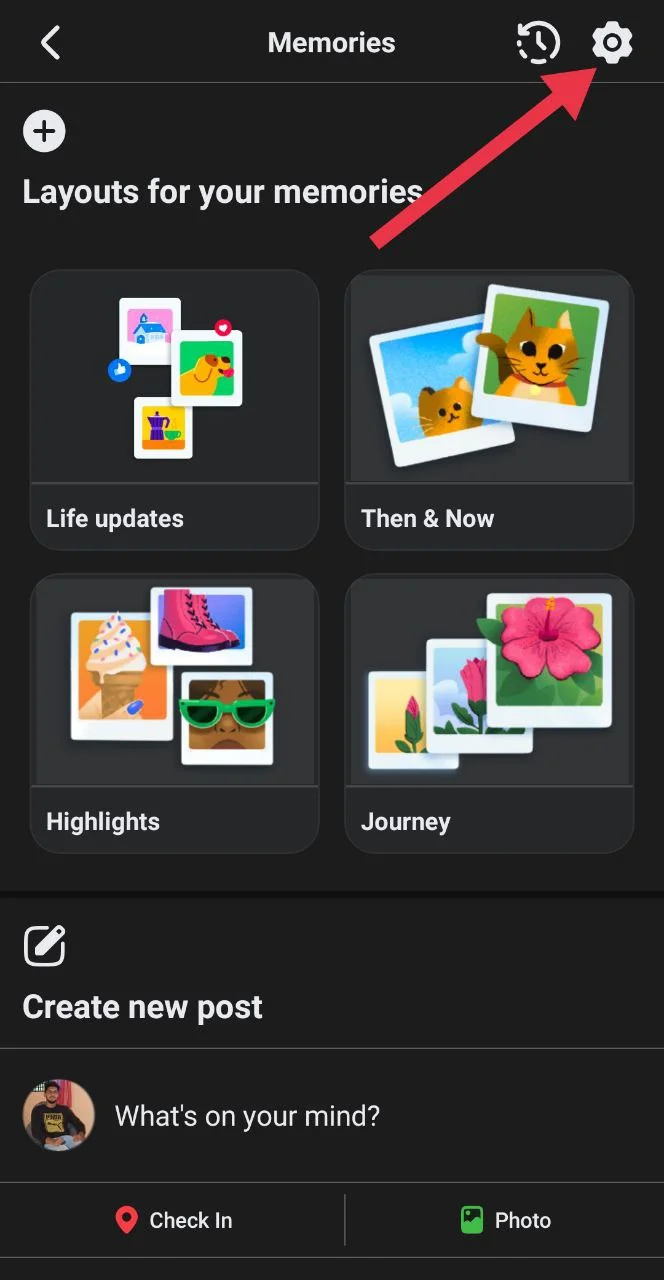
- Once you’re on the Memories page, tap the gear icon in the top right corner to go into settings.

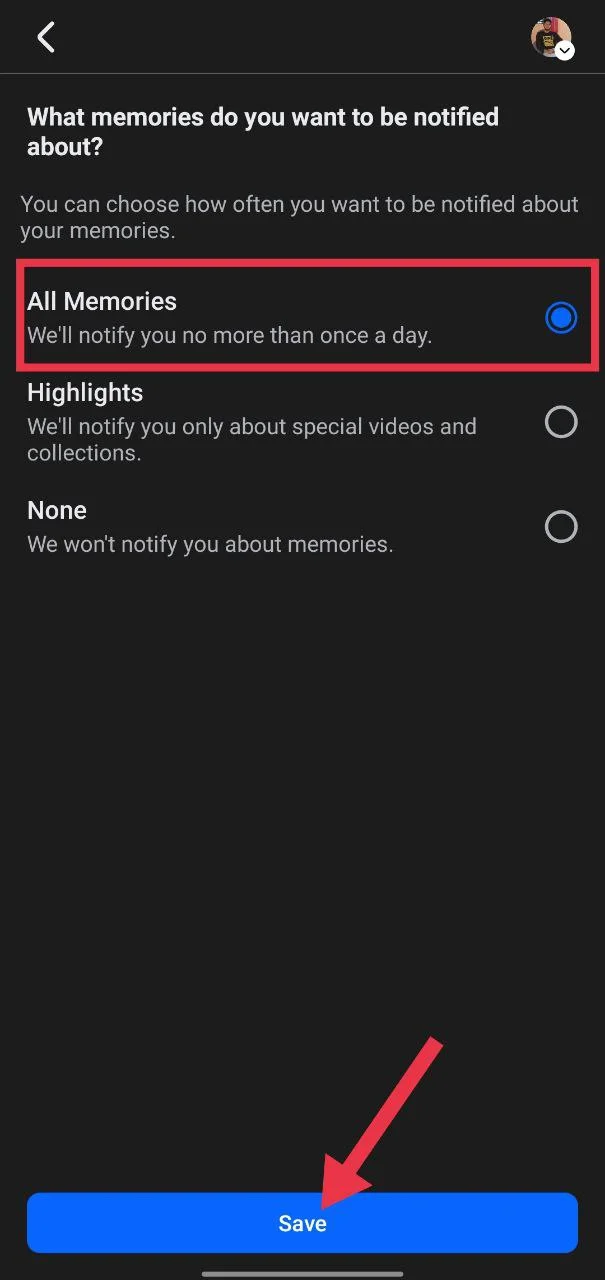
- Under the Notifications section, choose “All Memories” so Facebook can remind you about every memory again.

Update the Facebook App
Make sure you’re using the latest version of the Facebook app. Go to the Google Play Store or App Store, and tap “Update” if a newer version is available for the Facebook app.
Turn Off AI Restyle on Memories
- Open the Facebook app on your phone and tap the Menu icon.
- Then choose “Memories”
- Tap the settings icon in the top right corner.
- Now, turn off the “Allow AI restyle memory suggestions” toggle.
Clear Facebook App Cache and Data (Android)
If you are an Android user, try clearing the cache of the app to see if that helps.
- Press and hold the Facebook app icon on your phone, then tap “App info.”
- Go to Storage and cache, tap “Clear cache”
- Then choose “Clear storage” or “Clear data.”
Switch Between the Mobile App and Desktop Site
If your Facebook Memories aren’t showing on the mobile app, try going to the Facebook website on your computer and check your memories there.
On the other hand, if the feature isn’t loading on the desktop version, open the Facebook mobile app and look for Memories from there instead.
Turn Off Browser Extensions
If you’re using Facebook on your computer and your Memories aren’t showing up or you’re missing notifications, one of your browser extensions could be blocking them. You can fix this by turning off or removing the extensions from your browser settings.
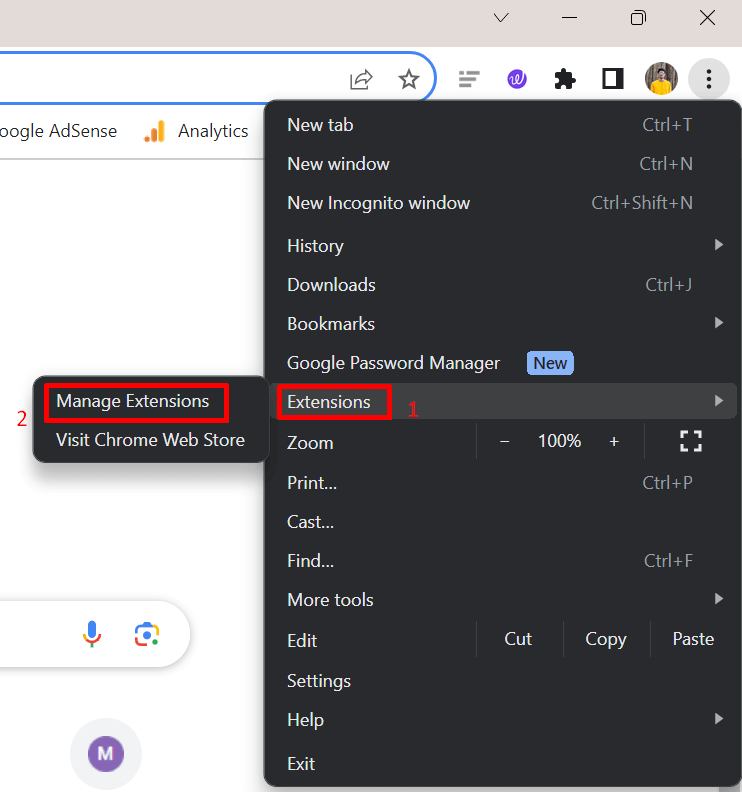
- Click the three dots in the top right corner of Google Chrome, choose “Extensions”, and then select “Manage Extensions”. (If you’re using a different browser, you can find the same option in the browser’s settings. You’re probably already familiar with it, as most browsers have a similar layout.)

- Now, toggle off the extensions you think might be causing the issue. If you don’t need them, you can also click “Remove” and confirm to delete them from your browser permanently.
Add a New Date Range
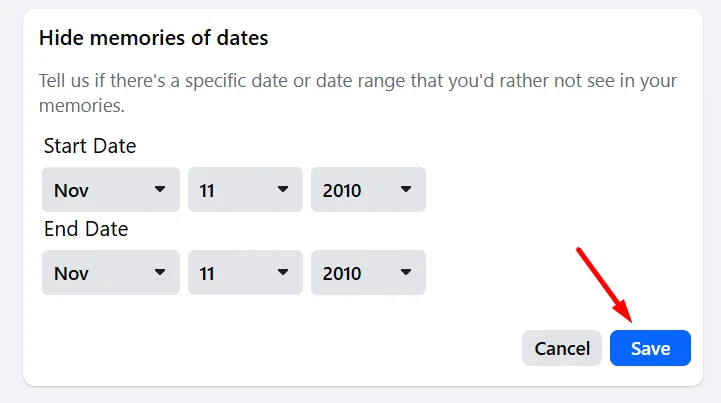
If your memory photos on Facebook are still not showing, adjusting the date range in your settings from the desktop version of Facebook might help.
- Go to Facebook.com on your computer.
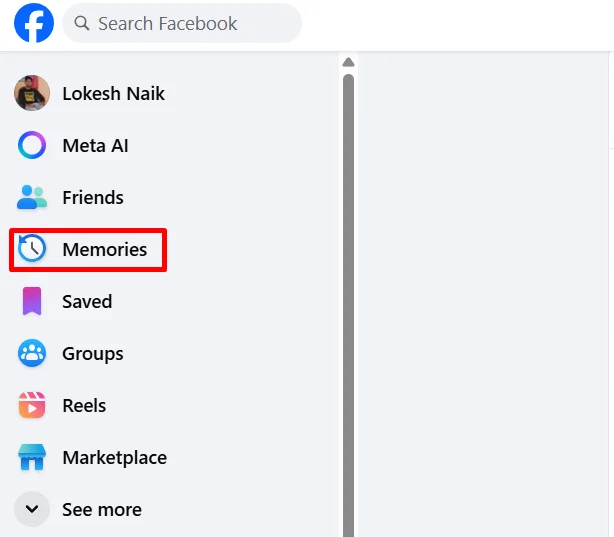
- On the left side, click “Memories”

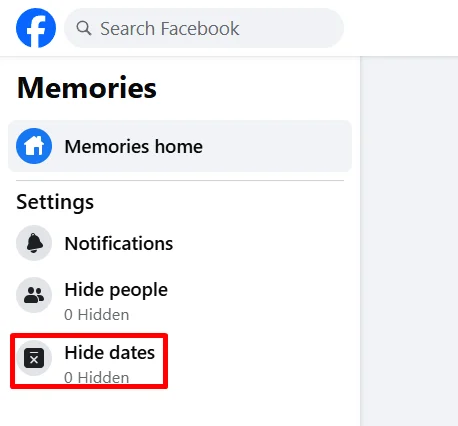
- From the left menu, select “Hide Dates”

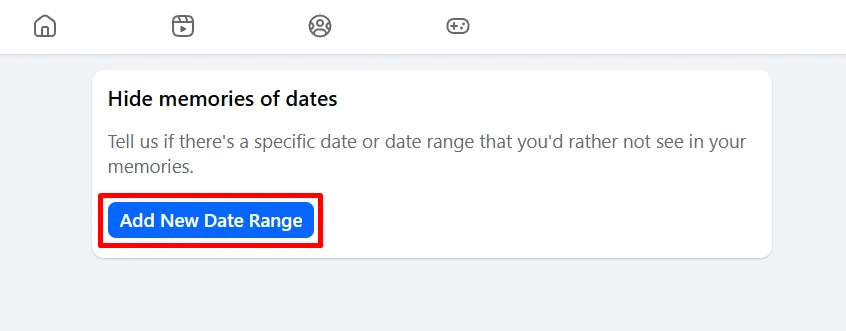
- Now, click “Add New Date Range.”

- For the “Start Date,” pick a date before you joined Facebook, like January 1, 2010. For the “End Date,” select the same date.
- Click “Save.”

Log Out and Log Back In
- Open the Facebook app and make sure it is logged in
- Tap the menu icon (the three lines) in the top right corner on Android or the bottom right on iPhone to see more options.
- Scroll down all the way and tap “Log out.”

- Once you’re logged out, tap “Log in” again and enter your account details.

Install an Older Version of Facebook
If you’re an Android user, you have another option: uninstalling the app and installing an older version that might be free of bugs affecting this feature. Some older versions tend to be more reliable, while newer updates can sometimes cause certain features to stop working when developers introduce new changes.
If you’re using an iPhone, unfortunately, this method isn’t available. Also, if your Android device came with Facebook preinstalled and doesn’t allow you to uninstall it completely, you can still try this method to see if it helps.
- To begin with, delete the Facebook app from your Android phone.
- Open your browser and go to facebook.en.uptodown.com/android (You can also use any other trusted website, as there are plenty of sites on the internet that host older versions of apps.)
- Tap on “Older versions” and pick one of the previous versions of Facebook to install.
- Once installed, open the app, log in to your account, and check the Memories section to see if everything has returned.
Report the Problem to Facebook
If nothing else works, you can report the issue directly to Facebook using your phone. All you need to do is open the Facebook app on your phone and shake your phone. A small menu will pop up with an option to “Report a problem.”
Select it, describe that your Memories feature isn’t showing or working, and send the report. If enough people report the issue, Facebook is more likely to fix whatever is causing it in their next update.