eTechShout
  • TECH
  • HOW TO
    • ANDROID
    • iOS
    • WINDOWS
  • TOP LIST
  • ALTERNATIVES
  • REVIEWS
  • COMPARISON
No Result
View All Result
  • TECH
  • HOW TO
    • ANDROID
    • iOS
    • WINDOWS
  • TOP LIST
  • ALTERNATIVES
  • REVIEWS
  • COMPARISON
No Result
View All Result
eTechShout
Home EXPLAINER

How to Fix Instagram Call Continuing with Camera Off Problem

by Lokesh Naik
December 29, 2024

Instagram video calls make it easy to talk face-to-face with friends and family, but the call can sometimes go awry. One common issue is seeing the message, “Call continuing with camera off,” when you leave the app during the video call. While the voice call continues, the video turns off, which can be confusing and annoying.

This problem can interrupt your conversations, especially if you leave the Instagram app to open another app or file due to some urgency. It might seem like there’s an issue with the app or your phone, but there are usually simple reasons behind it.

The way Instagram handles calls when you switch to other apps or your home screen plays a big role in this problem. It’s not always a major error. Sometimes, it’s just a small setting or feature causing the video to stop. We will explain how to fix this problem in this article.
Fix Instagram Call Continuing with Camera Off Problem

  • Easiest Ways to Fix Instagram Call Continuing with Camera Off Problem
    • Force Stop the Instagram App
    • Clear Instagram Cache
    • Enable Picture-in-Picture

Easiest Ways to Fix Instagram Call Continuing with Camera Off Problem

Force Stop the Instagram App

One of the quickest ways to fix the “Call continuing with camera off” problem is to force stop the Instagram app. 

  1. Open the Settings app on your phone.
  2. Go to Apps or Installed Apps section.
  3. Find and select Instagram from the list of apps.
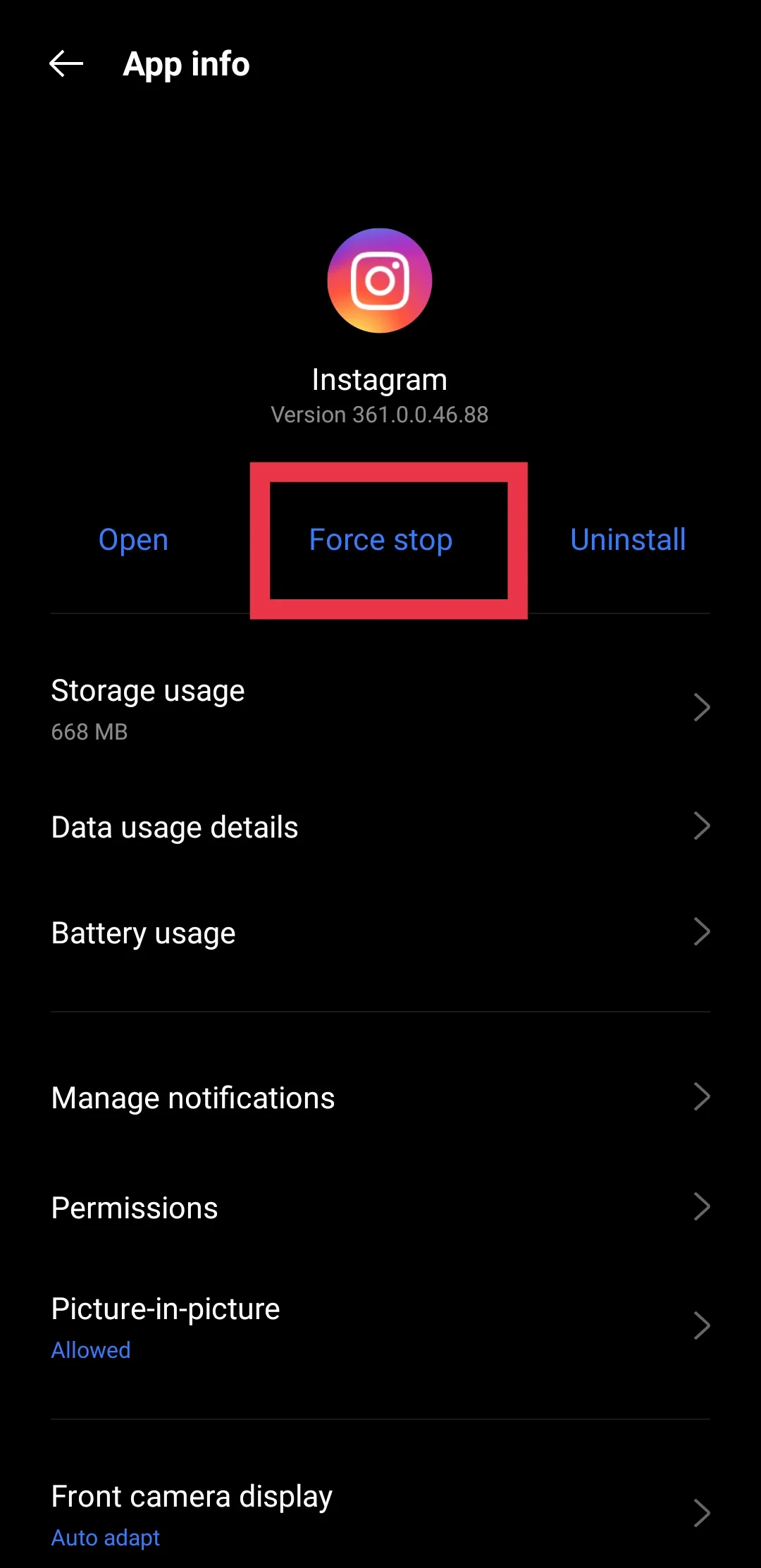
  4. Tap on Force Stop to close the app completely from running in the background. Force Stop Instagram App
  5. Reopen Instagram and try making a video call again.
Clear Instagram Cache

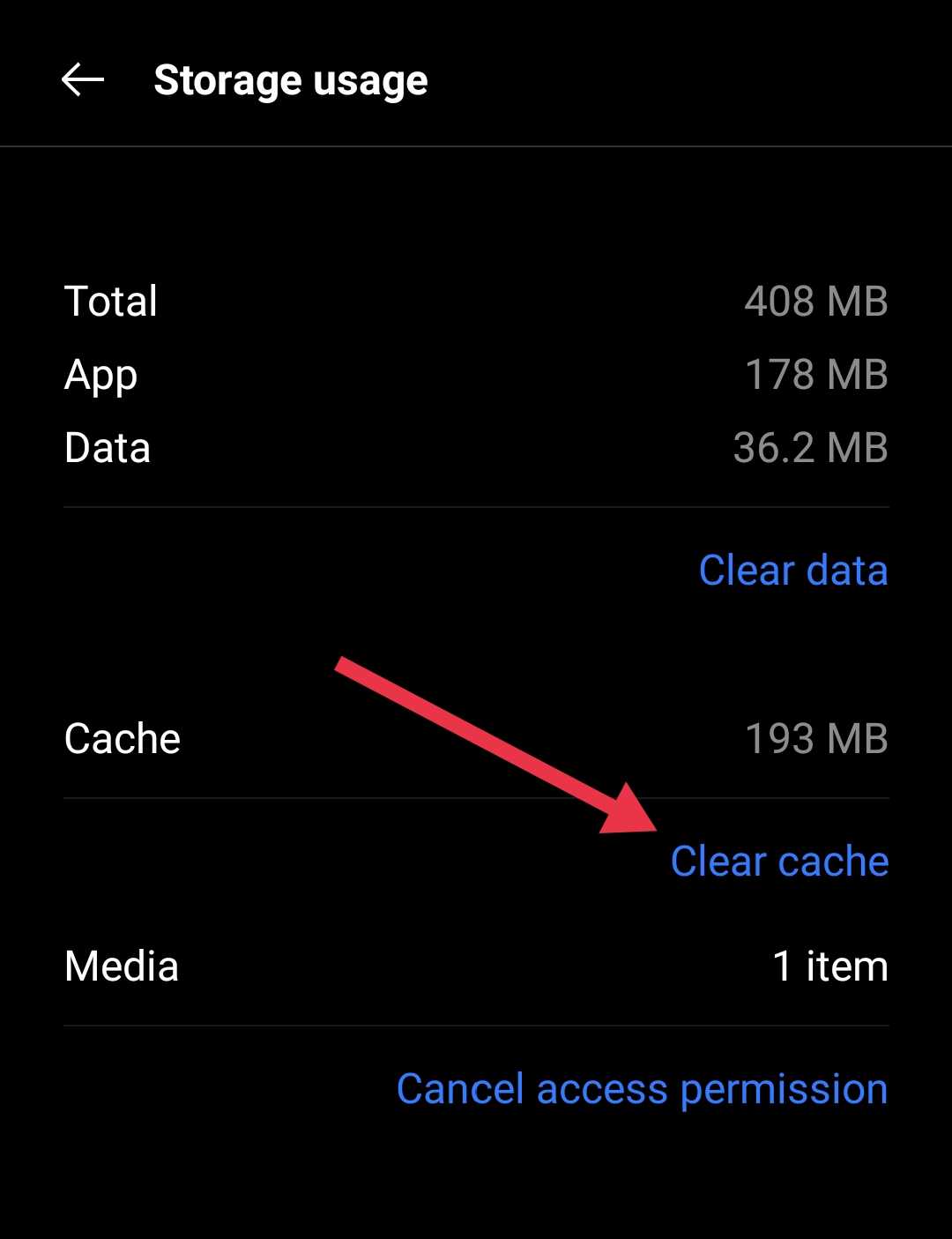
Many users found that clearing the cache can often fix problems like stopping Instagram from turning off the camera during a video call. Clearing the cache the app doesn’t delete any of your posts or messages, but it removes temporary files that can sometimes cause the app to misbehave.

To do this, just head to your phone’s settings, find Instagram in the apps section, and clear its cache.Clear cache on Android
Enable Picture-in-Picture

We’ve found that enabling Picture-in-Picture (PiP) mode can solve the “Call continuing with camera off” issue. PiP allows Instagram video calls to continue in a small window, even when we switch to another app or go to the home screen. 

To enable PiP, go to Settings on your phone, tap on Instagram under Apps, and tap on Picture-in-Picture. Make sure the feature is turned on for Instagram app. Enable Picture-in-picture Instagram
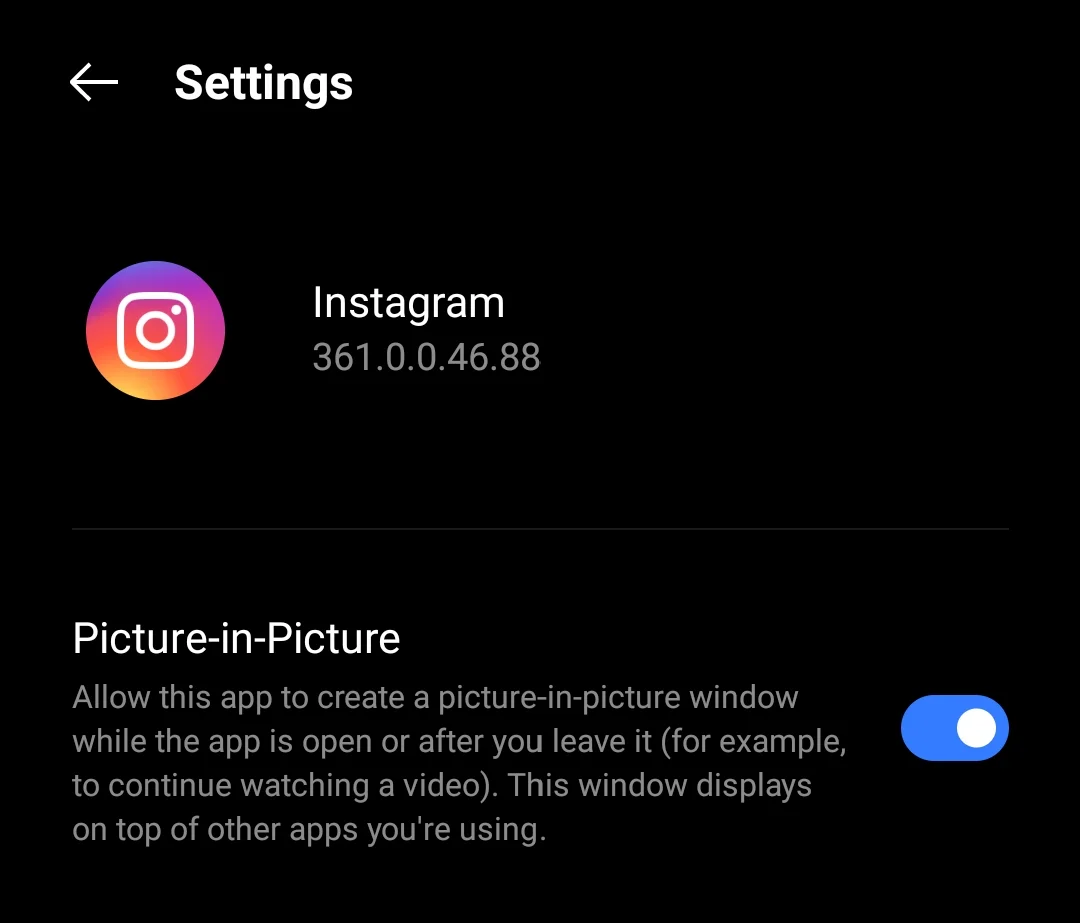
After that, you can switch to other apps without losing the video feed, as the call will continue in a smaller window.

  • RELATED:  How to Delete Instagram Call History Permanently (3 Ways)

We hope this guide has been helpful in troubleshooting the “Call continuing with camera off” issue on Instagram. We’ve shared several methods that have worked for many users. If none of these fixes work for you, try clearing the app data and logging in again, or update Instagram from the Play Store to see if that helps.


Tags: Instagram
ShareTweetSendPinPinShareShareSend
Lokesh Naik

Lokesh Naik

Lokesh Naik is an avid blogger and internet freak who is behind this blog. A tech enthusiast and fan of smartphones who keeps track of every little happening in the smartphone world. When not writing, he loves watching cricket.

Related Posts

Guide showing how to fix the Instagram Failed to Load Earlier Messages error on Android, iPhone, and the web version

How to Fix “Failed to Load Earlier Messages” on Instagram

July 23, 2026
Guide showing how to fix the Instagram Incorrect Password problem on iPhone and Android

How to Fix Instagram Incorrect Password Error on iPhone & Android

July 8, 2026
Easy and quick guide on fixing Instagram Story "Waiting for Connection" error

How to Fix Instagram Story “Waiting for Connection”

June 16, 2026
Guide showing all troubleshooting methods to fix Instagram search bar not working issue

How to Fix Instagram Search Bar Not Working on Android & iPhone

June 10, 2026

Recent Posts

Guide showing how to fix Xbox error code 0x87E107DF on Xbox One and Xbox Series X|S consoles

How to Fix Xbox Error Code 0x87e107df (7 Easy Fixes)

July 27, 2026
Guide showing how to fix the Instagram Failed to Load Earlier Messages error on Android, iPhone, and the web version

How to Fix “Failed to Load Earlier Messages” on Instagram

July 23, 2026
How to fix Facebook Account Temporarily Unavailable error with working solutions

How to Fix Facebook “Account Temporarily Unavailable” (6 Working Fixes)

July 20, 2026
Complete guide to fix the WhatsApp "Unable to restore your chats from this backup" error on Android and iPhone

How to Fix WhatsApp “Unable to restore your chats from this backup”

July 17, 2026
Featured image for a complete guide on how to fix the Roblox "An Unknown Error Occurred, Please try again" login error

How to Fix Roblox “An unknown error occurred. Please try again”

July 13, 2026
  • Disclaimer
  • Privacy
  • Contact Us
  • About Us
  • eTechShout Team

Copyright © 2026 All Rights Reserved.

No Result
View All Result
  • TECH
  • HOW TO
    • ANDROID
    • iOS
    • WINDOWS
  • TOP LIST
  • ALTERNATIVES
  • REVIEWS
  • COMPARISON

Copyright © 2026 All Rights Reserved.