SPlayer is a simple and handy video player that can play almost any kind of movie or show you throw at it. Many people like using it because it’s light on the system and supports all the major formats without much effort.
Lately, a few users have noticed an issue where SPlayer shows a “Failed” download message while trying to get subtitles or updates. If this has happened to you, too, in the next part, we’ll share some easy steps you can follow to fix it.
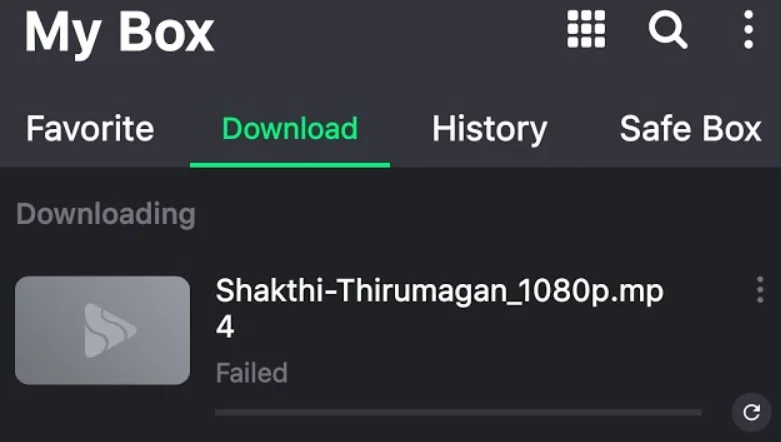
How to Fix SPlayer Download Failed
Check your Internet Speed
Before trying anything else, make sure your internet is actually working. Open YouTube or Google something to see if it loads fast. If the page keeps buffering or won’t open, switch to another Wi-Fi or turn on mobile data for a bit. SPlayer needs a steady connection to pull in subtitles or updates, so even a small network drop can stop the download halfway. Once your internet feels steady, try the download again inside SPlayer.
Update SPlayer to the Latest Version
If your app hasn’t been updated in a while, that could be the reason behind the failed downloads. Updates usually come with bug fixes that quietly solve annoying issues like this one. It only takes a few seconds, and it can save you a lot of time trying to figure out what went wrong.
Head over to the Play Store or App Store on your phone, type “SPlayer,” and search. If you see an update button, tap on it to install the latest version. Once the update finishes, open the app again and check if the download issue is fixed.
Clear Cache and Data (for Android Users)
If you’re using Android, head to your phone settings, select “Apps,” tap on “SPlayer”, and open “Storage.” Tap “Clear Cache” first and then reopen the SPlayer app and check if the downloading is working fine now. 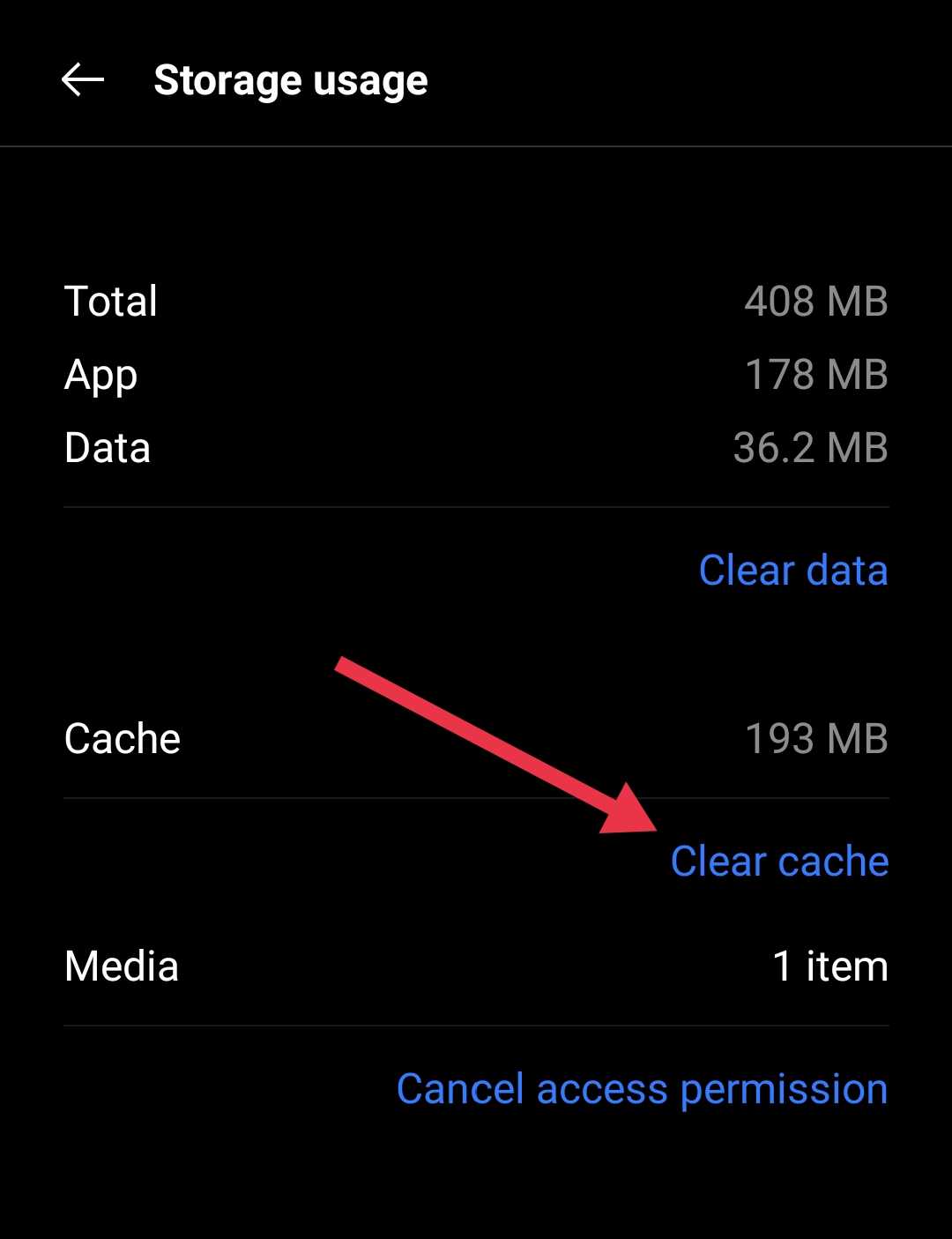
If the problem stays, tap “Clear Data” in the same section of the phone settings. It will reset your settings, but it clears all leftover junk that might be causing the trouble.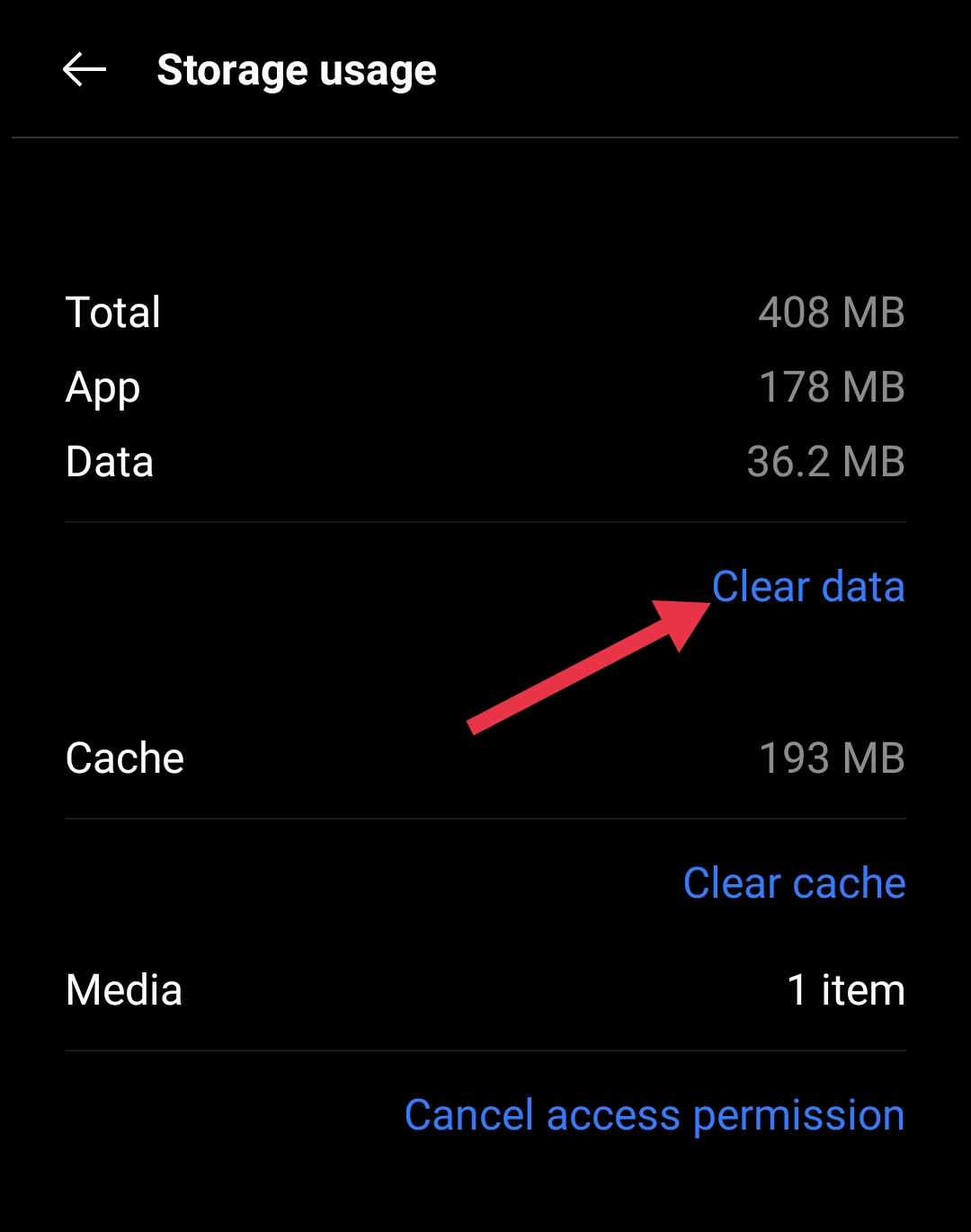
Reinstall the App
If nothing changes after all that, it’s easier to just remove the app and install it again. So, uninstall the SPlayer from your phone, then download the version available from the Play Store or the official site.
After installing, open it, allow the needed permissions, and try your download again. Most of the time, reinstalling fixes the problem completely, and the app feels new again.
ALSO READ: – How to Fix 4K Video Downloader Error Failed to Download Error
Hope this guide helped you fix the SPlayer download failed issue. These simple steps usually sort out the problem for most users, but if you’ve found another way that worked for you, feel free to share it in the comments. It might help someone else facing the same issue. We’d love to hear your thoughts or any extra tips you’ve discovered while using SPlayer. Every small trick makes a difference, so don’t hesitate to drop your experience below.